
How to Fix an Apple TV Remote That Stopped Working
Is your Apple TV remote frozen or unresponsive? Follow this guide to recharge, force restart, re-pair, or use your phone to regain control.
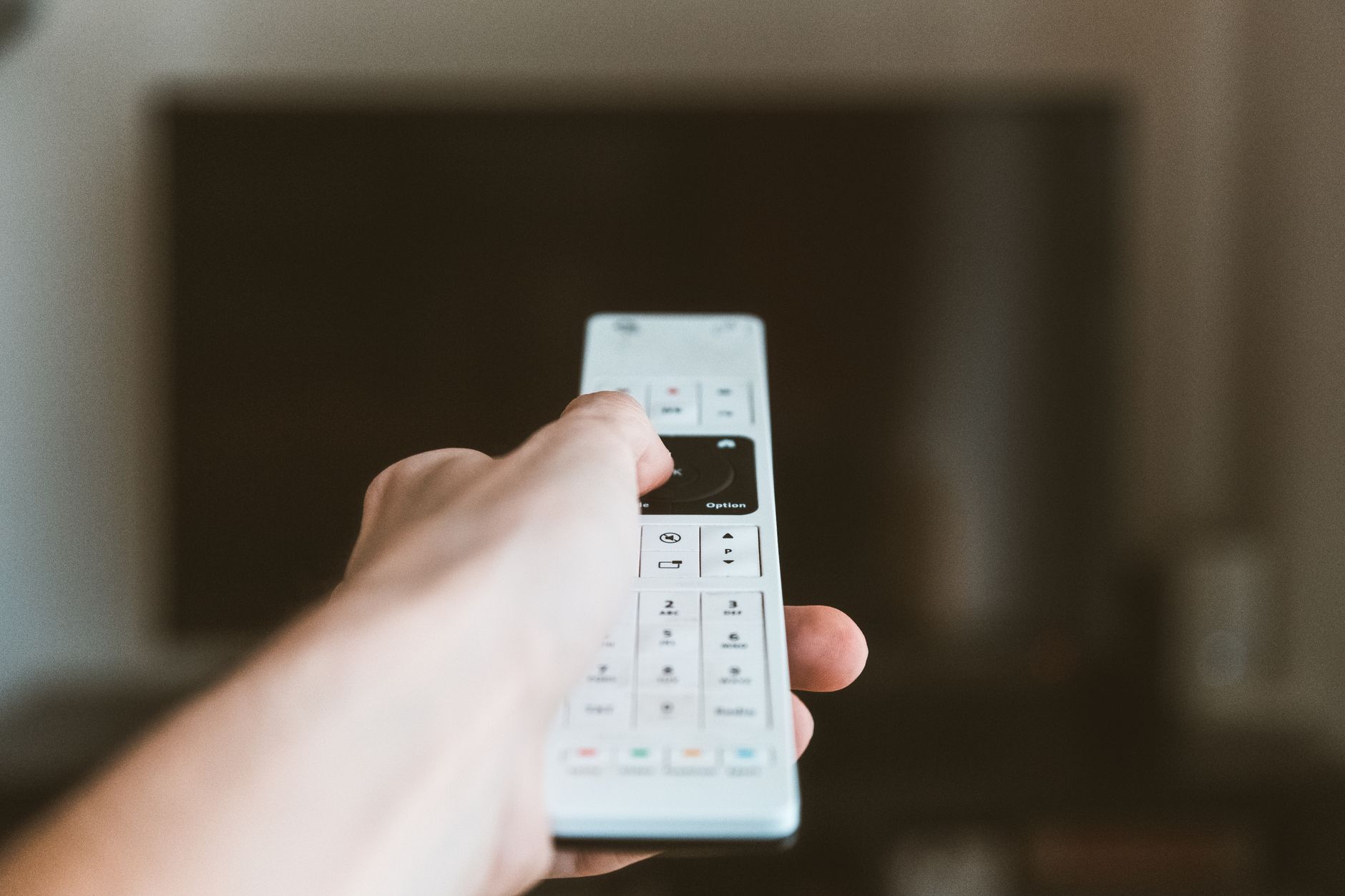
Quick answer To fix Apple TV remote not working issues, first press any remote button and check if the light on the front of your Apple TV blinks. If it does not light up, charge the remote for 15 to 30 minutes. If it still fails to connect, press and hold the TV/Control Center button and Volume Down button simultaneously for 5 seconds to force restart the remote.
When your Apple TV remote stops responding mid-show, it usually stems from a drained battery, a lost wireless link, or a temporary software glitch. Rather than buying a replacement immediately, you can resolve most connection failures with a quick button shortcut or a short charging session.
This step-by-step guide walks you through diagnosing battery issues, restarting the remote's internal hardware, re-establishing Bluetooth pairing, and using your iPhone as a temporary controller so you can watch your favorite shows right away.
Key takeaways
- Force restarting the Siri Remote requires holding TV + Volume Down, while re-pairing requires holding Back/Menu + Volume Up.
- Bringing the remote within 3 inches of the Apple TV box is required during re-pairing.
- Older Siri Remotes use Lightning cables for charging, whereas the latest version uses USB-C.
- You can immediately control your Apple TV using your iPhone or iPad via the built-in Control Center remote interface.
Before You Start
Before jumping into hardware troubleshooting, prepare the following items to speed up the process:
- Time needed: 5 to 15 minutes.
- Charging cable: A Lightning cable for 1st and 2nd generation Siri Remotes, or a USB-C cable for the 3rd generation Siri Remote.
- Line of sight: Clear away any physical obstacles between where you stand and the Apple TV box.
- Backup device: An iPhone or iPad connected to the same Wi-Fi network, or a third-party remote app such as TVRem.
Check the Battery and Charge It Correctly
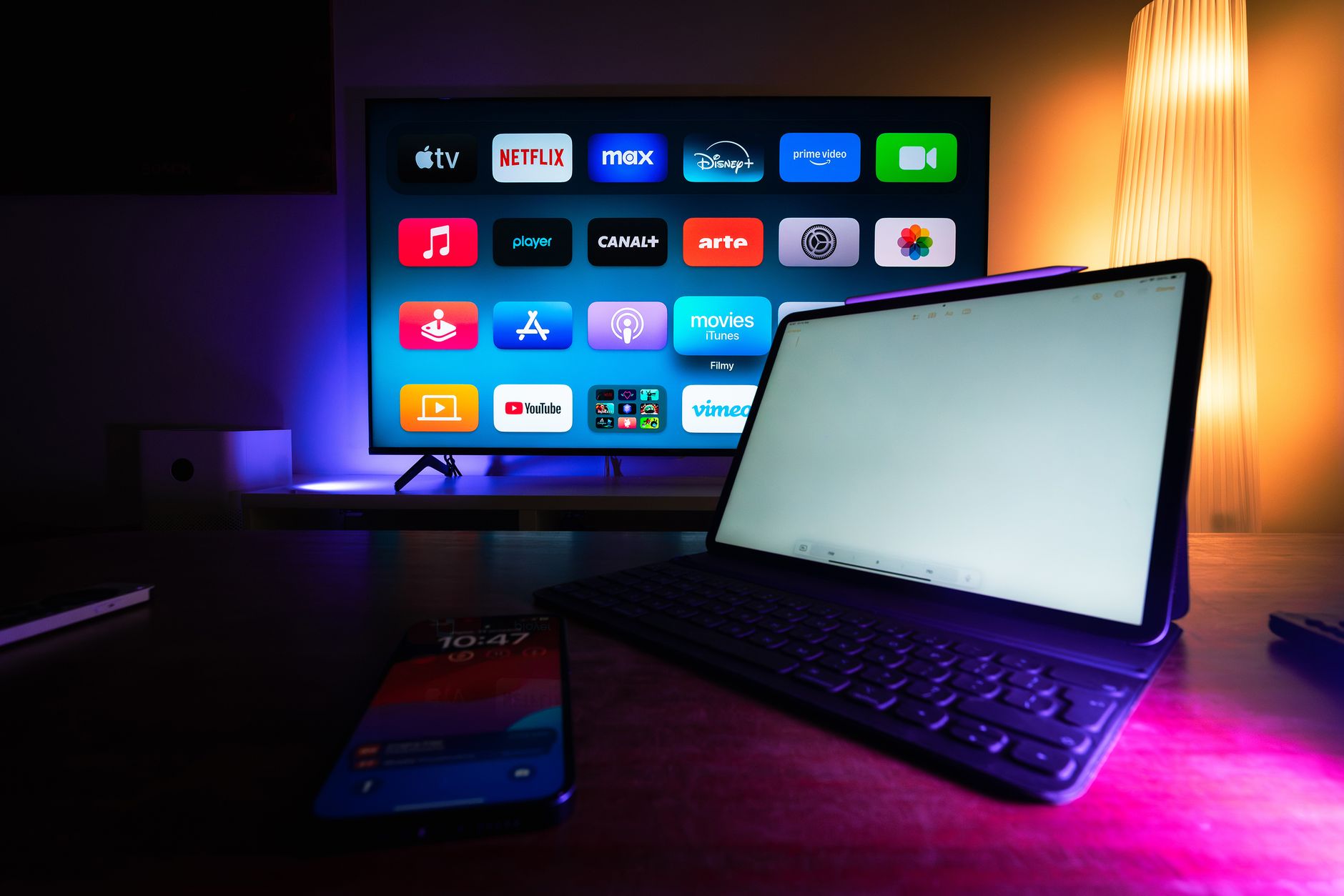
Photo by Jakub Zerdzicki on Pexels
A completely depleted battery is the most common reason a remote stops responding. Unlike standard infrared remotes, the Siri Remote relies on a continuous Bluetooth connection that drops instantly when power dips too low.
1. Perform the Signal Test
Press any button on your remote while watching the front panel of your Apple TV box. If the status light on the box blinks, your remote is sending a signal. If the light remains dark, the remote's battery is either dead or its Bluetooth pairing has dropped entirely.
2. Charge the Remote
Plug your remote into a power source for at least 15 to 30 minutes before proceeding with advanced steps. Hardware generations use different ports:
- Siri Remote (3rd Gen): Plug a USB-C cable into the bottom port.
- Siri Remote (1st and 2nd Gen): Plug a Lightning cable into the bottom port.
If you are unsure about cable speeds or power delivery options, you can read our guide on USB-C cables explained.
3. Verify Battery Percentage on Screen
Once your remote is reconnected and working, verify its charge level so you aren't caught off guard again. On your Apple TV, go to Settings > Remotes and Devices > Remote to view the exact remaining battery percentage.
How to Force Restart Your Siri Remote
If charging the remote does not restore functionality, the remote's internal micro-controller may have frozen. Restarting the remote clears its temporary memory without removing your saved settings on the Apple TV.
Tip: Pay close attention to the volume button you press. Pressing Volume Down restarts the remote, whereas pressing Volume Up triggers pairing mode.
- Press and hold the TV/Control Center button (the screen icon) and the Volume Down (-) button simultaneously.
- Keep holding both buttons for approximately 5 seconds until the status light on your Apple TV box turns off and then turns back on.
- Release both buttons and wait 5 to 10 seconds. A Remote Connected notification will appear in the top-right corner of your TV screen.
- Press the Select clickpad or Back button to test responsiveness.
How to Re-Pair Your Siri Remote to Apple TV
If a force restart fails to re-establish a link, your remote may have lost its association with the receiver box. You must bring the controller near the Apple TV to rebuild the Bluetooth bond.
- Move physically close to the streaming box, keeping the remote within 3 inches of (or directly on top of) the Apple TV.
- Press and hold the Back button (or the Menu button on 1st-gen Siri remotes) and the Volume Up (+) button simultaneously for 5 seconds.
- If prompted on the TV screen, place the remote directly on top of the Apple TV unit to complete the link.
- When pairing succeeds, an on-screen message will confirm that the remote is ready to use.
Re-Pairing Legacy Aluminum or Plastic Remotes
If you use an older legacy Apple TV remote (aluminum or plastic) that relies on Infrared (IR) signals instead of Bluetooth:
- Unpair: Point the remote at the box and hold Menu + Left for 6 seconds.
- Pair: Point the remote at the box and hold Menu + Right for 6 seconds. Ensure no physical objects block the line of sight between the IR sensor and the box.
Restart Your Apple TV Without the Remote
Sometimes the issue lies within the streaming box operating system rather than the remote controller. You can reboot your Apple TV box even if your physical remote is completely unresponsive.
Method 1: Unplug Power (Physical Reset)
The simplest way to restart an Apple TV without a working remote is a full power cycle.
- Disconnect the power cord from the back of the Apple TV or directly from the wall outlet.
- Wait at least 6 to 10 seconds to allow the internal capacitors to discharge fully.
- Plug the power cord back in and wait for the main home screen to load.
Warning: Always wait the full 10 seconds before plugging the power cord back in. Rapidly pulling and re-inserting the power cable can prevent the hardware from initiating a true power cycle.
Method 2: Software Restart via Phone App
If you have connected your mobile device using the Control Center Remote interface, navigate to Settings > System > Restart to safely reboot the operating system.
Use Your iPhone or iPad as an Apple TV Remote
You do not need to pause your movie while your remote charges. Apple embeds a remote control directly into iOS and iPadOS.
- Open Control Center on your iPhone or iPad (swipe down from the top-right corner on modern devices).
- Tap the Apple TV Remote icon (it looks like a small remote control).
- Select your Apple TV from the top drop-menu.
- Enter the four-digit passcode displayed on your TV screen if prompted.
From this digital interface, you can navigate menus, adjust volume, entering search text using your phone's keyboard, and perform multi-tasking actions. If an app freezes, double-press the TV button icon on your screen to open the app switcher, swipe to the problematic app, and swipe up to force close it. You can also review our guide on how to stop apps from tracking you on iPhone to protect your privacy across streaming apps.
Common Mistakes
- Confusing the Volume Buttons: Holding Volume Up instead of Volume Down when trying to restart the remote will put it into pairing mode rather than rebooting it.
- Distance during Pairing: Trying to pair the Siri Remote from across the room. Re-pairing requires holding the remote within 3 inches of the Apple TV box.
- Ignoring Line-of-Sight Obstructions: Placing the Apple TV inside closed wooden or glass cabinets can severely limit IR range for legacy remotes and degrade Bluetooth signal strength.
- Unplugging Too Quickly: Plugging the Apple TV back into power after only 1 or 2 seconds, which prevents a clean hardware reboot.
When to Replace Your Siri Remote
If you have charged your remote for 30 minutes, force restarted it, power cycled the Apple TV, and attempted re-pairing within 3 inches without seeing a single light blink or screen prompt, the remote has suffered internal hardware failure.
Pros of replacing just the remote
- Saves money compared to buying a complete Apple TV system.
- 3rd generation Siri Remotes (USB-C) work seamlessly with older Apple TV 4K models.
- Restores precise touch and clickpad directional navigation.
Cons of replacing just the remote
- Standalone Siri Remotes can be expensive relative to total streaming box cost.
- Requires waiting for delivery or visiting a retail store.
If It Still Doesn't Work
When both the physical remote and phone apps fail to communicate with your streaming box, try these additional troubleshooting options:
- Check Wi-Fi Network Integrity: Ensure your phone and Apple TV are on the exact same network subnet. If your wireless network drops frequently, see our troubleshooting guide on how to fix a smart TV that keeps losing Wi-Fi.
- Try a Third-Party Application: Download an alternative iOS control app like TVRem to bypass Control Center bugs.
- Hardware Service: Contact Apple Support or visit an authorized service location if the status light on your Apple TV streaming box remains completely dark after plugging it into known-working wall outlets.
Bottom line Most unresponsive Apple TV remotes simply suffer from a dead battery or temporary signal drop. Recharge the device for 30 minutes and execute a force restart (TV button + Volume Down) before spending money on a replacement remote. If you need immediate control, use the built-in iOS Control Center remote interface on your iPhone or iPad.
FAQ
Why is my Apple TV remote blinking white and not working?
A continuous or flashing white light on your Apple TV box or remote usually indicates that the remote is attempting to establish a Bluetooth pairing connection. Move the remote within 3 inches of the box and hold the Back (or Menu) button and Volume Up button for 5 seconds to complete pairing.
How do I force restart my Siri Remote?
Press and hold the TV/Control Center button and the Volume Down (-) button simultaneously for 5 seconds until the status light on your Apple TV box turns off and turns back on. Release the buttons and wait 10 seconds for the connection message to appear.
Can I control my Apple TV if the remote is completely dead?
Yes. You can use the built-in Apple TV Remote feature inside the Control Center on any iPhone or iPad connected to the same Wi-Fi network. Alternatively, you can download third-party iOS remote applications such as TVRem.
How do I re-pair my Apple TV remote to a different box?
Bring the remote within 3 inches of the new Apple TV box. Press and hold the Back button (or Menu button) and the Volume Up (+) button together for 5 seconds. Place the remote on top of the box if an on-screen prompt appears to finalize the assignment.
How do I know if my Siri Remote needs to be replaced?
Your remote needs to be replaced if it fails to show a status light blink on the Apple TV after charging for 30 minutes, does not respond to force restarts, and cannot enter pairing mode when held directly next to the streaming unit.
Sources
Facts in this article were checked against these pages on October 9, 2026:
- Apple TV Remote Not Working? Easy Reset & Test (Gen 3 Fix) (youtube.com)
- How to Troubleshoot Your Apple TV When It Isn't Working (businessinsider.com)
- How to Reset an Apple TV Remote (itarian.com)
- If your Siri Remote or Apple TV Remote isn't working - Apple Support (support.apple.com)
- What to Do When Your Apple TV Remote Stops Working | PCMag (pcmag.com)
- Apple TV Remote Suddenly Stopped Working : r/appletv (reddit.com)
How we researched this: this guide is based on current manufacturer information and reputable sources, listed in the Sources section above, and is updated when things change. Read our editorial policy.
Content Writter

Comments
No comments yet — be the first to share your thoughts.