
How to Fix an Apple Watch Digital Crown That Is Stuck or Not Responding
Is your Apple Watch Digital Crown sticky, jammed, or refusing to scroll? Learn how to safely clean it with warm water and fix watchOS software hangs.

Quick answer To fix a stuck or sticky Digital Crown, remove any protective case and leather bands, turn off the watch, and run the crown under lightly running warm tap water for 10 to 15 seconds while continuously rotating and pressing it. If the crown spins freely but the screen does not scroll, perform a force restart by holding the Side Button and Digital Crown together for 10 seconds until the Apple logo appears.
A non-responsive Digital Crown can bring your Apple Watch to an immediate halt. Whether you own a standard Apple Watch or an Apple Watch Ultra, this small dial handles essential tasks like scrolling lists, zooming maps, adjusting volume, and returning to your watch face. When it becomes hard to turn or stops responding to your touches, everyday navigation becomes frustrating.
Hardware obstruction and software hangs are the two main reasons a dial fails. External debris like dried sweat, ocean salt, sunblock, or lotion often settles into the narrow crevice around the stem. At the same time, shifting protective accessories can apply unwanted side pressure. This guide breaks down how to identify the exact cause and safely restore full function to your device.
Key takeaways
- Physical resistance indicates dried debris, sunscreen, or case pressure, whereas a dial that spins freely without changing the screen points to a software hang.
- Always remove third-party full-body protective cases and leather bands before attempting hardware cleanings.
- Clean a jammed dial by rinsing it under warm, fresh tap water for 10 to 15 seconds while pressing and rotating the crown.
- Never insert metal tools, toothpicks, or rubbing alcohol into the gap around the Digital Crown.
- Force restart the device by holding both the Side Button and Digital Crown for 10 seconds if the screen stops scrolling.
Symptom Check: Is It a Physical Jam or Software Glitch?
Before jumping straight into cleaning methods or system resets, you need to diagnose what kind of issue your Apple Watch is experiencing. Misdiagnosing the problem can lead to unnecessary troubleshooting steps or applying water to a purely software-based glitch.
Check the list below to match your watch's symptoms with the correct root cause:
- Stiff, sticky, or grinding turn: Physical obstruction. Microscopic particles of sand, salt deposits, or hardened skin products are caught in the rotary mechanism.
- Complete physical immobilization: Physical jam or accessory interference. The crown cannot be depressed or turned at all. This often happens when full-body protective cases shift out of alignment and wedge against the side of the dial.
- Rotates freely, but nothing moves on screen: Software freeze. The hardware mechanism is mechanically fine, but watchOS has stopped processing input events.
- Intermittent scrolling or jumping: Software glitch or partial obstruction. Debris may be blocking the internal optical sensor, or watchOS requires a system refresh.
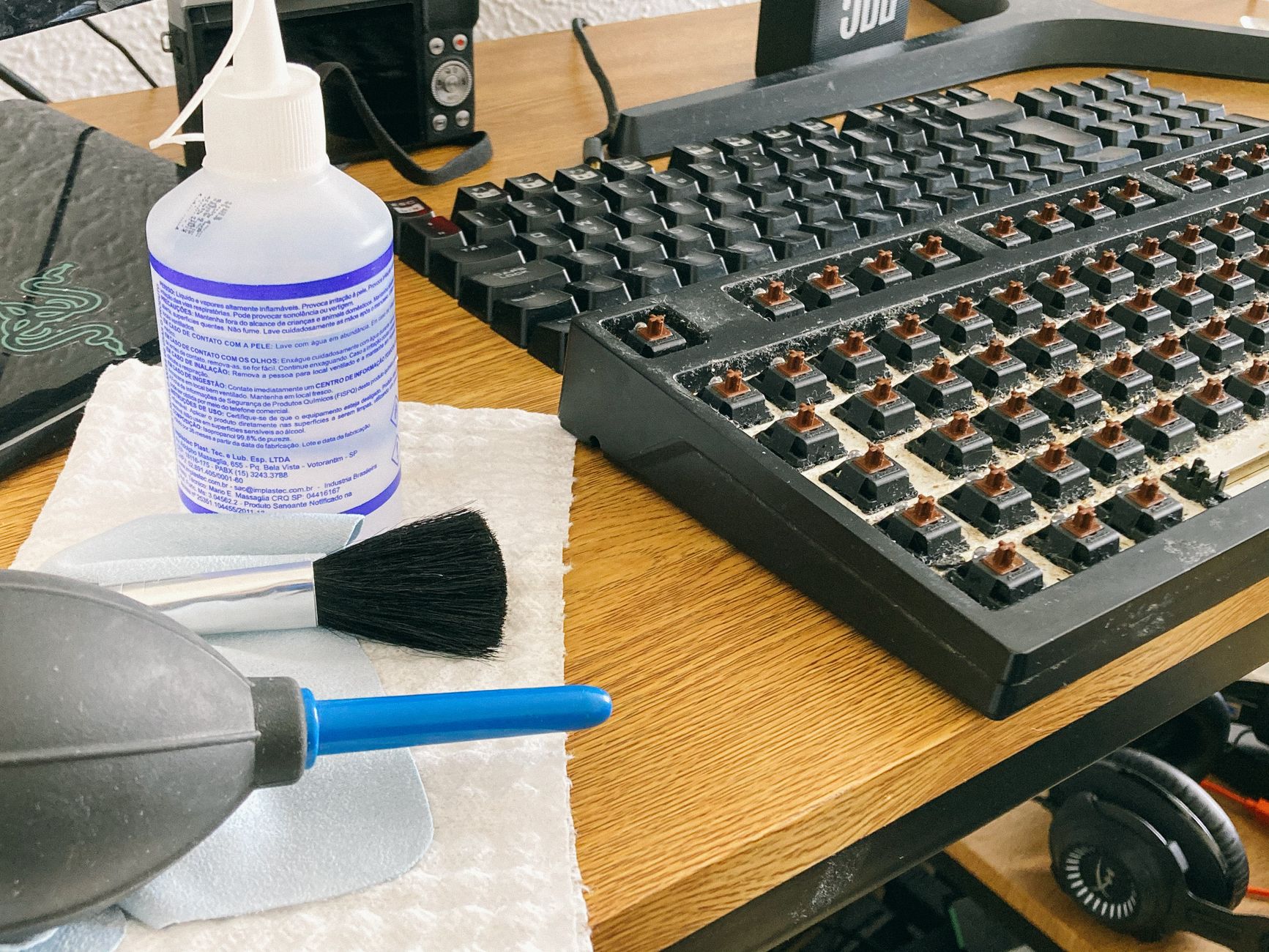
If you suspect a hardware issue on other gadgets, you might also find our guide on troubleshooting sticky hardware buttons helpful for understanding how dust affects tactile switches.
Step 1: Clean the Digital Crown with Warm Water
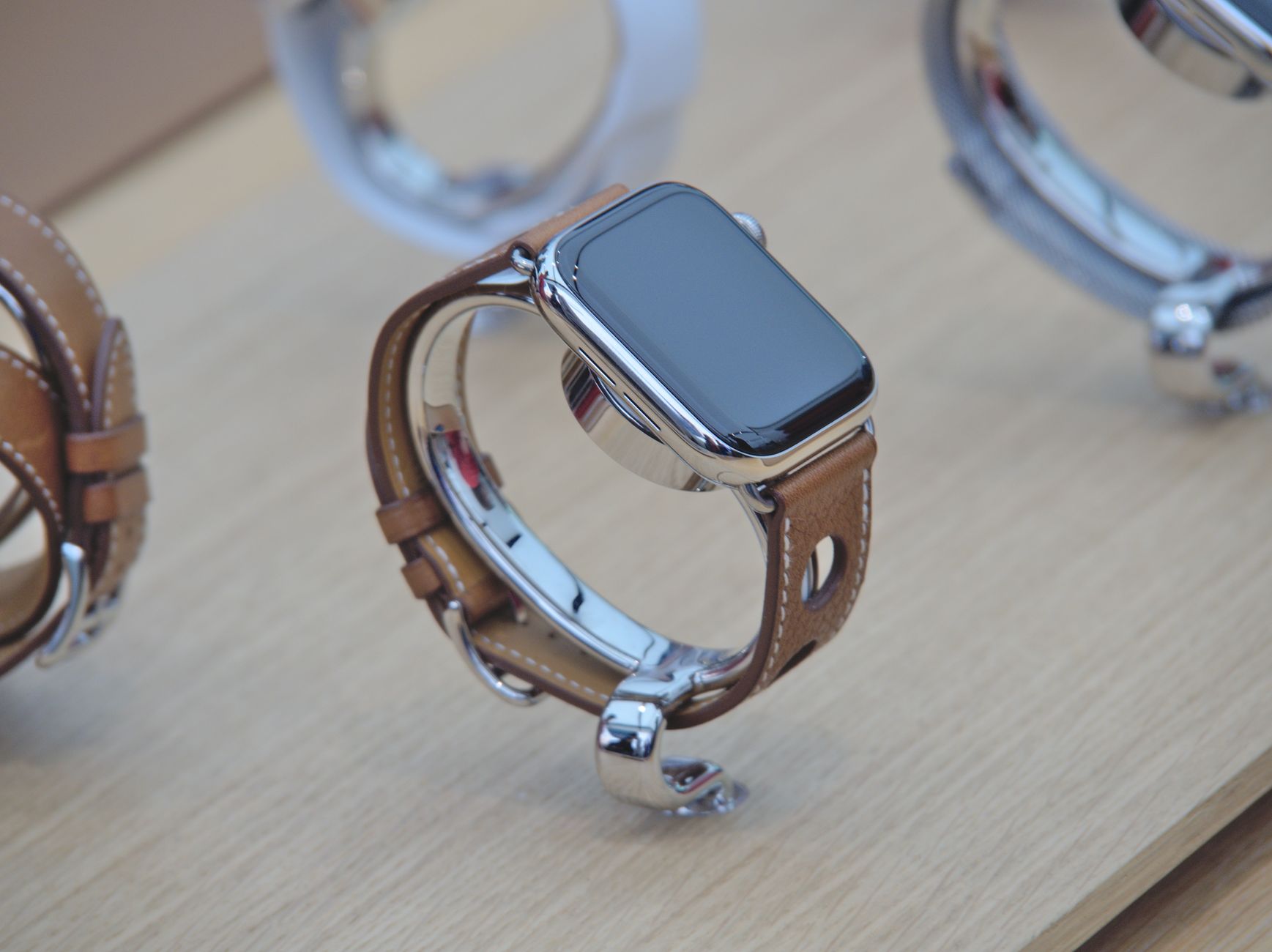
Photo by Najman Husaini on Pexels
If your Digital Crown feels gummy, rough, or locked in place, physical debris is the primary suspect. Sunscreen, body lotion, and dried salt from sweat or seawater frequently settle around the internal shaft. Apple recommends a specific fresh-water flushing technique to dislodge trapped residue without breaking the water-resistant seals.
Warning: Remove all leather or fabric bands before using water, as moisture can warp or stain these materials. Turn off your Apple Watch completely before proceeding. Do not use soaps, cleaning liquids, harsh detergents, or compressed air.
- Remove cases and bands: Take off any full-body bumper case, hard shell, or screen protector. Take off leather or woven fabric straps, leaving only the bare watch body (or silicon/metal bands rated for water exposure).
- Perform a dry press-and-spin: Before using water, firmly press the Digital Crown inward and rapidly spin it back and forth several times. This manual friction can break apart brittle salt crystals or dried lotion.
- Rinse under warm water: Hold the Apple Watch under a lightly running stream of warm, fresh tap water for 10 to 15 seconds. Do not use scalding water; comfortable bath-temperature water works best.
- Rotate and press continuously: While holding the dial under the running water, continuously spin the crown and press it inward repeatedly. The water flow combined with continuous movement will flush out dissolved gunk from the tiny gap between the crown and the watch case.
- Dry thoroughly: Wipe down the entire watch using a clean, non-abrasive, lint-free microfiber cloth. Pay special attention to the surface surrounding the Digital Crown, pressing the cloth into the edge to absorb excess moisture.
Step 2: Restart or Force Restart Your Apple Watch
If the Digital Crown turns smoothly and clicks inward with crisp tactile feedback, but your watch face or menus fail to react, the hardware is operating normally. In this scenario, the issue stems from an unresponsive system process within watchOS.
A standard power cycle or force restart reinitializes the input drivers responsible for detecting crown rotations.
How to Perform a Standard Restart
- Press and hold the Side Button (the flat rectangular button below the Digital Crown) until the power icon appears in the upper right corner of the display.
- Tap the power icon, then slide the Power Off slider to shut down the device.
- Wait 30 seconds for the screen to go completely dark.
- Press and hold the Side Button again until the central Apple logo lights up on the screen.
How to Perform a Force Restart
If the touch display is frozen or the power menu will not trigger, you must force a hard system reboot. This clears temporary system memory without deleting personal data.
- Press and hold both the Side Button and the Digital Crown simultaneously.
- Keep holding both controls down for at least 10 seconds.
- Release both buttons immediately when the Apple logo appears on the display.
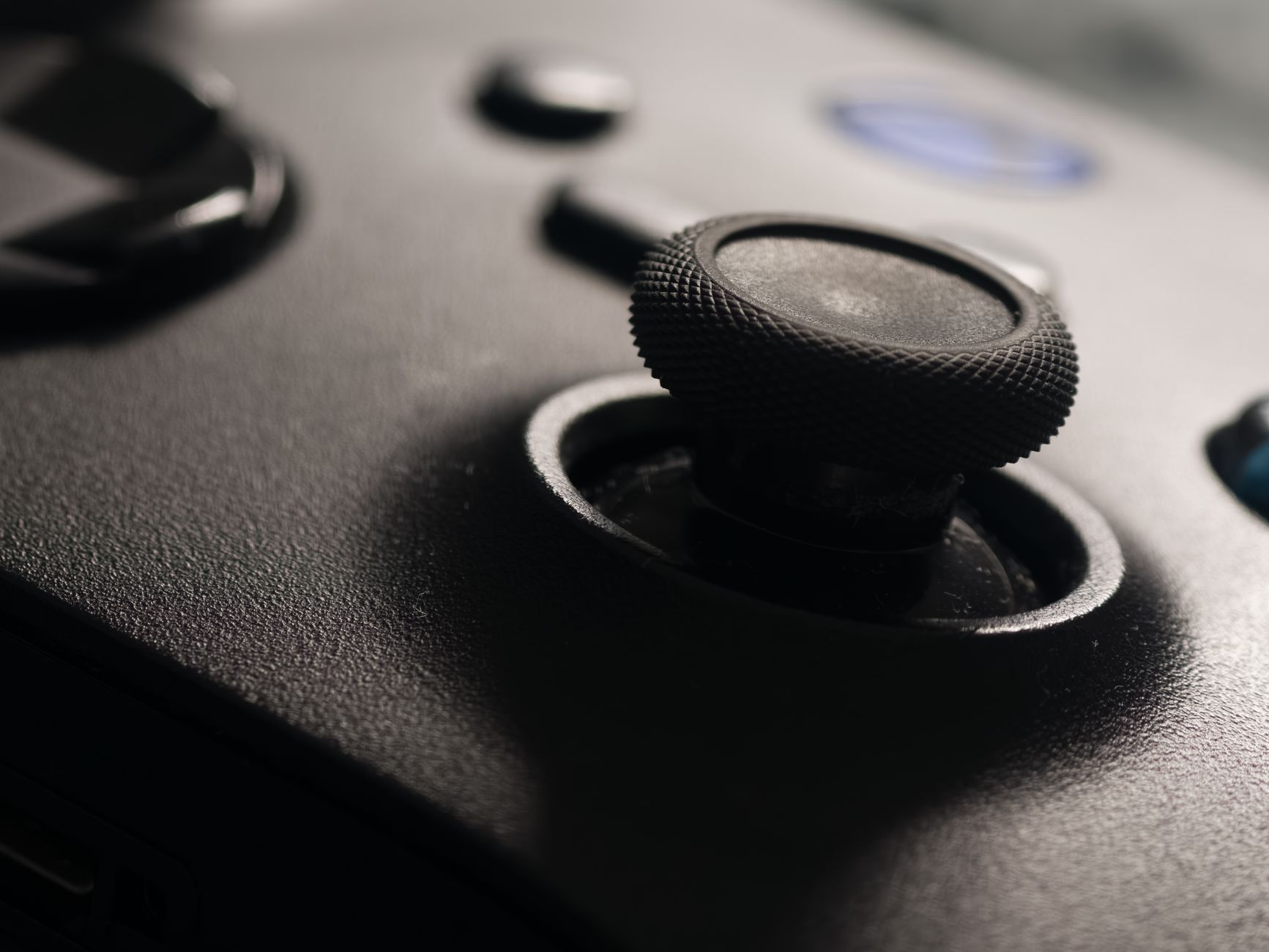
If you encounter unexpected system behavior on other Apple mobile devices during daily use, take a look at our steps for resolving Apple Pay responsiveness on iPhone.
Step 3: Check Accessibility Settings and Crown Orientation
Sometimes what appears to be a broken dial is actually a misconfigured software setting. If your crown seems to scroll in the wrong direction or fails to perform expected shortcuts, double-check your orientation and accessibility parameters.
If your screen orientation setting was inadvertently flipped (for instance, if you wear the watch with the crown facing your arm instead of your elbow), up-and-down inputs will register in reverse. Open the Watch app on your paired iPhone, navigate to My Watch > General > Watch Orientation, and confirm that the Crown position matches the physical wrist and side you actually use.
Additionally, check whether accessibility features like AssistiveTouch or Zoom are altering how single presses and double clicks function. Disabling and re-enabling these features can clear up input confusion across watchOS.
Step 4: Unpair and Re-Pair Your Apple Watch
Persistent software hangs that survive a force restart may indicate corrupted system configuration files. Unpairing your Apple Watch from your iPhone creates an automated backup, wipes the watch hardware clean, and restores factory watchOS files during the re-pairing process.
- Keep your iPhone and Apple Watch close together.
- Open the Watch app on your iPhone and select the My Watch tab.
- Tap All Watches at the top left corner, then tap the info icon (i) next to your watch.
- Tap Unpair Apple Watch. For cellular models, choose to keep your cellular plan.
- Enter your Apple ID password to turn off Activation Lock.
- Once the unpairing process completes and the watch displays the initial welcome screen, bring it near your iPhone to set it up again. Choose Restore from Backup during setup.
Common Mistakes When Fixing a Stuck Digital Crown
When dealing with a jammed dial, using improper tools or cleaning techniques can turn a simple fix into permanent hardware damage. Avoid these widespread mistakes:
- Prying with mechanical tools: Never insert toothpicks, metal needles, SIM ejector tools, or flathead screwdrivers into the gap under the crown. Prying can bend the delicate internal stem or puncture surrounding water seals.
- Applying rubbing alcohol or solvents: Pouring isopropyl alcohol or chemical cleaning sprays over the watch can break down internal adhesive layers and degrade the water-resistant gaskets over time.
- Leaving leather bands attached: Exposing genuine leather or suede straps to running water will cause permanent discoloration, cracking, and stiffening.
- Using soaps or detergents: Dish soap, hand soap, and body washes leave behind sticky film residues that aggravate hardware binding once dry.
- Ignoring third-party protective cases: Adding full-body protective bumpers can apply uneven lateral pressure. Always test the crown with all aftermarket cases removed.
When to Contact Apple Support for Hardware Repair
If you have flushed the dial under warm water, removed all aftermarket cases, and performed a complete unpair and restore cycle without success, the issue is likely internal hardware failure. The optical rotation sensor may have failed, or the mechanical click switch beneath the housing could be physically damaged.
Set up an official service request through Apple Support or visit an Authorized Apple Service Provider. Avoid unauthorized repair shops that lack specialized water-resistance re-sealing equipment, as improper assembly will permanently ruin the water resistance of your Apple Watch or Apple Watch Ultra.
Bottom line Most stuck Apple Watch Digital Crown issues are caused by dried sweat, sunscreen, or tight protective cases, and can be resolved in under two minutes using warm tap water while rotating the dial. If your crown spins freely without physical grit but the display doesn't scroll, perform a 10-second force restart to fix watchOS software freezes.
FAQ
Can I use alcohol to clean a sticky Apple Watch crown?
No, you should not use isopropyl alcohol, solvents, or harsh cleaning chemicals around the Digital Crown. Alcohol can degrade the internal rubber seals and adhesive barriers that protect your watch from water intrusion. Stick exclusively to fresh, warm tap water and a lint-free microfiber cloth.
Why is my Apple Watch crown scrolling backwards?
If scrolling the Digital Crown moves lists in the opposite direction than expected, your orientation settings are likely reversed. Open the Watch app on your iPhone, go to General > Watch Orientation, and ensure that the chosen wrist and Digital Crown placement match how you physically wear the device.
How much does it cost to repair a broken Digital Crown?
Hardware repair costs vary depending on whether your device is covered under AppleCare+ or standard warranty. Out-of-warranty repairs often require a general hardware service fee, which depends on your specific Apple Watch model and generation.
Will running water damage my Apple Watch while cleaning it?
No, as long as you use warm, fresh tap water without soaps or detergents, running water will not harm your watch. Apple Watch models feature built-in water resistance designed to handle warm water rinses. Be sure to remove leather or fabric bands beforehand.
Why does my Digital Crown turn but nothing happens on screen?
When the dial rotates smoothly without physical resistance but fails to scroll menus, watchOS has suffered an input software freeze. Perform a force restart by holding down the Side Button and Digital Crown together for 10 seconds until the Apple logo appears to clear the system freeze.
Sources
Facts in this article were checked against these pages on November 20, 2026:
- Apple Watch Digital Crown Stuck? | Easy Fixes & Repair Tips (milaaj.ae)
- If the Digital Crown isn't working on your Apple Watch - Apple Support (support.apple.com)
- Apple Watch Crown: Turning Very Stiff or … (discussions.apple.com)
- STUCK DIGITAL CROWN? Quick fix for the Apple Watch! (youtube.com)
- Is your Apple Watch Digital Crown not responding, hard to turn, or ... (facebook.com)
- Fixing a Stuck Apple Watch Crown: Quick Tips & Chat - JustAnswer (justanswer.com)
How we researched this: this guide is based on current manufacturer information and reputable sources, listed in the Sources section above, and is updated when things change. Read our editorial policy.
Content Writter


Comments
No comments yet — be the first to share your thoughts.