
How to Fix a Laptop That Won't Connect to Wi-Fi
Stuck offline? Follow this step-by-step guide to fix your laptop Wi-Fi issues on Windows and Mac.

Quick answer To fix a laptop that won't connect to Wi-Fi, run the built-in network troubleshooter, restart your router and modem, forget and reconnect to your network, or reset your network settings completely.
Few things are as frustrating as a laptop that refuses to connect to the internet. Whether you rely on your computer for work, school, or daily browsing, a sudden drop in connectivity halts everything.
You do not need to be a computer expert to fix this problem. Most connection issues come from temporary software glitches, router errors, or outdated drivers that you can solve in a few minutes.
Key takeaways
- Start with basic checks like Airplane Mode and physical switches.
- Use built-in diagnostic tools on Windows and macOS.
- Power cycle your modem and router to clear network blocks.
- Reset network settings or reinstall drivers if basic steps fail.
Before You Start
Before you dive into complex fixes, make sure you have the right setup ready. You will need direct access to your laptop, your Wi-Fi network password, and about ten to fifteen minutes of uninterrupted time.
If you are working on a Windows laptop, make sure your operating system is updated to Windows 10 or Windows 11. Mac users should be running a recent version of macOS with access to Wireless Diagnostics.
Run the Built-in Network Troubleshooter
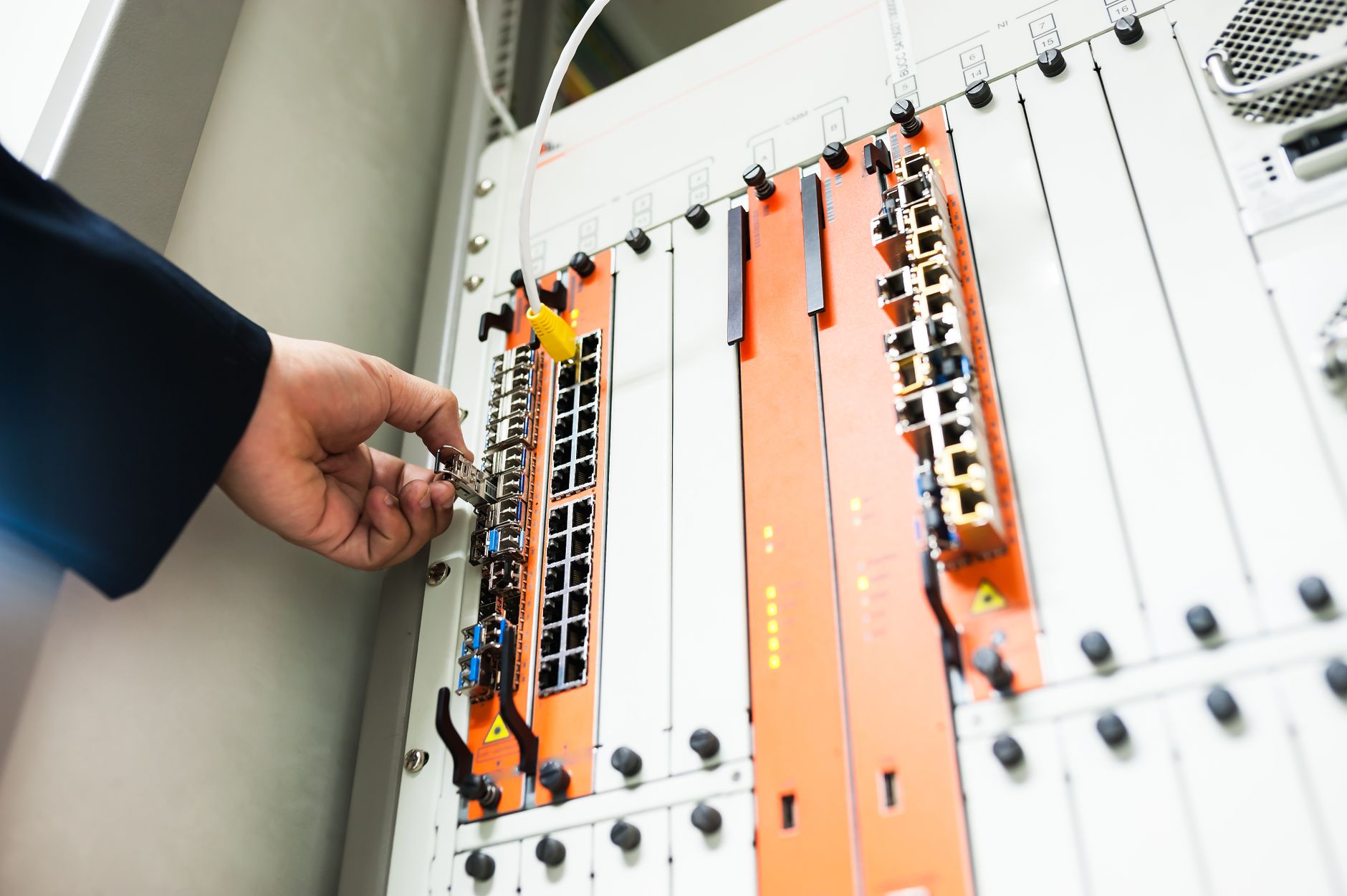
Photo by panumas nikhomkhai on Pexels
Your operating system includes automated tools designed to find and fix network faults. These tools check your adapter status, IP address configuration, and gateway connections automatically.
On Windows 11, right-click the Wi-Fi icon on your taskbar and select Diagnose network problems. You can also open Settings > System > Troubleshooters > Other troubleshooters > Network and Internet and click Run.
On Windows 10, navigate to Settings > Network & Internet > Status > Network troubleshooter. Mac users can open Wireless Diagnostics by holding the Option key and clicking the Wi-Fi icon in the menu bar, then selecting Open Wireless Diagnostics.
Restart Your Router and Modem
Sometimes the issue is not your laptop at all, but your home network hardware. Routers and modems occasionally freeze or drop packets, requiring a clean reboot to restore stable traffic flow.
- Disconnect the power cables from both your modem and your wireless router.
- Wait 30 to 60 seconds to let the internal memory clear completely.
- Plug your modem back in first and wait for the status light indicators to blink steadily.
- Plug your router back in and wait two to three minutes for the wireless broadcast to start again.
- Try reconnecting your laptop to the network.
Forget and Reconnect to the Wi-Fi Network
Saved network profiles can become corrupt over time, preventing your laptop from authenticating correctly. Clearing the old profile forces your computer to establish a completely fresh connection.
On Windows, go to Settings > Network & Internet > Wi-Fi > Manage known networks. Find your network name in the list, click Forget, and then return to the main Wi-Fi menu to select it again. Enter your Wi-Fi password carefully to complete the connection.
Warning: Double-check your Wi-Fi password before you forget the network. Entering passwords with trailing spaces or incorrect capitalization will cause connection errors.
Reset Your Laptop's Network Settings
If standard troubleshooting does not work, clearing out all network configurations restores your system to a clean state. This process removes and reinstalls all network adapters and returns settings to default.
On Windows, open Settings > Network & Internet > Advanced network settings > Network reset. Click Reset now and confirm your choice. Your PC will restart automatically.
Note that this reset may require you to reinstall third-party virtual switches or VPN software if you use them for remote work.
Update or Reinstall Wi-Fi Drivers
Corrupted or outdated wireless drivers can stop your laptop from talking to your router. Updating or reinstalling these system files often resolves stubborn connection drops.
Press the Windows Key + X and select Device Manager. Expand the Network adapters section, right-click your wireless adapter, and select Update driver, then choose Search automatically for drivers.
If that fails, right-click the adapter and select Uninstall device. Restart your laptop, and Windows will automatically reinstall the missing driver upon startup. You can also run elevated Command Prompt commands like netsh winsock reset and ipconfig /flushdns to clear out bad data.
Check for Interference and Airplane Mode
Physical switches and background services are easy to overlook when you are rushing to get online. A simple accidental keystroke can disable your wireless hardware instantly.
Make sure Airplane Mode is turned off using your taskbar quick settings or physical keyboard function keys. Next, press Windows Key + R, type services.msc, and press Enter. Scroll down to confirm that WLAN AutoConfig, DHCP Client, and DNS Client are running and set to automatic start.
Tip: If you use a USB-C docking station, check out our guide on how to choose the right USB-C docking station for your laptop to ensure your peripheral ports are not drawing power away from internal components.
Pros
- Fast solutions for software glitches
- No hardware replacement costs required
- Works for both Windows and Mac devices
Cons
- Network reset removes saved passwords
- Driver uninstallation requires a restart
If It Still Doesn't Work
If you have tried every software fix and your laptop still refuses to connect, the issue might be a failing physical wireless card. Try connecting via an Ethernet cable or an external USB Wi-Fi adapter to see if you can get online. If an external adapter works, your internal wireless card likely needs repair or replacement.
Bottom line Start with the built-in network troubleshooter and a router restart before attempting advanced driver reinstalls or network resets. This guide is best for anyone experiencing sudden Wi-Fi drops on Windows or Mac.
FAQ
Why does my laptop say no internet connection when other devices work?
This usually points to a local software conflict, a bad IP configuration, or corrupted DNS caches on your specific laptop rather than a router failure.
How do I reset my network settings on Windows 11?
Go to Settings > Network & Internet > Advanced network settings > Network reset, and click Reset now. Your PC will restart.
How do I reinstall my Wi-Fi driver?
Open Device Manager, expand Network adapters, right-click your wireless card, choose Uninstall device, and restart your computer.
Why does my laptop keep dropping the Wi-Fi connection?
This can happen due to power-saving settings that turn off your wireless adapter, physical interference, or outdated drivers.
How do I know if my laptop's wireless card is broken?
If network resets, driver reinstalls, and troubleshooters fail, and an external USB Wi-Fi adapter connects immediately, your internal card is likely damaged.
Sources
Facts in this article were checked against these pages on November 19, 2026:
- FIX: Laptop Won’t Connect to Wi-Fi (helpdeskgeek.com)
- How to fix a laptop won't connect to Wi-Fi - MyFixGuide (myfixguide.com)
- How to Fix Laptop Not Connecting to WiFi (youtube.com)
- My laptop are not able to connect to any WiFi networks (h30434.www3.hp.com)
- How To Fix Laptop Not Connecting To WiFi Problem (youtube.com)
- Laptop suddenly cannot connect to wifi. What to do? - Microsoft Q&A (learn.microsoft.com)
How we researched this: this guide is based on current manufacturer information and reputable sources, listed in the Sources section above, and is updated when things change. Read our editorial policy.
Content Writter



Comments
No comments yet — be the first to share your thoughts.