
USB-C Cables Explained: Charging Speeds and Data Rates
Not all USB-C cables are built the same. Learn how wattage ratings, data speeds, and video standards differ so you can pick the right cable without overspending.
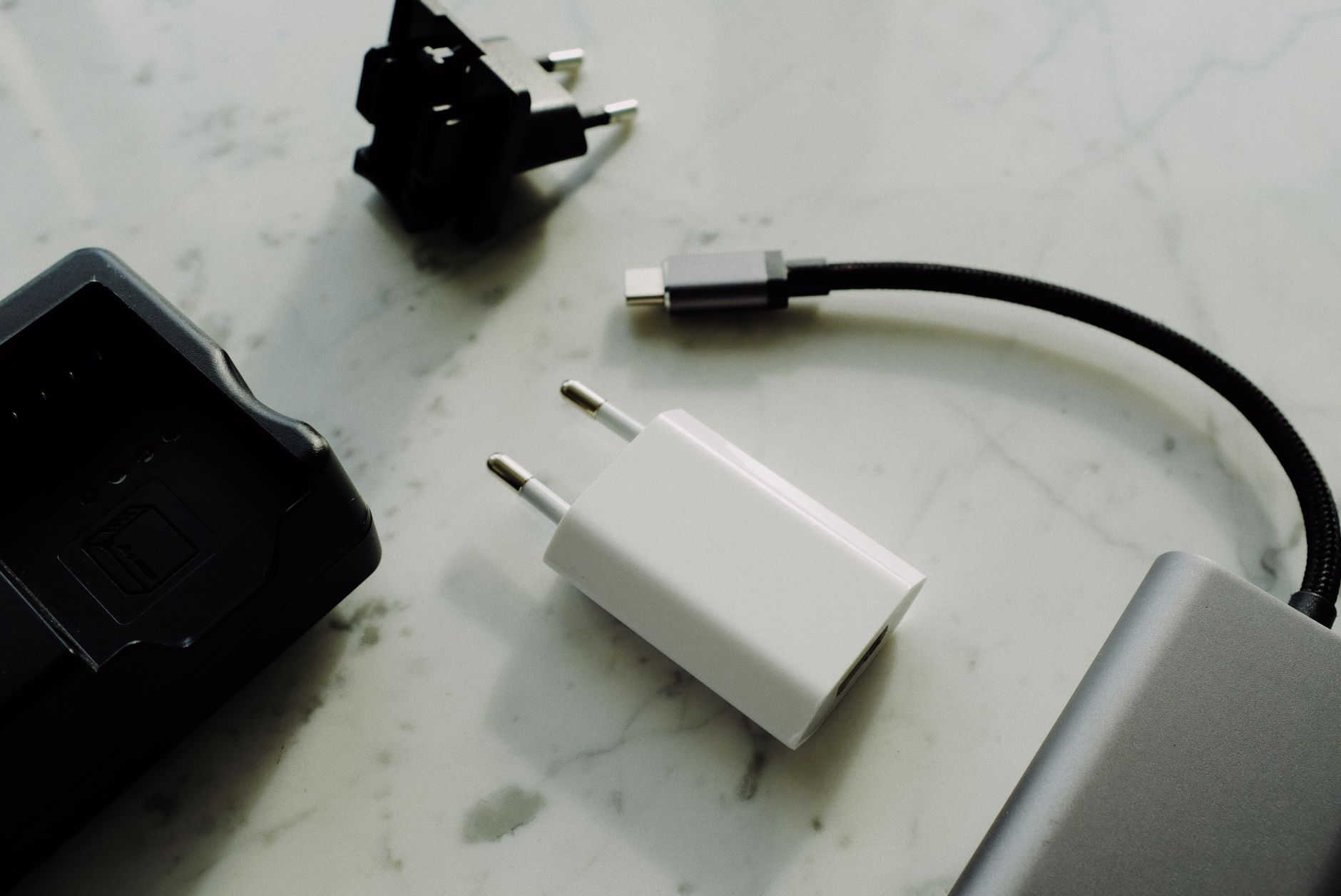
Quick answer: USB-C refers solely to the physical oval plug shape, while the charging wattage (60W to 240W) and data speed (480 Mbps to 80 Gbps) depend entirely on the internal wiring and electronic chips hidden inside the cable.
You probably own half a dozen USB-C cables that look completely identical from the outside. Yet one charges your laptop in under an hour, while another takes all afternoon—and a third refuses to send video to your desktop monitor entirely.
Because hardware brands use the same oval connector for basic phone chargers and high-end workstation docks, it is easy to assume any cord can handle every task. Having our USB-C cable speeds explained breaks down what is happening under the plastic sleeve so you never waste money on the wrong lead.
Key takeaways
- Physical shape tells you nothing about performance; cables range from slow USB 2.0 charging leads to 80 Gbps Thunderbolt cables.
- Power delivery operates mainly in two tiers: standard 60W cables and high-power 240W Extended Power Range (EPR) cables.
- Cables rated above 60W require an internal E-Marker safety chip to communicate with your charger and device.
- Display output requires dedicated DisplayPort Alternate Mode wiring, which standard packaged charging cables lack.
- The entire charging and data chain runs at the speed of the weakest component: charger, cable, or device.
Why All USB-C Cables Look the Same but Act Differently
Think of a USB-C cable like a highway tunnel. The physical opening—the oval metal connector—is always the exact same size. However, what engineers build inside that tunnel varies wildly. A cheap charging cable only builds two narrow dirt lanes for electricity, while an advanced Thunderbolt cable builds a multilane paved highway with fiber-optic lines, structural reinforcement, and dedicated traffic controllers.
Basic cables include only the copper conductors required to transmit power and bare-minimum USB 2.0 data. Premium cables pack shielded high-speed data lanes, grounding lines, and microchips called E-Markers embedded in the connector housing. Because the outside jacket hides these differences, you cannot judge what a cable does just by holding it.
| Cable Feature | Basic Charging Cable | High-Speed USB4 / Thunderbolt Cable |
|---|---|---|
| Physical Connector | Reversible Type-C | Reversible Type-C |
| Data Wires | 1 unshielded pair (USB 2.0) | Up to 4 high-speed shielded differential pairs |
| Internal E-Marker Chip | Usually absent (if capped at 60W) | Mandatory for power and protocol detection |
| Video Transmission | No | Yes (DisplayPort Alt Mode / PCIe tunneling) |
| Typical Primary Use | Wall charging phones and earbuds | External SSDs, docking stations, 4K/8K displays |
Charging Power: 60W, 100W, and 240W USB-C Cables
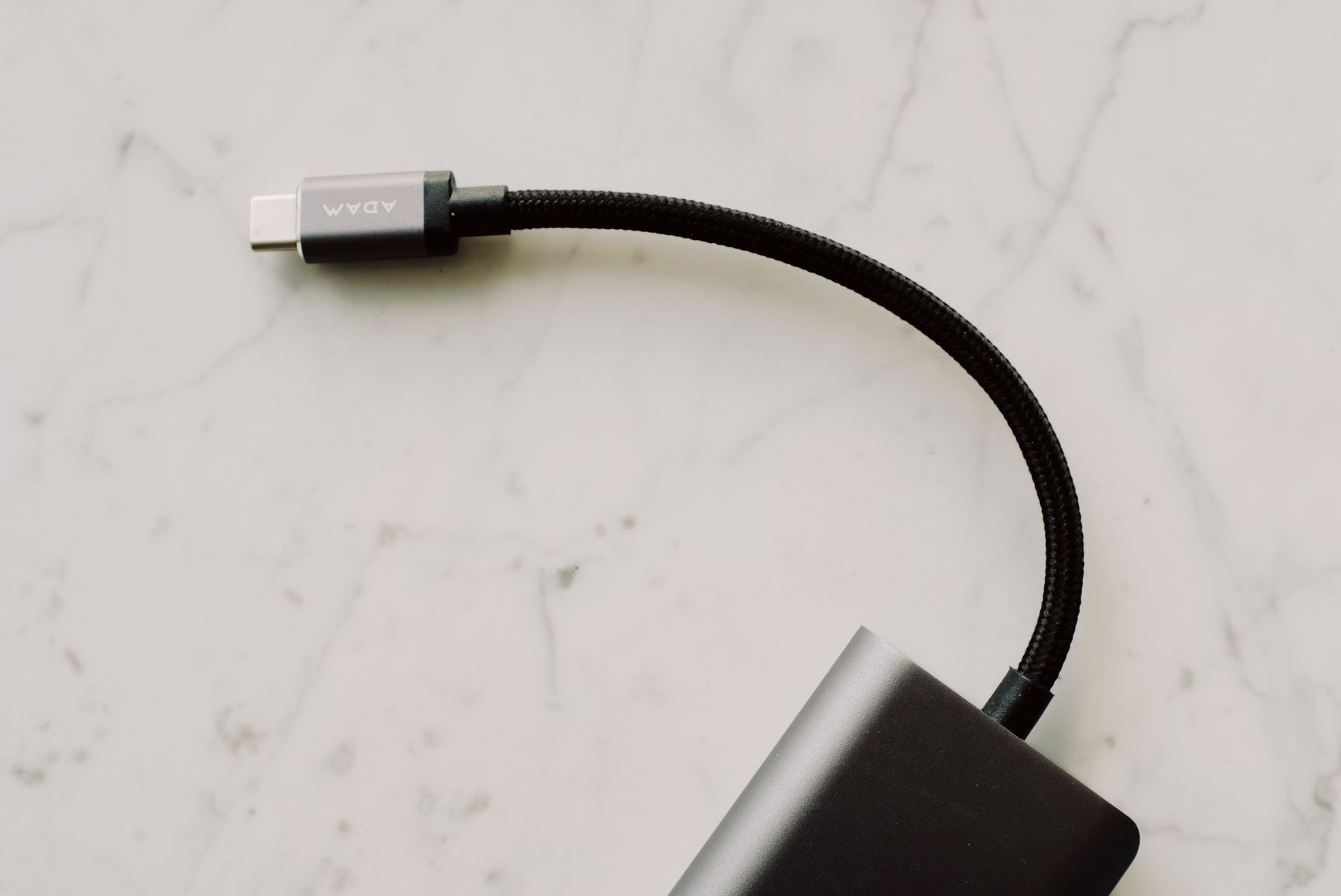
Photo by ready made on Pexels
USB Power Delivery (USB PD) manages how much electrical power passes through the wire. In earlier revisions, standard USB PD 3.0 capped out at 100W (20 volts at 5 amps). The newer USB PD 3.1 Extended Power Range (EPR) standard increases that ceiling to 240W (48 volts at 5 amps), enough to power beefy gaming laptops and creative workstations.
Under current USB-IF standards, certified power cables are organized into two primary tiers:
- 60W (3A rated): Designed for everyday smartphones, tablets, handheld consoles, and lightweight ultrabooks. These thinner, flexible cords carry up to 20V at 3A.
- 240W (5A rated): Built with heavier wire gauges to support up to 48V at 5A. This tier has largely superseded older 100W cables to create a future-proof charging baseline for everything from phones to power-hungry laptops.
Any cable handling more than 60W requires an E-Marker (electronic marker) chip inside the plug. This tiny processor tells your power brick and laptop that the wire can safely handle 5 amps without overheating. If you plug a 100W laptop into a 100W wall adapter using an unchipped 60W cable, the hardware automatically restricts charging to 60W for safety.
Warning: The lowest common denominator always dictates your charging speed. If you pair a 240W cable with a 20W phone brick, your laptop still only draws 20W. All three links—charger, cable, and receiving device—must support higher wattages to get fast results.
Data Transfer Speeds: USB 2.0 vs. USB4 and Thunderbolt
Charging speed and data transfer speed are completely independent features. A thick cable capable of pushing 240W into your laptop might transfer photos at the exact same crawl as an old keyboard from 2001.
Most white cables bundled inside the boxes of smartphones and laptops only include USB 2.0 data lines. That limits file transfers to 480 Mbps (roughly 40 to 60 megabytes per second in the real world). Moving a 50GB video file over a USB 2.0 cable takes around 15 to 20 minutes.
If you regularly back up files to an external NVMe solid-state drive, you need cables wired for modern data protocols:
- USB 3.2 Gen 1 & Gen 2: Provide 5 Gbps and 10 Gbps speeds respectively, which easily handle portable backup drives and webcams.
- USB4 & Thunderbolt 4: Standardized at a 40 Gbps ceiling. These cables use advanced shielding to move raw 4K video footage or transfer large directories in seconds.
- USB4 2.0 & Thunderbolt 5: The bleeding edge of peripheral speed, offering bidirectional bandwidth up to 80 Gbps. Passive Thunderbolt 4 cords can achieve speeds beyond 40 Gbps on compatible Thunderbolt 5 hosts, while new active Thunderbolt 5 cables maintain 80 Gbps performance over runs up to 6.6 feet (2 meters).
Pros of High-End Data Cables (USB4 / TB4)
- Maximum transfer speeds for external SSDs and RAID arrays.
- Supports single-cable laptop docking stations with peripherals attached.
- Backward compatible with older USB-C devices and chargers.
Cons of High-End Data Cables (USB4 / TB4)
- Significantly more expensive than simple charging cords.
- Thicker, stiffer wires that are harder to pack for travel.
- Passive high-speed runs degrade quickly beyond 3.3 feet (1 meter).
Display Port Support: Connecting Monitors via USB-C
Can you run a display through any USB-C cord? No. Video output requires a feature called DisplayPort Alternate Mode (DP Alt Mode) or native USB4/Thunderbolt tunneling. This setup repurposes the high-speed data lanes inside the cable to send native video signals straight from your graphics chip to an external monitor.
A standard USB-C charging cord does not have the physical copper pins connected to transmit display signals. If you run a cheap phone-charging wire between your laptop and a USB-C monitor, the monitor will show "No Signal," even though it might slowly charge your laptop battery.
For high-refresh gaming displays or dual-monitor setups, pick a cable explicitly rated for USB4 or DisplayPort 2.1. These provide the massive bandwidth needed to drive uncompressed 4K monitors at 144Hz or 8K displays at 60Hz alongside audio and peripheral data.
How to Read USB-C Logos and Labels Before You Buy
Historically, manufacturers used convoluted names like "USB 3.2 Gen 2x2," which baffled shoppers. To fix this, the USB Implementers Forum (USB-IF) introduced simplified packaging badges that show you real-world specs at a glance.
When shopping for certified cords, look for performance badges printed on the retail box or stamped directly into the cable's connector housing:
- Wattage Badges: Displayed clearly as either "60W" or "240W" inside a red battery silhouette or beside the logo.
- Speed Badges: Marked with exact gigabit speeds, such as "20Gbps", "40Gbps", or "80Gbps".
- Combined Badges: High-end cables will display both metrics together—for example, "40Gbps 240W".
- Thunderbolt Badges: Intel-certified cables feature a lightning bolt icon with a number (such as "4" or "5") indicating the generation.
Tip: If a cable listing online advertises "high-speed data" or "fast charging" without printing specific numbers like 10Gbps or 240W, assume it defaults to basic USB 2.0 (480 Mbps) data speeds.
Quick-Matching Table: Which Cable Do You Need?
You do not need to buy the most expensive cord on the shelf for every piece of gear. Match your device to the minimum spec in this cheat sheet to avoid overpaying.
| Your Device or Setup | Minimum Recommended Spec | What to Look For |
|---|---|---|
| Smartphone, tablet, or wireless earbuds | 60W USB 2.0 | Inexpensive, highly flexible cable; no high-speed data needed. |
| Standard laptop (MacBook Air, business ultrabooks) | 60W to 100W USB 2.0 | Standard charging cable with basic power delivery. |
| Workstation or gaming laptop (140W–240W) | 240W USB PD 3.1 EPR | Must have an E-Marker chip rated for 5A/48V. |
| External portable SSD (NVMe drive) | 10Gbps to 40Gbps | USB 3.2 Gen 2 or USB4 cable; keep length under 3.3 ft. |
| Desktop monitor or single-cable laptop dock | 40Gbps (USB4 or TB4) + DP Alt Mode | Carries video, laptop charging power, and USB hub data at once. |
Common Mistakes When Buying USB-C Cables
Avoiding a few frequent traps will save you time, desk clutter, and return shipping fees:
- Buying based on appearance: Braided nylon exterior sleeves look durable, but a braided sleeve can still hide slow 480 Mbps wires. Check the internal specs, not the outside textile.
- Spending $40 on a wall-charging lead: Buying an active Thunderbolt 4 cable just to charge your phone from a wall outlet wastes money. A basic $10 60W cable charges your phone at the identical speed.
- Using mystery cords on high-draw laptops: Grabbing a random unbranded cable out of a drawer for a laptop drawing 90W will either throttle charging to 60W or cause intermittent charging disconnects because it lacks an authentic E-Marker chip.
Bottom line: Keep two distinct cable types in your gear bag. Buy flexible, inexpensive 240W USB 2.0 cables strictly for charging your phone, tablet, and laptop anywhere. Keep one dedicated, short 40Gbps USB4 or Thunderbolt cable at your desk for external monitors, fast SSD backups, and docking hubs. Skip expensive high-bandwidth cables if your only goal is keeping batteries full.
FAQ
Why is my USB-C cable charging my laptop so slowly?
Your cable is likely limited to 60W (3A) because it lacks an internal 5A E-Marker chip, or your wall brick does not provide enough wattage. When a laptop detects a standard 60W cable, it scales back power draw to prevent the wire from overheating. You can resolve this by pairing a 100W+ charger with a certified 240W EPR cable.
Can any USB-C cable transfer files at high speed?
No. Most inexpensive cables and cords packaged in phone boxes only include the wiring pins for USB 2.0, which caps data speeds at 480 Mbps. To move files rapidly to external SSDs, look for a cable specifically marked for 10Gbps, 20Gbps, or 40Gbps transfer rates.
Do all USB-C cables support video output to a monitor?
No. Video transmission requires DisplayPort Alternate Mode (DP Alt Mode) or a USB4/Thunderbolt connection. Basic charging cables lack the high-speed data lanes necessary to send display signals to an external screen.
What happens if I use a 240W USB-C cable on a phone?
Nothing harmful will happen. USB Power Delivery uses a smart handshake protocol where the phone, cable, and charger negotiate the exact voltage and current. A phone designed to draw 25W will simply draw 25W, leaving the rest of the cable's capacity unused.
How can I tell what speed my USB-C cable is?
Check the molded plastic ends for official USB-IF logos displaying numbers like "20Gbps" or a Thunderbolt icon. If the cable is entirely blank with no markings or text, plug it between a computer and a fast SSD; your operating system's system profiler or device manager will reveal the negotiated link speed.
Sources
Facts in this article were checked against these pages on October 1, 2026:
- Are All USB-C Cables the Same for Charging? - Anker US (anker.com)
- Types of USB-C Cables: Complete Guide (gearit.com)
- Do All USB-C Cables Transfer Data? Exploring the Truth 101 - Anker US (anker.com)
- USB-C Explained: Power, Speed, and Compatibility in One Port | Monoprice (monoprice.com)
- I thought all USB-C cables were the same; I couldn't have been more wrong (androidpolice.com)
- USB Cable Transfer Speeds Explained: 480Mbps vs 5Gbps vs 10Gbps | ChubbyCable – Chubbycable (chubbycable.com)
How we researched this: this guide is based on current manufacturer information and reputable sources, listed in the Sources section above, and is updated when things change. Read our editorial policy.
Content Writter

Comments
No comments yet — be the first to share your thoughts.