
How to Fix Smart Bulbs That Keep Going Offline
Tired of smart lights dropping connection? Follow this step-by-step guide to resolve Wi-Fi drops, band-steering conflicts, and router configuration issues permanently.
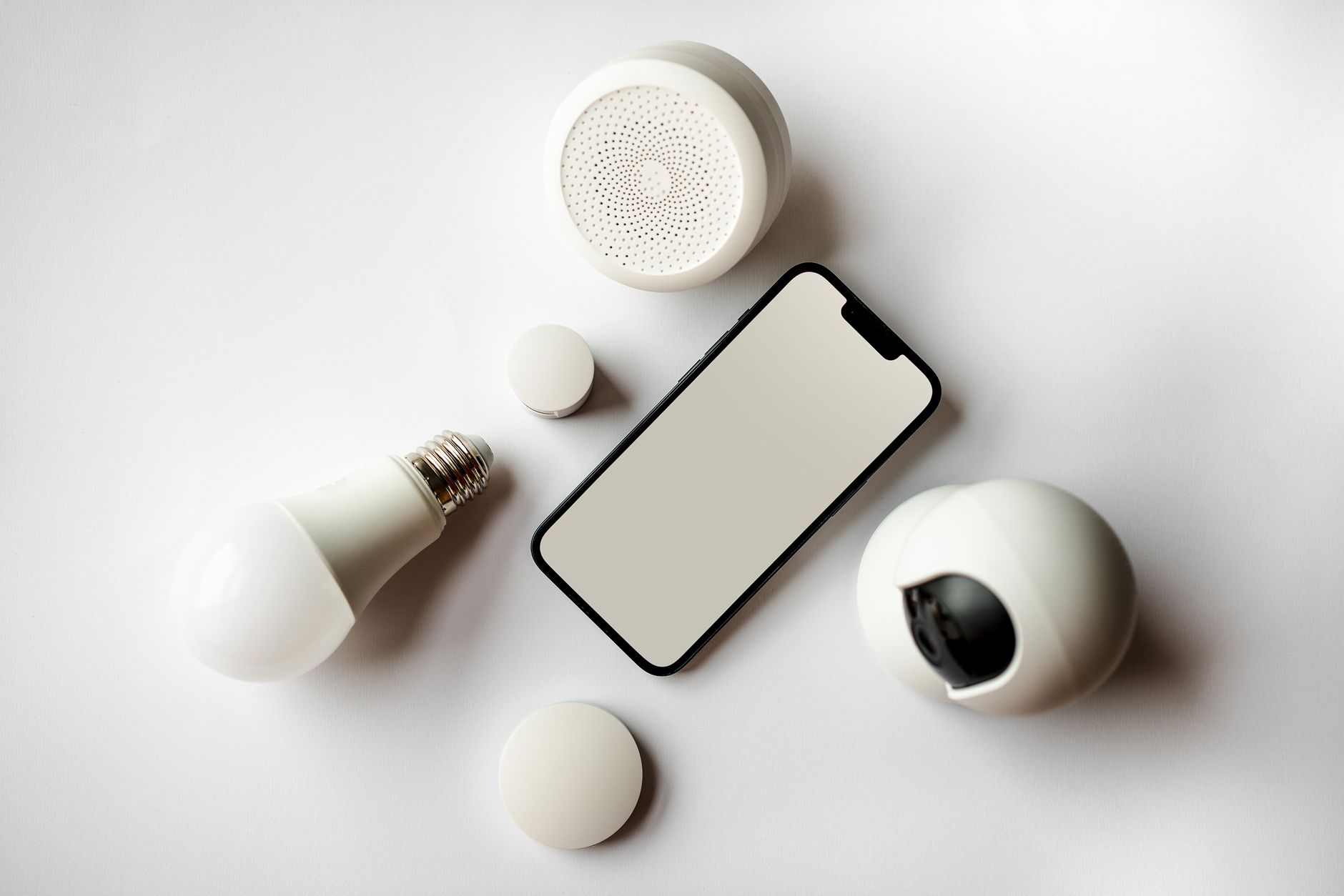
Quick answer: Smart bulbs usually go offline because someone switched off the wall switch, their weak antennas lost connection, or modern dual-band routers tried forcing them onto incompatible 5 GHz frequencies. Keep the wall switch powered on, power cycle the bulb, and set up a dedicated 2.4 GHz network locked to a 20 MHz channel width on channel 1, 6, or 11.
Few smart home glitches are more irritating than opening your phone to dim the living room light, only to discover a greyed-out icon marked "Device Offline." When smart bulbs keep going offline, you lose the ability to trigger automated schedules, sync ambient scenes, or control fixtures with voice assistants.
While it is tempting to blame the hardware and reset the bulb from scratch, repeated factory resets rarely solve the root issue. Most connectivity problems stem from simple physical interruptions, stale software caches, or modern router features like band-steering that confuse low-power Wi-Fi radios. Below is a structured, step-by-step troubleshooting process arranged from the quickest checks to permanent network fixes.
Key takeaways
- Smart bulbs require constant electrical current; turning off physical wall switches cuts their Wi-Fi radio instantly.
- Smart lights rely exclusively on 2.4 GHz signals and struggle with dynamic dual-band steering.
- Locking your 2.4 GHz channel width to a fixed 20 MHz resolves frequent background disconnects.
- Assigning static DHCP IP reservations stops bulbs from dropping out when local network leases expire.
Symptoms: Is Your Bulb Truly Disconnected?
Before changing your hardware or network settings, confirm which symptom matches your situation:
- App shows "Device Offline" but light is illuminated: The bulb has power, but its network link to the local router or cloud server has broken.
- Unresponsive voice commands: Alexa or Google Assistant reports that the light is unreachable, even if your phone shows full Wi-Fi bars in the room.
- Intermittent night drops: The light works during daytime hours but shows offline late at night or early in the morning when DHCP leases renew or routers auto-optimize channels.
- Flickering followed by connection loss: If your bulb is paired to an incompatible dimmer, electrical dips can cause drops. (If you use wall switches, see our guide on how to fix smart switch light flickering).
Step 1: Check Power and Physical Switch Status
Smart bulbs need a continuous supply of electricity to maintain their internal Wi-Fi radios. The most common reason a bulb drops offline is also the simplest: someone in the home flipped the traditional wall switch to the "off" position.
- Inspect the physical wall toggle or lamp switch controlling the socket.
- Ensure the switch is turned on and remains on at all times.
- If guests or family members frequently toggle the switch by habit, consider installing physical switch guards or migrating controls to battery-powered smart buttons.
Tip: If the fixture is plugged into an auxiliary smart plug rather than a standard socket, make sure the plug itself has not shut off power. You can learn more about managing plug power states in our guide on how to choose the right smart plug for your setup.
Step 2: Toggle Wi-Fi and Restart the Companion App
Sometimes the bulb is connected to your local network, but the companion management app (such as Smart Life, Tuya, Yeelight, or Feit) failed to refresh its status from the cloud.
- Open your router management app and check the connected client list. If the bulb appears as an active client with an assigned IP address, the bulb's radio is healthy.
- Swipe away and force-quit your smart home companion app on your phone.
- Toggle your smartphone's Wi-Fi connection off, wait five seconds, and turn it back on.
- Relaunch the smart home app and pull down on the home screen to refresh the device roster.
- Check the vendor's app for any pending firmware updates. Manufacturers like Yeelight periodically push firmware patches to fix edge-case disconnects.
Step 3: Power Cycle the Smart Bulb
If the bulb does not appear in your router's active client list, the bulb's internal microcontroller or Wi-Fi radio has likely frozen. A basic power cycle clears the internal memory and forces a fresh network handshake.
- Flip the physical wall switch or lamp toggle to the off position.
- Wait a minimum of 10 seconds to allow the internal capacitors to discharge fully.
- Flip the switch back to the on position.
- Wait 30 to 60 seconds for the bulb to boot its radio, connect to your Wi-Fi SSID, and establish cloud contact.
If the light reconnects and responds to commands, keep an eye on it over the next 24 hours. If it drops offline again after a short interval, the problem points to your Wi-Fi settings rather than the bulb itself.
Step 4: Remove and Re-add the Bulb to Your Smart Home App
When soft reboots do not work, resetting the bulb cleans corrupted network profiles and reconnects it to the cloud servers.
- Open your smart home app (e.g., Smart Life or the manufacturer-specific app).
- Select the problematic bulb, tap settings, and choose Remove Device.
- Follow the manufacturer's factory reset procedure. For most standard Wi-Fi bulbs (such as Feit, Osram, and Tuya designs), this requires toggling the light switch on and off repeatedly (typically 3 to 5 times) until the bulb begins pulsing or blinking rapidly.
- Tap the Add Device icon (+) in your app and complete the initial setup process from scratch.
Warning: Factory resetting a bulb removes it from your automation routines, lighting groups, and voice assistant profiles. Only take this step after confirming that a simple power cycle did not resolve the problem.
Step 5: Check Your Router Settings and 2.4 GHz Band
Smart bulbs use small, budget-friendly 2.4 GHz microchips. They cannot connect to 5 GHz networks. Modern mesh routers (such as Eero, TP-Link Deco, and Nest Wifi Pro) often broadcast a single unified network name across both 2.4 GHz and 5 GHz bands, using a feature called band-steering to push devices to faster bands. This process routinely knocks smart bulbs offline.
| Router Setting | Default Configuration | Recommended Setting for Smart Bulbs |
|---|---|---|
| Wi-Fi Band | Single combined SSID (2.4 GHz & 5 GHz) | Dedicated 2.4 GHz IoT SSID |
| Channel Width | Auto or 40 MHz (Wide) | Fixed 20 MHz (Standard) |
| 2.4 GHz Channels | Auto-switching | Locked to Non-Overlapping Channel 1, 6, or 11 |
| IP Allocation | Dynamic DHCP (changing IP) | Static DHCP IP Reservation |
- Create a dedicated 2.4 GHz IoT network: Log in to your router settings. Enable an IoT network or guest network that broadcasts strictly on the 2.4 GHz band. Connect your smart bulbs to this network so they never encounter 5 GHz band-steering requests.
- Set channel width to 20 MHz: Many modern routers default to 40 MHz wide channels for maximum speed. Smart bulb antennas struggle to process 40 MHz signals through home walls. Forcing a 20 MHz channel width minimizes interference and dramatically improves connection stability.
- Pick a static non-overlapping channel: Routers often change Wi-Fi channels automatically when they detect interference. Whenever the router shifts channels, sensitive smart bulbs can drop off. Set your 2.4 GHz radio to a fixed, non-overlapping channel: 1, 6, or 11.
- Reserve a static IP address: Routers cycle through IP leases every 24 to 72 hours. When an IP lease expires, a bulb with slow hardware may fail to renew its lease in time. Locate your bulb's MAC address in your router's DHCP reservation table and assign it a permanent local IP address.
Common Mistakes That Cause Smart Bulbs to Drop
Avoiding these frequent traps can save hours of troubleshooting:
- Assuming phone reception equals bulb reception: A smartphone has high-grade MIMO antennas that capture faint Wi-Fi signals effortlessly. Smart bulbs rely on tiny, low-power internal antennas enclosed inside plastic or glass diffusers. A room with three bars on your phone may still be a fringe reception area for a bulb.
- Placing bulbs inside metal enclosures: Installing Wi-Fi smart bulbs inside thick metal shades, enclosed aluminum fixtures, or recessed metal cans creates a Faraday shield effect, degrading the signal.
- Exceeding router client limits: Basic ISP-provided router-modem combos struggle when client counts exceed 30 or 40 devices. If you have dozens of smart switches, sensors, and bulbs, a standard router may arbitrarily boot devices off the network. Modern mesh systems handle dense client lists much more reliably.
When to Contact Support or Replace the Bulb
If you have locked your router to a fixed 20 MHz channel on the 2.4 GHz band, assigned a DHCP reservation, and verified the wall switch is on, yet the bulb continues to disappear from the network client list every few hours, the internal power regulator or Wi-Fi radio has likely degraded. Inexpensive smart bulbs run warm, and sustained heat buildup can eventually damage miniature antennas. If the device is still within its warranty period, contact the manufacturer for a replacement unit.
Bottom line: Most smart bulbs keep going offline due to band-steering conflicts and wide 40 MHz channel interference rather than defective hardware. Creating a dedicated 2.4 GHz network locked to a fixed 20 MHz channel width on channel 1, 6, or 11 will permanently solve connection drops for 90% of homes. If your home has poor Wi-Fi coverage across bedrooms, adding a mesh access point or upgrading to a dedicated Zigbee/Matter hub setup is preferable to buying more Wi-Fi bulbs.
Related guide: How to Fix a Smart Lock That Won't Unlock
Related guide: How to Fix a Laptop That Won't Connect to Wi-Fi
Frequently Asked Questions
Why does my smart bulb keep saying offline?
The most common reasons are an open physical wall switch cutting main power, dynamic band-steering trying to push the bulb to a 5 GHz frequency, or interference on wide 40 MHz channels. Weak Wi-Fi reception inside metal lampshades also causes drops.
How do I reconnect a smart bulb without deleting my settings?
Avoid factory resetting the bulb. Instead, flip the physical power switch off, wait 10 seconds, and turn it back on. In most cases, the bulb will automatically look for its known SSID and reconnect without losing room assignments or timer schedules.
Do smart bulbs disconnect if the light switch is turned off?
Yes. Smart bulbs need continuous electrical power to keep their Wi-Fi chips alive. Turning off the physical wall switch cuts all current to the device, immediately sending it offline in your management app.
Why do my smart bulbs drop offline at night?
Many routers are programmed to refresh DHCP IP leases or auto-scan and switch Wi-Fi channels during the middle of the night to avoid daytime congestion. These network shifts can disconnect smart bulb radios that cannot adapt quickly. Assigning a permanent static IP reservation in your router fixes this issue.
How do I fix smart lights dropping off my Wi-Fi network?
Log in to your router settings, create a separate 2.4 GHz SSID for smart devices, set the channel width strictly to 20 MHz, and assign a static channel (1, 6, or 11). This eliminates the interference and dynamic band-steering that cause bulbs to drop.
Sources
Facts in this article were checked against these pages on October 29, 2026:
- Smart Bulbs Keep Disconnecting: 5 Causes & The Fix - Mrs. Technology (mrs.technology)
- Why are my smart light bulbs going offline and how to fix it? (facebook.com)
- Feit smart bulbs (IoT) go offline after 12 hours (community.ui.com)
- Smart Life Plug Offline [How to Fix] (youtube.com)
- Bulb keeps going offline after a few days - Yeelight LED Bulb (Color) - Yeelight Forum (forum.yeelight.com)
- Light bulbs going "offline" daily - Connected Things - SmartThings Community (community.smartthings.com)
How we researched this: this guide is based on current manufacturer information and reputable sources, listed in the Sources section above, and is updated when things change. Read our editorial policy.
Content Writter


Comments
No comments yet — be the first to share your thoughts.