
How to Fix a Nintendo Switch Dock Not Outputting to TV
If your Nintendo Switch dock will not output video to your TV, follow this step-by-step troubleshooting guide to restore your display quickly.

Quick answer If your Switch dock won't display video, unplug everything from the dock and wall for 30 seconds. Plug the power cable into the wall first, then into the dock, connect the HDMI cable, and dock the console last. If that fails, lower the TV resolution in the Switch settings to 480p while in handheld mode before docking again.
Placing your console into its dock only to see a black screen or a "No Signal" message on your TV can be frustrating. A nintendo switch dock not working tv signal often leaves gamers guessing whether the console, power brick, or dock itself is broken.
This troubleshooting guide helps you spot common causes and fix them. We cover everything from simple cable plug order tricks to hidden system menu settings for both standard and OLED docks.
Key takeaways
- Plugging cables into the dock in the wrong order can crash the built-in video processing chip.
- A Switch console can charge normally even if its internal video pins are damaged or dirty.
- Phone chargers do not supply enough power for the dock to send video to a television.
- OLED docks (model HEG-007) have firmware updates that fix video connection bugs.
Symptoms of a Malfunctioning Switch Dock
Before trying hardware fixes, identify what your dock is doing. Different symptoms point to different causes:
- Flashing green LED light: The dock light blinks continuously, and no video shows up on the TV. This usually means a power supply error or a broken digital handshake.
- Solid green light with black screen: The dock recognizes the console, but the TV reports "No Signal."
- Console screen stays lit while docked: Official Nintendo support confirms that if the Switch screen does not go dark when inserted into an active dock, the dock is not properly communicating with the console.
- Switch charges but shows no picture: The battery icon displays on the handheld, but video never switches over to your monitor.
Fix 1: Perform the Strict Power Cable Reconnect Order
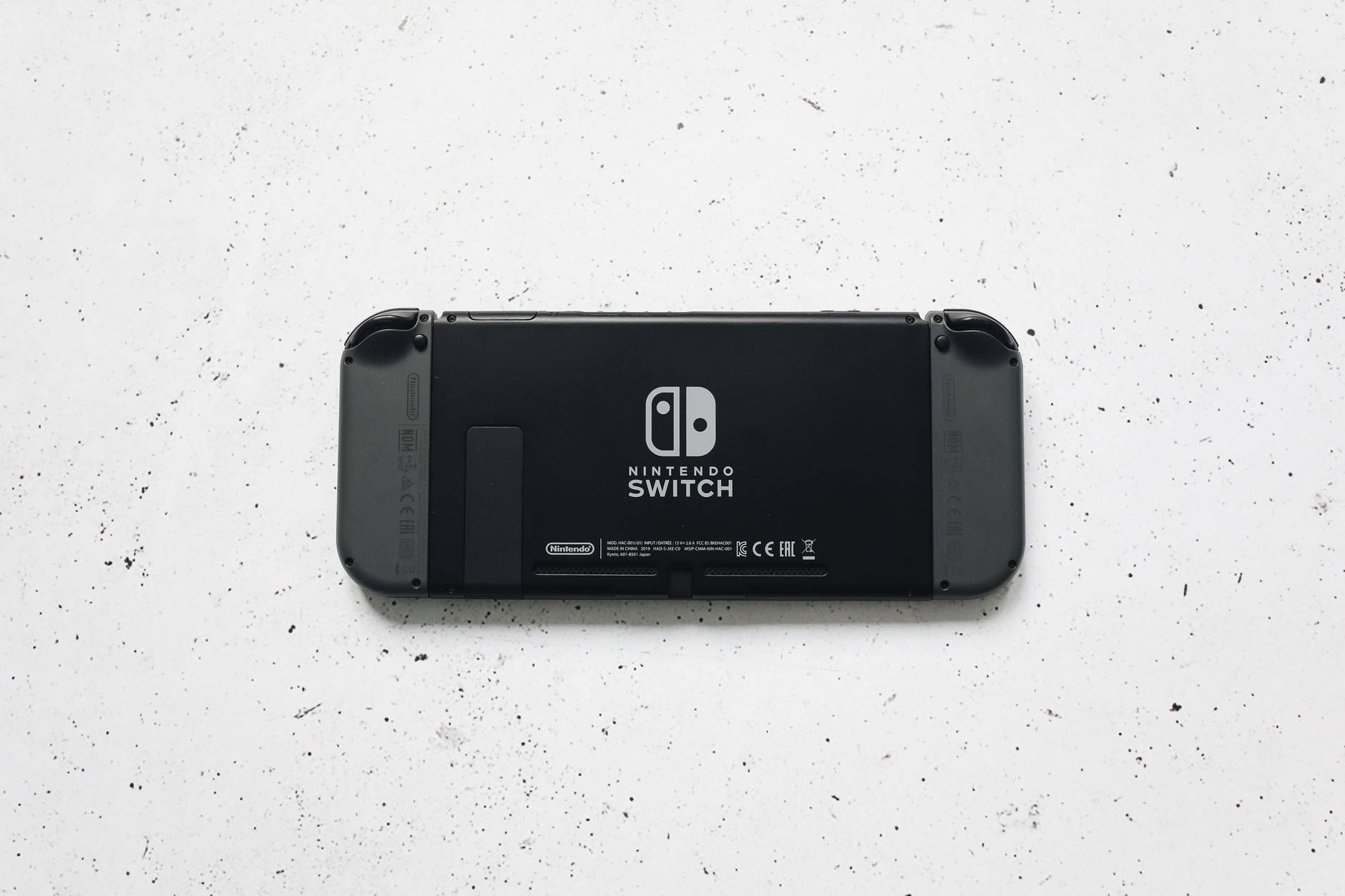
Photo by Polina Tankilevitch on Pexels
The official Switch dock (HAC-007) and the OLED dock (HEG-007) use a small internal controller chip. If power drops or cables are pulled out, this chip can freeze. Unplugging cables in a specific sequence resets it.
- Unplug the official AC adapter (HAC-002) and HDMI cable from the back of the dock.
- Remove the Switch console from the dock.
- Unplug the power adapter directly from the wall outlet.
- Wait 30 to 60 seconds. This allows residual power inside the dock to clear completely.
- Plug the power adapter back into the wall outlet first.
- Plug the power cord into the dock port marked
AC ADAPTER. - Plug the HDMI cable into the dock port marked
HDMI OUTand connect the other end to your TV. - Lower the Switch console into the dock.
Fix 2: Test the Power Outlet and AC Adapter Direct Connection
The Nintendo Switch dock requires specific power profiles (USB Power Delivery protocol). Generic phone chargers do not provide enough power to run the console and video chip at the same time.
Surge protectors and multi-plug extension cords can also drop power delivery. Plug the official HAC-002 AC adapter straight into a wall outlet instead of a power strip. If you suspect your power cable is dead, test it by plugging it straight into the bottom of the Switch handheld.
Fix 3: Adjust TV Settings and Change HDMI Ports
Modern televisions with automatic input switching or Variable Refresh Rate (VRR) features sometimes lose video signal handshakes with the dock.
- Disconnect the HDMI cable from any pass-through devices like AV receivers, soundbars, or HDMI splitters. Plug the cable straight into the TV.
- Move the cable to a different HDMI port on your TV set (for example, HDMI 2 instead of HDMI 1).
- Turn off deep color modes, Auto Game Mode, or Variable Refresh Rate (VRR) in your TV menu for that specific port.
- Reset your TV's mainboard: Unplug the TV power cord from the wall, press and hold the physical power button on the TV chassis for 10 seconds, then plug it back in.
Fix 4: Inspect and Clean the Dock’s USB-C Connector
The USB-C port at the bottom of your Switch handles power delivery and DisplayPort video output across separate physical pins. It is common for a Switch to charge while video output fails completely because the video pins are dirty or bent.
Look down inside the dock spring assembly with a flashlight. Look for dust, lint, or bent metallic pins inside the dock's USB-C connector. Use a soft hand-blower or compressed air to clear debris out of the console port and the dock bottom.
Warning: Never push metal pins, needles, or sharp tools inside the Switch bottom port or dock recess. Doing so can short out power lines and permanently damage the motherboard.
Fix 5: Force a Switch System Reset and Resolution Change
Software glitches can force the Switch to output a video format your display rejects. You can fix this by changing resolution settings in handheld mode.
- Undock your Switch so it enters handheld mode.
- Open System Settings from the HOME menu.
- Scroll down to System, then select System Update to install the latest software.
- If you own an OLED dock (HEG-007), select System → Update Dock to refresh the dock firmware.
- Go to System Settings → TV Output → TV Resolution.
- Change the setting from Automatic or 1080p down to 480p.
- Hold the console physical POWER button for 3 seconds, select Power Options, and choose Restart.
- Insert the Switch back into the dock. If an image displays on your TV at 480p, go back into settings and step it up to 720p, then 1080p.
Fix 6: Replace Faulty Power Cables or Third-Party Docks
Third-party docks often break after Nintendo system updates because they use custom chips that fail to match official power protocols. If you use a third-party mini dock or hub, test your console with an official Nintendo dock (model HAC-007 or HEG-007).
You should also swap out your HDMI cable. Use a standard High Speed or Ultra High Speed HDMI cable to eliminate broken wires inside the sleeve.
Common Mistakes to Avoid
- Plugging in HDMI before power: Plugging HDMI into the dock before applying power causes the controller chip to bypass initialization. Always plug wall power into the dock first.
- Leaving HDMI splitters connected while troubleshooting: Pass-through boxes often stop the video handshake. Always test directly to your display screen.
- Assuming a charging Switch means a healthy port: Power and video signal use completely separate pins in the USB-C connector.
Bottom line Most Switch dock video output errors stem from incorrect cable connection order or software resolution mismatches. Following the strict 30-second power cycle and dropping output resolution to 480p resolves the majority of black-screen issues. If the console fails to display on multiple TVs with official cables, the internal dock chip or Switch USB-C video pins may require hardware repair.
Related guide: How to Fix a Mechanical Keyboard Key Not Registering
FAQ
Why does my Nintendo Switch dock green light flash and show no picture?
A flashing green light indicates a power delivery error or a frozen video controller chip inside the dock. Unplug all cables from the dock and wall power outlet for 30 seconds to let the system reset, then plug the power brick back into the wall first.
Why does my Switch charge in the dock but not display on the TV?
The USB-C interface uses separate pins for charging and video output. Dirty pins, a damaged P13USB motherboard chip, or low power from a generic AC adapter can cause the battery to charge while blocking display signal transfer.
Does any USB-C cable work to dock a Nintendo Switch?
No. Standard phone charging cables and cheap power bricks do not support the specific voltage profiles required by the Switch dock. You must use an official Nintendo AC adapter (model HAC-002) or a compatible Power Delivery charger.
How do I know if my Nintendo Switch HDMI port or dock is broken?
If your Switch screen turns off when docked, but your TV displays no signal even after changing HDMI cables and lowering the resolution to 480p, the dock's internal chip or TV HDMI port is likely damaged.
Can a standard phone charger power the Switch dock?
No. Phone chargers typically supply 5V to 12V, whereas the Switch dock requires a 15V output profile to run the internal video conversion board and power the console simultaneously.
Sources
Facts in this article were checked against these pages on November 22, 2026:
- No video output to TV in TV Mode on Nintendo Switch 2 | Nintendo Support (en-americas-support.nintendo.com)
- [Switch] I set my console to TV Mode, but nothing appears on my television screen. What should I do? | Q&A | Support | Nintendo (nintendo.com)
- Switch won't output to Tv when docked : r/NintendoSwitch - Reddit (reddit.com)
- No Video Output to TV in TV Mode on Nintendo Switch 2 | Support | Nintendo UK (nintendo.com)
- SOLVED: Switch Dock Charging But Not Displaying on TV - Nintendo Switch - iFixit (ifixit.com)
- Nintendo Switch 2 Dock Not Connecting to TV or Monitor? Fix! (youtube.com)
How we researched this: this guide is based on current manufacturer information and reputable sources, listed in the Sources section above, and is updated when things change. Read our editorial policy.
Content Writter


Comments
No comments yet — be the first to share your thoughts.