
How to Stop Apps from Tracking You on iPhone
Take back control of your personal data by learning how to stop apps from tracking you on iPhone using built-in iOS privacy settings.
Quick answer To stop apps from tracking you on your iPhone, go to Settings > Privacy & Security > Tracking and turn off "Allow Apps to Request to Track." You should also audit previously granted permissions individually, restrict location access under Location Services, and review the App Privacy Report to monitor data access.
Every time you open a free app, play a mobile game, or browse the web on your phone, a silent ecosystem of data brokers, analytics tools, and advertising networks goes to work. They log your clicks, record your location history, and build a detailed behavioral profile to target you with hyper-specific ads. While Apple builds robust privacy controls directly into iOS, most of these settings are buried deep inside the menu system, and many are enabled by default.
If you want to stop apps from tracking you on iPhone, you need to systematically adjust permissions, turn off persistent background processes, and deny third-party access to sensitive hardware sensors. This guide walks you through the exact steps required to reclaim your digital footprint without breaking the apps and services you rely on daily.
Key takeaways
- Turn off "Allow Apps to Request to Track" to globally block future tracking prompts.
- Remember that turning off global tracking does not retroactively revoke permissions for apps you already allowed.
- Restrict GPS permissions and disable "Precise Location" for apps that do not need exact coordinates.
- Use the App Privacy Report to check a 7-day history of what sensors and domains apps are accessing.
Check Your App Tracking Transparency Settings
Apple introduced App Tracking Transparency (ATT) to give users a simple off-switch for cross-app tracking, but finding the master toggle requires knowing where to look. When you install a new app, iOS should prompt you to allow or deny tracking. However, you can manage existing permissions and enforce a blanket denial for future installations.
Open your Settings app, scroll down, and tap on Privacy & Security. From there, select Tracking. At the top of this screen, you will see a toggle labeled Allow Apps to Request to Track. If you turn this switch off, any app that attempts to request tracking permission will be automatically blocked without prompting you first.
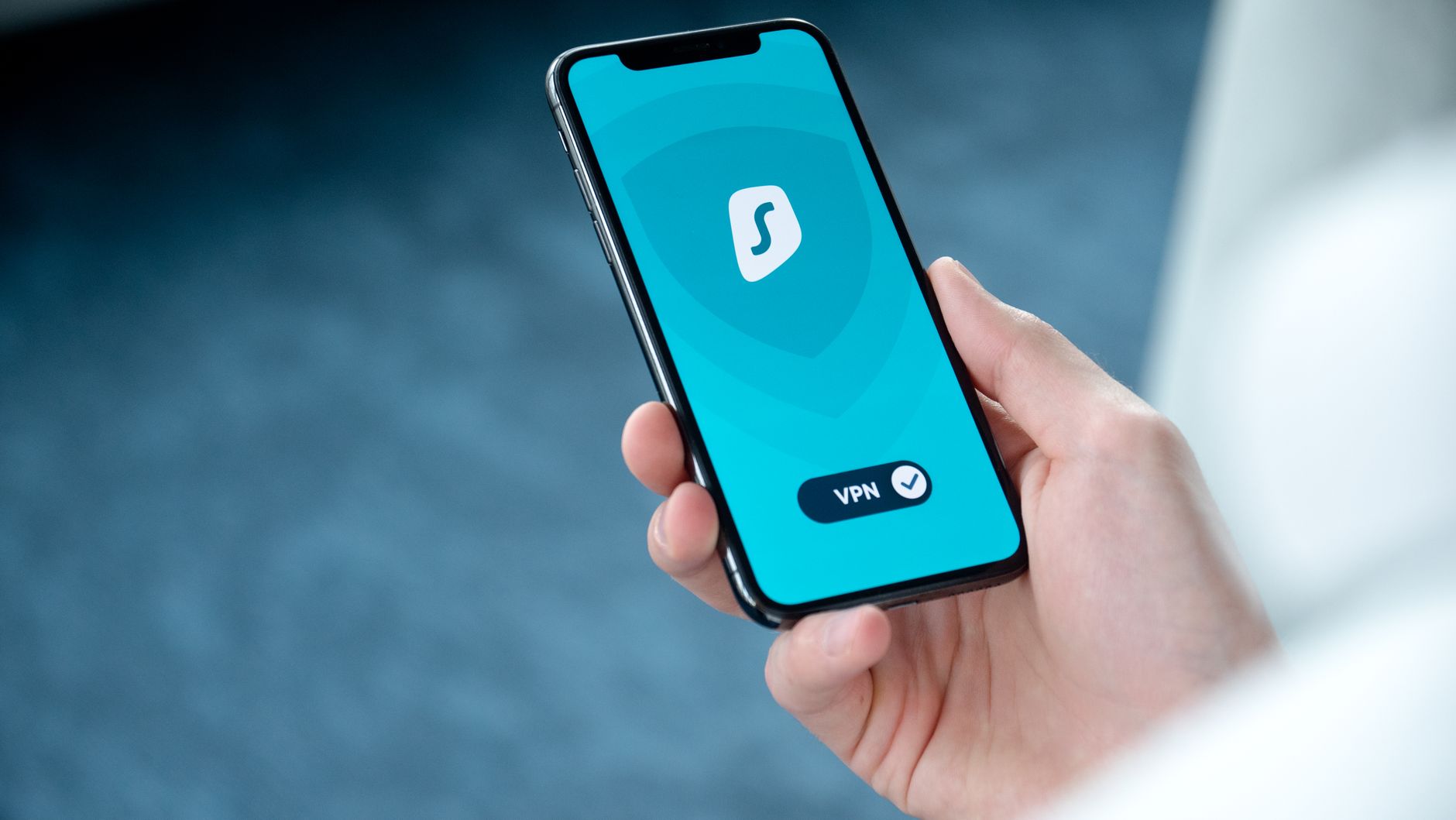
Photo by Dan Nelson on Pexels
Keep in mind a crucial detail: turning off "Allow Apps to Request to Track" blocks *future* and *new* requests, but it does not automatically revoke permissions granted to apps in the past. Those previously granted permissions must be disabled individually in your tracking list to ensure total cutoff from your device's advertising identifier.
Warning: Turning off the master tracking toggle does not automatically strip tracking access from apps you already approved. You must manually check the list below the toggle to turn off individual apps.
Turn Off Location Services for Unnecessary Apps
Location data is among the most valuable commodities for data brokers. Weather apps, navigation tools, and food delivery services genuinely need to know where you are, but flashlight utilities, calculator apps, and mobile games have no business accessing your GPS coordinates. Restricting location access is a crucial step in maintaining your daily privacy.
Go to Settings, tap Privacy & Security, and select Location Services. Make sure the master switch is turned on only if you use maps frequently. Below that master switch, you will see a comprehensive list of every app installed on your device that has requested location access. Tap through them individually and change their permissions from Always to While Using the App, or better yet, Never.
Pay special attention to the Precise Location toggle found beneath individual app settings. For a weather app, you might want precise location so it can give you neighborhood-level forecasts. For a news app, precise location is completely unnecessary, and switching it off stops the app from pinpointing your exact street address while still letting it know your general city.
Tip: Scroll to the very bottom of Location Services, select System Services, and tap Significant Locations. You can clear your location history and toggle this feature off to prevent your iPhone from logging places you frequently visit.
Audit App Behavior Using the App Privacy Report
Knowing what settings are toggled is only half the battle; verifying what apps are actually doing behind the scenes is essential for true digital hygiene. Apple includes a built-in auditing tool called the App Privacy Report that gives you complete visibility into how applications utilize your permissions.
To access this feature, navigate to Settings, tap Privacy & Security, and select App Privacy Report. Here, you will find a 7-day log detailing how often apps access your location, photos, camera, microphone, and contacts. You can also view which network domains these apps are contacting in the background.
If you notice an app contacting unknown domains or checking your location far more often than necessary, you can immediately strip its permissions. Regularly checking this report helps catch rogue apps that might be overstepping their bounds despite your initial configuration efforts.
Limit Ad Personalization and Analytics Sharing
Beyond tracking your activity across other companies' apps and websites, Apple itself collects device analytics to help improve iOS, and advertisers use native identifiers to serve targeted promotions within the App Store and Apple News. While this data stays within Apple's ecosystem rather than being sold to third-party brokers, privacy-conscious users often prefer to disable it entirely.
Navigate to Settings, tap Privacy & Security, and scroll all the way down to Apple Advertising. Here, you can toggle off Personalized Ads. This action stops Apple from using your App Store search history and download habits to serve targeted advertisements, though you will still see the same volume of ads, they just will not be tailored to your inferred interests.
Next, return to the main Privacy & Security menu, scroll down to the bottom, and select Analytics & Improvements. Turn off Share iPhone & Watch Analytics. This prevents your device from automatically sending diagnostic logs, crash reports, and usage data back to Apple's servers. While these logs are anonymized, turning the setting off ensures your usage patterns remain entirely private.
Manage Background App Refresh
Background App Refresh allows applications to check for new content, update feeds, and upload data even when they are not actively open on your screen. While this keeps your email inbox fresh, it also allows tracking scripts and analytics tools to quietly transmit data about your device status, location, and network environment throughout the day.
To audit this feature, go to Settings, tap General, and select Background App Refresh. You can turn the master switch off completely to stop all background activity, but that might delay notifications for messaging apps. A better approach is to leave the master switch on Wi-Fi or Wi-Fi & Cellular, but manually toggle off individual apps that have no business updating in the background.
Managing background data on your phone not only shores up your privacy defenses but also yields noticeable improvements in daily battery life. It ensures that your hardware resources are dedicated solely to applications you actively use.
Review Safari Privacy and Tracking Protection
Your mobile browser is the primary gateway to the internet, making it a major target for trackers that use cookies, device fingerprinting, and embedded scripts to follow your web browsing habits. Apple's native browser includes robust defenses, but you must ensure they are properly configured.
Open Settings and scroll down to Safari. Under the Privacy & Security section, make sure Prevent Cross-Site Tracking is toggled on. This feature stops third-party content providers from tracking you across different websites. You should also enable Hide IP Address, which masks your network location from known trackers while you browse.
Consider using Safari's Private Browsing mode for sensitive searches, as it prevents your device from saving your browsing history, search history, and AutoFill information. Ensuring your browser settings match your device-level tracking restrictions creates a much more cohesive privacy shield.
Common Mistakes to Avoid
When trying to lock down an iPhone, users often fall into predictable traps that leave their data exposed. Avoiding these common errors ensures your privacy setup is actually effective.
What to Do
- Turn off "Allow Apps to Request to Track" globally.
- Manually revoke permissions for previously trusted apps.
- Audit behavior monthly using the App Privacy Report.
Common Mistakes
- Assuming global tracking blocks automatically apply to past app consents.
- Believing that turning off tracking removes ads entirely instead of replacing them with generic ones.
- Leaving "Significant Locations" enabled under system services.
Bottom line Securing your iPhone against intrusive tracking does not require complex software or technical expertise. By flipping the master ATT toggle, clearing legacy permissions, auditing your App Privacy Report, and tightening location settings, you can drastically reduce data collection and regain control over your personal footprint.
Related guide: How to Transfer eSIM to a New Phone Without Losing Service
Related guide: How to Fix an Apple Watch That Won't Sync with Your iPhone
FAQ
Does turning off App Tracking Transparency completely stop all tracking?
No. It stops third-party apps from tracking your activity across other companies' apps and websites using the IDFA. First-party tracking and some forms of device fingerprinting can still occur.
Does disabling "Allow Apps to Request to Track" turn off tracking for apps I already allowed?
No. Previously granted permissions must be manually toggled off individually within the tracking settings list to cut off past access.
Will blocking location access break my maps and navigation apps?
Only if you select Never. If you choose While Using the App and disable Precise Location for non-essential tools, your navigation apps will continue to work normally.
Does disabling personalized ads mean I will see fewer advertisements?
No. You will see the exact same number of advertisements, but they will be generic rather than tailored to your inferred browsing habits and personal interests.
How do I stop annoying tracking pop-up prompts when opening new apps?
By turning off "Allow Apps to Request to Track" under Settings > Privacy & Security > Tracking, you prevent these prompts from ever appearing.
Sources
Facts in this article were checked against these pages on October 1, 2026:
- Control app tracking permissions on iPhone - Apple Support (support.apple.com)
- The iPhone Privacy Setting That Stops Apps From Tracking You Across the Web - CNET (cnet.com)
- How To Disable App Tracking on iPhone and Android | Cape - Cape (cape.co)
- Stop cross-app tracking on iOS | Privacy International (privacyinternational.org)
- Stop iPhone Apps from Tracking You | Turn Off Location Access Step-by-Step (youtube.com)
- Disable tracking for all apps at once permanently. : r/ios (reddit.com)
How we researched this: this guide is based on current manufacturer information and reputable sources, listed in the Sources section above, and is updated when things change. Read our editorial policy.
Content Writter

Comments
No comments yet — be the first to share your thoughts.