
How to Fix a Smart TV That Keeps Losing Wi-Fi
Stop letting your smart TV drop its internet connection. Follow this step-by-step troubleshooting guide from quick reboots to advanced router settings.
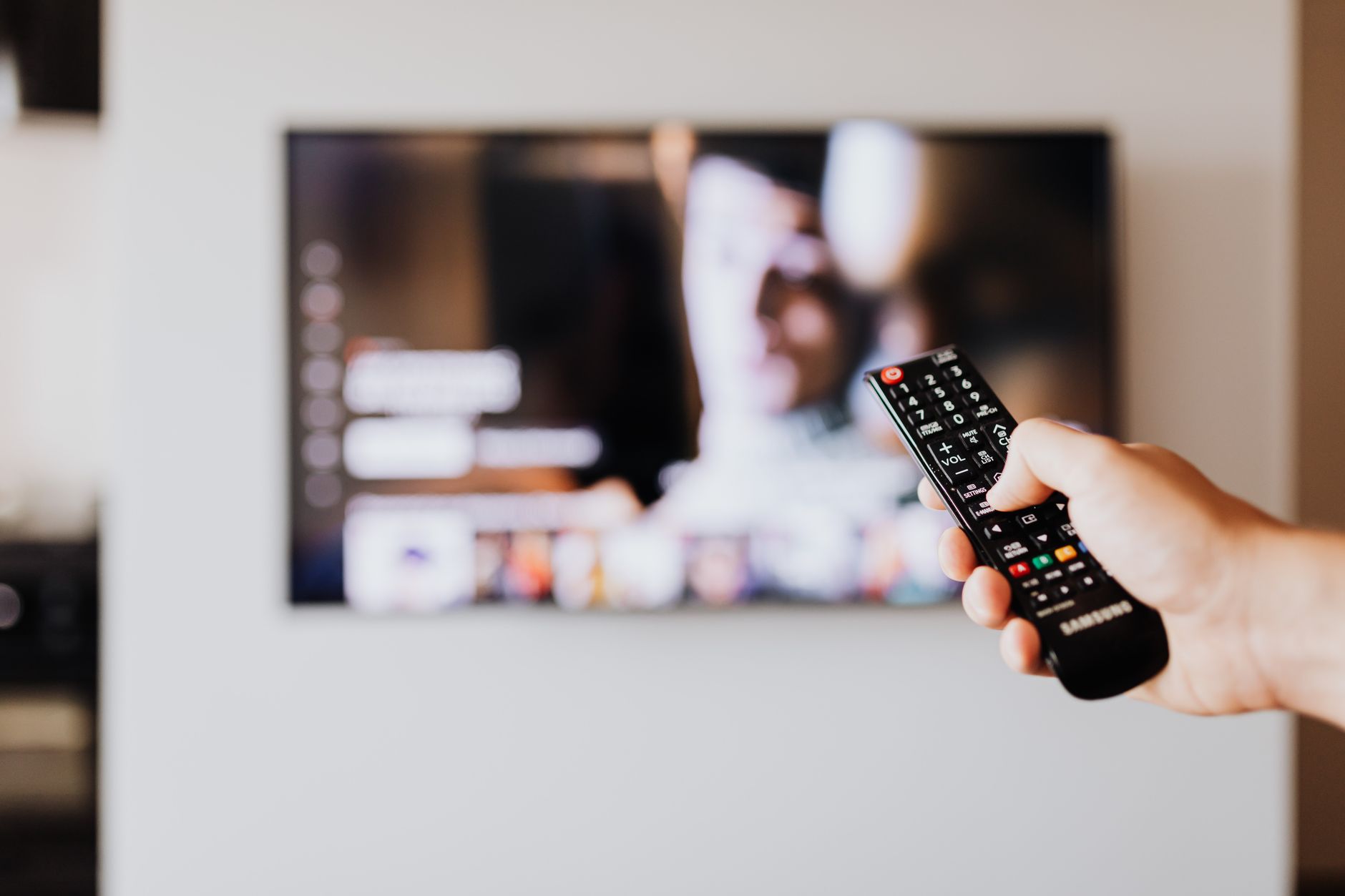
Quick answer If your smart TV keeps dropping Wi-Fi, start by performing a physical power cycle by unplugging both the TV and router for 30 to 60 seconds. Next, address modern network complications like mesh band steering conflicts, WPA3 security mismatches, or aggressive standby power-saving modes that put wireless chips to sleep.
There is hardly anything more frustrating than settling in for movie night only to watch your stream buffer, freeze, and finally display a network error message. If your smart TV keeps losing Wi-Fi, the issue usually stems from a temporary glitch in the television's network stack, modern mesh router handoffs, or an IP address conflict. Fortunately, you do not need to call a technician or immediately buy a brand-new television to solve this problem.
Fixing intermittent connectivity usually requires a methodical approach, starting with the simplest software tweaks and moving toward advanced network and hardware adjustments. Whether you own a Samsung Tizen display, an LG webOS model, or a budget Roku TV, the underlying networking principles remain identical. Work your way down this list, and you will likely find a permanent solution to your dropping connection woes.
Modern home environments running mesh Wi-Fi systems and aggressive firmware power-saving configurations have made smart TV wireless dropouts a prominent issue. If your TV is more than seven years old, internal hardware failure is a strong possibility, where a replacement module might cost more than 50% of a new unit's value. For most modern displays, however, a quick settings adjustment or a router security change will get your streams running smoothly again.
Key takeaways
- Unplug your TV, router, and modem for 30 to 60 seconds to clear temporary cache and resolve handshake glitches.
- Switch router security from exclusive WPA3 to WPA2/WPA3 transitional mode if your smart TV fails to authenticate.
- Disable aggressive power-saving or standby modes that put internal Wi-Fi adapters to sleep.
- Understand that replacing a failed internal Wi-Fi module on an out-of-warranty TV over 7 years old rarely makes financial sense compared to buying an external streaming stick.
Quick Fixes to Try First
Before diving into deep network configurations, start with the most basic troubleshooting steps. Often, a temporary glitch in the television's operating system causes it to lose its grip on the wireless signal. Unplug your smart TV directly from the wall outlet. Wait 30 to 60 seconds to allow the internal capacitors to drain completely, which forces the hardware to clear its temporary memory cache. Plug the power cord back in and check if the connection holds.
Another fast diagnostic step is checking the date and time settings on your smart TV. If your television has lost its time synchronization due to being unplugged, modern security protocols like SSL/TLS will fail to authenticate with streaming servers. Navigate to your TV's system settings, find the date and time menu, and ensure it is set to automatic network sync.
While these quick fixes are great for clearing minor glitches, they are not for persistent hardware failures. If your television drops the connection every single time you turn it on, simple power cycles will only buy you a temporary reprieve. You will need to dig deeper into the network and router settings.
Restart Your Router and Modem

Photo by Sami Abdullah on Pexels
Your smart TV is rarely the only device on your home network, but it is often the most sensitive to routing hiccups. Network routers manage dozens of connected devices simultaneously, assigning local IP addresses via DHCP. Over time, routing tables can become cluttered, leading to dropped packets and sudden disconnects specifically affecting stationary devices like televisions.
To clear your network traffic, unplug both your modem and your wireless router from the wall power outlet. Leave them powered down for 30 to 60 seconds. Plug the modem in first and wait for the status lights to stabilize, indicating an established connection with your internet service provider. Next, plug in your wireless router and allow it to broadcast its Wi-Fi signal fully before turning your television back on.
Resolve Mesh Wi-Fi and Band Steering Conflicts
Many modern homes utilize mesh Wi-Fi systems that rely on band steering, automatically pushing devices between the 2.4 GHz and 5 GHz frequencies. Unfortunately, many smart TV wireless network adapters handle these sudden band handoffs poorly, resulting in immediate disconnections.
If you use a mesh network, log into your router's companion app and look for options to disable band steering or create a separate, dedicated 2.4 GHz SSID exclusively for your smart home devices and television. This prevents the router from forcefully shifting your TV to a frequency band it struggles to maintain through physical walls.
Check Router Security Settings (WPA3 vs WPA2)
Upgrading your router security to strict modern standards can unintentionally break older or mid-range smart TVs. Running your wireless network on an exclusive WPA3 security mode frequently causes authentication errors and endless connection loops on televisions that only fully support Wpa2.
Access your router's wireless security settings and switch the encryption mode from WPA3-only to a WPA2/WPA3 transitional or mixed mode. This configuration maintains high security for modern devices like smartphones and laptops while allowing your smart TV to connect securely without dropping authentication tokens.
Disable Hidden Power-Saving Wi-Fi Modes
To meet energy efficiency standards, many modern smart TVs incorporate aggressive power-saving features that put peripheral components—including the internal Wi-Fi chip—to sleep during standby or low-activity periods. When you wake the TV, the wireless adapter fails to reinitialize properly.
Explore your TV's system, power, or eco settings to locate features like "Quick Start," "Instant On," or background network standby modes. Disabling aggressive power-saving states or ensuring background network connectivity remains active during standby often cures chronic post-wake dropouts.
Forget and Reconnect the Wi-Fi Network
Sometimes your smart TV holds onto corrupted authentication data, such as an old encryption key or a glitchy IP lease. The cleanest way to resolve this is to completely remove the network from your TV's memory and start fresh.
Open your television's network or wireless settings menu, locate the list of saved networks, and select the option to "forget" or "delete" your home Wi-Fi SSID. Once the network is removed, restart the television. Go back into the network settings, scan for available wireless signals, select your home network, and carefully re-enter your Wi-Fi password. This forces the router to assign a brand-new IP address to the television.
Check for TV Software Updates
Manufacturers constantly push firmware updates to fix bugs, improve security, and enhance wireless driver stability. If your television is running an outdated software version, a known Wi-Fi bug might be causing your connectivity drops.
Navigate to your TV's support or system settings menu and look for a software update or firmware upgrade option. Select the check for updates feature. If an update is available, download and install it immediately. Ensure your television does not lose power during this process, as an interrupted firmware flash can brick the operating system.
Change DNS Settings for a Stable Connection
Internet Service Provider default Domain Name System servers can occasionally fail or slow down, causing your TV to lose its path to streaming servers even when the local Wi-Fi signal is strong. Manually changing your DNS servers to a public, highly reliable alternative often stabilizes the connection.
Go into your TV's advanced network settings and switch from automatic IP/DNS configuration to manual. Enter one of the following reliable public DNS server addresses:
- Cloudflare DNS: Primary 1.1.1.1, Secondary 1.0.0.1
- Google Public DNS: Primary 8.8.8.8, Secondary 8.4.4.4
- Quad9 DNS: Primary 9.9.9.9, Secondary 149.112.112.112
Using public DNS servers is ideal for users experiencing random drops despite a strong signal meter. However, if your router itself is dropping packets due to distance, changing DNS addresses will not solve the physical interference.
Move Your Router or Evaluate Hardware Limits
Physical distance and environmental obstacles are silent killers of smart TV Wi-Fi connections. Thick concrete walls, metal studs, large mirrors, and heavy appliances can severely degrade a wireless signal before it reaches your living room. If moving your router closer is impossible, hardwiring the device via an Ethernet cable completely bypasses wireless interference.
Pros
- Ethernet delivers zero dropped packets and maximum streaming speed.
- 2.4 GHz provides superior wall penetration over long distances.
- 5 GHz offers high bandwidth for uncompressed 4K streaming in close range.
Cons
- Running physical cables requires messy home aesthetic management.
- Internal Wi-Fi adapters on TVs are often weaker than phone antennas.
If you suspect physical hardware failure, consider the financial threshold. Typical Wi-Fi module hardware repairs cost between $80 and $250 including labor, with premium OLED parts exceeding $200. If your TV is over 7 years old, repair costs easily surpass 50% of a brand-new unit's value. In such cases, purchasing an external streaming stick or running an Ethernet cable is far more cost-effective than replacing internal components.
Bottom line Resolving smart TV Wi-Fi dropouts requires working systematically through router security modes, mesh band steering configurations, and standby power settings. If software resets and security changes fail—and your hardware is out of warranty—investing in an external streaming stick or a direct Ethernet connection is your best path forward.
Related guide: How to Fix AirPods That Keep Disconnecting
FAQ
Why does my smart TV disconnect from Wi-Fi only when turned off?
Many modern smart TVs feature quick-start or standby power-saving modes that put peripheral chips like the wireless adapter to sleep. When waking the TV from sleep, the system frequently fails to reinitialize the network stack properly without a full system reboot.
Should I use the 2.4 GHz or 5 GHz band for my smart TV?
If your router is far away or separated by multiple walls, use the 2.4 GHz band for better range. If your router is in the same room and you stream high-bitrate 4K content, use the 5 GHz band for faster speeds and less congestion.
How does mesh Wi-Fi band steering affect smart TVs?
Mesh systems often try to force devices between 2.4 GHz and 5 GHz automatically. Many smart TVs struggle with these rapid handoffs, leading to sudden network drops. Creating a dedicated 2.4 GHz SSID on your mesh router usually solves this conflict.
Why does WPA3 router security break smart TV connections?
Exclusive WPA3 security protocols require advanced authentication handshakes that older or certain mid-range smart TV Wi-Fi chips cannot process. Switching your router to a WPA2/WPA3 mixed mode allows the TV to connect without compatibility errors.
Is it worth repairing a broken internal Wi-Fi card on a smart TV?
Generally, no. Repairing or replacing an internal Wi-Fi module costs between $80 and $250. If your TV is over 7 years old, this often exceeds half the cost of a brand-new television. Using an external streaming device or an Ethernet cable is a much smarter financial choice.
Sources
Facts in this article were checked against these pages on September 29, 2026:
- Smart TV Wi-Fi Dying After Update? Here's the Fix (whizz-experts.com)
- How to Fix a Smart TV Not Connecting to Wi-Fi | Asurion (asurion.com)
- TV Keeps Disconnecting From WiFi – How to Fix Smart TV ... (youtube.com)
- Solved: Smart TV keeps dropping Wi-Fi after power off and ... (us.community.samsung.com)
- My tv keeps disconnecting from the wifi. And yes. I just set it ... (justanswer.com)
- TV Not Connecting to Internet? 5 Fixes Ranked by Likelihood 2026 | Spanr Guides (spanr.ai)
How we researched this: this guide is based on current manufacturer information and reputable sources, listed in the Sources section above, and is updated when things change. Read our editorial policy.
Content Writter


Comments
No comments yet — be the first to share your thoughts.