
How to Fix Smart Switch Light Flickering
Is your smart switch causing LED lights to flash, flicker, or glow when off? Follow this guide to diagnose minimum load issues, neutral wiring, and app settings to stop flickering for good.
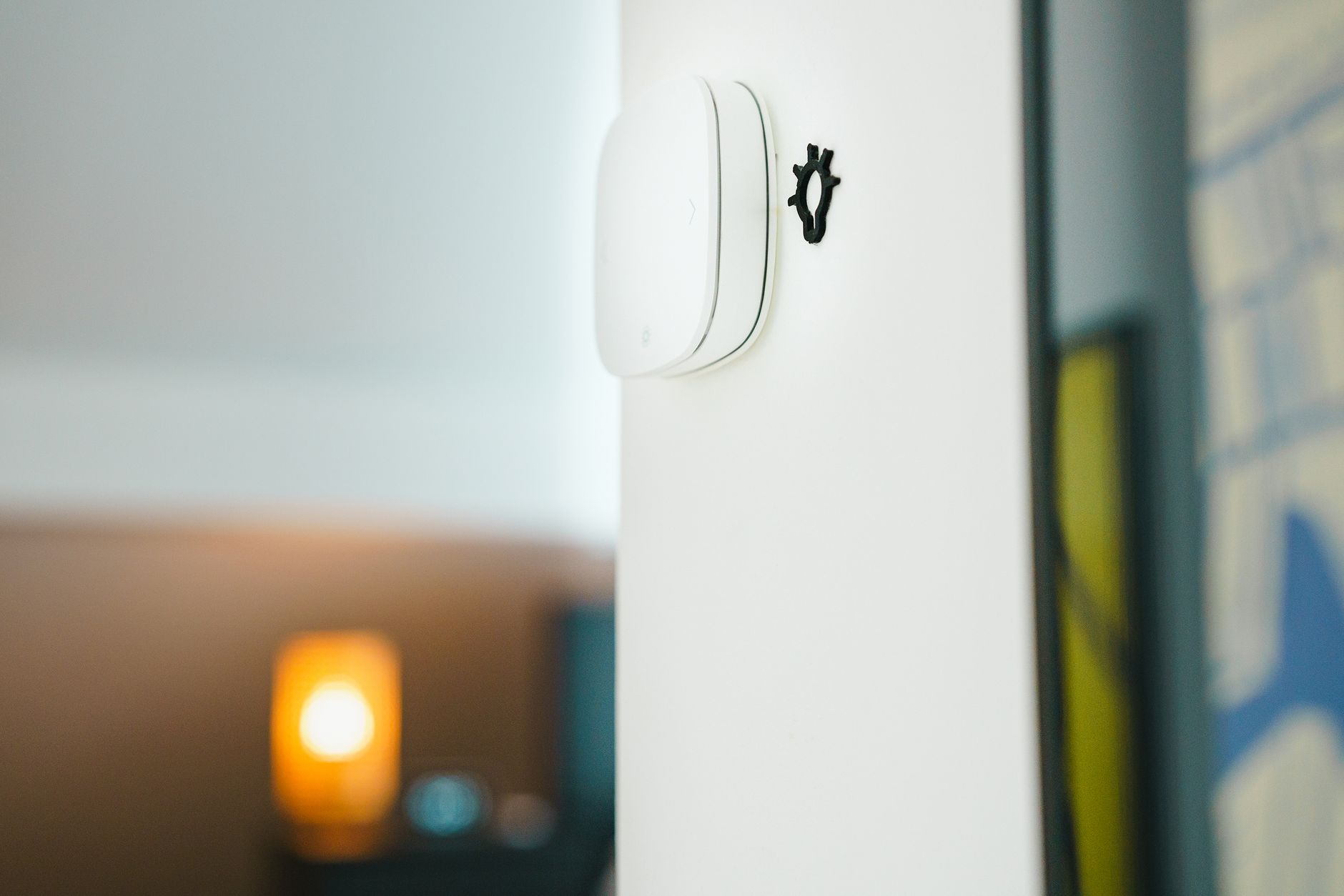
Quick answer To apply a smart switch light flickering fix, first run a simple test by swapping one LED bulb for an incandescent to verify if a minimum load issue exists. Then, adjust the minimum dimming threshold in your switch app (like Tapo or Kasa) or wire a load bypass resistor across the light fixture to absorb excess leakage current.
Upgrading standard light switches to modern smart dimmers is one of the easiest ways to start building an automated home. However, replacing a standard mechanical switch with a smart switch often introduces irritating electrical glitches like rapid strobing, faint glowing when turned off, or low-level buzzing.
These symptoms rarely mean your new switch is broken. Smart switches require a continuous electrical current to power their internal Wi-Fi or Matter radios, which can disrupt sensitive LED bulb drivers. Whether you are running a single-ecosystem setup or expanding a multi-platform network, applying the right step-by-step diagnostic will fix the problem permanently.
Key takeaways
- Smart switches trickle a small amount of leakage current to power internal radios, which can make low-draw LEDs glow or flash when turned off.
- Fixtures drawing under 15 watts of total LED power often trigger minimum load failures that cause strobing.
- Adjusting minimum dimming thresholds in modern management apps often resolves flickering without hardware changes.
- Installing a dummy load bypass adapter directly at the fixture stabilizes low-wattage LED circuits on no-neutral setups.
Symptoms: Distinguishing Fast Strobe, Low-Dim Flicker, and Off-State Glowing
Before touching any wires, identify the exact behavior of your lights. Different symptoms point to completely different electrical causes:
- Rapid Strobing / Flashing (On State): The lights flash brightly multiple times per second while turned on. This usually indicates a minimum load failure where the total circuit wattage is too low for the switch to operate stably.
- Faint Glowing or Pulse (Off State): The fixture remains dimly lit or blinks periodically even after turning the switch off. This happens when leakage current flowing through a no-neutral smart switch charges the capacitors inside the LED bulb driver until they discharge.
- Low-Dim Flickering: Lights operate smoothly at high brightness but stutter or drop out when dimmed below 20% to 30%. This stems from an uncalibrated low-end dimming threshold in the controlling app.
- Audible Buzzing or Humming: A high-pitched sound comes directly from the bulb or switch body, signaling driver component incompatibility.
Fix 1: Match LED Bulb Wattage and Dimmability to Your Smart Switch
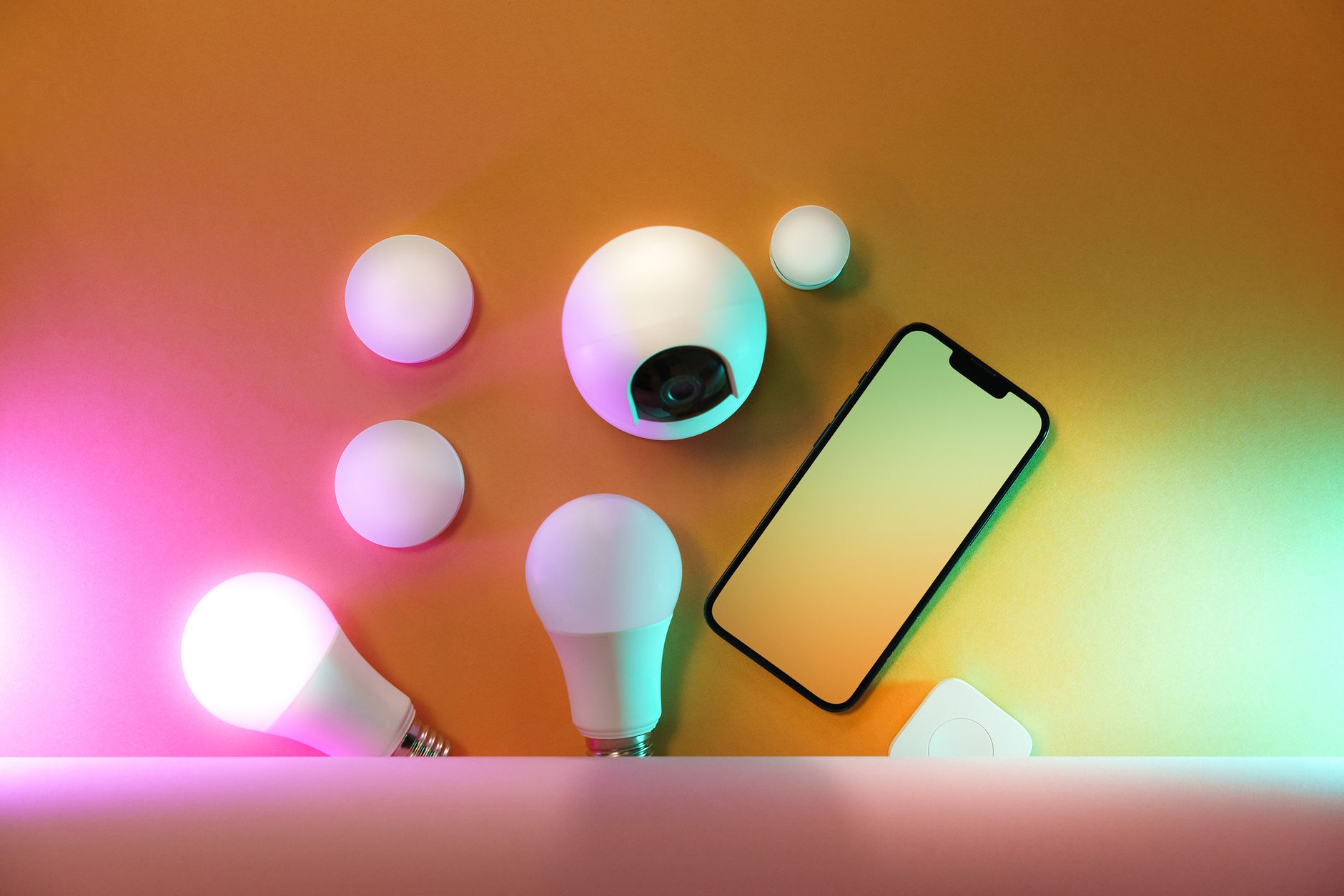
Photo by Jakub Zerdzicki on Pexels
- Verify Dimmable Markings: Check the base of your LED bulbs or their original packaging to confirm they are explicitly rated as "dimmable." Non-dimmable LEDs paired with smart dimmers will flicker constantly and can overheat.
- Perform the Swap Test: Turn off the breaker, remove one LED bulb from your fixture, and temporarily replace it with a standard incandescent bulb. Restore power and test the switch. If all flickering stops immediately, your switch is suffering from a minimum load failure or LED driver incompatibility rather than a hardware defect.
- Check Total Fixture Wattage: Calculate the combined power draw of all bulbs on the circuit. If the total draw is under 15 watts (for example, two 6-watt LED bulbs totaling 12W), the circuit lacks the resistance required to satisfy the switch's internal power supply. Replace the bulbs with higher-wattage dimmable LEDs or add a bypass resistor.
Fix 2: Install a Resistor Bypass Module
If your circuit lacks a neutral wire or draws under 15 watts, the smart switch sends continuous leakage current through the load to power its internal electronics. A bypass module (a resistor adapter) bridges the circuit directly at the light fixture, absorbing excess leakage current and providing the necessary load without wasting significant energy.
- Turn off the main electrical power at your home's breaker panel and verify the fixture is completely dead using a non-contact voltage tester.
- Lower the light fixture from the ceiling box to access the live (line/load) and neutral wire leads entering the light fixture itself.
- Attach one wire of the bypass module to the fixture's neutral wire nut and the other wire to the switched live wire nut. The adapter sits in parallel across the light fixture, not inside the wall switch box.
- Tuck the module into the ceiling box, remount the fixture, and turn the circuit breaker back on to confirm off-state glowing and strobing have ceased.
Warning: Always shut off power at the main breaker panel before working with ceiling fixture wires or wall gang boxes. Never attempt to wire a bypass adapter inside a live junction box.
Fix 3: Check and Secure Loose Wire Nuts and Neutral Connections
Smart switches that require a neutral wire—such as popular Matter-compatible dimmers like the TP-Link Kasa KS225 or KS205—rely on a continuous, uninterrupted connection back to the panel. Loose wire nuts inside cramped gang boxes are a primary cause of erratic power drops.
- Shut off power at the breaker and unscrew the wall plate to pull the smart switch out from the box.
- Inspect the white neutral wire bundle. Ensure the switch's neutral lead is twisted tightly alongside the house neutral wires using an appropriately sized wire nut or lever nut.
- Check the line, load, and ground screw terminals or wire nuts for any exposed copper or loose clamping.
- Carefully fold the wires back into the box, ensuring no wire nuts are forced open against the metal sides of the electrical box, then restore power.
Fix 4: Adjust the Switch's Minimum Dimming Threshold in the App
Modern smart dimmers allow you to set custom upper and lower voltage limits. Setting the minimum dimming threshold slightly higher prevents the switch from sending undersupplied current to sensitive LED drivers.
- Open the companion management app for your device. For example, if you are managing Kasa or Tapo hardware, open the consolidated Tapo app.
- Select your smart dimmer switch and navigate to its device settings menu.
- Locate the Dimming Calibration or Minimum Brightness settings.
- Slowly drag the slider down until the bulbs begin to flicker. Move the threshold back up 3% to 5% above the flicker point and save the calibration profile.
Fix 5: Swap Non-Neutral Switches or Add a C-Wire Adapter
If you are using a non-neutral smart switch on an older two-wire circuit and experience persistent noise, consider upgrading your setup. Newer Matter-certified smart switches provide multi-platform ecosystem integration across Apple Home, Alexa, and Google Home, and offer robust local LAN control features. Local LAN control allows device schedules and local commands to keep executing smoothly even if your home Wi-Fi disconnects, preventing switch reboots and power cycling stutter.
Pros of Neutral-Required Smart Switches
- Zero off-state LED glowing or leakage current issues.
- Broader compatibility with low-wattage LED fixtures.
- Stable local LAN control and faster response times.
Cons of Neutral-Required Smart Switches
- Requires neutral wire availability in the switch gang box.
- More complex wiring during initial installation.
Common Mistakes to Avoid
- Assuming the switch is defective: Returning a smart switch without performing a basic bulb swap test often leads to buying a replacement switch that exhibits the exact same flickering behavior.
- Mixing LED bulb brands: Combining different LED bulb models or driver types on the same dimmable switch circuit causes uneven load distribution and flickering.
- Ignoring app setup: Failing to complete initial app calibration leaves the switch at default factory power settings that may not match your bulbs.
- Leaving loose neutrals: Pushing switches back into tight boxes can pull neutral wire nuts loose, leading to unstable Wi-Fi connections and blinking switch LEDs. For more setup advice, see our guide on building a smart home automation system.
Bottom line Fix light flickering by performing a simple incandescent bulb swap test to isolate load issues, then raise the minimum dimming level in your setup app. If off-state glowing persists on circuits without a neutral wire, install a load bypass module at the ceiling fixture. If you are starting fresh, choose Matter-compatible smart switches with a neutral wire connection for the most reliable long-term performance.
Related guide: How to Fix an Android Auto Connection That Keeps Dropping
Related guide: How to Fix Smart Bulbs That Keep Going Offline
Related guide: How to Fix a Smart Lock That Won't Unlock
FAQ
Why do my LED lights flicker when turned off with a smart switch?
Smart switches without neutral wires leak a continuous trickle of electricity through the circuit to stay connected to your Wi-Fi network. This leakage current charges the capacitors in low-draw LED bulb drivers until they rapidly discharge, causing a periodic flash or faint glow while off.
Do smart switches require special LED bulbs?
Smart switches do not require proprietary smart bulbs, but smart dimmers do require bulbs explicitly labeled as dimmable. Using non-dimmable LEDs on a dimmer switch causes buzzing, erratic strobing, and potential driver damage.
What is a smart switch bypass resistor and do I need one?
A bypass resistor (or load module) is a small electrical adapter installed across the fixture between the switched live and neutral wires. You need one if your light fixture draws under 15 watts total or if your no-neutral smart switch causes off-state glowing.
Why does my smart switch flash lights continuously after installation?
Continuous fast strobing usually indicates a minimum load failure where total LED wattage is too low for the switch to run. It can also happen if neutral wire nuts inside the wall box are loose or disconnected.
How do I adjust the minimum dimming level on my smart switch?
Open your switch management app (such as Tapo or Kasa), open the device settings for your smart dimmer, and select the dimming calibration option. Adjust the minimum brightness threshold slider upward until the bulbs no longer flicker at low power settings.
Sources
Facts in this article were checked against these pages on October 21, 2026:
- Why Your New Sensor Switch Is Making Your Lights Strobe (And How to Fi – Rayzeek (shop.rayzeek.com)
- The lights are flickering with my Smart Dimmer (help.feit.com)
- Smart Switch Issues: Flickering and Random Switching (facebook.com)
- Troubleshooting Kasa Bulb and Light Switch Flickering ... (justanswer.com)
- How to Troubleshoot a Smart Switch (youtube.com)
- Smart House Light Switches: Troubleshooting Issues in ... (paclights.com)
How we researched this: this guide is based on current manufacturer information and reputable sources, listed in the Sources section above, and is updated when things change. Read our editorial policy.
Content Writter



Comments
No comments yet — be the first to share your thoughts.