
How to Fix an Android Auto Connection That Keeps Dropping
Tired of Android Auto cutting out mid-drive? Follow this step-by-step guide to resolve cable faults, wireless drops, and aggressive phone battery settings.
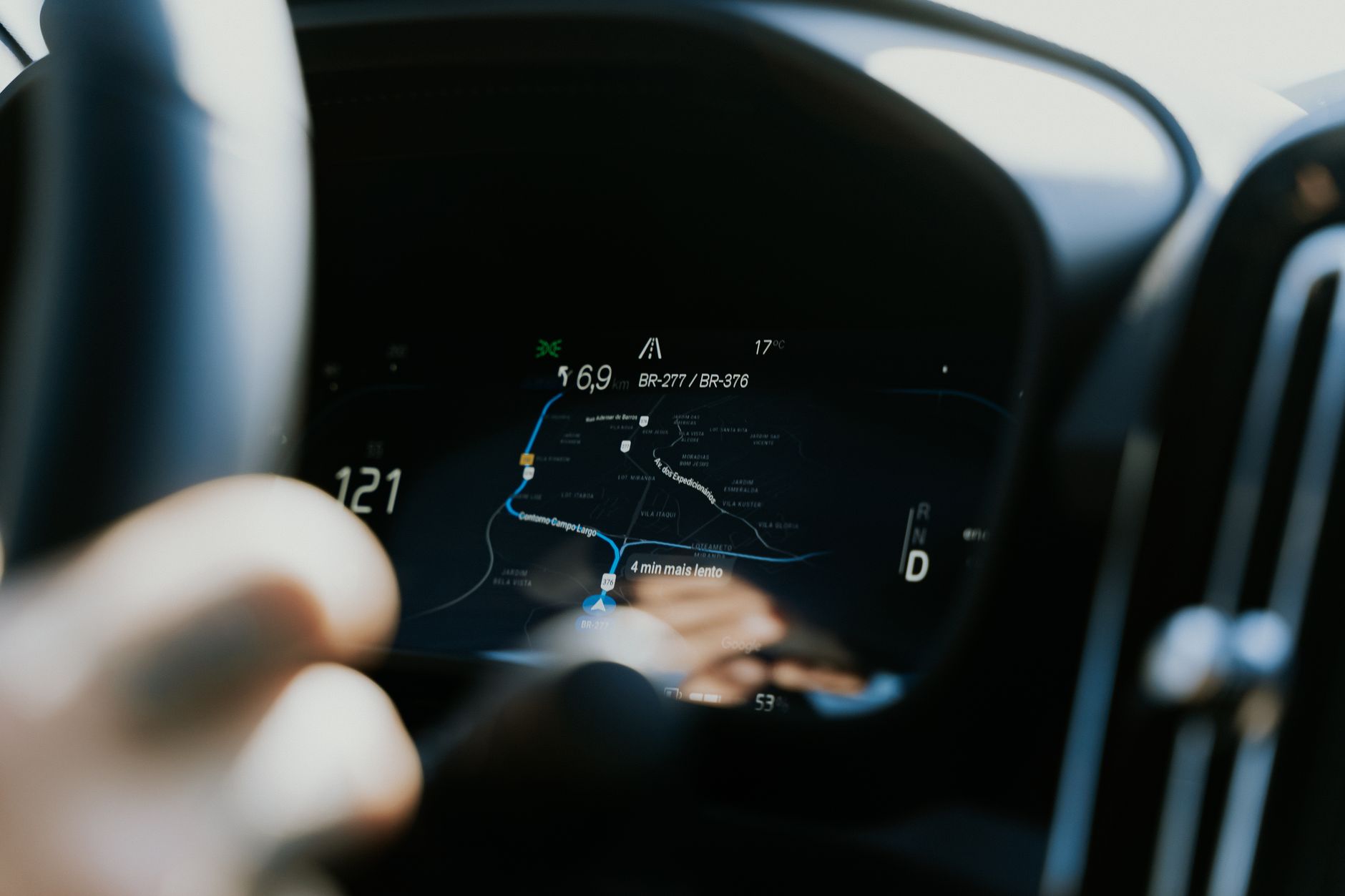
Quick answer: If your Android Auto connection drops constantly, swap to a certified USB data cable under 3 feet long and clean lint from your phone's port. For wireless dropouts, turn off active VPNs, clear the Android Auto app cache, and change the app's battery usage setting to "Unrestricted" so your phone does not shut it down while driving.
Few things are as frustrating as your dashboard navigation cutting out right before a tricky highway exit. When your phone drops its link to your car, music pauses, maps freeze, and hands-free calls abruptly end.
A dropped signal usually traces back to one of three culprits: a degraded cable, Wi-Fi radio interference, or your phone's battery saver quietly killing the app in the background. If your android auto keeps disconnecting, this guide walks you through the fixes step by step.
Key takeaways
- Use a certified high-speed USB data cable that is under 3 feet (1 meter) long to avoid signal loss.
- Set Android Auto's battery usage setting to "Unrestricted" so background management does not kill the app mid-drive.
- Active VPN apps block the local Wi-Fi handshake needed for wireless connections and must be turned off.
- Change the hidden "Default USB Configuration" in Android Developer Options to prevent your phone from slipping into charge-only mode.
- Clear out corrupted cache files and remove old vehicle profiles after major software updates.
Before You Start
Before changing any settings, make sure you have the following items ready:
- Time required: 10 to 15 minutes.
- Hardware: Your Android phone, your vehicle or portable display (such as a Carpuride or Lamtto unit), and a high-speed data transfer cable.
- Software: Your phone updated to the latest available operating system (such as Android 16) and Android Auto version 16.1 or newer.
- Tools: A wooden toothpick or a can of compressed air to clean dusty connection ports.
Check Your USB Cable and Port First
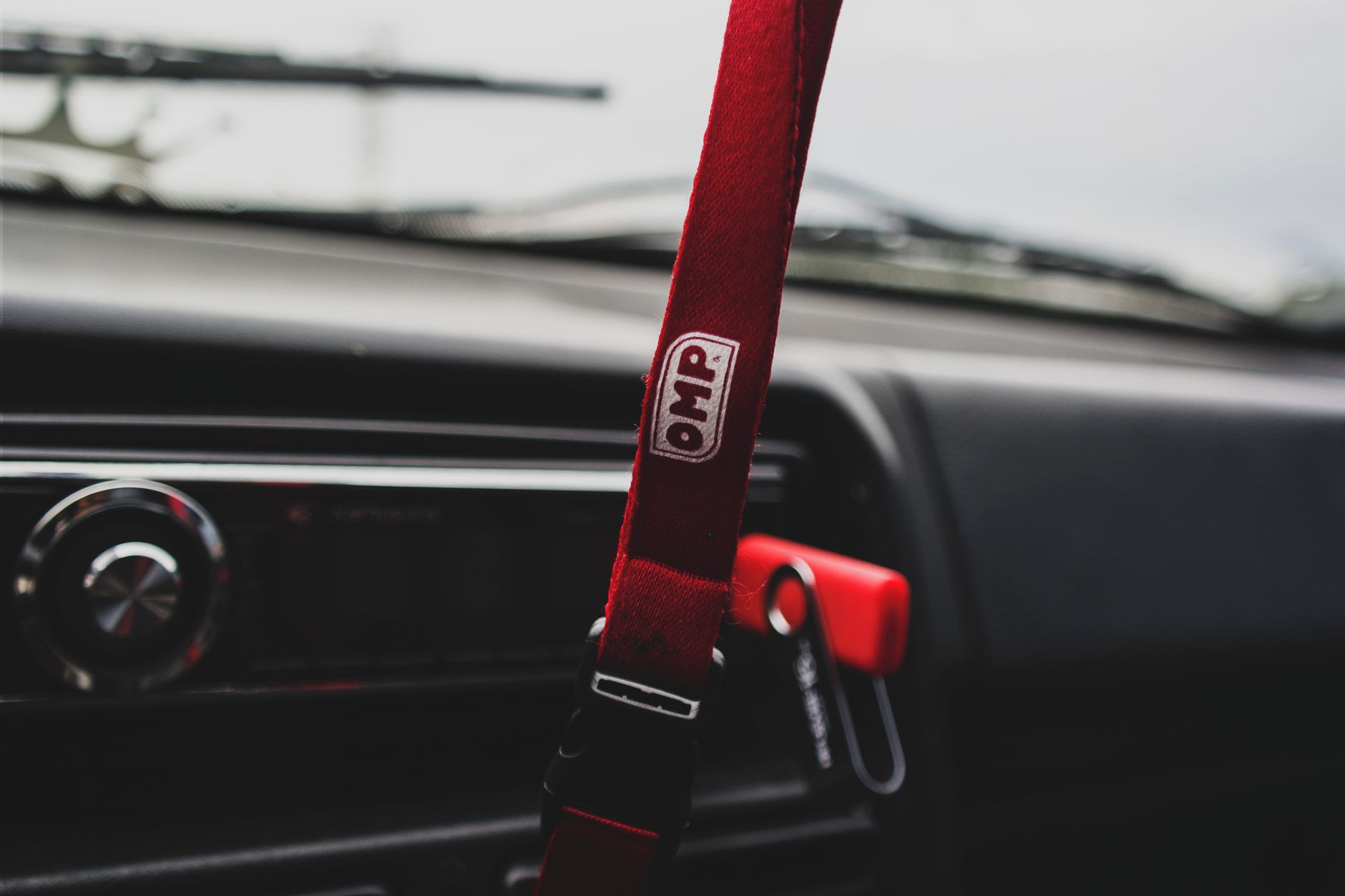
Photo by revac film's&photography on Pexels
Physical hardware problems cause most wired disconnections. Android Auto pushes high-bandwidth video and audio data alongside power. A standard thin charging wire cannot handle that workload reliably.
- Inspect your cable specifications: Make sure you are using a USB-IF certified data cable. Avoid generic, thin cords that only deliver power. If you want to understand how modern charging cables handle high loads, read our guide on USB PD 3.1 fast charging explained.
- Shorten the cord: Keep your cable under 3 feet (1 meter) in length. Cables longer than 6 feet suffer from electromagnetic interference and signal drops when you accelerate or run cabin accessories.
- Clean both USB ports: Pocket lint builds up inside your phone's USB-C port over time. This prevents the plug from clicking in securely. Use compressed air or a wooden toothpick to gently sweep out debris.
- Adjust the default USB behavior: Phones often default to charging-only mode when voltage fluctuates. Unlock Android's hidden settings to keep data flowing. Open
Settings>About Phone>Software Infoand tap Build Number seven times. Now go toSettings>Developer Options>Networking>Default USB Configuration, and select File Transfer / Android Auto.
Warning: Never use a metal safety pin, paperclip, or sewing needle to clean your USB-C port. Metal tools can bend or short out the delicate gold contact pins inside the phone.
Pros of Wired Connections
- No wireless radio interference from roadside toll readers or cell towers.
- Keeps your phone charged during long road trips.
- Slightly faster audio response with zero lag.
Cons of Wired Connections
- Cables wear out quickly from cabin heat and physical bending.
- Dirty ports cause drops whenever you hit a bump in the road.
Clear Cache and Data for Android Auto and Google Play Services
Temporary software glitches can corrupt the handshake between your phone and your dashboard. Clearing out bad temporary files lets the two devices rebuild a fresh data bridge.
- Open your phone's Settings app.
- Tap Apps, then scroll down and select Android Auto.
- Tap Storage.
- Tap Clear Cache at the bottom of the screen.
- Return to the main settings menu and verify that Google Play Services is fully updated, as Android Auto relies on it for account authentication and maps.
Clearing your cache will not delete your personal account data or navigation history. It simply removes temporary cache files that might be corrupted.
Adjust Android Battery Saver and App Optimization Settings
Modern Android operating systems feature aggressive power management. If the system thinks Android Auto is using too much power in the background, it will kill the process without warning.
- Open Settings on your phone and tap Apps.
- Select Android Auto and tap Battery.
- Choose Unrestricted (or "Don't optimize" on some device builds).
- Go back to the main Settings menu and tap Battery (or Battery and Device Care).
- Tap Battery Saver and turn off Adaptive Battery while troubleshooting disconnections.
Tip: If you use wireless adapters like the AAWireless TWO+ or third-party dash units like the Carpuride W125S, also set your vehicle's companion app to "Unrestricted" battery usage.
Fix Wireless Android Auto Disconnects (Wi-Fi and Bluetooth)
Wireless Android Auto does not stream video over Bluetooth. It uses Bluetooth only to establish the initial handshake, and then shifts to a 5 GHz Wi-Fi direct connection to cast the screen. If that Wi-Fi link breaks, the whole system drops. This setup is similar to other wireless accessories; see our guide on how to fix a Bluetooth speaker that keeps disconnecting for similar radio advice.
- Turn off active VPNs: Virtual Private Networks reroute your internet traffic. Because wireless Android Auto needs a local, direct Wi-Fi tunnel to the dash, an active VPN stops the system from communicating. Open
Settings>Connections>More Connection Settings>VPNand disable any active profiles. - Review app permissions: Android Auto requires complete permissions to work wirelessly. Go to
Settings>Apps>Android Auto>Permissions. Ensure Location, Nearby Devices, Phone, SMS, and Microphone are all set to Allow. - Reset your wireless radios: Toggle both Bluetooth and Wi-Fi off for ten seconds, then turn them back on. This clears out lingering radio locks.
Reset Car Head Unit and Network Settings
Major platform updates (like the rollout of Android 16) can invalidate security certificates between your car and phone. Resetting the profile creates a clean, secure connection.
- Unplug your phone from the car or disconnect from wireless mode.
- On your phone, open Settings and search for Android Auto.
- Tap Previously connected cars.
- Tap the three dots in the upper-right corner and select Forget all cars.
- Reboot your car's infotainment unit by holding down its physical power button for 10 to 15 seconds until the screen restarts.
- Plug the phone back in with your certified cable, or tap Connect a car to complete the on-screen pairing steps from scratch.
Common Mistakes to Avoid
| Mistake | Why It Causes Disconnects | How to Fix It |
|---|---|---|
| Using cables over 6 feet | Weakens signal and invites electrical interference. | Stick to certified USB cables under 3 feet (1 meter). |
| Leaving VPN active | Blocks the local Wi-Fi video stream. | Pause or whitelist your car connection in VPN settings. |
| Using metal needles to clean ports | Shorts out delicate USB pins. | Use a soft wooden toothpick or dry compressed air. |
| Ignoring dash firmware updates | Leaves known connection bugs unpatched. | Check your vehicle manufacturer's portal for head unit updates. |
If It Still Does Not Work
If you have followed every step and your connection still drops, try these alternatives:
- Test another phone: Plug a friend or family member's phone into the same port. If their device also disconnects, the fault lies in your car's physical USB port or the dash firmware.
- Check for manufacturer updates: Factory car radios and aftermarket displays (such as Lamtto or Carpuride) periodically release firmware patches to fix compatibility bugs after major Android OS releases. Visit your car brand's support site with your VIN to download any pending updates to a USB flash drive.
- Switch to a standalone adapter: If your built-in wireless system remains unstable, try plugging a dedicated wireless dongle (like the AAWireless TWO+) into the data port instead.
Bottom line: Most Android Auto disconnections stem from worn-out, long cables or phone battery settings that silence background processes. Replace your cord with a certified 3-foot data cable, whitelist Android Auto under battery optimization, and disable your VPN. If you only experience drops in one physical spot on your daily drive, roadside radio interference is momentarily overpowering your wireless connection.
Related guide: How to Fix an iPad That Won't Charge or Turn On
Related guide: How to Fix RCS Messaging Not Working on Android
FAQ
Why does my Android Auto disconnect when I hit a bump?
This almost always points to a loose physical connection. Pocket lint packed inside your phone's USB port prevents the cable plug from seating completely, or the cord's internal wiring has worn out. Clean the port carefully with a wooden toothpick and test with a fresh, short cable.
Why does wireless Android Auto drop connection in the same location?
Wireless Android Auto streams data over an open 5 GHz Wi-Fi link. Certain highway spots—such as toll plazas, large digital billboards, cell towers, and airport flight paths—emit strong radio signals that briefly drown out the connection between your phone and your dash.
How do I prevent my phone's battery saver from closing Android Auto?
Open your phone's Settings, go to Apps > Android Auto > Battery, and select Unrestricted. Additionally, turn off Adaptive Battery inside your main battery settings so your phone does not shut down background streaming during long drives.
Does a bad USB cable cause Android Auto to freeze?
Yes. A damaged cable may still deliver charging current while dropping high-speed data packets. When the data stream stutters, Android Auto freezes on screen or crashes back to your vehicle's default infotainment menu.
How do I reset Android Auto without losing my settings?
You can clear temporary bugs by clearing the app cache instead of clearing storage data. Go to Settings > Apps > Android Auto > Storage and tap Clear Cache. This wipes out corrupted temporary files without resetting your custom app launcher or personal preferences.
Sources
Facts in this article were checked against these pages on October 21, 2026:
- Android Auto not connecting or not working? Here are 5 fixes (aawireless.io)
- Android Auto Keeps Disconnecting: 7 Proven Fixes (2025) (mergescreens.com)
- Android Auto kept disconnecting until I changed one hidden setting (xda-developers.com)
- Wireless android auto keeps disconnecting (eu.community.samsung.com)
- I struggled with Android Auto for months, and the fix was something nobody ever talks about (howtogeek.com)
- How To Fix Android Auto Keeps Disconnecting (youtube.com)
How we researched this: this guide is based on current manufacturer information and reputable sources, listed in the Sources section above, and is updated when things change. Read our editorial policy.
Content Writter



Comments
No comments yet — be the first to share your thoughts.