
How to Fix a Smart Lock That Won't Unlock
Locked out of your smart home? Follow this step-by-step guide to safely troubleshoot power failures, wireless drops, and jammed deadbolts.
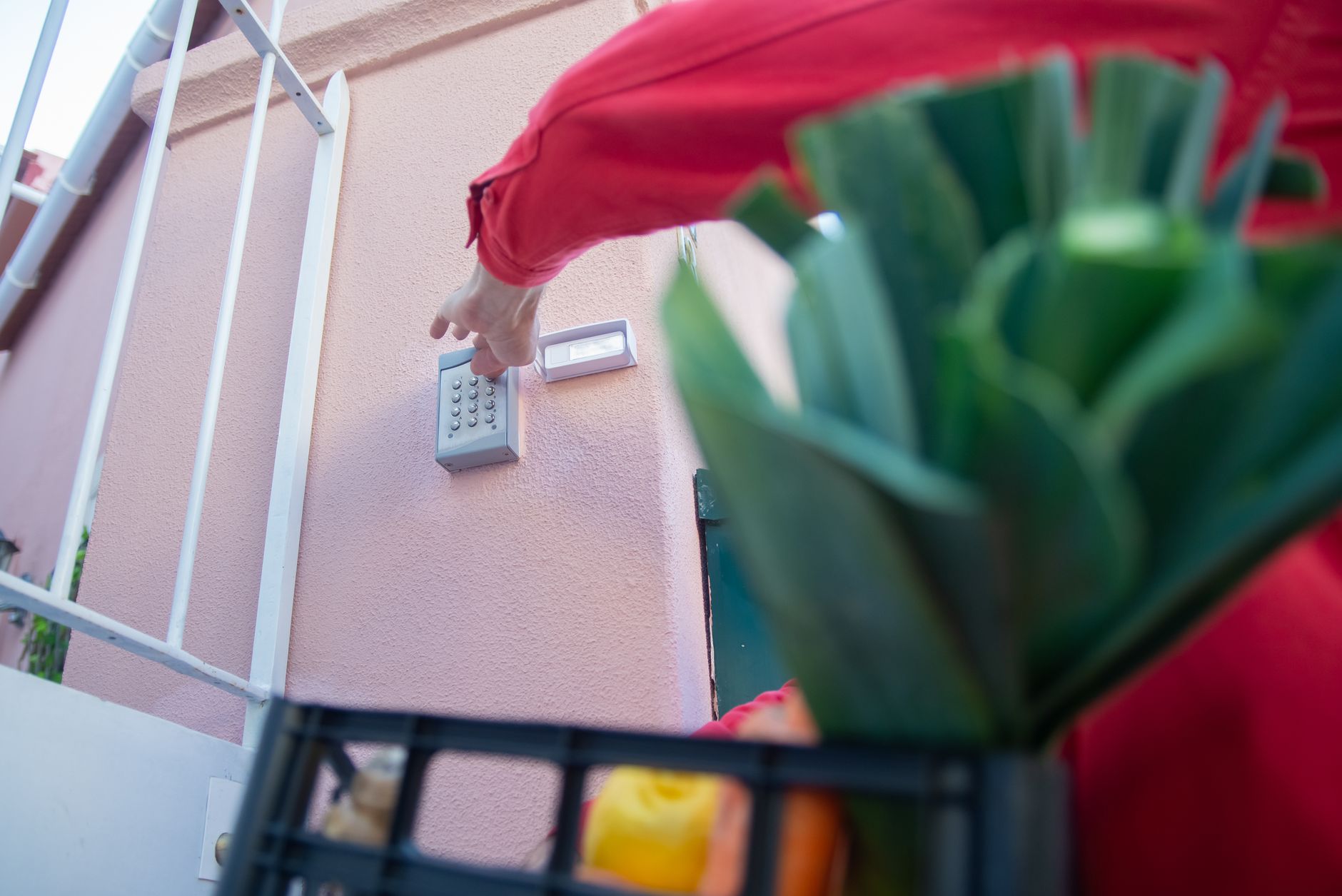
Quick answer To fix a smart lock that won't unlock, check for drained batteries, use a physical backup key or emergency 9V/USB jump-start port, inspect for mechanical deadbolt binding caused by seasonal door shifts, or reboot the device by removing power for one minute.
Standing on your porch while your smart lock ignores your PIN, fingerprint, or mobile app command is deeply frustrating. Whether you are dealing with a completely dead keypad or an internal motor that whirs without moving the deadbolt, addressing the root cause requires a methodical approach that prioritizes physical entry before software troubleshooting.
Modern connected locks—ranging from standard keypad deadbolts to advanced biometric units like the Eufy FamilyLock S3 Max—rely on a delicate balance of electrical power and mechanical alignment. When one component fails, the entire entry system halts. This guide walks you through a prioritized recovery process to get your door open and keep it working reliably.
Key takeaways
- Always replace depleted batteries with fresh 1.5V alkaline cells rather than 1.2V rechargeable NiMH alternatives to prevent erratic motor behavior.
- Use emergency 9V terminals or external USB ports to temporarily power dead units when physical keys are missing.
- Inspect the strike plate and door frame for seasonal wood expansion if the motorized bolt binds shut.
- Keep mobile devices within 10 to 15 feet when troubleshooting Bluetooth app authentication failures.
Before You Start
Before diving into complex hardware resets, gather a few essential items to avoid damaging your hardware or worsening a lockout situation:
- A set of fresh, brand-name AA or LR6 alkaline batteries (do not mix old and new cells).
- Your physical backup mechanical key.
- An external 9V battery or a portable power bank with a USB cable (depending on your lock model's emergency power port).
- A small Phillips-head screwdriver to access battery compartments or mounting plates.
- A dry cloth or pencil eraser for cleaning battery contacts.
Check for Power Issues and Low Batteries
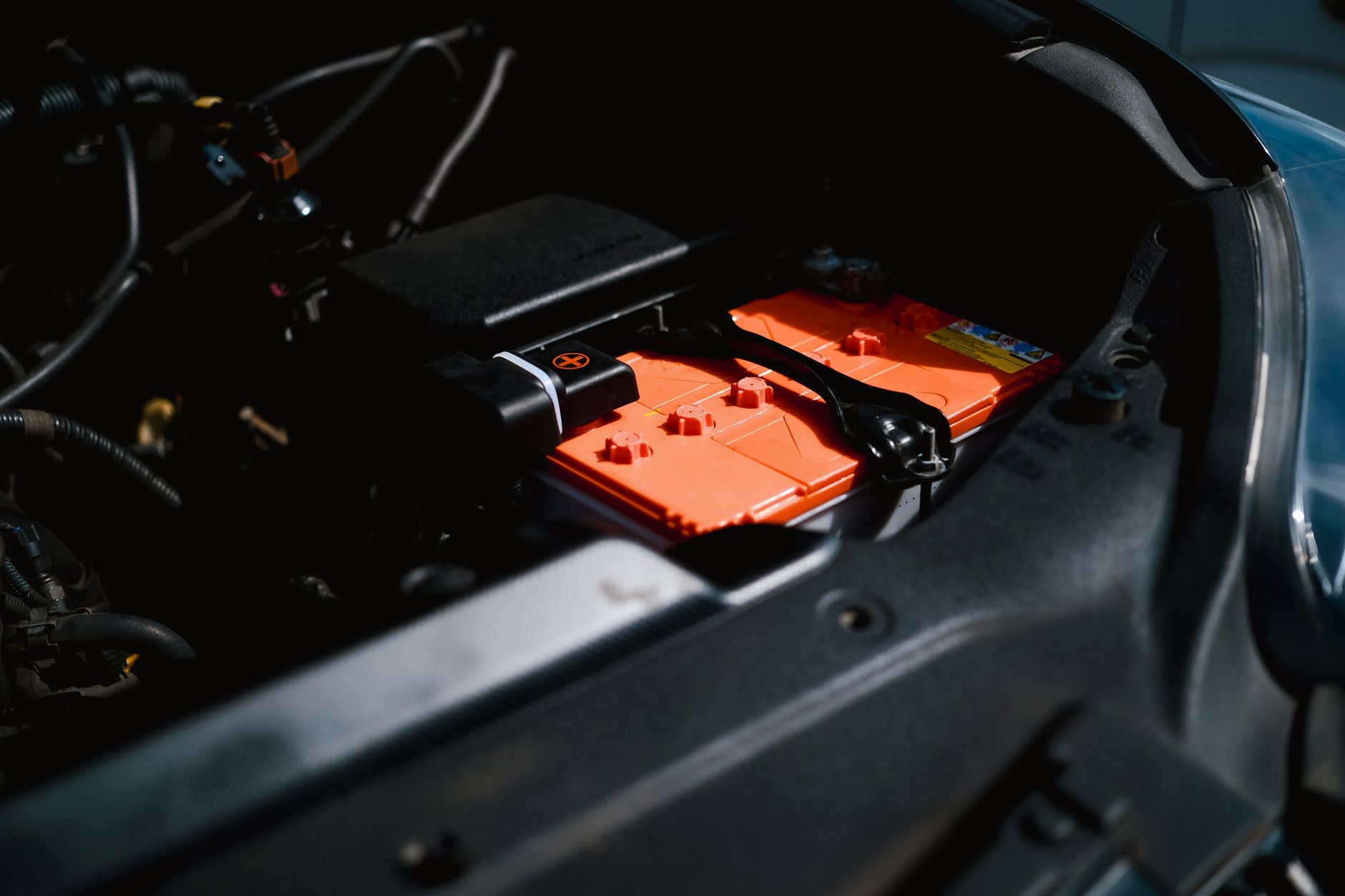
Photo by Ayyeee Ayyeee on Pexels
Power starvation is the single most common reason a digital deadbolt stops responding. When voltage drops below operating thresholds, the internal motor lacks the torque required to retract the bolt, even if the keypad lights up briefly. Open the interior battery cover and inspect the housing.
Replace all batteries at the same time using fresh, brand-name alkaline cells. Never mix different brands or combine old and new batteries, as uneven voltage distribution strains the circuitry. Avoid rechargeable NiMH cells because their lower output of 1.2 volts compared to standard 1.5-volt alkaline batteries routinely causes erratic motor behavior and sudden shutdowns.
If you notice a white or greenish powdery residue on the metal contacts, gently clean them using a dry cloth or a pencil eraser. Once the fresh batteries are installed, perform a hard reboot by leaving the power disconnected for exactly one minute before snapping the cover back into place.
Warning: Never force a jammed mechanical bolt electronically if power is low. Doing so can strip the internal plastic gears, turning a simple battery swap into a costly hardware replacement.
Try Physical Keys and Emergency Jump-Start Ports
If fresh batteries do not restore power, you need an alternate entry method. Most modern electronic deadbolts feature a concealed keyway behind a removable faceplate or sliding cover. Insert your physical backup key and turn it firmly. If the cylinder is stiff from lack of use, apply a small amount of graphite-based lubricant rather than oil-based products, which attract dust and gum up the tumblers.
If you do not have your physical key, look for emergency power terminals located on the exterior bottom edge of the lock housing. Depending on the brand, these will be exposed metal contacts for a 9V battery or a hidden USB-C port. Hold a 9V battery against the exterior contacts or plug in a portable power bank. This supplies instantaneous temporary power to the internal board, allowing you to enter your PIN or scan your fingerprint to retract the latch.
Fix Bluetooth and Wi-Fi Connectivity Drops
If the physical keypad works fine but remote smartphone commands fail, your issue stems from network communication rather than physical hardware. App-controlled deadbolts rely on Bluetooth for local proximity unlocking and Wi-Fi or gateway bridges for remote access.
For Bluetooth authentication failures, keep your smartphone within 10 to 15 feet of the door. Obstructions like thick brick walls or metal security screen doors can block short-range signals.
If your remote app shows the lock as offline, check your home internet connection. Restart your wireless router and modem. Ensure your companion mobile app and the lock's internal firmware are updated to the latest version. For more troubleshooting strategies on maintaining stable wireless connections around the house, check out our guide on how to fix smart bulbs that keep going offline.
If network drops persist, remove the device from your app settings and re-pair it from scratch. This clears corrupted authentication tokens that often accumulate over months of background syncing.
Recalibrate the Bolt and Latch Alignment
Many homeowners mistakenly assume an unresponsive deadbolt is an electrical failure when the real culprit is physical binding. Seasonal temperature swings and humidity cause wooden door frames to expand and contract, throwing the latch and strike plate out of alignment.
To diagnose this, open the door completely and test the thumbturn or motor by entering your code. If the bolt extends and retracts smoothly while the door is open, but binds tightly when the door is closed, your hardware is rubbing against the frame.
- Open the door and extend the deadbolt to its locked position.
- Inspect the strike plate on the door jamb for scraping marks or metal shavings.
- Use your screwdriver to loosen the screws on the strike plate slightly.
- Relocate the strike plate a millimeter or two up, down, or outward to accommodate the door's current position, then tighten the screws securely.
- Test the motorized lock cycle with the door open before closing it to confirm smooth operation.
Tip: If the latch hole in the door frame is slightly too shallow due to shifting wood, use a round wood rasp or drill bit to deepen the cavity by a few millimeters.
Reset the Smart Lock to Factory Settings
If you have exhausted all other diagnostic steps and the lock remains completely unresponsive, executing a factory reset clears out persistent software glitches. Keep in mind that this process will erase all programmed user codes, administrator pins, and custom automation schedules stored locally on the device.
Locate the physical reset button, which is usually housed underneath the interior battery cover or on the back mounting plate. You may need a paperclip or a SIM ejector tool to press and hold the button for 10 to 15 seconds until you hear an audible beep or see the indicator lights flash. Once the reset is complete, open your companion smartphone app, set up a new administrator profile, and re-add your household access codes.
Pros
- Clears out deep software bugs and corrupted firmware loops.
- Restores default factory communication protocols for easier app re-pairing.
Cons
- Erases all existing user PINs, biometric profiles, and custom logs.
- Requires complete reconfiguration of auto-lock timers and guest access permissions.
Common Mistakes to Avoid
Troubleshooting digital entry systems incorrectly can lead to damaged hardware or extended lockouts. Keep these common missteps in mind:
- Mixing battery types: Combining old cells with new ones or mixing different chemical brands causes voltage drops that fry circuit boards.
- Ignoring privacy modes: Many users panic when a lock won't open from the inside, forgetting that a physical privacy toggle switch or child lock setting was accidentally engaged.
- Forcing a jammed mechanism: Pushing or pulling violently on the door while the motor is turning can strip internal gearing instantly.
- 忽视app notifications: Ignoring low-battery warning alerts for weeks until the cells die entirely.
If It Still Doesn't Work
If you have replaced the batteries, aligned the strike plate, used an external 9V jump-start, and performed a full factory reset without success, the internal motor or motherboard has likely suffered permanent hardware failure. At this stage, consult your purchase receipt and warranty documentation. Most reputable manufacturers offer multi-year electronic warranties. Reach out to customer support with your model number and serial code to request a replacement unit or a professional service dispatch.
Bottom line For most locked-out homeowners, swapping in fresh alkaline batteries and checking physical door alignment will instantly solve the issue. If the electronics are permanently fried, rely on your physical backup key or manufacturer warranty rather than forcing mechanical components.
Related guide: How to Fix an Induction Cooktop That Won't Heat Up
Related guide: How to Fix an Electric Toothbrush That Won't Turn On
Related guide: How to Fix Smart LED Strip Lights That Won't Turn On
FAQ
What do I do if my smart lock battery dies completely?
Use your physical backup key in the concealed keyway, or apply external power using a 9V battery held against the exterior bottom terminals or a portable USB power bank.
How do I unlock my smart lock from the outside when it jams?
If the motor whirs but the bolt sticks, press firmly against the door near the lock to relieve pressure on the deadbolt while entering your PIN or turning the backup key.
Why is my smart lock keypad not responding?
This is almost always caused by completely drained batteries, corroded battery contacts, or a temporary internal system freeze that requires removing the power source for one minute.
How do I recalibrate a smart lock motor?
Most models feature a calibration routine found in the device settings of the companion mobile app, which commands the motor to find the full extension and retraction limits of your specific door frame.
Will resetting my smart lock delete my access codes?
Yes, executing a physical factory reset wipes all locally stored user codes, administrator pins, and paired smartphone keys, requiring you to set up the device as new.
Sources
Facts in this article were checked against these pages on November 5, 2026:
- Smart Lock Not Working? 10 Common Problems and How to Fix Them (iveise.com)
- Smart Lock Troubleshooting Guide: Fix Every Issue Fast (iveise.com)
- Smart Lock - Not Locking/Unlocking (support.vivint.com)
- 13 Common Digital Lock Problems and How to Fix Them (hddoor.com.sg)
- Why Is Your Smart Lock Not Working? Solutions Inside - eufy US (eufy.com)
- Why Is Your Smart Lock Not Working? Common Problems & Fixes – Philips Home Access (us.homeaccess.philips)
How we researched this: this guide is based on current manufacturer information and reputable sources, listed in the Sources section above, and is updated when things change. Read our editorial policy.
Content Writter



Comments
No comments yet — be the first to share your thoughts.