
How to Choose the Right Monitor for Working from Home
Upgrade your remote work setup with the right screen size, resolution, and USB-C connectivity for your specific daily workload.

Quick answer To choose the best home office monitor, pair a 27-inch 4K or 1440p IPS display with a built-in USB-C hub offering at least 65W to 90W Power Delivery. For heavy multitasking, consider a 34-inch or 45-inch ultrawide screen to eliminate dual-monitor bezels and extra clutter.
Working on a cramped laptop display leads to poor posture, constant window tab-swapping, and noticeable eye fatigue by late afternoon. Upgrading your desk setup with a dedicated desktop monitor expands your visual real estate and fixes ergonomic angles. However, navigating display jargon can feel overwhelming when consumer options range from budget office panels to high-end gaming screens.
Knowing how to choose a monitor for home office efficiency comes down to matching screen specs with your actual job demands. Whether you manage massive spreadsheets, write code, edit photos, or review documents all day, this guide covers screen sizes, resolutions, panel tech, and desk connectivity so you pick the right monitor without overspending on gaming features you do not need.
Key takeaways
- A 27-inch screen with 4K or 1440p resolution provides the sweet spot for legibility and desk space.
- Integrated USB-C hubs with high Power Delivery (up to 140W) can replace standalone docking stations.
- IPS and IPS Black panels offer superior viewing angles and color accuracy compared to standard VA panels.
- Higher refresh rates (100Hz to 165Hz) ease eye strain during document scrolling, even for non-gamers.
- Matte screen finishes are critical for eliminating glare from nearby home windows and light fixtures.
Assess Your Workload: Resolution, Screen Size, and Aspect Ratio
Finding the right balance between monitor size and pixel density determines how sharp text appears and how many windows fit side by side. Placing a low-resolution screen on a wide desk creates pixelated text, while shoehorning a massive monitor onto a shallow surface forces constant neck turning.
Matching Resolution to Screen Size
Resolution dictates the total number of pixels on screen. Higher pixel counts deliver sharper text rendering, which directly reduces eye strain when reading documents or code lines for hours:
- 1080p (1920x1080): The baseline for basic web browsing and email. It works well on screens up to 24 inches, such as the BenQ GW2486TC, but looks stretched and pixelated on 27-inch or larger panels.
- 1440p (2560x1440 / QHD): The ideal middle ground for 27-inch displays. It gives you roughly 77% more desktop area than 1080p without forcing your operating system to rely on aggressive display scaling. Budget 2K options like the Arzopa M1RC bring this resolution to entry-level price points.
- 4K (3840x2160): Recommended for 27-inch and 32-inch displays like the Dell UltraSharp 27 4K (U2723QE) and BenQ PD3225U. Text looks as crisp as print on paper, making 4K essential for data-heavy spreadsheets, graphic design, and video editing.
- 5K/6K (5120x2880 and up): Specialized high-density panels built for creative professionals requiring native pixel-for-pixel previewing alongside workspace toolbars. High-end curved ultrawides, like the LG 39-inch 5K2K OLED, blend extreme detail with massive wide formats.
Choosing the Right Screen Size and Viewing Distance
Your desk depth determines your ideal viewing distance. Sitting roughly 2 to 3 feet (24 to 36 inches) away pairs best with 27-inch to 32-inch screens. If you operate on a compact desk or want a secondary vertical display alongside a primary screen, a 24-inch monitor remains a smart choice.
Ultrawide displays (34 to 49 inches with 21:9 or 32:9 aspect ratios) replace traditional dual-monitor setups by removing middle bezels. For example, a 44.5-inch 32:9 ultrawide like the HP E45C G5 (5120x1440) lets you run two full-sized 1440p windows side-by-side off a single display chassis.
| Job Role / Workload | Recommended Size | Ideal Resolution | Key Feature Focus |
|---|---|---|---|
| Data Analysis & Finance | 32-inch or 49-inch Ultrawide | 4K or Dual 1440p (5120x1440) | Screen space, high pixel density, KVM switch |
| Software Engineering | 27-inch to 32-inch (or Dual 27") | 1440p or 4K | Vertical pivot stand, crisp text scaling |
| Content Creation & Design | 27-inch to 32-inch | 4K UHD or 5K | Color accuracy (sRGB/DCI-P3), IPS Black panel |
| General Admin & Writing | 24-inch to 27-inch | 1080p or 1440p | Ergonomic adjustment, high refresh rate (100Hz+) |
Panel Types Explained: IPS vs. VA vs. OLED for Productivity
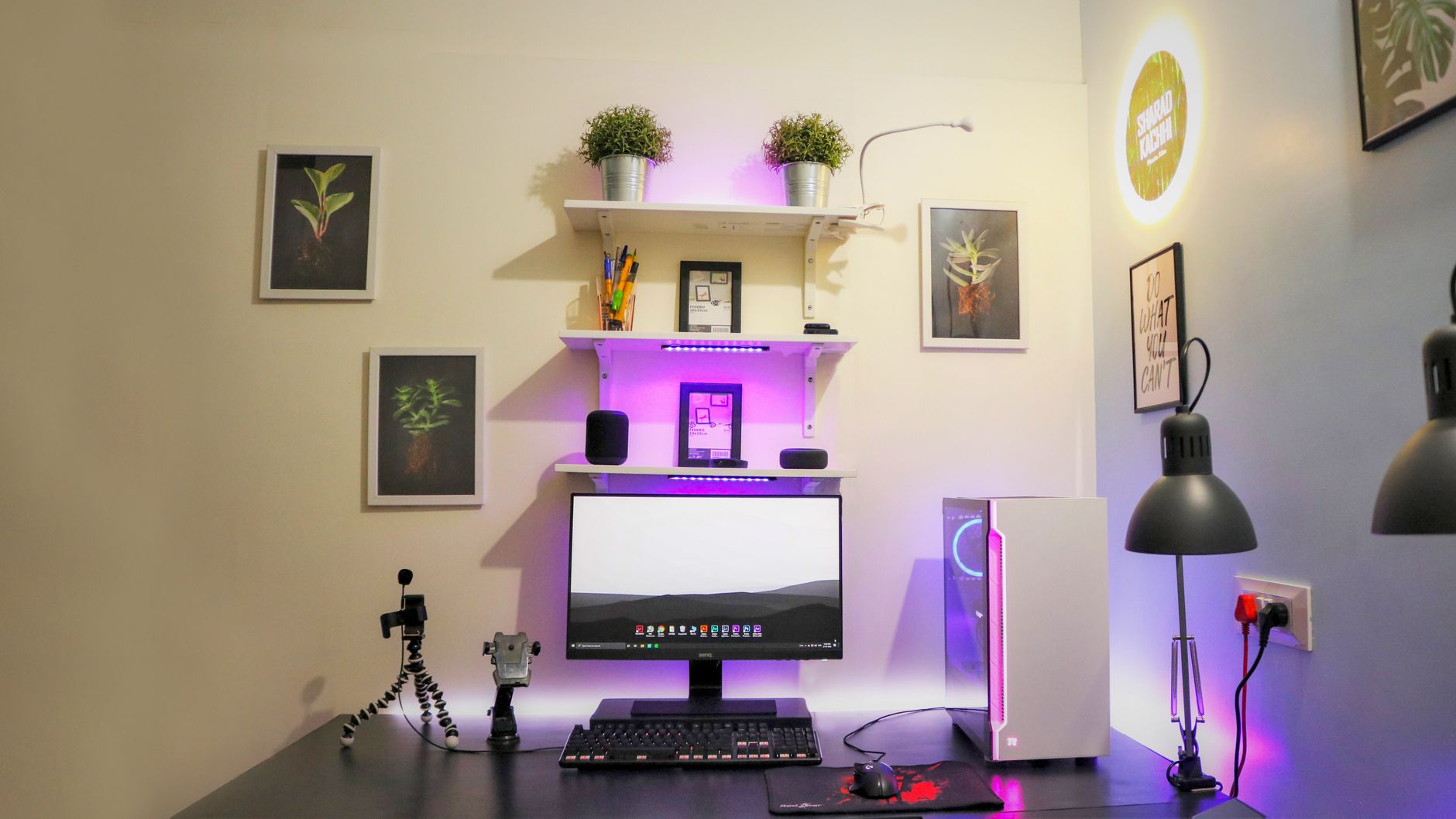
Photo by Sharad Kachhi on Pexels
Panel technology influences color accuracy, viewing angles, and contrast ratios. Selecting the right panel type prevents image distortion when shifting in your chair during long shifts.
In-Plane Switching (IPS) and IPS Black
IPS panels remain the top recommendation for productivity. They provide wide viewing angles (up to 178 degrees) and consistent color accuracy, ensuring that content does not shift in shade or luminance when viewed from off-center angles. Modern productivity displays often incorporate IPS Black technology. Models such as the Dell UltraSharp 32 4K (U3225QE) leverage IPS Black to deliver deeper blacks and higher contrast ratios (around 2,000:1) than conventional IPS panels, making text pop clearly against dark themes.
Vertical Alignment (VA)
VA panels deliver high native contrast ratios (typically 3,000:1 or higher), producing rich dark shades. They are widely used in curved ultrawides like the HP E45C G5. However, VA panels suffer from narrower viewing angles than IPS screens; colors and contrast can wash out slightly near the outer edges of large displays if you sit too close.
Organic Light-Emitting Diode (OLED)
OLED displays offer self-emissive pixels that generate perfect black levels and instant response times. While high-end curved models like the LG 39-inch 5K2K OLED appeal to users who mix heavy evening gaming with daytime work, OLED panels carry higher price tags and pose a subtle risk of image retention (burn-in) if static spreadsheet grids or taskbars remain displayed continuously for years.
Key Productivity Features: USB-C Hubs, Power Delivery, and KVM Switches
Modern productivity displays do far more than just render picture signals—they function as full desktop docking stations. Streamlining your cable management simplifies connecting modern laptops and keeps your workspace clear.
Instead of managing separate desktop adapters, built-in monitor hubs allow you to plug your keyboard, mouse, web camera, and external storage directly into the display. If your home office includes smart accessories or network hardware, building clean connectivity is just as important as setting up a reliable smart home automation system.
USB-C and Thunderbolt Power Delivery
A single USB-C cable can carry DisplayPort video signals, high-speed data transfer, and power charging simultaneously. When choosing a USB-C monitor, check its rated Power Delivery (PD):
- 65W Power Delivery: Sufficient for basic 13-inch and 14-inch ultrabooks or general work laptops.
- 90W–100W Power Delivery: Recommended for 15-inch and 16-inch performance laptops that draw heavier wattage under workload.
- 140W Power Delivery: Supported on advanced Thunderbolt displays like the Dell U3225QE, delivering maximum power to demanding mobile workstations without requiring a separate laptop charging brick.
If you travel frequently with your laptop and rely on multi-port power bricks on the go, check out our guide on Anker Prime vs. Ugreen Nexode fast chargers to streamline your mobile gear kit.
Built-in KVM Switches and RJ-45 Ethernet
A Keyboard, Video, and Mouse (KVM) switch lets you connect two separate computers (such as a corporate laptop and a personal desktop) to the monitor simultaneously. You can alternate control between both systems using a single keyboard and mouse set connected to the monitor's USB ports.
Integrated RJ-45 Ethernet ports pass a stable wired internet connection straight to your laptop over the main USB-C cable. This eliminates dropouts on video calls without requiring an extra USB dongle.
Ergonomics and Eye Care: Stand Adjustments and Refresh Rates
Proper screen positioning prevents chronic neck and shoulder tension. Look for fully adjustable monitor stands that offer height elevation, tilt angles, horizontal swivel, and 90-degree pivot (portrait orientation) adjustments.
Tip: Position the top third of your monitor screen at eye level, roughly an arm's length away. This allows your line of sight to rest slightly downward, reducing eye strain and neck stress.
Matte Coatings vs. Glossy Displays
Home offices often feature uncontrolled light sources, such as ambient daylight from side windows or overhead desk lamps. A matte anti-reflective coating diffuses room reflections, keeping text visible without forcing you into uncomfortable sitting angles to avoid glare.
Higher Refresh Rates in Office Panels
Refresh rates measure how many times per second the display redraws the image on screen. Standard office displays traditionally capped out at 60Hz. However, productivity panels are rapidly adopting higher refresh rates ranging from 100Hz (seen on entry-level models like the BenQ GW2486TC) up to 165Hz (on ultrawides like the HP E45C G5).
Higher refresh rates make mouse cursor movements, window dragging, and continuous document scrolling look noticeably smoother. This reduction in motion jitter significantly lowers visual fatigue during long workdays.
What Specs You Can Safely Skip for Office Work
Monitor packaging often highlights flashy gaming features that add cost without improving day-to-day office productivity. Knowing what to ignore helps stretch your budget further:
- Ultra-low response times (1ms GTG): Crucial for fast-paced competitive gaming, but completely unnoticeable when editing documents or running video meetings. Standard 4ms to 8ms response times are more than fast enough.
- Extreme HDR certifications (HDR 1000+): High peak brightness for HDR movies or games requires complex backlight local dimming zone hardware. Standard SDR brightness (250 to 350 nits) is ideal for desktop office software.
- RGB decorative lighting: Rear ambient lighting built into gaming chassis adds cost without adding productivity value.
- Ultra-wide color gamuts (100% AdobeRGB): Color spaces wider than standard sRGB or DCI-P3 are unnecessary unless you perform professional photo editing, color grading, or prepress print design.
Common Mistakes When Buying a Home Office Monitor
Avoiding a few frequent buyer missteps will ensure you do not end up returning an ill-suited display:
- Choosing low pixel density: Buying a 27-inch or 32-inch screen capped at 1080p leads to blurry, pixelated text that causes constant eye strain. Stick to 1440p or 4K on larger panels.
- Ignoring desk depth: Setting a 32-inch or 49-inch display on a narrow desk forces you to sit too close, causing constant head turning and neck discomfort.
- Underpowering USB-C charging: Purchasing a monitor that offers only 15W to 30W USB-C output will not charge standard laptops while running active workloads. Verify that output matches your laptop's requirements.
- Buying glossy screens for bright rooms: Glossy panels look punchy in dark spaces but act like mirrors in bright home offices, causing severe reflection glare.
Top Monitor Recommendations by Budget and Use Case
Top Picks & Specs
- Dell UltraSharp U3225QE: Premium 32-inch 4K, IPS Black, Thunderbolt hub, up to 140W PD, integrated KVM.
- Dell UltraSharp U2723QE: Standard benchmark 27-inch 4K display, IPS Black, rich connectivity.
- BenQ GW2486TC: Budget-friendly 24-inch 1080p, 100Hz refresh rate, eye care modes, built-in USB-C.
- HP E45C G5: Massive 44.5-inch 32:9 dual-QHD ultrawide (5120x1440), 165Hz, built-in network hub.
- BenQ PD3225U: Tailored 32-inch 4K option for creative professionals requiring precision color coverage.
Trade-offs to Keep in Mind
- 4K displays demand modern laptop hardware to output smooth high-resolution signals.
- Large 32-inch and ultrawide models take up significant desk real estate.
- IPS Black models carry higher price tags than standard entry-level panels.
- Ultra-high power delivery (100W+) is generally restricted to higher-tier hub models.
How to Configure External Displays on macOS
If you connect your new monitor to a Mac laptop, it might mirror your desktop screen by default rather than extending it. To expand your desktop workspace, open System Settings > Displays, select your external display, set it to Extended Display, and click Arrangement to drag screen positions into line with your physical setup.
If you want to review your active software accounts and recurring tools while upgrading your home office, check out our walkthrough on how to cancel forgotten subscriptions. Additionally, if you manage cloud files or device backups across devices, read our tips on how to free up iCloud storage.
Bottom line For most remote workers, a 27-inch 4K or 1440p monitor with an IPS display and built-in USB-C docking (65W+ PD) hits the absolute sweet spot for legibility and value. Skip expensive gaming features and focus on ergonomic adjustments, screen resolution, and matte panel coatings to keep your desk setup productive and comfortable.
FAQ
Is 27 inches or 32 inches better for working from home?
A 27-inch screen is ideal for standard desk depths (around 24 to 30 inches) and pairs exceptionally well with either 1440p or 4K resolutions. A 32-inch monitor is better if you have a deeper desk, work with massive spreadsheets, or want to view multiple documents side-by-side without scaling text down.
Do I need a 4K monitor for basic office tasks and spreadsheets?
While 1080p or 1440p handles basic email and web browsing fine, a 4K display significantly sharpens text rendering. This reduces eye strain during long hours of reading and allows you to display larger spreadsheet grids cleanly on screen.
What is a USB-C monitor hub and do I need one?
A USB-C monitor hub integrates video output, data transfer ports, network connections, and laptop charging into a single cable connection. If you connect a laptop to your display daily, a hub monitor streamlines cable setup and replaces external docking hardware.
Is a curved monitor good for productivity and reading text?
Curved monitors excel on wide ultrawide displays (34 inches and larger) because they bring screen edges closer to your natural field of view, reducing neck rotation. However, for standard 24-inch or 27-inch flat displays, a curve offers little benefit and can warp straight lines in design work.
Does refresh rate matter if I don't play games on my work monitor?
Yes. Upgrading from standard 60Hz to a 100Hz or 120Hz refresh rate makes mouse movements, window dragging, and document scrolling noticeably smoother, which reduces visual fatigue during extended computer work.
Sources
Facts in this article were checked against these pages on October 17, 2026:
- Best monitors for home working of 2026: Expert recommendations for WFH | TechRadar (techradar.com)
- How to Choose the Right Monitor for Your Home Office? (lenovo.com)
- Home Office Monitor Guide: Best Size, Resolution & Features for Work | Samsung US (samsung.com)
- What is the best monitor for your home office? - EIZO (eizovisualsolutions.com)
- How To Choose The Right Monitor Size (youtube.com)
- Best monitors for a home office 2026: Budget, 4K, ultrawide, portable | PCWorld (pcworld.com)
How we researched this: this guide is based on current manufacturer information and reputable sources, listed in the Sources section above, and is updated when things change. Read our editorial policy.
Content Writter



Comments
No comments yet — be the first to share your thoughts.