
How to Free Up iCloud Storage Without Losing Photos
Learn how to free up iCloud storage without deleting your memories, clear out hidden clutter like old backups, and handle storage alerts.

Quick answer You can free up iCloud storage without losing photos by turning on 'Optimize iPhone Storage', deleting old device backups, and clearing large attachments in Messages rather than deleting your entire photo library.
Getting a notification that your cloud storage is full can be frustrating, especially when you have no idea what is actually consuming those gigabytes. Apple gives you 5GB of free space upon creating an account, which fills up quickly once you start backing up photos, videos, and device data. Many users panic and start deleting precious family photos or pay for a monthly subscription upgrade without realizing that much of their storage is wasted on redundant data, old device backups, and hidden cache files.
Finding a way to free up iCloud storage requires a targeted strategy. Instead of blindly deleting files or losing your favorite memories, you can use built-in settings and tools to reclaim gigabytes of space in just a few minutes.
Key takeaways
- Check your precise storage breakdown to find which apps consume the most space.
- Safely reduce photo footprint using Apple's built-in optimization settings rather than manual deletion.
- Purge old device backups and large text message attachments to instantly recover space.
- Clear out newer hidden clutter items like Apple Invites background and RSVP images.
Check What Is Actually Taking Up Your iCloud Space
Before deleting anything, you need to know exactly where your space is going. Apple breaks down your cloud usage by app and category so you can target the biggest offenders first.
Open the Settings app on your iPhone, tap your name or Apple ID, select iCloud, and check the storage breakdown under the iCloud tab or tap Manage Account Storage. You will likely see photos, backups, and messages taking up the bulk of your allocation. Identifying these heavy categories lets you focus your cleanup efforts where they will make the biggest difference.
Turn Off Automatic Backups for Unnecessary Apps

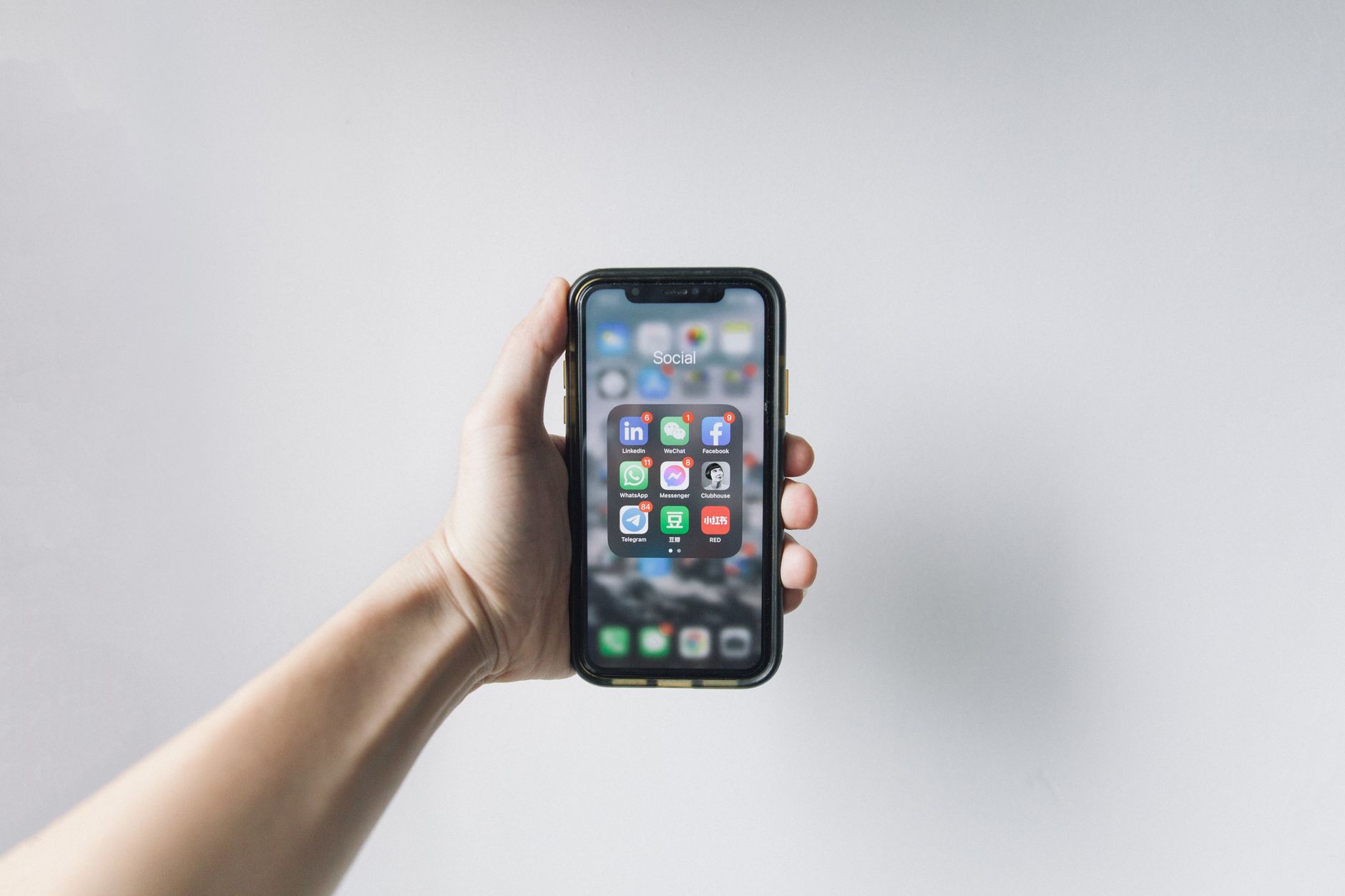
Photo by cottonbro studio on Pexels
Your iPhone automatically backs up app data, documents, and settings to the cloud. Over time, apps you no longer use continue to take up valuable space with outdated backups.
Go to Settings, tap your name, select iCloud, tap Manage Account Storage, and then select Backups. Here, you can review your current device backups and older device backups from previous phones you no longer own. Tap on a device or turn off individual app toggles for apps that do not need to be backed up to the cloud. This stops redundant data from accumulating in the background.
Tip: Disabling backups for heavy apps like video editors or games that store large local cache files will instantly shrink your future backup sizes without losing your primary device settings.
Clean Out Your iCloud Drive and Downloads Folder
Files stored inside iCloud Drive accumulate quietly over the months and years. Documents, PDFs, and media files often linger long after they are useful.
Open the Files app on your iPhone or Mac, navigate to iCloud Drive, and sort your files by size or date. Manually review documents and delete anything you no longer need. Note that your local Downloads folder on your device does not automatically consume cloud storage unless you have configured that specific folder to sync directly with iCloud Drive. Ensure you specifically target files residing within your cloud-synced directories to reclaim space.
Manage Messages and Large Attachments
Every high-resolution photo, video, and audio clip sent or received through the Messages app stays saved in your cloud backup unless you manage it. Over years of texting, these attachments eat up gigabytes of space.
You can manage this by navigating through your message info panels or checking Manage Account Storage under Messages. Review large conversations and delete entire threads or specific heavy attachments like videos and GIFs. If you want to keep conversations accessible on your device while stopping them from bloating your cloud space, check your message sync settings.
Safely Offload Photos Without Deleting Them
Photos usually take up the most cloud storage. However, you do not need to delete your pictures to reclaim space. The key is understanding how local device storage differs from cloud storage sync.
Enable 'Optimize iPhone Storage' by going to Settings, tapping your name, selecting iCloud, and choosing Photos. This setting automatically keeps smaller, space-saving thumbnail versions of your photos and videos on your phone, while storing your full-resolution originals safely in the cloud. If you delete a photo directly from your main library, it removes it from both your device and the cloud, so use the built-in duplicate merger instead.
Open the Photos app and check the Duplicates folder under Utilities. The refined duplicate detection tool lets you merge exact copies and items with similar metadata nondestructively, combining the best aspects of duplicate shots without risking your memories.
Clear Out Recently Deleted and Hidden Trash
Deleting files and photos does not instantly free up cloud storage. Apple holds deleted items in a temporary holding state just in case you change your mind.
Items deleted from the Photos app remain in the Recently Deleted folder, found under Utilities in the Photos app, for 30 days. To reclaim your space immediately, open that folder, authenticate with Face ID or your passcode, and permanently delete the contents. Similarly, check your Recently Deleted folder in the Files app for any documents you removed from iCloud Drive.
Manage Hidden Clutter Like Apple Invites
Recent updates introduce new features that can quietly consume your cloud quota. For instance, Apple Invites data, including background images and RSVP graphics created for events, counts directly toward your event creator storage limit.
If you have hosted numerous digital gatherings, these background assets accumulate. You can manage and reduce this storage load by deleting individual created events or clearing out old event graphics directly from your account settings where event data is stored.
Common Mistakes to Avoid
When trying to clear cloud space, several common pitfalls catch users off guard. Avoiding these mistakes ensures you do not lose important data while attempting a cleanup.
- Deleting photos from the main library: Forgetting that deleting pictures normally removes them everywhere, and failing to empty the 30-day Recently Deleted folder to see an immediate storage drop.
- Confusing local storage with cloud storage: Offloading local apps from your home screen frees up space on your physical phone, but it does not clear out app documents and data from your cloud backup unless you remove them specifically.
- Deleting entire text threads: Wiping out entire message conversations containing important family videos without first saving or exporting individual media files.
Pros
- Reclaim gigabytes of space without paying for an upgraded subscription plan.
- Preserve full-resolution photo memories in the cloud safely.
- Eliminate redundant and forgotten background app data.
Cons
- Requires manual sorting and reviewing of old files and messages.
- Optimized photos require an internet connection to view full-resolution versions on device.
- Permanently deleting items leaves no grace period after clearing trash folders.
Bottom line If you are tired of constant storage alerts, take 15 minutes to clear old device backups, purge large message attachments, and turn on photo optimization. This approach is ideal for anyone looking to stay on the free 5GB tier or maximize a lower paid tier without sacrificing cherished photo libraries. Anyone with massive professional media archives who refuses to sort through files should skip manual curation and simply upgrade to a paid iCloud+ plan.
Related guide: How to Stop Apps from Tracking You on iPhone
Related guide: How to Transfer eSIM to a New Phone Without Losing Service
FAQ
How do I delete things from iCloud without deleting them from my phone?
To remove items from cloud storage while keeping them on your device, you need to disable cloud sync for specific apps or use optimization settings like 'Optimize iPhone Storage' for photos, which replaces local full-resolution files with smaller versions while keeping originals in the cloud.
What takes up the most space on iCloud?
For most users, photos, videos, and automatic device backups consume the vast majority of cloud storage, followed by large message attachments and stored documents in iCloud Drive.
If I turn off iCloud photos, will I lose my pictures?
Turning off iCloud photos asks if you want to download copies of your photos to your device. If you have enough physical storage, your pictures remain on your phone, but they will no longer sync across your other Apple devices or back up to the cloud.
How do I clear my iCloud storage when nothing seems to work?
If standard cleanups do not resolve the issue, check your Manage Account Storage menu to find hidden data blocks like old device backups, large email attachments, or unused app documents that are still tied to your account.
Is it safe to delete old iPhone backups from iCloud?
Yes, it is safe to delete backups from older devices that you no longer own or use, as long as your current active device has a recent successful backup secured.
Sources
Facts in this article were checked against these pages on October 1, 2026:
- How to Free Up Photos Storage on iCloud and iPhone | Lifehacker (lifehacker.com)
- Manage your iCloud storage on your Apple device - Apple Support (support.apple.com)
- Is your iCloud storage full? 5 tips on how to free up space | Tom's Guide (tomsguide.com)
- Is your iCloud storage full? Want to free up space without ... (instagram.com)
- iPhone Storage Full? 15 Fixes That Actually Work in 2026 (switchingtomac.com)
- How to Free Up iPhone Storage Without Touching Your Photos or Apps - CNET (cnet.com)
How we researched this: this guide is based on current manufacturer information and reputable sources, listed in the Sources section above, and is updated when things change. Read our editorial policy.
Content Writter



Comments
No comments yet — be the first to share your thoughts.