
Thunderbolt 5 Explained: What the New Speeds Mean for You
Thunderbolt 5 brings massive speed and power bumps to your setup. Here is how to know if you actually need to upgrade.
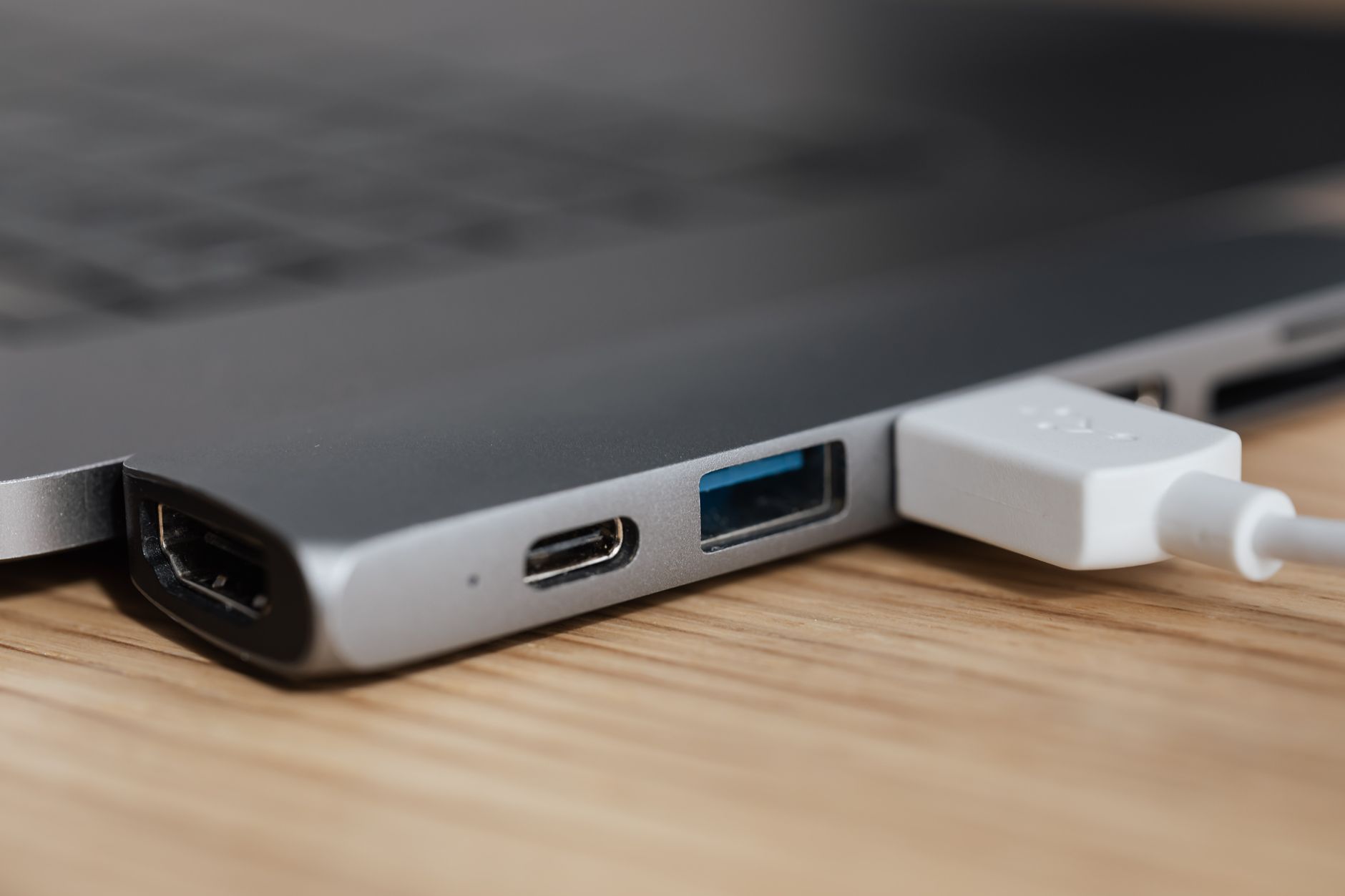
Quick answer Thunderbolt 5 is a high-speed hardware connection standard that doubles data and display bandwidth compared to the older version.
Buying a new computer or high-end dock can feel like reading a foreign language. Spec sheets are packed with numbers that promise incredible performance, but it is hard to know what matters for your day-to-day work.
If you edit large video files, hook up multiple external screens, or want external storage that feels as fast as an internal hard drive, you have likely run into the newest connection standard. Let us break down what this technology actually does without the confusing marketing jargon.
Key takeaways
- Thunderbolt 5 delivers 80 Gbps of baseline bidirectional data bandwidth, double what Thunderbolt 4 offers.
- A special display boost mode pushes up to 120 Gbps in a single direction for heavy monitor setups.
- It uses the standard USB-C connector shape and remains backward compatible with older cables and devices.
- Power delivery reaches up to 240W on supported hardware configurations.
What Is Thunderbolt 5 and How Much Faster Is It?
Think of computer cables like highway lanes. Older connection standards were like two-lane roads that got crowded quickly when you tried to move massive files or run high-resolution displays. Thunderbolt 5 widens that highway significantly, letting much more data travel at the same time.
Baseline bidirectional data bandwidth sits at 80 Gbps, which is twice as fast as the 40 Gbps limit found in Thunderbolt 4. If you have an intense display setup, the port can shift into a Bandwidth Boost mode. This asymmetric mode pumps up to 120 Gbps in one direction while keeping 40 Gbps flowing the other way.
Under the hood, this speed jump is made possible by a signaling technology called PAM3. Instead of just using two voltage levels to send zeros and ones, it uses three levels. This lets devices transmit more data per clock cycle without needing a major frequency increase.
Key Specs: Bandwidth, Display Support, and Charging
Photo by Pascal 📷 on Pexels
To see how these raw numbers affect your desk setup, looking at the key hardware specifications helps clear things up. Here is what the standard brings to compatible hosts like recent Apple MacBook Pro models with M4 and M5 chips:
- Bandwidth: 80 Gbps bidirectional, scaling up to 120 Gbps in display boost mode. Aggregate capacity reaches 160 Gbps.
- PCIe Throughput: Upgraded from PCIe Gen 3 up to PCIe Gen 4, letting external NVMe solid-state drives and graphics enclosures run close to internal speeds.
- Display Support: Drives up to three 8K displays at 60Hz, two 8K displays at 120Hz, or triple 4K monitors at 144Hz.
- Power Delivery: Supports up to 240W of power delivery on compatible hardware setups.
| Feature | Thunderbolt 4 | Thunderbolt 5 |
|---|---|---|
| Baseline Data Speed | 40 Gbps | 80 Gbps (up to 120 Gbps boost) |
| PCIe Throughput | 32 Gbps (Gen 3) | 64 Gbps (Gen 4) |
| Max Power Delivery | 100W | 240W |
| Display Capability | Dual 4K at 60Hz | Triple 8K at 60Hz or Triple 4K at 144Hz |
Thunderbolt 5 vs. Thunderbolt 4: What Actually Changed
Moving from the previous generation to the new standard is not just about a bigger number on a box. The architectural changes fix real bottlenecks that creators and power users faced for years.
PCIe throughput jumped from 32 Gbps to 64 Gbps. If you plug in an external storage drive like the OWC Envoy Ultra or a heavy-duty storage array like the OWC Thunderblade X12, data moves twice as fast. External graphics cards and high-performance hubs finally get the bandwidth they need to run without throttling.
Power delivery also received a massive upgrade. While older ports maxed out around 100W, the new standard supports up to 240W. This means a single cable can power demanding workstations and heavy-duty laptops while driving multiple high-refresh monitors.
Tip: Check your laptop and monitor specifications before buying accessories. No cable can force a computer processor to run more displays than its native hardware officially supports.
Do You Need Thunderbolt 5 Right Now?
Technology upgrades always come with a price premium. Deciding if you should pay for the newest gear depends entirely on your daily tasks.
Pros
- Massive data transfer speeds for large 8K video projects.
- High PCIe throughput for fast external storage drives.
- Support for multiple high-refresh-rate 4K and 8K displays.
- Higher power delivery simplifies desk cable management.
Cons
- Compatible hosts and accessories remain expensive.
- Older computers and accessories will not unlock these speeds.
- Everyday tasks see little to no noticeable speed improvement.
This technology is built for power users. If you edit raw 8K video, move massive project files all day, or run heavy gaming rigs with external graphics boxes, the speed boost is worth the investment. For general web browsing, office work, and writing, the older generation remains more than fast enough.
Bottom line Skip this upgrade if you only use basic apps and office tools. Buy into it now if you are a video editor, data scientist, or power user who regularly bumps against storage and display bottlenecks.
Compatibility: Does It Work with Older Cables and Devices?
One of the best design choices in this generation is connector consistency. It uses the familiar USB-C connector shape that you likely already have all over your desk.
The standard is fully backward compatible with Thunderbolt 3, Thunderbolt 4, and standard USB4 devices. If you plug an older hard drive into a new port, it works normally. If you plug a new accessory into an older laptop, it simply drops back to the older speed limit.
Cable quality matters more than ever at these higher frequencies. Passive cables deliver full speeds up to 3.3 feet (1 meter). If you need a longer cord, you must buy active cables with built-in signal chips to prevent data loss. Always look for official Intel certification to ensure stability.
Common Mistakes to Avoid
When buying new gear, a few common traps can waste your money. Keep these points in mind:
- Expecting 120 Gbps file transfers: Remember that 120 Gbps is strictly a display-heavy mode. Normal file and data transfers always run at the 80 Gbps class.
- Buying long passive cables: Trying to save money with long uncertified cords will result in dropped signals or reduced speeds.
- Assuming docks bypass laptop limits: A new dock cannot force an older base-model laptop to drive more screens than its internal processor allows.
- Mixing uncertified parts: Cheap generic adapters often cause system instability or fail to deliver proper power.
Related guide: Active Noise Cancellation Explained: How ANC Works
Frequently Asked Questions
How fast is Thunderbolt 5 compared to Thunderbolt 4?
It doubles baseline bidirectional data bandwidth from 40 Gbps to 80 Gbps, and can scale up to 120 Gbps in a single direction for heavy display workflows.
Do I need new cables for Thunderbolt 5?
You can reuse your old USB-C and Thunderbolt cables, but they will not unlock the maximum new speeds. You need certified cables to get top performance.
Does Thunderbolt 5 support more external monitors?
Yes, it handles up to three 8K displays at 60Hz or triple 4K monitors at 144Hz, provided your computer's internal processor also supports that many screens.
Is Thunderbolt 5 backwards compatible with USB-C?
Yes, it uses the exact same physical USB-C connector shape and works seamlessly with older USB and Thunderbolt devices at their respective maximum speeds.
When should I buy a Thunderbolt 5 dock?
Buy one if you use a compatible laptop like an M4 or M5 MacBook Pro and regularly connect multiple high-resolution displays alongside ultra-fast external storage drives.
Sources
Facts in this article were checked against these pages on October 28, 2026:
- Top 5 Features of Thunderbolt 5 & Why They Matter ~ Plugable Technologies (plugable.com)
- What Is Thunderbolt 5? Speed, Power and Compatibility (belkin.com)
- Top Advantages of Using Thunderbolt 5 with a Mac (cablematters.com)
- What Is Thunderbolt 5? Architecture, Speed, and Do You Need ~ Plugable Technologies (plugable.com)
- Thunderbolt™ 5 Technology Brief (thunderbolttechnology.net)
- Thunderbolt 5: Only Necessary for the Most Demanding Uses - Article Comments - TidBITS Talk (talk.tidbits.com)
How we researched this: this guide is based on current manufacturer information and reputable sources, listed in the Sources section above, and is updated when things change. Read our editorial policy.
Content Writter




Comments
No comments yet — be the first to share your thoughts.