
DP Alt Mode Explained: What USB-C Video Output Means
Learn how DisplayPort Alternate Mode lets USB-C ports send video to monitors, why some cables fail, and how to check your devices.
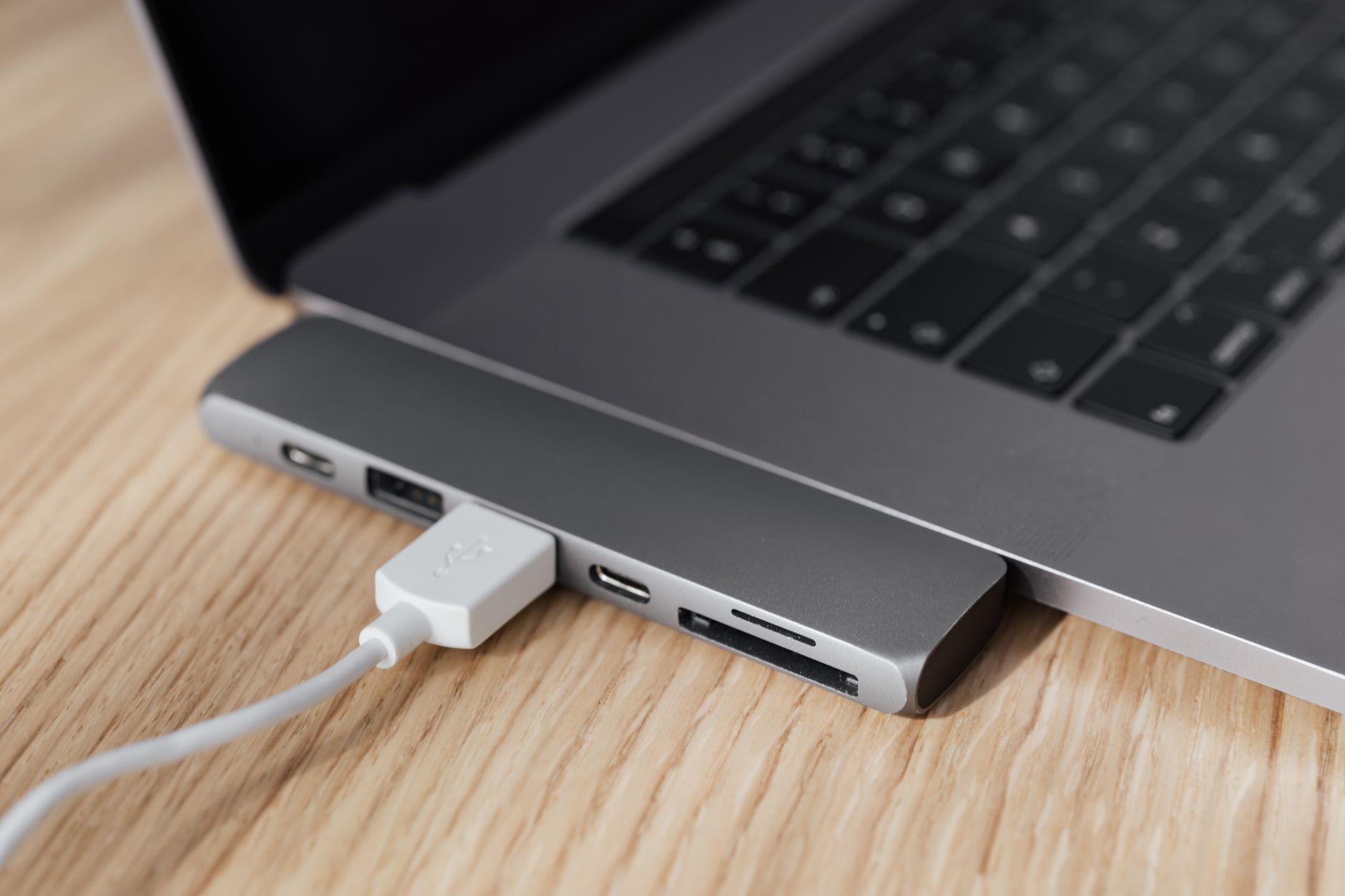
Quick answer DP Alt Mode allows a single USB-C cable to transmit native video and audio directly from your device to an external monitor without requiring software conversion.
You have likely plugged a USB-C cable from your laptop into an external monitor expecting an instant second screen, only to see a frustrating "No Signal" warning while your battery quietly charges. This happens because physical USB-C ports look identical on the outside, but their internal wiring can vary wildly. Understanding how video travels through these connectors helps you avoid buying the wrong cables or incompatible hardware.
Think of a USB-C port like a multi-lane highway. Normally, all lanes are used to carry data files and power back and forth. DP Alt Mode acts as a temporary traffic redirection system, turning some or all of those internal lanes into a dedicated express route specifically for high-speed video data.
Key takeaways
- DP Alt Mode transmits native video and audio over standard USB-C cables.
- Not every USB-C port or cable supports video output.
- Using all four lanes for video maximizes resolution but slows simultaneous USB data speeds.
- Checking device spec sheets for "DP Alt Mode" or "USB4" prevents costly purchasing mistakes.
What Is DisplayPort Alternate Mode over USB-C?
DisplayPort Alternate Mode, often called DP Alt Mode, is an optional technical standard defined jointly by USB-IF and VESA. It reassigns the physical high-speed data lanes inside a USB-C connector. Instead of carrying standard USB data packets, these lanes are repurposed to carry native DisplayPort video and audio signals directly.
The system operates in two primary configurations based on your hardware needs. In 4-lane mode, all available high-speed pairs are dedicated to video. This supports up to two 4K UHD displays at 60Hz or four 2K displays at 60Hz, but it forces any simultaneous USB data transfer down to slower USB 2.0 speeds. In 2-lane mode, the system splits the traffic, dedicating two lanes to video and leaving the other two free for full-speed USB 3.2 data transfer.
How DP Alt Mode Differs from Traditional Video Cables
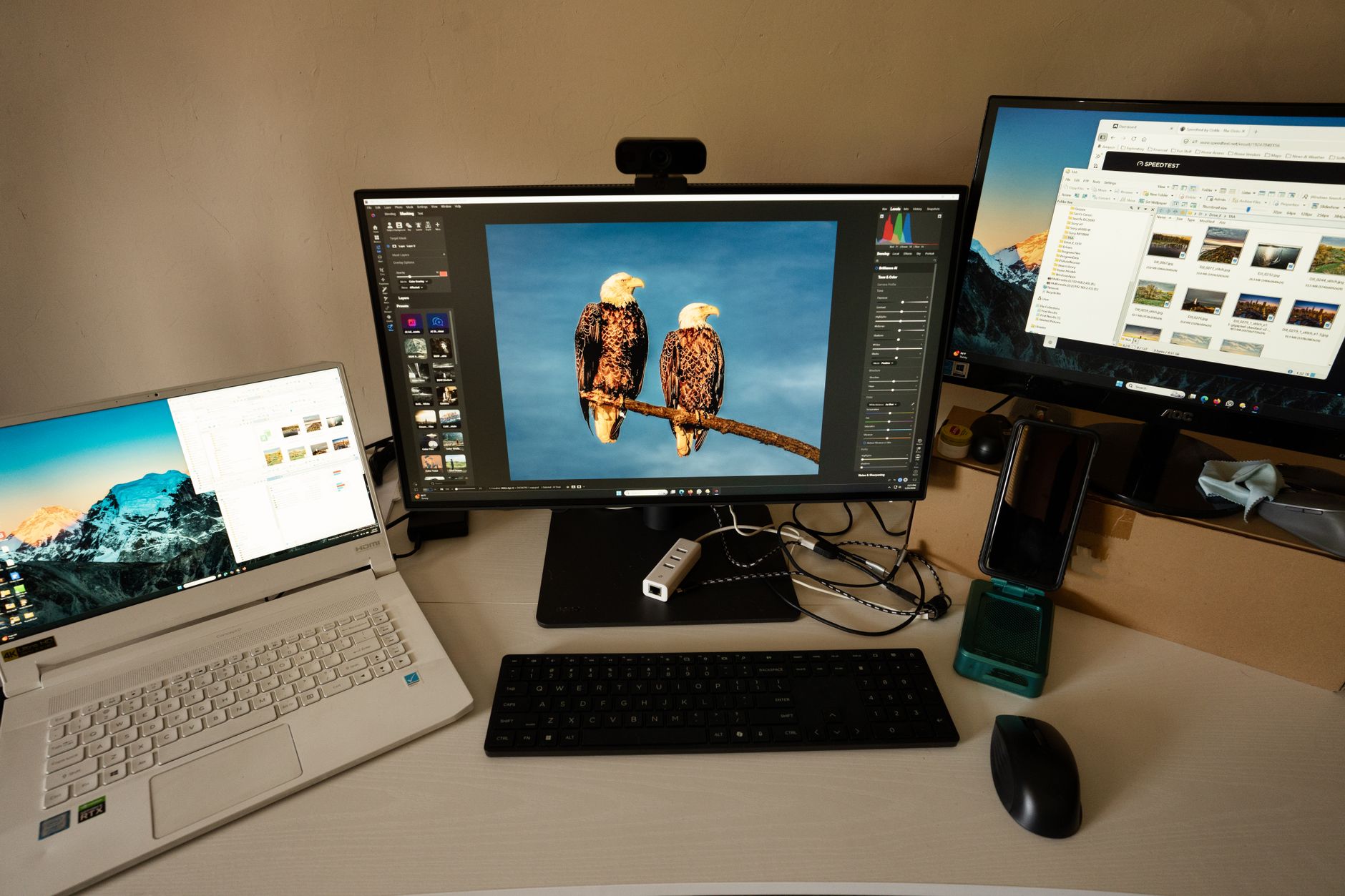
Photo by Tom Fisk on Pexels
Traditional video connections like standard HDMI or DisplayPort require dedicated, single-purpose ports on your computer and monitor. They only handle video and audio data. Older setups require clumsy adapters or active conversion chips if you want to mix power delivery and data transfer into the same workflow.
DP Alt Mode changes this by letting a single, reversible USB-C connection handle power delivery, peripheral data, and native display signals at the same time. Because the signal is natively formatted as DisplayPort data, your computer and monitor do not need extra software drivers or external conversion boxes to translate the image.
| Connection Type | Handles Power? | Handles Data? | Native Video Support? |
|---|---|---|---|
| Standard HDMI | No | No | Yes |
| Standard USB-C Port | Yes (Charging) | Yes | No (Unless DP Alt Mode is present) |
| USB-C with DP Alt Mode | Yes | Yes | Yes |
Understanding USB-C Cable Specs and Video Support
One of the most common pitfalls is assuming that any cable with a small oval plug on each end will carry a video signal. Standard charging cables that come bundled with low-cost accessories or phone chargers lack the internal high-speed wiring required to carry DisplayPort data packets.
To get a picture on your screen, you must use a full-featured or video-capable USB-C cable. Passive USB-C video cables usually work well up to 5 meters, while active USB-C cables with internal signal boosters can stretch up to 15 meters for longer runs across a room or office setup.
Tip: Look closely at the small symbols printed near the connectors on your cable. A label featuring a monitor icon or a SuperSpeed logo usually indicates that the cable is wired for high-bandwidth video signals.
Common Limitations with Resolution and Refresh Rates
While a single cable setup is clean and efficient, hardware bandwidth limits still apply. High-resolution multi-monitor setups demand massive amounts of data throughput. When you push multiple high-refresh displays through a single connection, the system leans heavily on high bit rate modes like HBR3, which features up to 8.1 Gbps per lane.
If your setup demands maximum resolution and fluid refresh rates, the port automatically shifts to 4-lane mode. As mentioned earlier, this trade-off means your plugged-in USB accessories, like external hard drives or flash drives, will drop down to sluggish USB 2.0 speeds while the display is active.
How to Check If Your Device Supports DP Alt Mode
Manufacturer spec sheets often hide video capability behind vague phrasing. Simply seeing a USB-C port on a laptop or phone chassis does not guarantee video output. You need to check the technical specifications for specific terminology before purchasing an external monitor.
Look for terms like "DisplayPort over USB-C," "DP Alt Mode," "USB-C with DisplayPort," or "USB4 video." Alternatively, check the physical casing near the port for a tiny DisplayPort or Thunderbolt icon. Devices supporting Thunderbolt 3, Thunderbolt 4, Thunderbolt 5 (learn more about speeds in our Thunderbolt 5 guide), or USB4 inherently support video output equivalents.
Warning: Software-based solutions like DisplayLink adapters function differently by compressing and sending video over standard USB data channels. They do not add native hardware DP Alt Mode to a non-supporting port.
Common Mistakes to Avoid
- Assuming all ports are equal: Expecting every physical USB-C port on a budget laptop or phone to output video just because the plug fits.
- Using cheap charging cables: Using a basic power-only cable that lacks the internal high-speed wires needed for display data.
- Relying on data hubs: Plugging a monitor into a cheap, data-only USB-C hub and expecting a video signal to pass through without native hardware support.
Related guide: NPU Explained: What Neural Processing Units Do in PCs and Phones
Related guide: HDR Standards Explained: HDR10, HDR10+, and Dolby Vision
Related guide: OLED Burn-In Explained: What Causes It and How Screens Prevent It
FAQ
Does every USB-C port support video output?
No. Many budget laptops and phones feature USB-C ports wired exclusively for charging or slow data transfers. Video output requires specific hardware wiring known as DP Alt Mode.
Why is my USB-C monitor not getting a signal?
You are likely using a power-only or data-only cable, or your computer's USB-C port lacks native video output support. Check your laptop manual to confirm port capabilities.
Do I need a special cable for USB-C video?
Yes. You need a full-featured, video-rated USB-C cable that contains the internal high-speed wiring required to transmit DisplayPort data packets.
What is the difference between USB-C data and DP Alt Mode?
Standard USB data lanes carry file transfers and peripheral commands. DP Alt Mode temporarily reassigns those physical lanes to carry native video and audio signals directly to a display.
Can phones output video using DP Alt Mode?
Some flagship and mid-range phones support DP Alt Mode, often enabling a desktop interface when plugged into an external monitor. Budget phones typically omit this feature to save costs.
Bottom line DP Alt Mode is essential for anyone wanting a clean, single-cable desk setup connecting a modern laptop or phone to an external monitor. It is ideal for remote workers and students looking for clutter-free workspaces, but buyers must carefully verify that both their computer port and cable support full video features before purchasing.
Sources
Facts in this article were checked against these pages on November 9, 2026:
- What is DP Alt Mode? Unlocking Your USB-C Port's Display Potential: A Beginner's Guide (cablematters.com)
- DP Alt Mode Explained: Why Video Output Is Not Guaranteed on Every USB-C Port_NEWS_WFYEAR ELECTRONICS (wfyear.net)
- USB-C DisplayPort Alt Mode: How to Choose the Right Cable (us.ktcplay.com)
- What is USB-C DisplayPort (DP Alt Mode) and Why it Matters | BenQ US (benq.com)
- USB-C Video Output: Fix No Signal on Your Monitor (us.ktcplay.com)
- How to check USB-C port DP Alt Mode - GL.iNet KVM Docs (docs.gl-inet.com)
How we researched this: this guide is based on current manufacturer information and reputable sources, listed in the Sources section above, and is updated when things change. Read our editorial policy.
Content Writter



Comments
No comments yet — be the first to share your thoughts.