
How to Fix Wireless CarPlay That Won't Connect
Troubleshoot wireless Apple CarPlay issues with this step-by-step guide, moving from quick iPhone toggles to head unit resets.
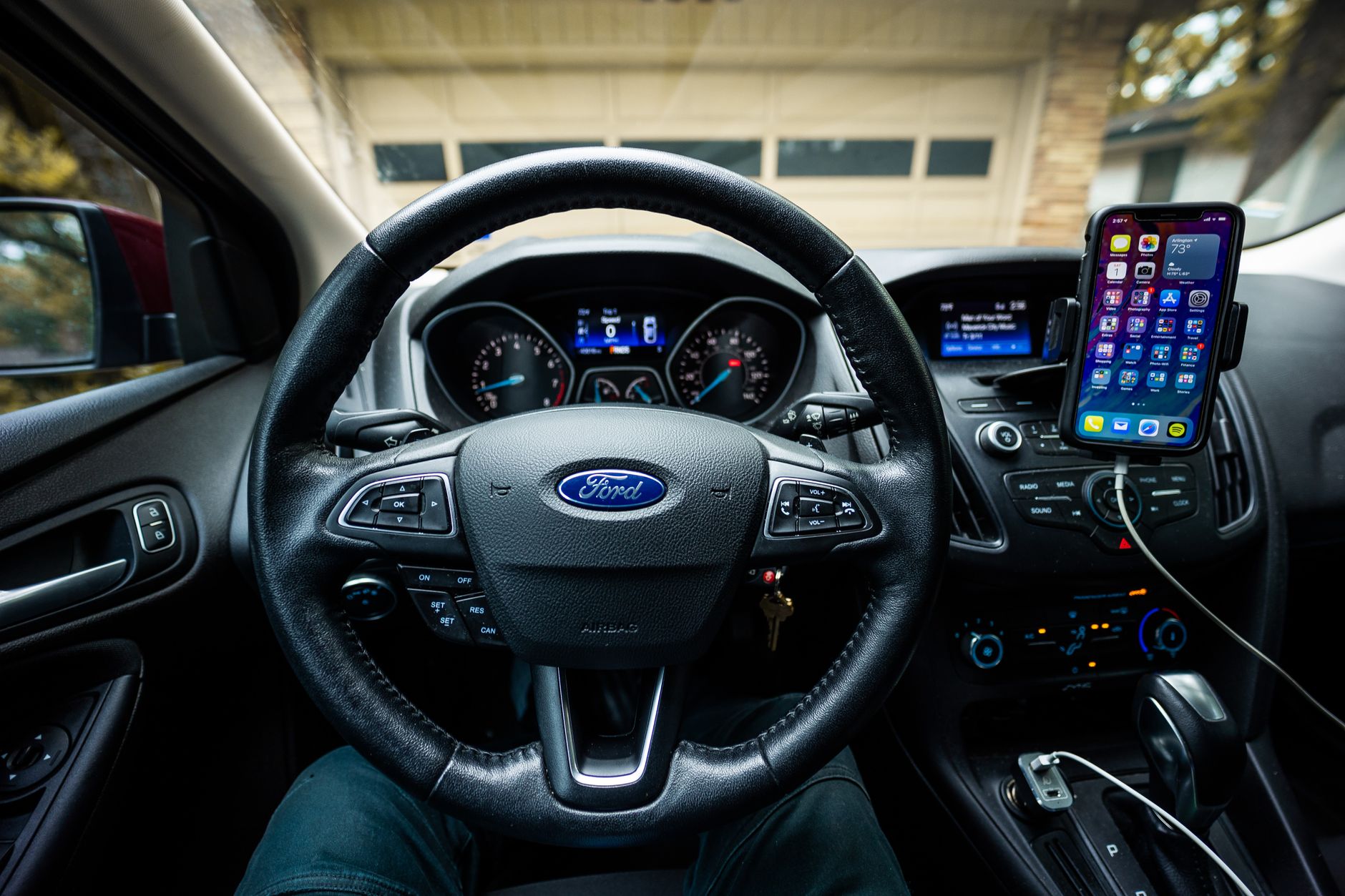
Quick answer To fix wireless CarPlay that won't connect, toggle your iPhone's Wi-Fi and Bluetooth directly in the Settings app, verify that Siri is fully enabled, and clear out stale network profiles in your CarPlay settings.
Dealing with a car infotainment system that refuses to link up with your phone can turn a simple morning commute into a frustrating ordeal. When wireless Apple CarPlay fails, it usually stems from a broken communication handshake between your phone's radios and the car's head unit.
Understanding how the connection works helps you fix the root cause rather than just guessing. Wireless CarPlay starts with a Bluetooth connection for initial pairing, then instantly hands off the data stream to a high-speed 5GHz Wi-Fi network. If either radio encounters interference, a blocked port, or a software glitch, the entire connection drops or refuses to start.
Key takeaways
- Wireless CarPlay uses Bluetooth first, then switches to a 5GHz Wi-Fi link for data transfer.
- Toggling Wi-Fi or Bluetooth off in the iOS Control Center does not fully reset the radios; you must use the main Settings app.
- Active VPN apps and disabled Siri permissions are common culprits behind silent connection failures.
- Keeping your car software updated is essential, especially for newer 2026 vehicle models.
Tip: If you experience frequent audio dropouts while driving through dense urban areas, environmental 5GHz Wi-Fi congestion in crowded parking lots is often the temporary cause.
Quick Checks: The 30-Second Fixes to Try First
Before diving into deep software resets, check for common symptoms that point to simple fixes. If your phone pairs via Bluetooth for phone calls but refuses to load map or music apps, your Wi-Fi handoff has likely failed.
- Airplane Mode Reset: Turn Airplane Mode ON for five seconds, then turn it OFF. This forces your iPhone to drop current connections and re-scan for the car's wireless signal.
- Settings App Toggle: Open the main iOS Settings app to turn Bluetooth and Wi-Fi off and back on again. Control Center toggles only disconnect accessories rather than fully resetting the system radios.
- Verify Siri Settings: CarPlay will not boot without Siri active. Go to Settings > Siri & Search and make sure "Listen for 'Hey Siri'" and "Allow Siri When Locked" are both turned on.
- Manual Head Unit Launch: If the interface does not load automatically, look at your car display and tap the CarPlay icon on the home screen.
- Reboot Both Devices: Turn your car off completely and restart your iPhone to clear out temporary memory glitches.
Resolve Wi-Fi and Bluetooth Handshake Conflicts
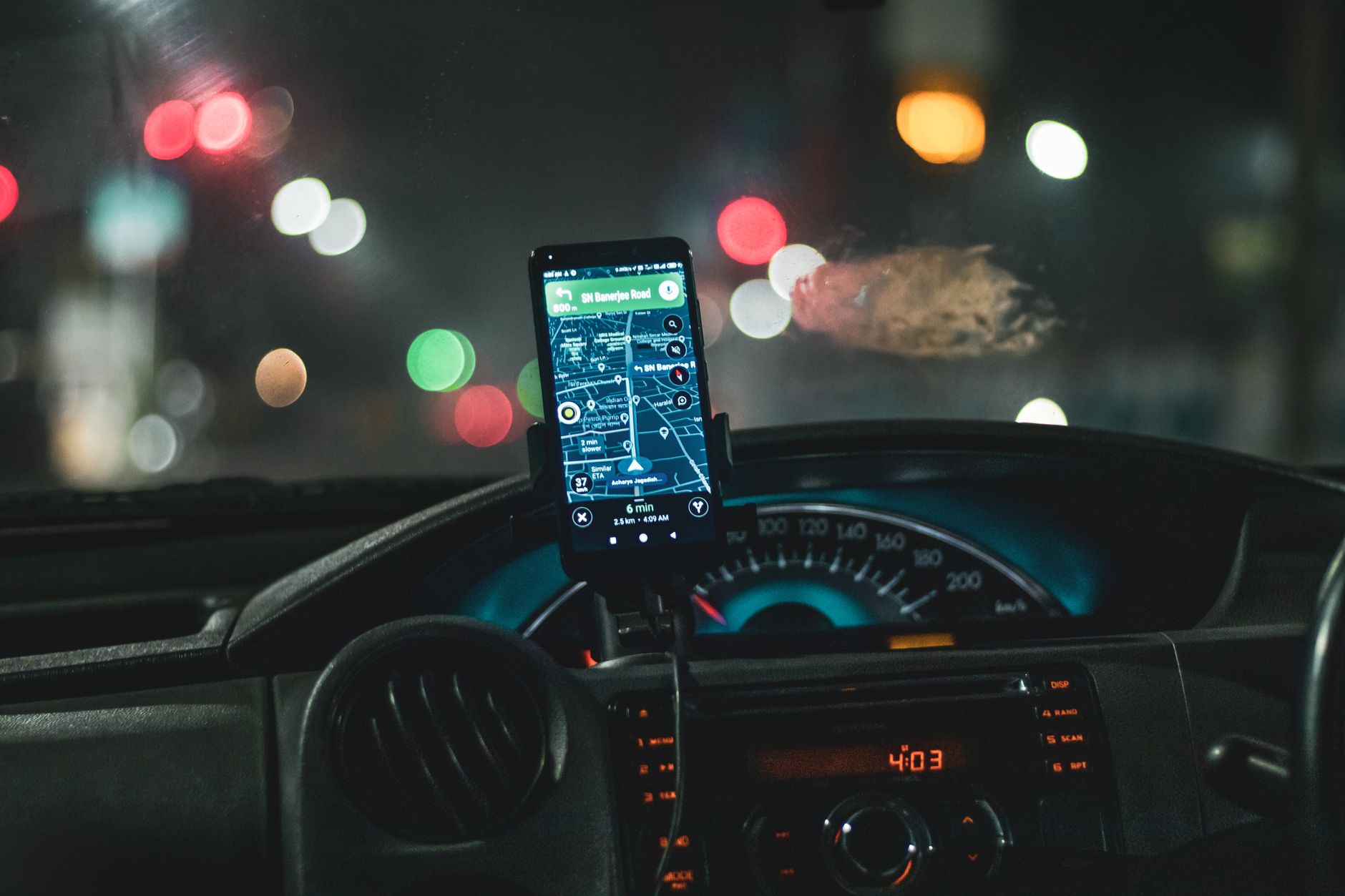
Photo by Rahul Pandit on Pexels
Because the connection relies on a dual-stage handshake, any interruption between the initial Bluetooth pairing and the Wi-Fi transition stops CarPlay in its tracks. You must verify that your phone is allowed to join the car network automatically.
Go to Settings > Wi-Fi on your iPhone, tap the info icon next to your vehicle's dedicated CarPlay network name, and confirm that Auto-Join is toggled ON. If this setting is off, your phone will see the car network but refuse to switch over automatically after the Bluetooth handshake finishes.
You can also force your car back into pairing mode by long-pressing the voice control button on your steering wheel. This prompts the head unit to broadcast its signal fresh.
Clear Out Stale Network and CarPlay Profiles
Over time, saved device profiles can become corrupted. Cleaning house gives your system a completely fresh slate.
- Navigate to Settings > General > CarPlay on your iPhone.
- Select your vehicle from the list.
- Tap Forget This Car.
- Go to your car infotainment settings menu and delete your iPhone from the paired device list.
- Re-pair the devices from scratch using standard Bluetooth settings.
While in that same CarPlay menu on your phone, ensure that Allow CarPlay While Locked is enabled. If this is turned off, your phone will refuse to connect unless you manually unlock your screen every time you get into the driver seat.
Adjust iPhone Screen Time and VPN Settings
Strict software restrictions on your phone can block external interface links without warning you.
Check Settings > Screen Time > Content & Privacy Restrictions to verify that CarPlay is not accidentally blocked under allowed apps. Next, look at your network management tools. Active VPN apps like NordVPN or ExpressVPN frequently break local Wi-Fi routing, preventing your iPhone from communicating directly with the car head unit. Go to Settings > VPN & Device Management and turn off any active VPN tunnels before starting your car.
Restart and Reset Your Car's Infotainment System
Sometimes the issue lives inside the vehicle computer rather than your phone. Modern automotive software can experience lockups that require a hard reboot.
Fully shut off your engine, open and close the driver door to cut accessory power, and wait thirty seconds before restarting the ignition. If the glitch persists, navigate through your car's head unit settings menu to perform a factory reset or erase all data. Note that modern vehicles with degrading car battery voltage may also shed power to the infotainment system first, resulting in intermittent wireless connection drops.
When to Update Firmware or Consider a Wired Bypass
If software tweaks fail, physical connections or outdated system code might be the problem. Some 2026 vehicle models require dealer-installed infotainment software updates straight from the factory to fix persistent wireless bugs.
If wireless remains unstable, try a wired bypass using a certified data cable plugged into the car's designated USB port. Many vehicles have multiple ports, but only one supports data transfer while the rest provide charge-only power. Check your phone and car USB ports for lint or debris, and clean them out gently if needed. If you use an aftermarket wireless adapter, unplug it completely and check the LED indicator lights to ensure it receives stable power.
Warning: Never force an update file downloaded from unofficial forums onto your car head unit, as this can permanently brick the infotainment display and void your warranty.
Pros
- Restores automatic wireless connection upon entering the vehicle
- Eliminates random audio dropouts and navigation freezing
- Clears out corrupted cache files and stale device lists
Cons
- Requires re-pairing all Bluetooth devices after network resets
- Some deep vehicle fixes require professional dealer service visits
Bottom line Start your troubleshooting with quick radio toggles and Siri verification, then move to clearing stale network profiles if problems persist. This step-by-step approach resolves most everyday connection failures without requiring a dealer visit.
Related guide: How to Fix an iPad That Won't Charge or Turn On
Related guide: How to Fix an Apple Pencil That Won't Charge or Connect
Related guide: How to Fix AirTag Not Reachable or Updating Location
FAQ
Why does wireless CarPlay say connection failed even when Bluetooth is on?
Wireless CarPlay relies on Bluetooth only for the initial handshake before switching to a 5GHz Wi-Fi connection. If Wi-Fi is disabled, or if Auto-Join is turned off for the car network, the connection fails.
Does having a VPN on my iPhone block wireless CarPlay?
Yes. Active VPN connections alter local network routing, which blocks your iPhone from communicating directly with the car head unit over local Wi-Fi.
How do I reset the wireless CarPlay connection completely?
Go to Settings > General > CarPlay on your iPhone, select your vehicle, tap Forget This Car, and then delete your phone from the car's infotainment device list before pairing again.
Why does wireless CarPlay connect once and then stop working the next time I start the car?
This usually happens when the Allow CarPlay While Locked setting is disabled, or when your phone fails to automatically switch from Bluetooth to the car's Wi-Fi network.
Will using an aftermarket wireless CarPlay adapter cause these same issues?
Aftermarket adapters still rely on the same dual Bluetooth and Wi-Fi handshake architecture, meaning they can experience similar interference or power drop issues if plugged into a charge-only USB port.
Sources
Facts in this article were checked against these pages on October 23, 2026:
- 5 Ways to Fix Wireless CarPlay Not Connecting (aoocci.com)
- Wireless CarPlay Not Connecting? Adapter or Phone Problem? - AutoSky (autoskyus.com)
- CarPlay Not Working? 5 Fixes That Actually Work (2025) – squarewheels (squarewheelsauto.com)
- Wireless Apple CarPlay Not Working or Can't Connect? How to Fix and Troubleshooting (youtube.com)
- If you need help with CarPlay - Apple Support (support.apple.com)
- How to Fix Your Wireless Apple CarPlay Adapter | CarPlay Troubleshoot Tips (youtube.com)
How we researched this: this guide is based on current manufacturer information and reputable sources, listed in the Sources section above, and is updated when things change. Read our editorial policy.
Content Writter



Comments
No comments yet — be the first to share your thoughts.