
How to Fix AirTag Not Reachable or Updating Location
Troubleshooting steps for your Apple AirTag when it shows location not found or won't update in the Find My app.

Quick answer To fix an AirTag showing 'Location Not Found' or failing to update, start by checking your iPhone's Bluetooth and Location Services settings, then force a sync in the Find My app. If that fails, replace the battery, perform a factory reset, or re-pair the tracker to your Apple ID.
Finding that your AirTag is stuck on an old location or showing as completely unreachable can be frustrating, especially when you are tracking important items like keys, luggage, or a wallet. Because AirTags rely on a mix of local Bluetooth signals and the global Apple Find My network, tracking failures can stem from a variety of software glitches, configuration errors, or drained power cells.
AirTags do not function like real-time GPS trackers; instead, they depend on nearby Apple devices to relay their coordinates. Understanding how this network operates makes it much easier to isolate whether your problem requires a simple software adjustment or a physical hardware fix.
Key takeaways
- AirTags rely on nearby Apple devices to update their location and are not real-time GPS units.
- Always verify basic iPhone settings like Bluetooth, Location Services, and Find My permissions first.
- Avoid using CR2032 coin batteries with bitterant coatings, as they frequently block electrical contact.
- Physical proximity to the tracker is required to perform a factory reset or remove it from your Apple ID.
Symptoms of AirTag Connectivity Issues
Before jumping into fixes, it helps to identify the exact behavior your tracker is exhibiting. Different symptoms point to different underlying causes.
- Location Not Found: The Find My app displays an error message or fails to show a recent timestamp for the item.
- Stuck Location: The tracker shows a location from hours or days ago, despite being in motion.
- Unreachable Error: Precision Finding fails to connect, or the app reports that the AirTag is not reachable.
- Missing Chime: The tracker fails to play a sound when prompted through the app.
Check Basic Bluetooth and Location Settings on Your iPhone
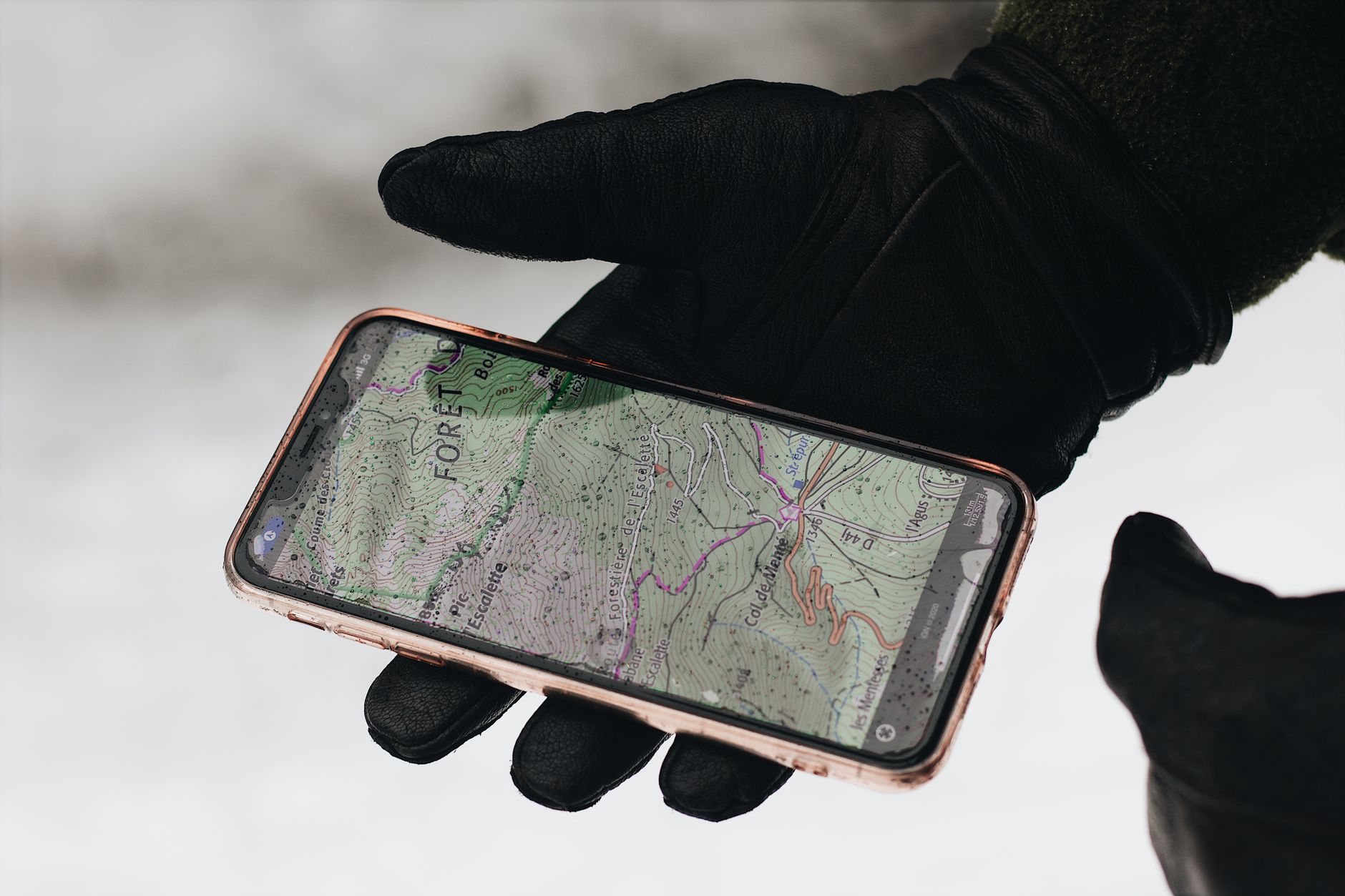
Photo by Maël BALLAND on Pexels
Software settings on your paired iPhone are the most common culprits behind missing location data. If the operating system restricts background communication, the Find My app cannot pull updates from your tracker.
- Open your iPhone Settings and confirm that both Bluetooth and Wi-Fi are turned on.
- Navigate to Privacy & Security and select Location Services, ensuring the master toggle is switched on.
- Scroll down to find Find My in the list, set permission to While Using the App or Always, and toggle on Precise Location.
- Ensure that Low Power Mode and Focus modes are turned off, as they can restrict background app refresh.
- Open the Find My app, go to the Items tab, and pull down on the list to force an iCloud sync.
Replace the AirTag Battery
If your settings are correct and the tracker remains unresponsive, the physical power cell may be depleted. AirTags use a standard CR2032 lithium 3V coin battery.
Press down firmly on the polished stainless steel battery cover, rotate it counterclockwise until it stops, and lift the cover off. Swap the old cell for a fresh one, placing it with the positive side facing up, and secure the cover by rotating it clockwise.
Warning: Avoid CR2032 batteries that feature a bitterant coating designed to prevent child ingestion. These unrequested coatings frequently block electrical contact inside the AirTag, causing it to appear dead or offline even with a brand-new battery.
Stick to reputable, uncoated battery brands such as Duracell, Energizer, Panasonic, or Sony to ensure proper connectivity.
Reset the AirTag Network Connection
If a fresh battery does not resolve the connection error, you can force the internal firmware to reset by cycling the power cell multiple times.
- Remove the battery from the AirTag.
- Wait approximately 5 seconds.
- Reinsert the battery until you hear a chime sound.
- Repeat this process of removing and reinserting the battery five times total.
- On the fifth reinsertion, listen closely for a distinct sound that differs from the previous chimes, which confirms the factory reset is complete.
If you do not hear the final distinct chime on the fifth attempt, the battery may not have made clean electrical contact during one of the cycles. Restart the sequence using a fresh, uncoated cell.
Remove and Re-Pair the AirTag with Your Apple ID
Unlinking and reconnecting the tracker clears corrupted pairing data tied to your iCloud account.
Open the Find My app on your iPhone, select the Items tab, and tap on the malfunctioning AirTag. Scroll up to the bottom of the card and select the red Remove Item option. Once removed, hold the AirTag close to your iPhone, pull out and reinsert the battery if necessary to trigger the setup animation, and follow the onscreen prompts to pair it back to your Apple ID.
Tip: You must be in close physical proximity to the AirTag to remove it from your account or perform a factory reset. These actions cannot be executed remotely if the item is miles away.
If you purchased a secondhand tracker that is locked to a previous owner's Apple ID, you cannot pair it until that owner removes the device from their account through the Find My app.
Check for iOS and AirTag Firmware Updates
Outdated software can introduce bugs that interfere with Bluetooth tracking protocols. Update your iPhone by going to Settings > General > Software Update to ensure you are running current software. AirTag firmware updates install automatically when the tracker is within active Bluetooth range of its paired iPhone, so keep the devices near each other overnight or during downtime.
Pros
- Systematic troubleshooting resolves most connection stalls
- No special tools required for battery swaps
Cons
- Relies entirely on nearby Apple devices in remote areas
- Bitterant battery issue can cause false hardware alarms
Common Mistakes to Avoid
- Attempting remote resets: Trying to factory reset or remove an AirTag from Find My while it is miles away will fail because these steps require Bluetooth proximity.
- Ignoring network limitations: Expecting real-time GPS tracking updates when an AirTag is deep in a rural area with zero nearby iPhones.
- Using coated batteries: Installing bitterant-treated CR2032 cells that fail to complete the electrical circuit.
When to Contact Support or Replace the Device
If you have cycled through fresh uncoated batteries, completed the five-step hardware reset, and verified all iPhone location settings without seeing any response from the tracker, the internal Bluetooth or Ultra Wideband chip may have suffered permanent hardware damage. If the device is past its warranty period and remains completely unresponsive, replacement is usually necessary.
Bottom line Work through these troubleshooting steps starting from the quickest software checks to physical battery swaps. This sequence resolves the vast majority of AirTag connection failures without requiring a hardware replacement.
Related guide: How to Fix an AirPrint Printer That Won't Connect on iPhone
Related guide: How to Fix Apple Pay Not Working on iPhone
FAQ
Why does my AirTag say location not available?
This message typically appears when the AirTag has been out of range of any Apple devices on the Find My network for an extended period, or when Bluetooth is disabled on your iPhone.
How do I reset my AirTag when it won't connect?
Remove and reinsert the battery five times in succession until you hear a distinct confirmation chime on the fifth attempt.
Can a dead battery cause AirTag location not found?
Yes. Once voltage drops too low, the internal Bluetooth transmitter stops broadcasting location packets to nearby Apple devices.
How do I reconnect an AirTag to my iPhone?
Remove the item from your Find My app items list while standing nearby, then bring the AirTag close to your iPhone to trigger the automatic setup prompt.
Why is my AirTag stuck on an old location?
This happens when no passing Apple devices have crossed paths with your AirTag recently to relay its current coordinates to the cloud.
Sources
Facts in this article were checked against these pages on October 31, 2026:
- How to Fix AirTag Not Reachable: 14 Troubleshooting Tips (wikihow.com)
- How to fix an AirTag not updating location | Asurion (asurion.com)
- Apple AirTag Location Not Refreshing? 9 Simple Fixes (wikihow.com)
- Why Is My AirTag Not Updating Location? How to Refresh It + "No Location Found" | Airpinpoint Asset Tracking Blog (airpinpoint.com)
- AirTag Not Updating Location? | TagLogger (taglogger.com)
- How to Fix AirTag not Connecting - 5 Quick Solutions - eufy US (eufy.com)
How we researched this: this guide is based on current manufacturer information and reputable sources, listed in the Sources section above, and is updated when things change. Read our editorial policy.
Content Writter




Comments
No comments yet — be the first to share your thoughts.