
How to Fix an iPad That Won't Charge or Turn On
If your iPad has a black screen or refuses to charge, follow this step-by-step troubleshooting guide to safely revive your tablet without losing data.

Quick answer If your iPad won't turn on or charge, plug it into a 20W+ wall adapter for at least 30 to 60 minutes using a verified cable. If it remains blank, clean debris out of the charging port using a wooden toothpick and perform a forced hardware restart based on your model's button layout.
A completely blank screen on your tablet can feel like a total hardware failure, but it is often just a combination of software freezes, port debris, or a deep battery depletion. When an iPad battery drains down to absolute zero, it lacks the residual power required to even light up the charging icon immediately.
Before scheduling an expensive hardware repair or booking a service appointment, you can resolve the vast majority of non-responsive tablet issues at home using safe, step-by-step troubleshooting methods. If you manage multiple devices in your ecosystem, you might also be interested in our guide on how to fix an Apple Watch that won't sync with your iPhone.
Key takeaways
- A deeply depleted iPad battery often needs 15 to 60 minutes on a high-wattage wall charger before the display turns on.
- Modern iPads require at least a 20W Power Delivery (PD) wall adapter, whereas older models need a 10W–12W supply; computer USB ports usually do not provide enough power.
- Force restart methods differ between home-button models and full-screen iPads without a home button.
- Never clean your charging port with metal objects like needles or paperclips, as they damage the internal electrical pins.
- Finder on modern macOS or iTunes on Windows can restore an iPad's software without data loss if you choose the Update option first.
Identify the Symptoms: Black Screen vs. Frozen Screen
Before jumping into fixes, examine what your device is actually doing. Distinguishing between a dead battery, a software freeze, and a display issue saves time and prevents unnecessary system resets.
- Completely Black Screen: The display shows no light, no Apple logo, and no low-battery graphic. This usually points to a drained battery, a bad charging cable, or a deep system crash.
- Frozen Display: The screen is illuminated or stuck on an app, but touch inputs and button presses do not work. This indicates an iPadOS software leak or app freeze.
- Stuck on the Apple Logo: The tablet attempts to boot up but continually reboots or hangs on the logo, typically caused by a corrupted iPadOS update or low storage.
- "Not Charging" Status: The screen works, but the battery bar says "Not Charging" next to the percentage icon. This means the power source is too weak to charge the tablet.
Step 1: Perform a Force Restart
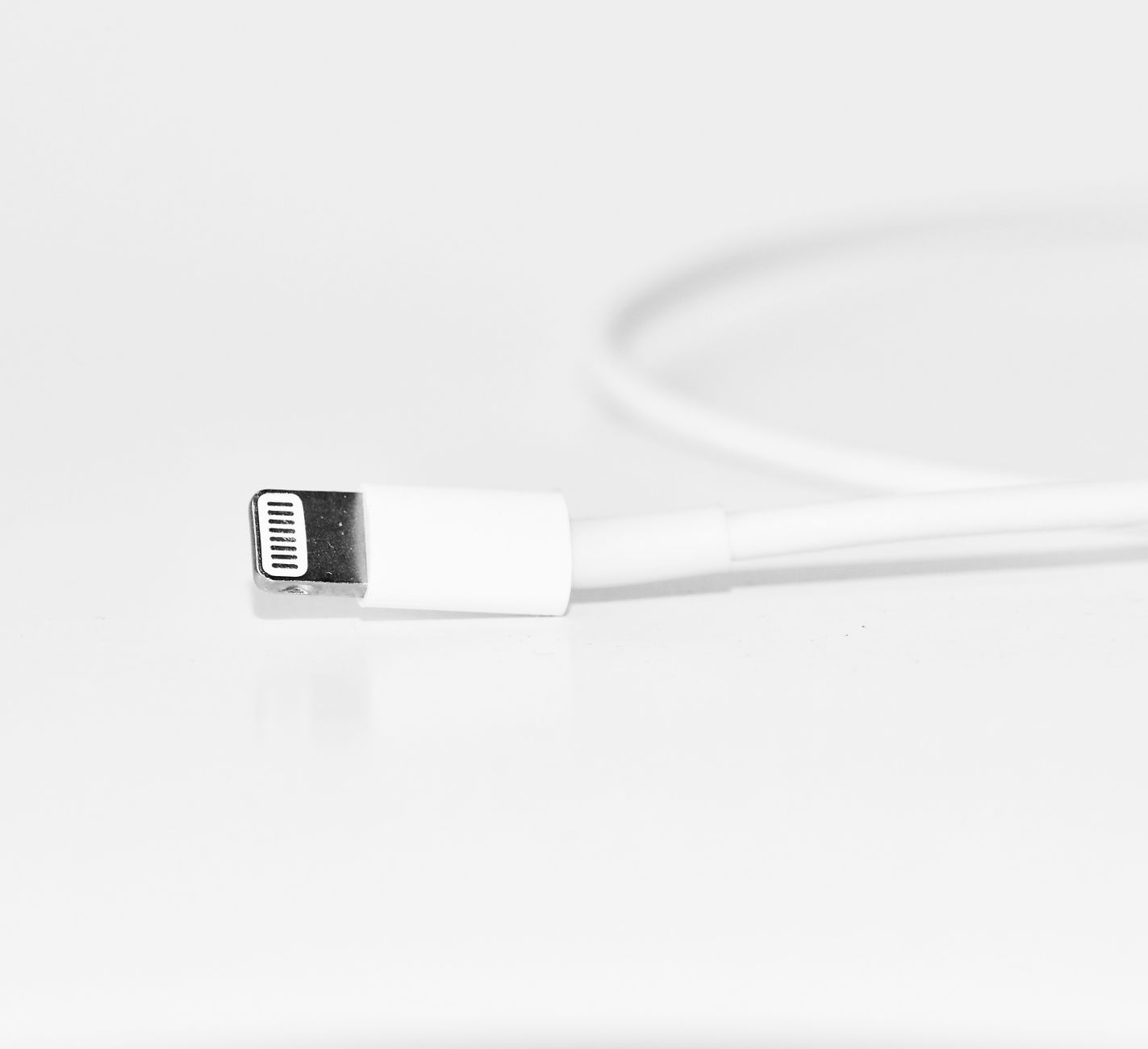
Photo by Matthias Zomer on Pexels
If your tablet's software has crashed completely, the screen will stay black even if the battery has a full charge. A force restart cuts power to the processor temporarily and forces iPadOS to reboot.
iPads Without a Home Button (Face ID or Top Button Touch ID)
This applies to modern iPad Pro models, iPad Air (M1, M2, and newer), and iPad mini (6th Gen and later):
- Press and quickly release the Volume Up button closest to the top button.
- Press and quickly release the Volume Down button furthest from the top button.
- Press and hold the Top/Power button. Keep holding it for about 10 to 15 seconds until the screen turns on and the Apple logo appears, then release it.
iPads With a Home Button
This applies to iPad 9th Gen and earlier, as well as iPad mini 5th Gen and earlier:
- Press and hold both the Home button and the Top/Power button simultaneously.
- Continue holding both buttons down together for approximately 10 seconds.
- Release both buttons as soon as the Apple logo appears on the display.
Step 2: Clean and Inspect the Charging Port
Over months of daily use, lint, dust, and debris accumulate inside the Lightning or USB-C port. This layer of dirt prevents the metal contact pins on your cable from connecting properly to the internal circuit board.
- Completely power down the iPad if the screen is responsive; if it is black, proceed carefully.
- Shine a bright light into the charging port to check for visible lint or blockage.
- Take a non-conductive tool, such as a wooden or plastic toothpick or a soft anti-static brush.
- Gently scrape out any packed lint from the bottom corners of the port. Keep your movements soft so you do not bend the delicate pins inside.
- Blow short bursts of compressed air into the port to clear out loose particles.
Warning: Never insert metal items like safety pins, paperclips, or needles into the charging port. Metal will scratch or short out the delicate conductive pins, causing permanent hardware damage that requires a port replacement.
Step 3: Test Alternative Cables and Power Adapters
Weak power sources are one of the main reasons an ipad won't turn on or charge. Plugs on low-power computer USB slots or basic car outlets usually fail to supply enough amperage to charge an iPad's large battery.
| Device Generation | Recommended Cable | Minimum Wall Adapter Wattage |
|---|---|---|
| Legacy iPads (Home Button) | MFi-Certified Lightning Cable | 10W to 12W USB Power Adapter |
| Modern iPads (USB-C) | Certified USB-C Charging Cable | 20W+ Power Delivery (PD) Adapter |
To isolate accessory failure, take these basic verification steps:
- Swap out your current cable for an official Apple cable or a certified MFi (Made for iPad) third-party alternative.
- Ditch low-output computer ports and plug your charging block directly into a known working wall outlet.
- If you see an on-screen prompt stating "This Accessory May Not Be Supported," replace the cable immediately—the internal chip inside the connector has likely failed or lacks proper certification.
Step 4: Check Temperature and Allow a Long Charge
Lithium-ion batteries carry built-in thermal protection circuits. If your device sits in a hot car or direct sunlight, it will pause charging automatically until the battery returns to a safe operating temperature.
Similarly, when an iPad battery drops to 0%, it enters a deep-discharge recovery state. It may take 15 to 60 minutes of uninterrupted wall charging before the device has enough energy to light up the display or respond to button inputs. Plug your tablet into a verified 20W+ power block, leave it completely alone for an hour, and then attempt a forced restart while it remains connected.
Step 5: Put iPad in Recovery Mode via Computer
If the display stays black or gets stuck on the Apple logo after charging, the system software may be corrupted. You can re-install iPadOS using a computer without wiping your files if you choose the Update option.
- Connect your iPad to a Mac or Windows PC using a reliable USB cable.
- On macOS Catalina or later, open Finder and select your iPad under the Locations sidebar. On macOS Mojave or a Windows PC, launch iTunes.
- Perform the force restart button sequence for your iPad model (as detailed in Step 1), but do not release the buttons when the Apple logo appears. Keep holding until the recovery screen showing a cable pointing to a computer icon appears.
- Look at your computer screen. A popup box will ask if you want to Update or Restore your device.
- Click Update. Your computer will attempt to download and re-install iPadOS without deleting your personal data.
Tip: Selecting "Restore" will wipe the device entirely and return it to factory default settings. Only choose Restore if the Update option fails or if you have a recent iCloud or computer backup ready.
Common Mistakes to Avoid
Avoiding these common errors will prevent permanent hardware damage and save unnecessary expense:
- Unplugging Too Quickly: Expecting an icon within 30 seconds of plugging in a deeply depleted tablet leads many users to assume the device is dead when it just needs 45 minutes on the wall charger.
- Using Low-Wattage Phone Blocks: Standard 5W phone chargers take hours or may fail entirely to charge larger iPad displays. Always use at least a 20W power adapter.
- Draining to 0% Regularly: Frequently running lithium-ion batteries completely empty degrades cell health rapidly. Keep your battery operating level between 20% and 80% whenever possible.
When to Seek Professional Repair
If your iPad fails to respond after cleanings, cable swaps, an hour of wall charging, and forced computer updates, the tablet likely has physical hardware failure. Look out for these hardware indicators:
- The tablet body or screen is physically bent or cracked.
- The device was exposed to liquid or dropped in water shortly before shutting off.
- The tablet gets excessively hot around the back panel while sitting on the charger.
- The charging port pins look bent, corroded, or loose when you wiggle the cable.
In these scenarios, contact Apple Support or take your tablet to an authorized service provider for a battery check or logic board diagnostic.
Bottom line Try the 4-step sequence first: swap to a 20W+ wall adapter, clean out the charging port gently with a toothpick, allow 60 minutes of charging time, and perform a forced button restart. This zero-cost routine revives most non-responsive iPads before you ever need to visit a repair shop.
Related guide: How to Fix a Windows 11 PC That Won't Wake from Sleep
Related guide: How to Fix an Apple Pencil That Won't Charge or Connect
Related guide: How to Fix an Apple Pencil Drawing Inconsistently or Skipping
FAQ
Why is my iPad stuck on a black screen even after charging?
Your iPad screen may stay black if the software has frozen in the background, or if the charger you used lacks enough wattage to charge a fully depleted battery. Try plugging into a 20W+ wall adapter for an hour and then run a forced restart.
How do I force restart an iPad without a Home button?
Press and quickly release the Volume Up button, press and quickly release the Volume Down button, and then press and hold the Top/Power button until you see the Apple logo display on screen.
Can a dirty charging port stop an iPad from charging completely?
Yes, pocket lint and dust compressed into the bottom of the port prevent the cable's metal pins from making a clean electrical connection. Gently clearing out debris with a wooden toothpick often fixes charging issues immediately.
What does a battery icon with a red line mean on iPad?
A battery icon with a thin red line means your battery power is critically low. If the cable icon also appears under the red battery, your iPad is not detecting external power and needs to be plugged into a working charger.
Why does my iPad display "Not Charging" when plugged into a computer?
Most standard USB ports on desktop and laptop computers do not supply enough wattage to charge an iPad while the screen is on or active. Plug your tablet directly into a high-output 20W+ wall adapter instead.
Sources
Facts in this article were checked against these pages on October 25, 2026:
- How to fix an iPad that won't turn on or charge | Back Market (backmarket.com)
- 3 Main Reasons Your iPad Won't Turn On (With Solutions) | iParts4U Blog (iparts-4u.co.uk)
- iPad Won't Turn On? Expert Troubleshooting & Repair Guide (justanswer.com)
- iPad Not Charging? Easy Fixes & Advice - Anker US (anker.com)
- What Should I Do If My iPad Won't Turn On? (ipad-repair.co.uk)
- What to Do If You See The iPad “Not Charging” Message – ZUGU (zugu.com)
How we researched this: this guide is based on current manufacturer information and reputable sources, listed in the Sources section above, and is updated when things change. Read our editorial policy.
Content Writter




Comments
No comments yet — be the first to share your thoughts.