
How to Fix an Apple Pencil That Won't Charge or Connect
If your Apple Pencil won't charge or connect to your iPad, try these practical troubleshooting steps covering pairing glitches, drained batteries, and loose tips.
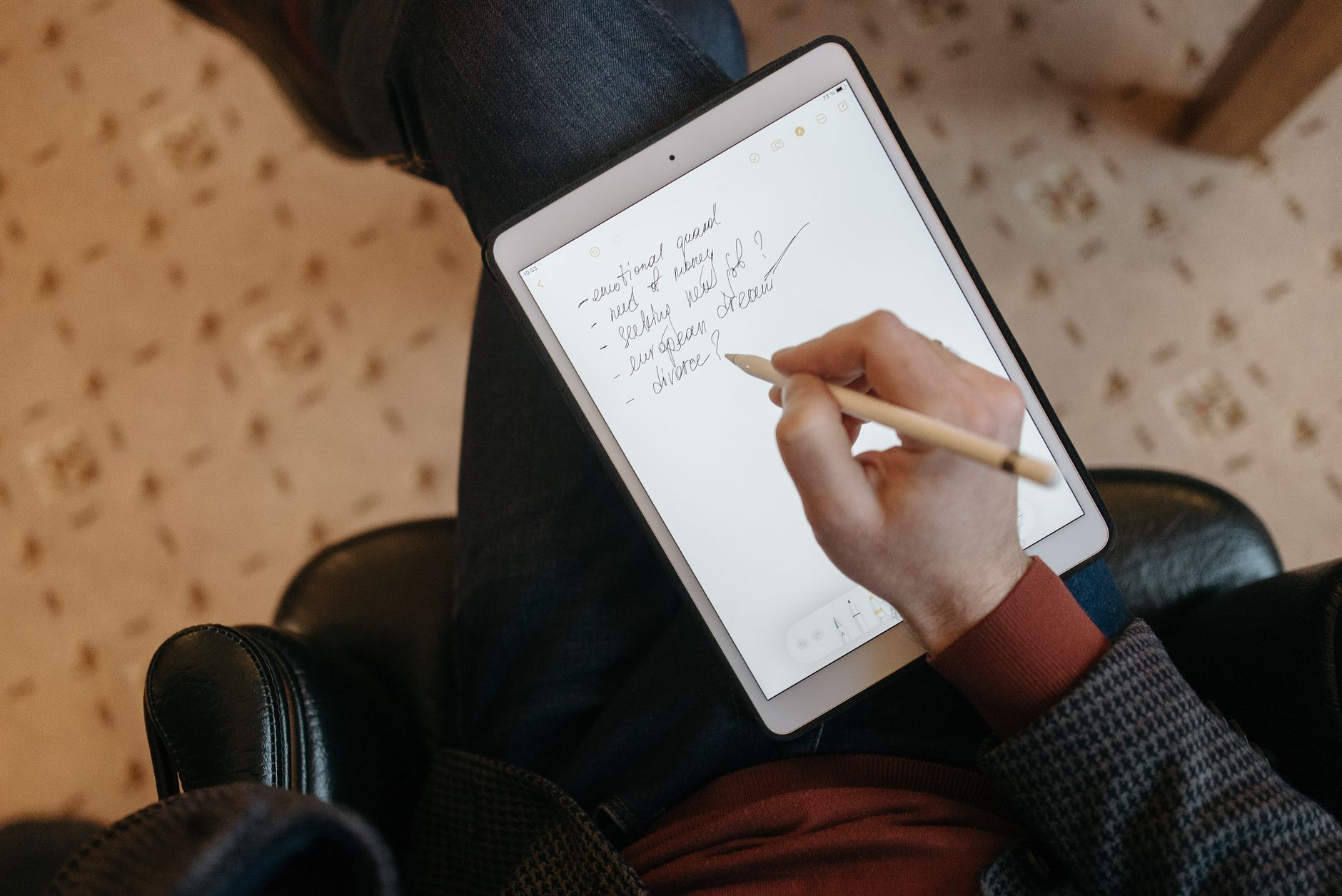
Quick answer: If your Apple Pencil won't charge or connect, ensure Bluetooth is toggled on, clean the charging contacts, remove any thick iPad case, and firmly screw the pencil tip down. If the battery is completely drained, leave it charging uninterrupted for at least 60 seconds before expecting a pairing prompt to appear.
Few things derail a productive workflow faster than tapping your stylus to a tablet screen and getting no response. Because the Apple Pencil lacks physical power buttons or status lights, determining whether you are dealing with a dead battery, an iPadOS software stall, or a physical pairing failure can feel like guesswork.
Whether you use the Apple Pencil Pro, Apple Pencil (USB-C), or a 1st or 2nd generation model, connection issues almost always stem from a handful of predictable trouble spots. Walking through the hardware and wireless checks below in sequence will help you get back to sketching and writing in minutes.
Key takeaways
- Different Apple Pencil models have strict iPad compatibility rules and charging methods; the USB-C version never charges wirelessly.
- A completely drained Pencil battery often needs a full 60-second charge before the iPad recognizes it.
- Bulky cases frequently prevent the magnetic connector from sitting flush against the iPad edge.
- A loose or worn stylus tip breaks touch registration even when Bluetooth reports the pencil is connected.
Check iPad and Apple Pencil Compatibility
Before adjusting settings or resetting connections, verify that your Pencil model actually works with your specific iPad. Apple has produced four distinct models, and their pairing mechanisms and internal hardware vary significantly.
| Apple Pencil Model | Primary Charging Method | Compatible Devices |
|---|---|---|
| Apple Pencil Pro | Magnetic Snap (Wireless) | Select iPad Air, Pro, and Mini models (2024–2025) |
| Apple Pencil (2nd Gen) | Magnetic Snap (Wireless) | iPad Air, Pro, and Mini with flat-edge designs |
| Apple Pencil (USB-C) | USB-C Cable (Wired only) | All iPad models with a USB-C port |
| Apple Pencil (1st Gen) | Lightning Port / Dongle | Select older iPads; iPad (10th gen) via adapter |
Keep in mind that no Apple Pencil model works with an iPhone. If your tablet itself is failing to power up or hold power during these steps, consult our guide on how to fix an iPad that won't charge or turn on before troubleshooting the stylus further.
Clean the Magnetic Charging Connector and Port
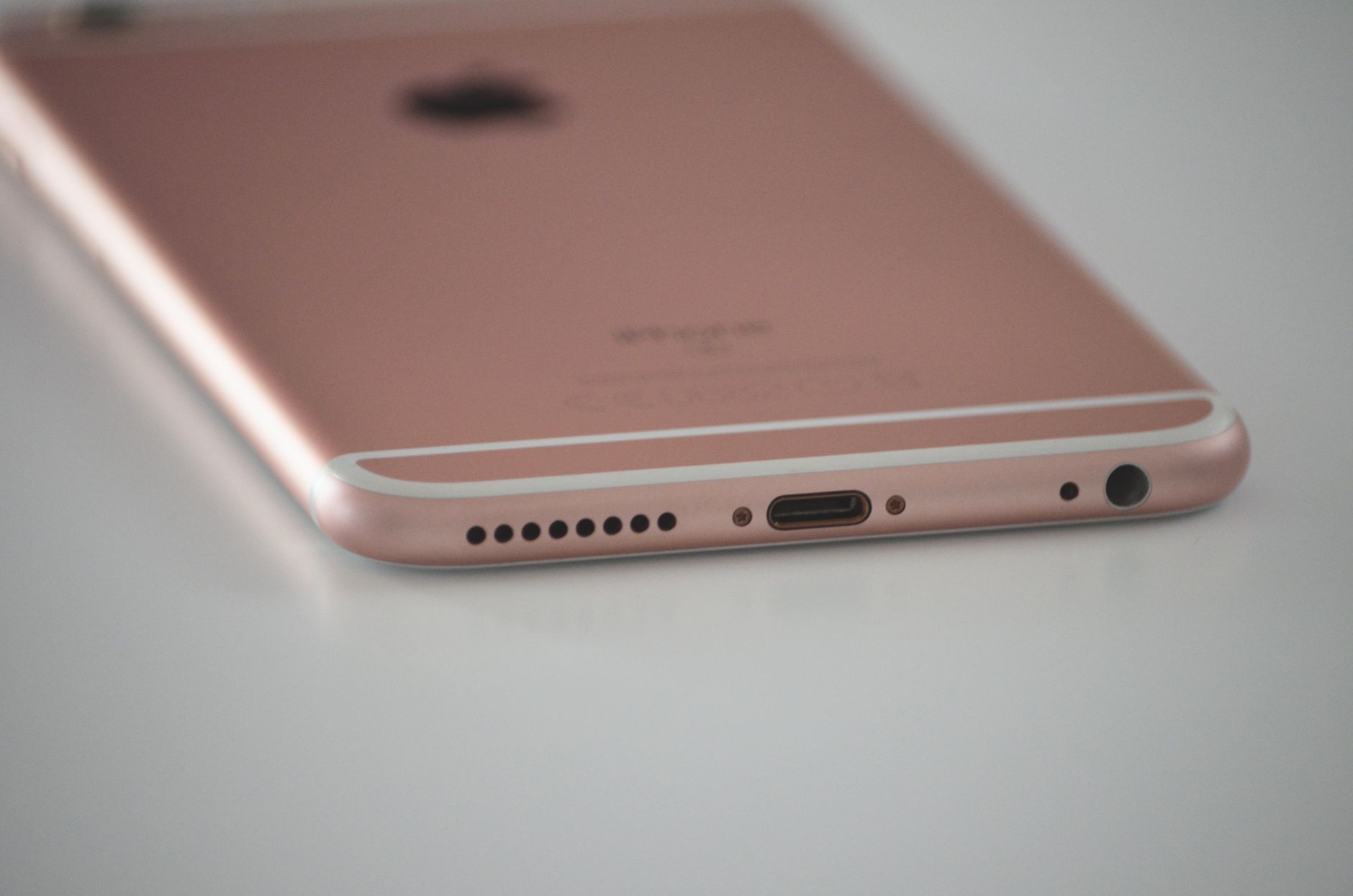
Photo by John (Giannis) Tekeridis on Pexels
Wireless and wired charging require an uninterrupted connection. Dust, pocket lint, or skin oils on the tablet chassis can degrade contact points.
Remove Thick Protective Cases
Why it matters: Protective cases with thick bumpers, folio hinges, or wrap-around stylus loops often prevent the Apple Pencil from sitting completely flat against the magnetic edge. Even a fraction of a millimeter of space can disrupt wireless induction charging.
How to do it: Strip the iPad entirely out of its protective case. Snap the Apple Pencil directly onto the bare metal strip on the long edge of the tablet. Ensure it snaps firmly onto the center of the magnetic strip.
Wipe Away Dust and Debris
Why it matters: Fine grit can collect along the magnetic charging strip or inside physical charging ports, reducing electrical conduction.
How to do it: Use a dry, lint-free microfiber cloth to firmly wipe down both the flat side of the Apple Pencil and the long edge of your iPad. If you are using a 1st generation model or the USB-C version, inspect the Lightning connector or USB-C port with a flashlight to ensure no compacted lint is blocking the plug.
Reset the Bluetooth Connection
When the stylus battery has a charge but fails to write, or when an existing pair stops responding, clearing out the old connection profile resets the wireless handshake.
Tip: Always check that Bluetooth is active in both Control Center and the main Settings app. Sometimes toggling Airplane Mode on and off can reset background wireless radios without unpairing your accessories.
Forget the Apple Pencil in iPadOS Settings
Why it matters: Corrupted wireless cache files can trick your iPad into thinking an accessory is active when data transmission has actually halted.
How to do it: Open Settings > Bluetooth on your iPad. Locate your Apple Pencil under My Devices, tap the circular (i) info icon next to it, and tap Forget This Device. Confirm your choice when prompted.
Re-pair the Accessory
Why it matters: Re-initiating the pairing sequence generates a clean Bluetooth encryption key between both devices.
How to do it: For the Apple Pencil Pro or 2nd generation, snap the Pencil onto the magnetic charging strip on the side of your iPad. For the 1st generation, plug the stylus directly into the Lightning port (or use the USB-C adapter cable on 10th-gen iPads). For the USB-C model, slide open the top cap and connect a USB-C cable between the Pencil and your iPad. Tap the Pair button when it pops onto your display.
Force Restart Your iPad
When iPadOS background services like accessory management freeze, the tablet will ignore physical connections altogether. A basic restart often clears out these minor system glitches.
Perform a Hardware Key Combination Restart
Why it matters: A hard restart clears out temporary memory allocations without erasing personal data or apps, forcing the system to re-initialize its physical sensors.
How to do it: Keep your Apple Pencil attached or plugged in, then complete the following sequence:
- Press and quickly release the volume button closest to the top edge.
- Press and quickly release the volume button furthest from the top edge.
- Press and hold the top power button until the Apple logo appears on screen, then release it.
If your iPad still uses a physical front Home button, press and hold both the top power button and the Home button together until the Apple logo appears.
Fix a Completely Drained Apple Pencil Battery
One of the most common reasons an apple pencil won't charge or connect is deep discharge. If a stylus sits in a drawer or on a desk for weeks, its lithium-ion cell drains down to absolute zero.
Warning: A completely dead Apple Pencil will not immediately show a charging pop-up or register inside the iPadOS Batteries widget. Do not assume the pencil is broken if nothing happens in the first thirty seconds.
Allow a Sixty-Second Wake-Up Window
Why it matters: Modern low-power battery controllers require a minimal baseline charge before powering on the internal logic board and Bluetooth radio.
How to do it: Connect your Pencil to its proper charging source and leave it untouched for at least 60 seconds. Once the internal battery clears its critical floor, the connection banner will appear on the iPad screen. Once recognized, the pencil charges rapidly—roughly thirty minutes of use from a 15-second burst, and a full charge in roughly 15 minutes.
Do Not Rely on Magnetic Snaps for the USB-C Model
Why it matters: The Apple Pencil (USB-C) features internal magnets designed strictly for convenient physical storage against the side of the iPad. It contains no inductive wireless charging coils.
How to do it: Slide open the end cap of the stylus to reveal the hidden port. Use a standard USB-C cable to plug the Pencil directly into the iPad's port or a wall brick to recharge the battery.
Tighten or Replace the Pencil Tip
If your iPad reports that the Apple Pencil is connected at 100% battery, but the screen ignores your strokes, the issue is almost always mechanical rather than wireless.
Snug Down the Existing Tip
Why it matters: The tip screws onto an internal sensor rod that registers pressure and capacitive input. If normal handwriting slowly unscrews the nib, the physical gap prevents signals from transferring through the screen glass.
How to do it: Grip the cone-shaped plastic tip with your fingertips and twist it clockwise. It should feel snug and flush against the pencil body. Do not overtighten or use tools, which can strip the internal threads.
Inspect for Nib Wear
Why it matters: Rough screen protectors (such as matte paper-feel films) wear down plastic nibs over time. If the interior metal pin begins poking through the plastic, it can scratch your screen and cause intermittent touch failure.
How to do it: Unscrew the tip counter-clockwise and check the plastic shell. If it is flattened, grooved, or exposing internal metal, screw on a replacement tip. (1st-gen models include a spare tip in the original box; other models require tips purchased separately).
Pros of Standard Apple Pencils
- Extremely fast charge times (15 minutes to reach full battery).
- Native iPadOS integration with battery widgets and low-latency tracking.
- Replaceable wear parts like tips prolong hardware lifespan.
Cons of Standard Apple Pencils
- No physical power switch to stop passive drain during long-term storage.
- Confusing cross-generation compatibility rules across iPad lineups.
- USB-C model lacks wireless charging despite magnetic docking.
Common Mistakes to Avoid
When an Apple Pencil behaves erratically, users often jump to replacing hardware unnecessarily. Watch out for these four frequent errors:
- Leaving bulky cases attached: Cases that feature a fold-over magnetic flap or thick raised lip push the pencil just far enough away to break wireless power transfer.
- Assuming magnetic attachment equals charging: If you own the Apple Pencil (USB-C), attaching it to the tablet edge does not recharge the stylus. It requires a cable.
- Giving up after 10 seconds: Disconnecting a stone-dead pencil too early prevents the low-voltage recovery cycle from completing. Give it at least a full minute.
- Ignoring Bluetooth toggles: Turning Bluetooth off for a speaker or headphones disables accessory communication across the entire device. Check that your main Bluetooth slider remains green.
Bottom line: Most Apple Pencil connection failures come down to two easily fixed problems: a loose screw-on tip or a deeply drained battery needing a 60-second recovery period. If working through pairing resets, cleaning the contacts, and testing without an iPad case still yields no response, the internal lithium cell has likely reached the end of its functional life and the stylus will need replacement.
Related guide: How to Fix an Apple Pencil Drawing Inconsistently or Skipping
Related guide: How to Fix Bluetooth Headphones Audio Delay on PC
FAQ
Why is my Apple Pencil not charging when attached to my iPad?
This typically occurs because a thick protective case is physically separating the pencil from the tablet's inductive coil, debris is coating the magnetic contact, or you are using the Apple Pencil (USB-C), which only recharges via a physical cable.
How do I reconnect an Apple Pencil that stopped working?
Navigate to Settings > Bluetooth, tap the info icon next to your Apple Pencil, and tap Forget This Device. Afterward, snap the pencil onto the magnetic charging strip or plug it in, and select Pair when prompted.
Can a completely dead Apple Pencil battery be revived?
Yes. If left depleted for a long time, the battery requires up to a full minute of continuous charging before the internal logic board turns on and communicates with the iPad. Let it sit undisturbed on the charger for a few minutes.
Why does my iPad say my Apple Pencil is connected but it won't write?
This usually indicates that the pencil tip has vibrated loose from the internal capacitive sensor. Gently rotate the plastic tip clockwise until it is finger-tight against the barrel.
Do I need to replace the tip if my Apple Pencil isn't responding?
Only if tightening the tip fails to resolve the issue, or if the plastic has worn down to the point where the metal antenna pin underneath is exposed. A worn-out tip breaks touch contact with the display digitizer.
Sources
Facts in this article were checked against these pages on October 30, 2026:
- If you can't pair Apple Pencil with your iPad - Apple Support (support.apple.com)
- How to Charge Either Apple Pencil Model With Your iPad (businessinsider.com)
- How to Charge Either Apple Pencil Model With Your iPad (businessinsider.com)
- How to Connect an Apple Pencil to Your iPad (businessinsider.com)
- How to Connect an Apple Pencil to Your iPad (businessinsider.com)
- apple pencil not charging : r/iPadPro (reddit.com)
How we researched this: this guide is based on current manufacturer information and reputable sources, listed in the Sources section above, and is updated when things change. Read our editorial policy.
Content Writter



Comments
No comments yet — be the first to share your thoughts.