
How to Fix an Apple Pencil Drawing Inconsistently or Skipping
Learn how to diagnose and fix Apple Pencil skipping, lag, or dropped strokes with our step-by-step troubleshooting guide.

Quick answer Apple Pencil skipping is usually caused by a loose tip, skin oils on the screen, or third-party charger interference. Tightening the nib, cleaning the glass, or unplugging the charger typically resolves the issue immediately.
Dealing with broken lines, missing pressure sensitivity, or erratic jumps while trying to sketch or take notes can instantly ruin a creative session. Whether you use the original Apple Pencil (1st generation), Apple Pencil 2 (2nd generation), Apple Pencil (USB-C), or Apple Pencil Pro, erratic input often stems from minor physical wear, electrical interference, or hidden software conflicts rather than permanent hardware failure.
By systematically checking your hardware connections, screen surface, and iPadOS settings, you can pinpoint the exact root cause of your stroke dropouts and get your stylus back to drawing smoothly.
Key takeaways
- A slightly loose tip breaks the internal electrical circuit, causing dotted lines.
- Ungrounded third-party chargers frequently introduce electrical interference that mimics software lag.
- System Accessibility Zoom is a known culprit behind stray marks and glitchy lines.
- Accumulated skin oils disrupt capacitive touch registration between the nib and display.
Before You Start
Before diving into troubleshooting steps, make sure you have the following ready:
- Your iPad running current iPadOS updates and your active Apple Pencil.
- A clean microfiber cloth and screen-safe cleaning solution.
- About 10 to 15 minutes of uninterrupted time to test input across apps.
Check the Tip for Looseness or Physical Wear
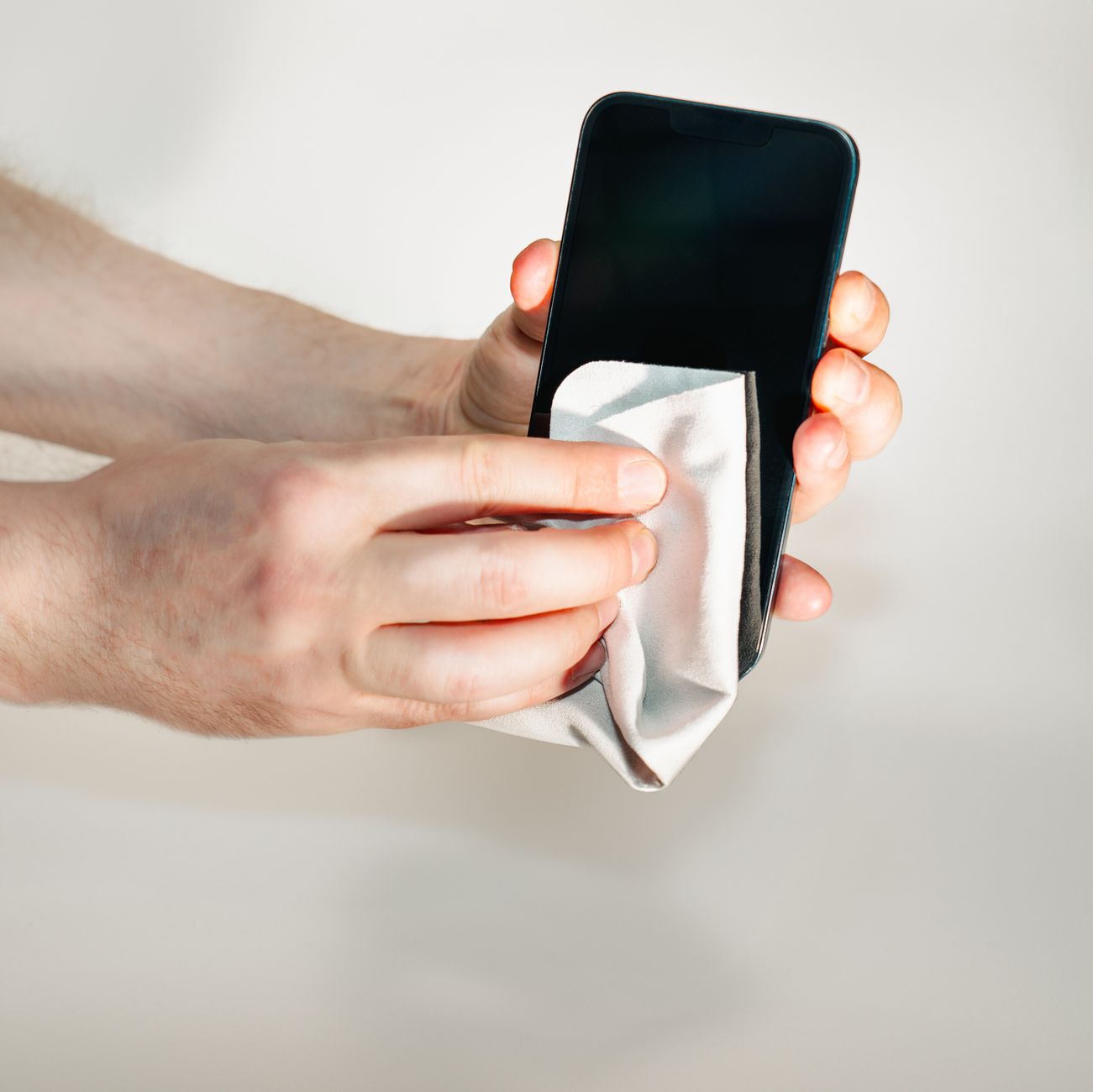
Photo by Jakub Zerdzicki on Pexels
The nib of your stylus bridges the internal sensor and the glass surface. If it backs out even a fraction of a millimeter, the electrical connection cuts out mid-stroke, resulting in gaps or dotted lines. Unscrew the tip counter-clockwise, then screw it back down clockwise until snug. It should be secure without being forced. A tiny hairline gap the thickness of a single sheet of paper is normal by design to allow proper pressure registration.
If the tip appears cracked, blunt, or heavily worn down on one side, it exposes internal components and causes dead spots. Replacing a worn tip with a fresh one immediately restores consistent stroke detection.
Warning: Never overtighten the nib with tools or excessive force. Doing so can strip the threads or permanently damage the internal pressure sensors inside the barrel.
Rule Out Screen Protector Interference and Surface Oils
Accumulated skin oils, sweat, and airborne dust break the capacitive contact required for accurate stylus tracking. Clean your screen glass or protector thoroughly using a dedicated cleaning kit or a damp microfiber cloth. Make sure no oily residue remains on the active drawing area.
Hand placement, poorly grounded tablet cases, and static buildup can also introduce erratic jumps. Furthermore, a faulty or ungrounded third-party wall charger introduces electrical noise into the screen digitizer while plugged in. If your stylus skips only when connected to power, unplug the iPad or switch to an official Apple power adapter.
Reset the Bluetooth Connection and Force Restart the iPad
Software handshakes occasionally drop packets between the tablet and your stylus, creating apparent input lag.
- Open
Settings
on your iPad and tapBluetooth
. - Toggle the Bluetooth switch to
Off
, wait 10 seconds, and toggle it backOn
. - If dropouts continue, tap the information button (ⓘ) next to your Apple Pencil in the Bluetooth menu.
- Select
Forget This Device
. - Dock your Apple Pencil magnetically or plug it into its charging port to establish a fresh pairing handshake.
- If issues persist, perform a force restart on your iPad to clear temporary system memory caches and digitizer driver glitches without affecting your saved files. For related connection issues, you can also reference our guide on how to fix an apple pencil that wont charge or connect.
Adjust iPadOS Palm Rejection and Accessibility Pressure Curves
A confirmed system-level bug causes stylus strokes to glitch, skip spots, or generate stray lines whenever the operating system zoom feature remains active in the background. Navigate to Settings
, select Accessibility
, tap Zoom
, and toggle off the top switch if it is enabled.
Resting hand posture can also introduce unintended multitouch inputs that override the tip sensor. Make sure your drawing software utilizes reliable palm rejection settings to prevent your hand from acting as an eraser or a stray brush input.
Isolate App-Specific Canvas and Latency Settings
High streamline or stabilization values inside creative applications like Procreate introduce perceived stroke lag or late ink arrival. If a brush dynamic curve is misconfigured, it can easily mimic hardware skipping.
Test your input inside native applications such as Apple Notes compared against third-party drawing suites. This comparison reveals whether the stutter is tied to a specific creative engine or affects the entire operating system.
Verify Battery Health and Hardware Diagnostics
When the internal battery drops to a critical low percentage, connection stability degrades and input drops entirely. Place your stylus on its magnetic connector or plug it into its charging port for at least 10 minutes to verify whether recharging stabilizes detection.
For stubborn stutter bugs where the hardware appears completely unresponsive, allowing the battery to drain completely to zero percent before recharging it back to full capacity can clear persistent synchronization issues.
Common Mistakes to Avoid
- Overtightening the nib: Forcing the tip past its natural stopping point damages internal sensors.
- Ignoring charger interference: Troubleshooting software settings while drawing on a noisy third-party wall adapter.
- Leaving Accessibility Zoom active: Forgetting to disable background zoom shortcuts while sketching.
- Replacing hardware prematurely: Buying replacement tips before wiping away simple skin oils and surface smudge layers.
If It Still Doesn't Work
If you have exhausted all physical and software troubleshooting steps and your stylus still refuses to draw properly, the internal digitizer or stylus sensor may have suffered physical trauma. Visit an Apple Store or contact Apple Support to run hardware diagnostics. If you are experiencing broader charging issues with your tablet alongside input failures, consult our troubleshooting steps for how to fix an ipad that wont charge or turn on.
Bottom line Systematic isolation starting with tightening the nib, cleaning the screen, and disabling Accessibility Zoom resolves the vast majority of Apple Pencil skipping issues without needing hardware replacements.
Related guide: How to Fix a Fire TV Stick Stuck on the Logo Screen
Related guide: How to Fix an Apple Watch Digital Crown That Is Stuck or Not Responding
FAQ
Why does my Apple Pencil only skip in certain areas of the screen?
Localized skipping usually points to physical screen damage, accumulated oils on a specific glass patch, or a defective spot on the screen protector.Can a worn-out Apple Pencil tip cause jagged lines?
Yes. A blunt or cracked tip exposes internal components, resulting in uneven contact and erratic stroke detection.
Does a paper-feel or tempered glass screen protector cause Pencil latency?
Thick screen protectors or matte films can occasionally alter capacitive touch sensitivity, though most quality protectors function normally if kept clean.
Why does my Apple Pencil skip when my iPad is plugged into a charger?
Ungrounded or poorly shielded third-party chargers introduce electrical noise that interferes with the screen's digitizer grid.
How tight should an Apple Pencil tip be screwed on?
Screw the tip on until it is snug with no wobble. Never force it past the point of natural resistance.
Sources
Facts in this article were checked against these pages on October 30, 2026:
- Apple Pencil skipping when drawing (folio.procreate.com)
- Why is your Apple Pencil Lagging? (5 Fixes to Restore Apple Pencil Performance) (youtube.com)
- How to Fix Apple Pencil Not Working or Not Connecting [2026 Guide] (astropad.com)
- Apple Pencil glitches, skips spots and makes weird lines in ... (reddit.com)
- Apple Pencil 2 skip / stutter issue (folio.procreate.com)
- iOS 11: Apple Pencil skips, makes dotted lines (discussions.apple.com)
How we researched this: this guide is based on current manufacturer information and reputable sources, listed in the Sources section above, and is updated when things change. Read our editorial policy.
Content Writter



Comments
No comments yet — be the first to share your thoughts.