
How to Fix an Apple Watch That Won't Sync with Your iPhone
Is your Apple Watch refusing to sync workouts, rings, or messages? Follow our step-by-step, non-destructive troubleshooting guide to restore your connection without losing health data.
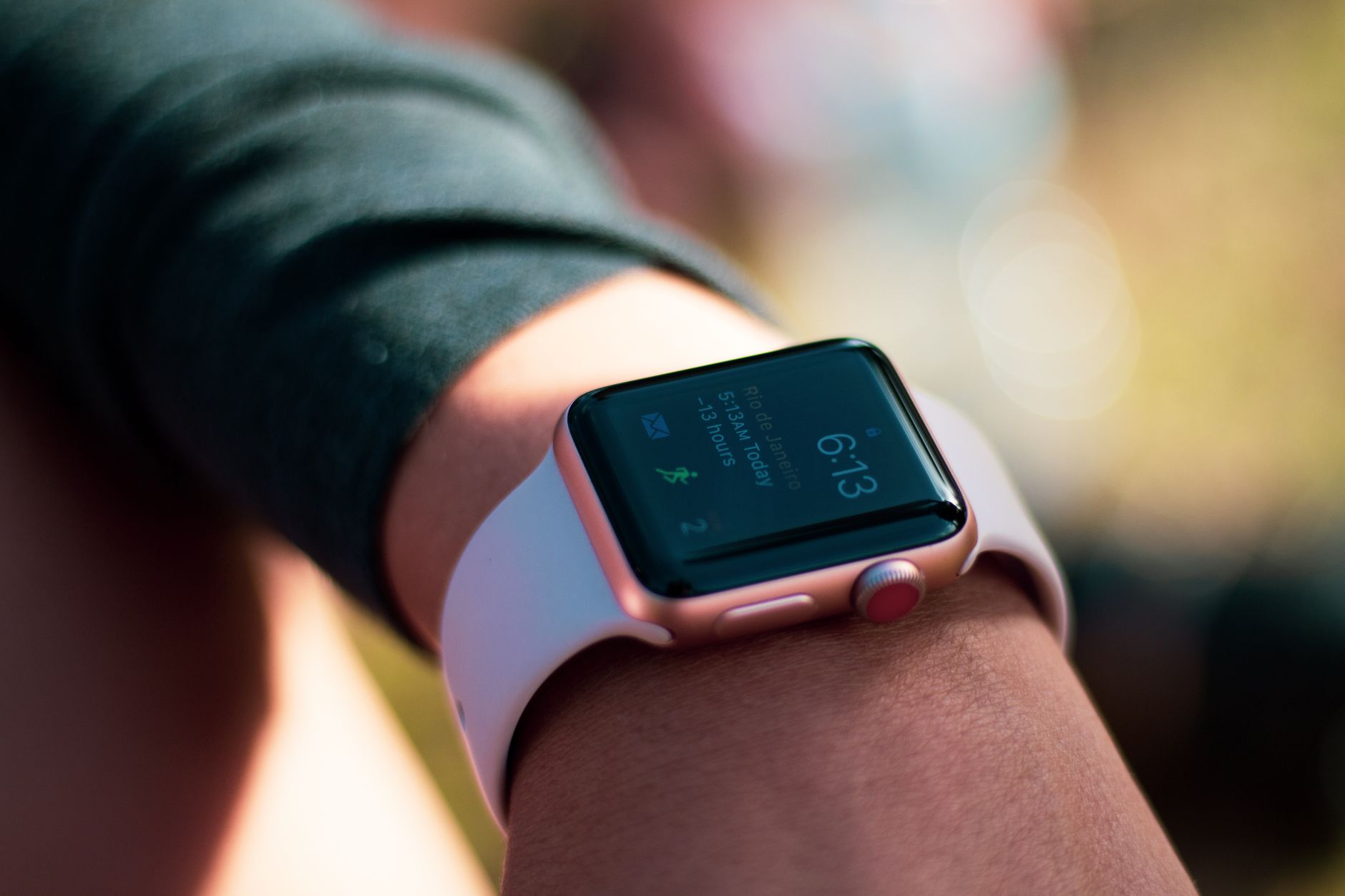
Quick answer: To fix an apple watch not syncing with iphone, first verify that Bluetooth and Wi-Fi are enabled in your iPhone's Settings app (not just the Control Center). If they are active, open the iPhone Watch app, go to General > Reset, and tap "Reset Sync Data" to force a silent background resync of your fitness rings and data without erasing your watch.
It is incredibly frustrating when your Apple Watch stops communicating with your iPhone. You finish a long workout, close your rings, or receive important messages, only to find that your iPhone's Fitness and Health apps show absolutely no record of your activity. When this happens, it is usually due to a temporary Bluetooth glitch, a minor software bug, or misconfigured wireless settings.
Many online troubleshooting guides suggest unpairing and factory resetting your watch as the first step. However, this is a time-consuming hassle that risks losing your latest health data. This step-by-step guide prioritizes non-destructive fixes first, helping you rebuild the connection between your devices safely.
Key takeaways
- Check your connection status first: A red slashed iPhone icon on your watch means it is disconnected; a green iPhone icon means they are paired.
- Use "Reset Sync Data" for a safe fix: This hidden button in the iPhone Watch app erases and resyncs session data in the background without a full reset.
- Toggle Bluetooth in Settings: Control Center toggles only disconnect accessories temporarily. You must use the Settings app to fully rebuild the Bluetooth stack.
- Watch your OS updates: Recent software updates (like iOS 26.4 and corresponding watchOS versions) can introduce temporary pairing bugs that require a manual connection rebuild.
Before You Start
Before you begin troubleshooting, make sure you have the following ready:
- Your iPhone and Apple Watch placed within close physical proximity (ideally right next to each other).
- Your Apple Account credentials (formerly Apple ID) to verify iCloud sync settings.
- At least 15 minutes of uninterrupted time.
- Both devices charged to at least 50% or connected to their respective chargers.
Step 1: Check Bluetooth, Wi-Fi, and Status Indicators
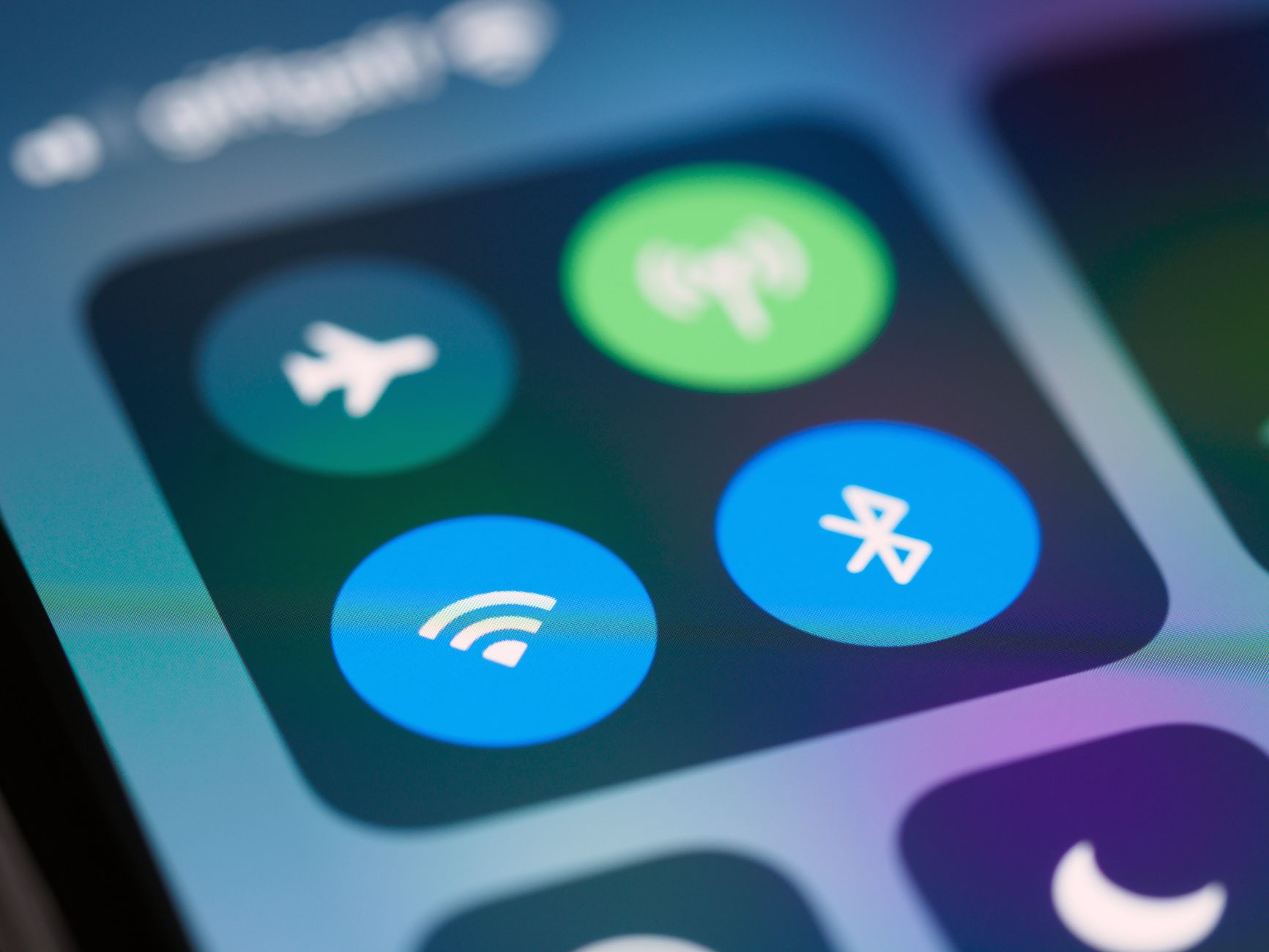
Photo by Brett Jordan on Pexels
The most common reason for sync failures is a basic wireless communication breakdown. You must verify that both devices are actually talking to each other before trying more advanced software fixes.
How to Check Connection Status on Apple Watch
Your Apple Watch has built-in visual indicators to tell you if it is connected to your phone:
- Open the Control Center on your Apple Watch. (On watchOS 10 and newer, press the flat Side Button once. On watchOS 9 and earlier, swipe up from the bottom of the watch face).
- Look at the top-left corner of the screen:
- A green iPhone icon means your watch has an active, healthy connection to your iPhone.
- A red iPhone icon with a diagonal slash means your watch is physically disconnected from your iPhone.
- Ensure Airplane Mode (the airplane icon) is turned off (gray) and Wi-Fi (the signal waves icon) is turned on (blue).
How to Check Connection Status on iPhone
- Open your iPhone's Settings app.
- Tap Bluetooth and ensure the toggle is green (ON).
- Go back to the main Settings menu, tap Wi-Fi, and make sure you are connected to a network.
Warning: Do not rely on the iOS Control Center (accessed by swiping down from the top-right of your iPhone screen) to toggle Bluetooth. Toggling Bluetooth off here only disconnects nearby accessories temporarily; it does not reset or rebuild the system's Bluetooth stack.
Step 2: Toggle Bluetooth via iPhone Settings
If your devices show they are disconnected, you can force the wireless chips to fully restart and search for each other again.
- On your iPhone, open the Settings app (not the Control Center).
- Tap on Bluetooth.
- Tap the green switch to turn Bluetooth completely OFF.
- Wait at least 30 seconds. This gives the wireless chip enough time to completely shut down its active processes.
- Tap the switch again to turn Bluetooth back ON.
- Check your Apple Watch Control Center to see if the red slashed icon turns into a green iPhone icon.
Step 3: Reset Sync Data (The Best Non-Destructive Fix)
If your Apple Watch shows a green connection icon but your Activity rings, workouts, or contacts are still not updating on your iPhone, the communication bridge is stuck. Apple has built a hidden diagnostic tool specifically for this scenario that most users do not know exists.
- On your iPhone, open the companion Watch app.
- Ensure you are on the My Watch tab, then scroll down and tap General.
- Scroll to the very bottom of the page and tap Reset.
- Tap Reset Sync Data.
Tip: When you tap "Reset Sync Data," nothing will seem to happen. There is no visual confirmation pop-up, sound, or spinning wheel. The command runs silently in the background, erasing the cached sync database on your watch and triggering a fresh, complete resync of your Health and Activity data from iCloud.
Step 4: Restart Both Your iPhone and Apple Watch
If a silent background resync does not solve the issue, a full system reboot of both operating systems will clear out corrupted temporary files.
How to Restart Your iPhone
- Press and hold the Side Button and either Volume Button simultaneously until the "slide to power off" slider appears.
- Drag the slider to the right and wait 30 seconds for the device to shut down completely.
- Press and hold the Side Button again until the white Apple logo appears to turn it back on.
How to Restart Your Apple Watch
- Press and hold the Side Button (on watchOS 10 or later) or open the Settings app on your watch and navigate to General > Shut Down.
- Slide the power off slider to the right and wait for the screen to go completely black.
- Press and hold the Side Button until the white Apple logo appears.
If your watch becomes completely unresponsive or frozen during a sync, you can perform a Force Restart. To do this, press and hold the Digital Crown and the Side Button at the same time for at least 10 seconds until the Apple logo appears.
Step 5: Unpair and Re-Pair Your Apple Watch (The Final Fix)
If none of the steps above work, your watch's pairing database is likely corrupted. This requires unpairing the watch, which factory resets it, and then restoring it from a backup.
Pros
- Rebuilds the connection database from scratch.
- Clears out deep software bugs and corrupted system caches.
- Allows you to restore almost all settings from an automatic backup.
Cons
- Takes 15 to 30 minutes to complete.
- If the watch and phone are actively disconnected, the iPhone may not be able to pull a fresh backup immediately before erasing.
- Requires re-entering some Apple Account credentials and card details in Apple Wallet.
Warning: To protect your workout data, verify that your Health data is actively synced to iCloud before unpairing. Go to iPhone Settings > [Your Name / Apple Account] > iCloud, and ensure "Health" is toggled ON. Unpairing without an active iCloud sync can result in losing any fitness rings or workouts completed since your last automatic backup.
How to Unpair Your Watch
- Keep your iPhone and Apple Watch close together.
- Open the Watch app on your iPhone.
- Go to the My Watch tab and tap All Watches at the top-left.
- Tap the yellow info "i" icon next to the watch you want to unpair.
- Tap Unpair Apple Watch and confirm your choice. You may need to enter your Apple Account password to disable Activation Lock.
How to Re-Pair Your Watch
- Turn on your Apple Watch and hold it close to your iPhone.
- Wait for the "Use your iPhone to set up this Apple Watch" prompt to appear on your iPhone screen, then tap Continue. (If it doesn't appear, open the Watch app and tap All Watches > Add Watch).
- Center the camera viewfinder over the animation on your Apple Watch screen.
- Choose Restore from Backup during the setup steps and select the most recent backup file.
Common Mistakes to Avoid
- Mismatched OS Versions on Restore: If you try to restore a watch backup onto an iPhone running outdated software, the backup may not appear in your setup list. Always update your iPhone to the latest iOS version before attempting to re-pair.
- Control Center Bluetooth Toggling: As mentioned, using the blue Bluetooth bubble in the Control Center does not reset the system radio. Always use the main Settings app to toggle Bluetooth off for at least 30 seconds.
- Ignoring Apple Account Sync: Ensure your phone is fully signed into your Apple Account. If there is an "Update Apple Account Settings" prompt in your iPhone's main Settings menu, resolve it first, as sync services for Health and Fitness will pause until security credentials are updated.
Bottom line
If your Apple Watch stops syncing, start with the non-destructive Reset Sync Data tool in your iPhone's Watch app settings. It resolves 90% of sync issues silently without forcing you to unpair. Only resort to unpairing and re-pairing if your devices show a persistent red disconnected icon that toggling Bluetooth and restarting cannot fix.
Related guide: How to Fix an Apple TV Remote That Stopped Working
FAQ
Why is my Apple Watch showing as connected but not updating health data?
This usually happens when the background database sync process crashes. Your physical Bluetooth connection is active, but the software bridge is stalled. Use the Reset Sync Data option in the iPhone Watch app (under General > Reset) to force a background refresh of your Health database.
Will unpairing my Apple Watch erase my workout history?
No, provided your Health data is synced to iCloud under your Apple Account. When you unpair your Apple Watch while it is connected to your iPhone, your phone automatically creates a fresh backup of your watch before erasing it. However, if the devices are completely unable to connect, the backup might be slightly outdated.
What should I do if my new iPhone says "Pairing Not Complete"?
If you get a "Pairing Not Complete" error on a new iPhone, make sure both devices are connected to Wi-Fi and signed into the same Apple Account. If the error persists, tap Finish Pairing to manually force the sync process to finish, or restart both devices and try again.
Why are my Apple Watch messages not syncing with my iPhone?
Message sync failures are typically caused by iMessage configuration issues. On your iPhone, go to Settings > Apps > Messages > Send & Receive. Ensure that your phone number and Apple Account email are checked under "You can receive iMessages to and reply from."
How long does it take to re-pair an Apple Watch after unpairing?
The entire unpairing and re-pairing process usually takes between 15 to 30 minutes. The speed depends on your Apple Watch generation, your network connection, and the size of the backup file you are restoring.
Sources
Facts in this article were checked against these pages on October 7, 2026:
- How To Fix Apple Watch and iPhone Not Syncing (youtube.com)
- Apple Watch Not Syncing with iPhone? Expert ... (justanswer.com)
- If you can't pair your Apple Watch with a new iPhone - Apple Support (support.apple.com)
- Why Isn't My Apple Watch Pairing? 5 Ways to Fix It (businessinsider.com)
- Troubleshooting Apple Watch Connection Issues with iPhone (justanswer.com)
- How to Fix Apple Watch Not Connecting to iPhone (2026 Guide) (youtube.com)
How we researched this: this guide is based on current manufacturer information and reputable sources, listed in the Sources section above, and is updated when things change. Read our editorial policy.
Content Writter

Comments
No comments yet — be the first to share your thoughts.