
How to Fix a Fire TV Stick Stuck on the Logo Screen
Is your Amazon Fire TV Stick stuck on the boot logo? Learn how to fix boot loops, power supply issues, and restore your device.
Quick answer If your Fire TV Stick is stuck on the logo screen, start by swapping your power source to a wall outlet instead of a TV USB port, and wait 25 minutes for background updates to complete.
Watching your TV turn on only to see the Amazon or Fire TV logo freeze in place can be frustrating. This endless loop prevents you from accessing any of your favorite apps, movies, or shows.
Fortunately, you can resolve most boot loop issues at home without buying new hardware. By following a structured path from simple power checks to advanced remote resets, you can bring your streaming device back to life.
Key takeaways
- Always use the original wall adapter rather than a TV USB port for power.
- Allow up to 25 minutes on the logo screen for background file repairs to finish.
- Use specific remote button combinations to force restarts or factory resets.
- App storage overload and app crashes often trigger repetitive boot loops.
Before You Start
Before you begin troubleshooting your streaming device, make sure you have the following items ready:
- Your original Amazon-supplied power cord and wall adapter.
- The official Fire TV remote control with working batteries.
- Patience to let the system complete long background checks if required.
- Access to your home Wi-Fi network details for potential setup steps.
Check Power Supply and HDMI Connections First
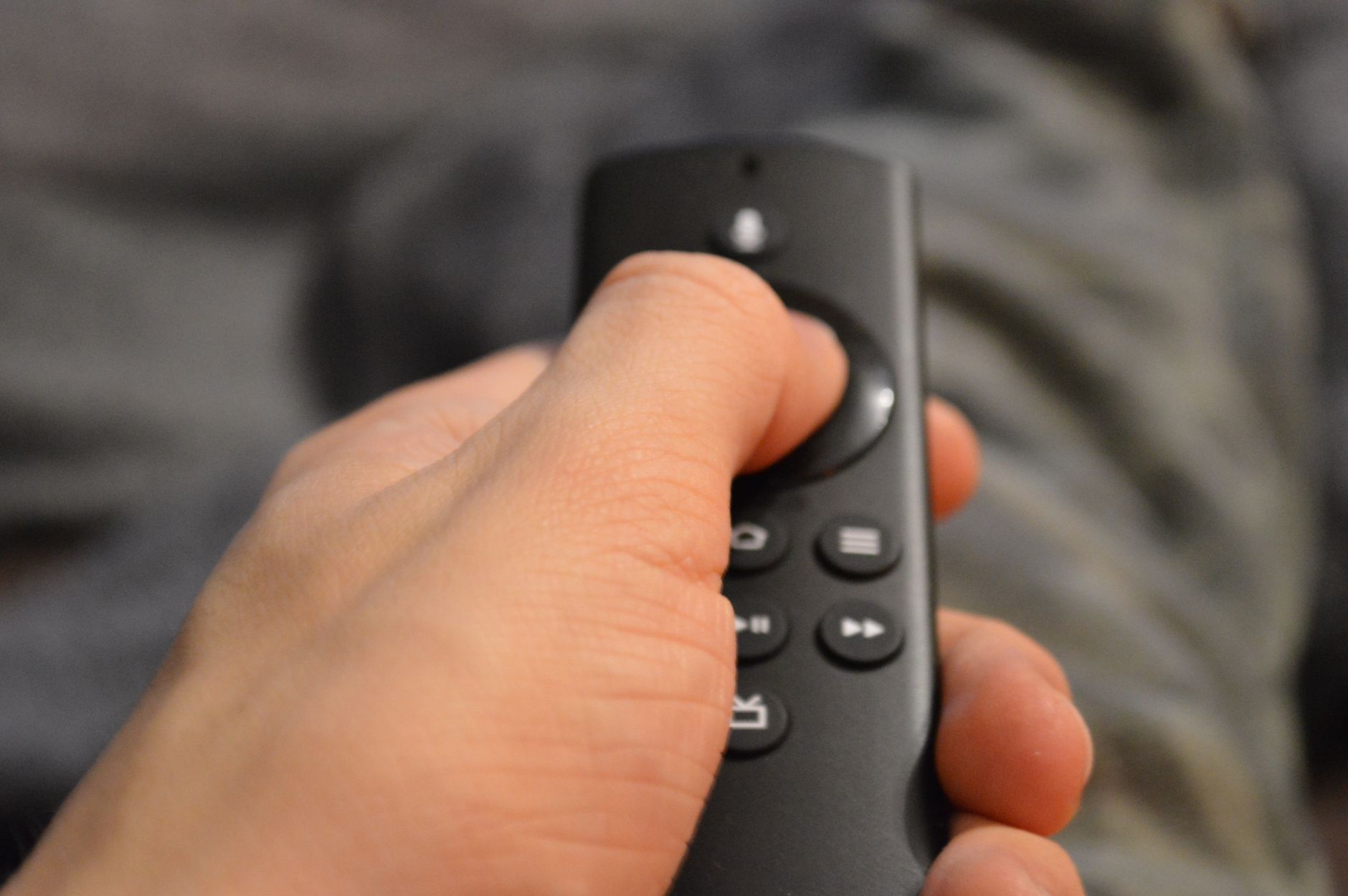
Photo by Leon Kohle on Pexels
Power delivery issues are the leading cause of boot loops on streaming hardware. Many users plug their streaming sticks directly into a TV USB port. TV USB ports often fail to supply steady voltage, causing the device to crash and reboot endlessly.
Unplug your power cord from the TV or wall and inspect the connections. Plug the original power adapter directly into a working wall outlet. Next, test a different HDMI port on your television or use an HDMI extender cable to rule out port delivery failures.
Tip: Amazon official support recommends leaving your device plugged in and turned on at the logo screen for 25 minutes. This gives the operating system enough time to complete system updates or background file repair processes.
Perform a Soft Reset Using the Remote
If your device remains frozen after waiting 25 minutes, you need to clear the temporary memory cache. A basic power cycle solves many minor software hangs without erasing your personal data or app logins.
Unplug the power cord from the outlet or the back of the streaming stick. Wait for 3 to 60 seconds to let all residual electrical charge drain from the board. Plug the power cord back in and watch to see if the device boots past the logo.
- Unplug the power cable from the streaming stick or the wall socket.
- Wait for at least 30 seconds to ensure the system fully shuts down.
- Plug the power cable back into the power source.
- Wait for the device to attempt a normal boot sequence.
Clear Cash and Power Cycle the HDMI Port
When software files become corrupted or app crashes trigger an involuntary reboot, the system might get stuck trying to read broken cache data. Power cycling the HDMI handshake helps clear communication blocks between your television and the streaming stick.
While the device is powered on, unplug the streaming stick from the HDMI port. Wait one minute, then plug it firmly back into the port. If you have an audio receiver or soundbar in the setup, try connecting the stick directly to the back of the TV instead.
Boot into Safe Mode or Reset via Remote Combo
When on-screen menus are completely inaccessible, your standard remote buttons become your best diagnostic tool. You can execute hardware commands using specific button combinations on your Fire TV remote.
To force a power down or restart without unplugging the cables, hold down the Play/Pause button and the Select button simultaneously for about five seconds. If your device suffers from a severe storage overload because you installed too many apps, you may need to clear space once it boots up.
Warning: Avoid unplugging your device repeatedly within seconds. Interrupting background checks during a boot sequence can cause further file corruption.
How to Factory Reset a Frozen Fire TV Stick
If non-destructive methods fail, a factory reset clears out all corrupted files, broken apps, and bad updates. This process restores the streaming stick to its original out-of-the-box software state.
- Make sure the device is plugged in and receiving stable power from the wall outlet.
- Locate the directional ring on your Fire TV remote control.
- Press and hold down the Right arrow on the directional ring and the Back button at the same time.
- Hold both buttons down for roughly 10 to 15 seconds until the factory reset prompt appears on your television screen.
- Confirm the reset using your remote and wait for the system to erase all personal data and reinstall the base operating system.
Common Mistakes
Avoiding common troubleshooting errors saves you time and prevents accidental hardware damage. Keep these points in mind while fixing your streaming stick:
- Powering the device directly from a TV USB port instead of using the included wall power adapter.
- Unplugging the device over and over within a few seconds instead of letting it sit for 25 minutes.
- Overloading the internal storage hard drive with too many apps, leaving no temporary memory buffer for the operating system.
If It Still Doesn't Work
If you have tried the wall power adapter, waited 25 minutes, and completed a factory reset using the remote button combination, the underlying issue might be physical hardware degradation. Older generation hardware models, such as legacy streaming sticks, eventually suffer from component wear after years of continuous use.
Check if your device is still covered under any warranty or replacement policy. If the internal flash memory has failed entirely, replacing the streaming stick with a current model like the Fire TV Stick HD (2026) is usually the most practical solution.
Bottom line Follow the non-destructive path first by checking your wall power adapter and waiting 25 minutes before attempting any remote button resets. This approach is best for users who want to preserve their app logins, while a factory reset is strictly for persistent software failures.
Related guide: How to Fix an Induction Cooktop That Won't Heat Up
Related guide: How to Fix an Apple Watch Digital Crown That Is Stuck or Not Responding
FAQ
Why is my Fire TV Stick stuck on the boot screen?
A boot loop is usually caused by insufficient power delivery from a TV USB port, corrupted system files from an app crash, or internal storage overload.
How long should I wait on the Fire TV logo before restarting?
Amazon support recommends leaving the device plugged in and powered on for 25 minutes to allow background updates and file repairs to finish.
How do I force reset my Fire Stick when the screen is frozen?
Hold down the Right arrow on the directional ring and the Back button on your remote simultaneously until the factory reset prompt appears on your screen.
Will a factory reset delete my purchased Amazon content?
No. Your purchased digital content is tied directly to your Amazon user account, meaning you can easily re-download your items after completing the reset.
Can a weak TV USB port cause a boot loop?
Yes. TV USB ports often fail to supply the steady voltage required by streaming sticks, which triggers sudden reboots and endless logo freezing.
Sources
Facts in this article were checked against these pages on November 3, 2026:
- Fire TV Stick stuck on logo screen (amazonforum.my.site.com)
- Fire TV Stick stuck in logo screen (uk.amazonforum.com)
- Fire TV Stick (2nd Gen) stuck on Amazon logo (amazonforum.com)
- firetv stick lite stuck in bootloop/logo screen. common fixes ... (reddit.com)
- How to Fix Firestick Stuck on Logo Screen (Amazon ... (youtube.com)
- What To Do If Your Amazon Fire TV Stick Is Stuck On The Logo (bgr.com)
How we researched this: this guide is based on current manufacturer information and reputable sources, listed in the Sources section above, and is updated when things change. Read our editorial policy.
Content Writter



Comments
No comments yet — be the first to share your thoughts.