
How to Fix a Bluetooth Speaker That Keeps Disconnecting
Is your Bluetooth speaker cutting out or dropping audio? Follow these simple, step-by-step fixes to restore a stable wireless connection.
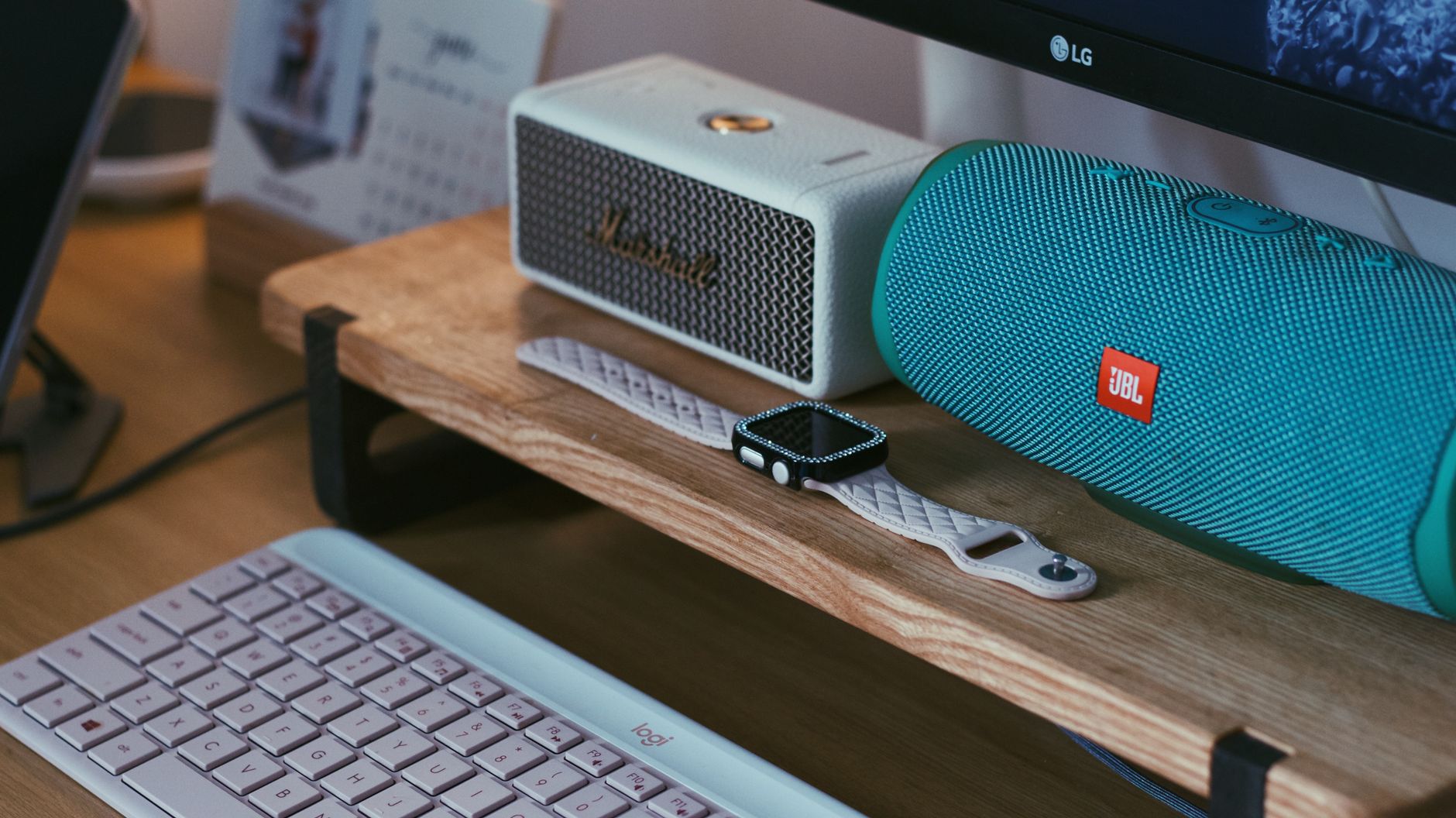
Quick answer A Bluetooth speaker keeps disconnecting due to low battery, wireless interference on the 2.4 GHz band, or saved pairing glitches. Charge your speaker fully, turn off nearby 2.4 GHz wireless devices, remove the speaker from your device settings, and pair it again from a few inches away.
When your music cuts out right in the middle of a song, it gets frustrating fast. Audio stutters and sudden drops usually happen because your speaker loses its signal, runs low on power, or gets confused by old software settings.
This troubleshooting guide walk you through simple checks first, then moves to advanced fixes. Whether you are playing music from a phone or trying to fix dropouts on Windows 11, these steps will help you fix the issue.
Key takeaways
- Low battery levels cause wireless chips to drop connections to save power.
- Microwaves and Wi-Fi routers use the 2.4 GHz band, which disrupts Bluetooth signals.
- Rushing a restart fails to clear memory; wait 10 to 15 seconds before turning the speaker back on.
- Windows 11 power-saving features can shut down audio ports when music stops playing.
Recognizing the Symptoms
Before changing your settings, identify how your speaker fails. Different behavior points to different causes:
- Frequent audio stutter: Music plays, but it cuts out for a fraction of a second every few moments. This points to signal interference or distance issues.
- Disconnects during silence: The speaker drops its connection whenever audio pauses for a short time. This is often an operating system power-saving setting.
- Random total disconnections: The speaker turns off or disconnects every few minutes, even while music is actively playing. This usually indicates a low battery or bad firmware.
- Device disappears completely: The speaker name drops off your phone or laptop Bluetooth menu entirely and will not re-pair without a full reset.
Quick Checks: Distance, Battery Level, and Obstacles
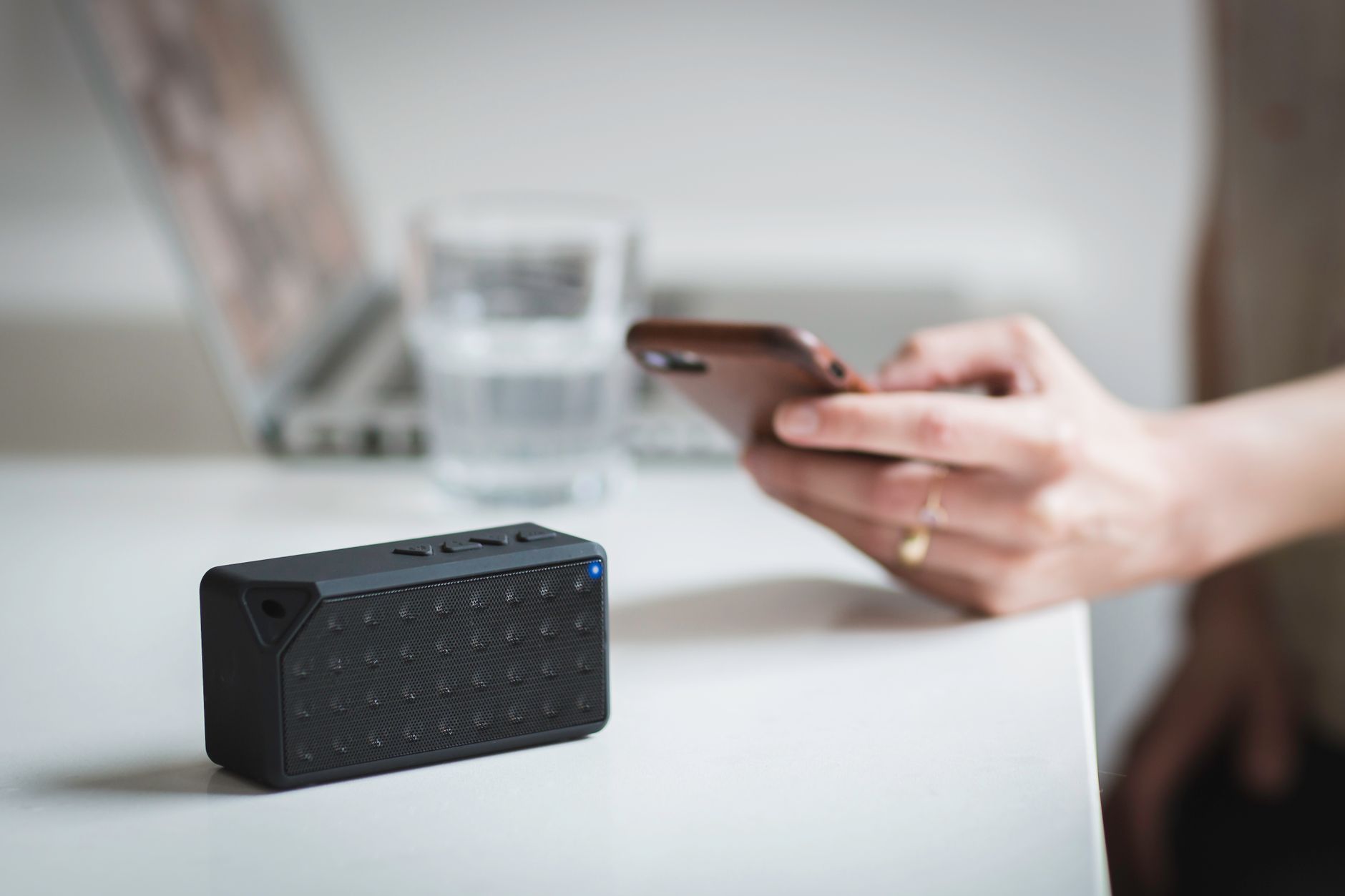
Photo by Burst on Pexels
Start with basic physical causes before tweaking software settings.
- Charge the speaker completely. Bluetooth chips require stable power. When a battery drops below 20 percent, the speaker may cut connection to preserve power. Plug your speaker into a wall charger and let it reach 100 percent.
- Move within three feet. Bring your source device right next to the speaker. If the audio stops stuttering, physical distance or dense walls are blocking the signal.
- Clear physical barriers. Water, metal desks, and concrete walls absorb Bluetooth signals. Place your speaker on an open wooden table or shelf.
- Disconnect extra devices. Many newer models allow multi-device connections. Check if your speaker has accidentally paired with a family member's phone or a nearby tablet in another room.
Clear Bluetooth Cache and Forget Device Settings
Old pairing records can cause connection handshakes to fail. Clearing the old link gives your devices a clean slate.
- Open the Bluetooth settings on your phone, tablet, or computer.
- Find your speaker in the list of remembered devices. Tap or right-click it and select Forget This Device or Unpair.
- Turn off Bluetooth on your host device for 10 seconds, then turn it back on.
- Power off your speaker. Wait a full 10 to 15 seconds so the wireless chip completely resets its operating state.
- Turn the speaker back on, place it next to your phone, and pair them as if the speaker were brand new.
Tip: If you face similar wireless drops with earbuds, check out our guide on how to fix AirPods that keep disconnecting for platform-specific cache resets.
Disable Audio Power-Saving and Sleep Modes
Computers and phones often shut down Bluetooth transmitters to preserve battery life when no sound is detected.
Fixing Windows 11 Audio Idling
Windows 11 includes aggressive power-saving rules that can cause Bluetooth speakers to disconnect when audio stops playing.
- Open the Windows Control Panel and head to Sound settings.
- Right-click your connected Bluetooth speaker under the Playback tab.
- Select Set as Default Device. This keeps Windows from switching audio routes unexpectedly.
- Open Device Manager, expand the Bluetooth section, right-click your Bluetooth adapter, and open Properties.
- Under the Power Management tab, uncheck Allow the computer to turn off this device to save power. Click OK.
If your speaker still disconnects during quiet moments, lightweight third-party utilities like Sound Keeper can send silent audio signals to keep the connection active.
Identify and Reduce 2.4 GHz Wireless Interference
Bluetooth operates on the 2.4 GHz radio frequency band. Many household items share this same space and can crowd out your music.
| Source of Interference | Impact on Bluetooth | Recommended Fix |
|---|---|---|
| 2.4 GHz Wi-Fi Routers | High signal overlap and stutter | Switch home Wi-Fi to 5 GHz band or set 2.4 GHz to channels 1, 6, or 11. |
| Microwaves | Total signal drop during use | Keep speaker at least 10 feet away from kitchen appliances. |
| USB 3.0 Hard Drives | Local radio noise near ports | Move external drives away from your computer's Bluetooth dongle. |
To run a 30-second isolation test, turn off nearby wireless gadgets one by one. If the stutter stops when you turn off a specific device, you have found the source of the conflict. Similar radio issues affect smart home gear, as detailed in our guide on how to fix a Smart TV that keeps losing Wi-Fi.
Reset Your Bluetooth Speaker to Factory Defaults
If software resets on your phone do not help, clear the internal memory of the speaker itself.
- Consult your owner manual to find the hardware reset combination. Most speakers require pressing and holding two buttons (like Power and Play, or Volume Down and Bluetooth) at the same time for 5 to 10 seconds.
- Listen for a chime or look for flashing LED lights indicating the reset is complete.
- Remove the old Bluetooth profile from your phone or PC once again.
- Pair the speaker from scratch.
Warning: Performing a factory reset erases all stored pairing history, equalizer presets, and multi-speaker grouping setups.
Update Speaker Firmware and Audio Drivers
Outdated hardware software causes bugs that lead to random dropouts.
- Download the official companion app for your speaker on your iOS or Android device.
- Connect your speaker and check for pending firmware updates within the app settings.
- Keep the speaker plugged into power while updating to avoid corrupting the system.
- On Windows, update your computer Bluetooth controller drivers using Windows Update or the driver download page from your PC manufacturer.
Common Troubleshooting Mistakes
- Rushing the power cycle: Turning the power button off and on immediately leaves residual charge in the chip, which prevents a true reset. Always wait 10 to 15 seconds.
- Troubleshooting on low battery: Testing connections while the battery icon is red leads to false conclusions because power management limits range.
- Ignoring companion apps: Skipping manufacturer updates leaves known bugs unresolved in the speaker's signal processor.
When to Contact Support or Replace the Speaker
If you have tried every step and the speaker still drops its connection while sitting right next to a fully charged phone, you may have a hardware failure. Internal issues like fractured solder joints on the circuit board or a degrading lithium-ion battery require professional repair.
Check if your product is still under warranty. If your device is older and out of warranty, replacing it might be more cost-effective than paying for internal electronics repair. Modern portable speakers like the JBL Flip 7 or LG Xboom series offer upgraded hardware, improved water resistance, and more reliable wireless chips.
Bottom line Most Bluetooth disconnections are caused by low battery reserves, 2.4 GHz Wi-Fi interference, or Windows power management settings. Start by unpairing the device and charging it fully. If you run Windows 11, disable power saving on your Bluetooth adapter before replacing your hardware.
FAQ
Why does my Bluetooth speaker keep cutting out every few minutes?
This usually happens due to wireless interference from nearby Wi-Fi routers or a low battery. Charge your speaker completely and move it away from appliances operating on the 2.4 GHz spectrum.
Can Wi-Fi routers interfere with Bluetooth speaker connections?
Yes. Both Wi-Fi and Bluetooth share the 2.4 GHz frequency band. Changing your router settings to use the 5 GHz band or selecting fixed channels like 1, 6, or 11 reduces interference.
How do I reset my Bluetooth speaker to fix connection bugs?
Press and hold the dedicated reset button sequence specified in your manual—often the Power and Play buttons together for 5 to 10 seconds—until the status lights flash.
Does low battery cause Bluetooth audio to drop?
Yes. As battery voltage drops, the speaker's internal power management limits power to the wireless receiver, shortening range and causing audio dropouts.
Why does my Bluetooth speaker disconnect when plugged into power?
Some speakers cycle their power controller or reset their Bluetooth chip when switched from battery mode to AC power. Allow the speaker a few seconds to stabilize after plugging it in, then reconnect.
Sources
Facts in this article were checked against these pages on October 19, 2026:
- Troubleshooting Bluetooth Speaker Issues: Why It Keeps Cutting Out and How to Fix It (soundcore.com)
- Solved! - Bluetooth Speaker Keeps Disconnecting | Tom's Guide Forum (forums.tomsguide.com)
- Bluetooth Speaker Not Connecting? 9 Fixes That Actually Work | UB+ (ub-plus.com)
- How to Fix All Problem of Bluetooth Speaker Not Connecting Issues to Phone (youtube.com)
- Fixing Bluetooth Issues on Speakers: Q&A Guide (justanswer.com)
- Trying to Fix Bluetooth Speaker, please help (electronics-lab.com)
How we researched this: this guide is based on current manufacturer information and reputable sources, listed in the Sources section above, and is updated when things change. Read our editorial policy.
Content Writter
Comments
No comments yet — be the first to share your thoughts.