
How to Fix Smart LED Strip Lights That Won't Turn On
Troubleshoot unresponsive smart LED strip lights by systematically checking power supplies, physical controllers, strip connections, and Wi-Fi networks.
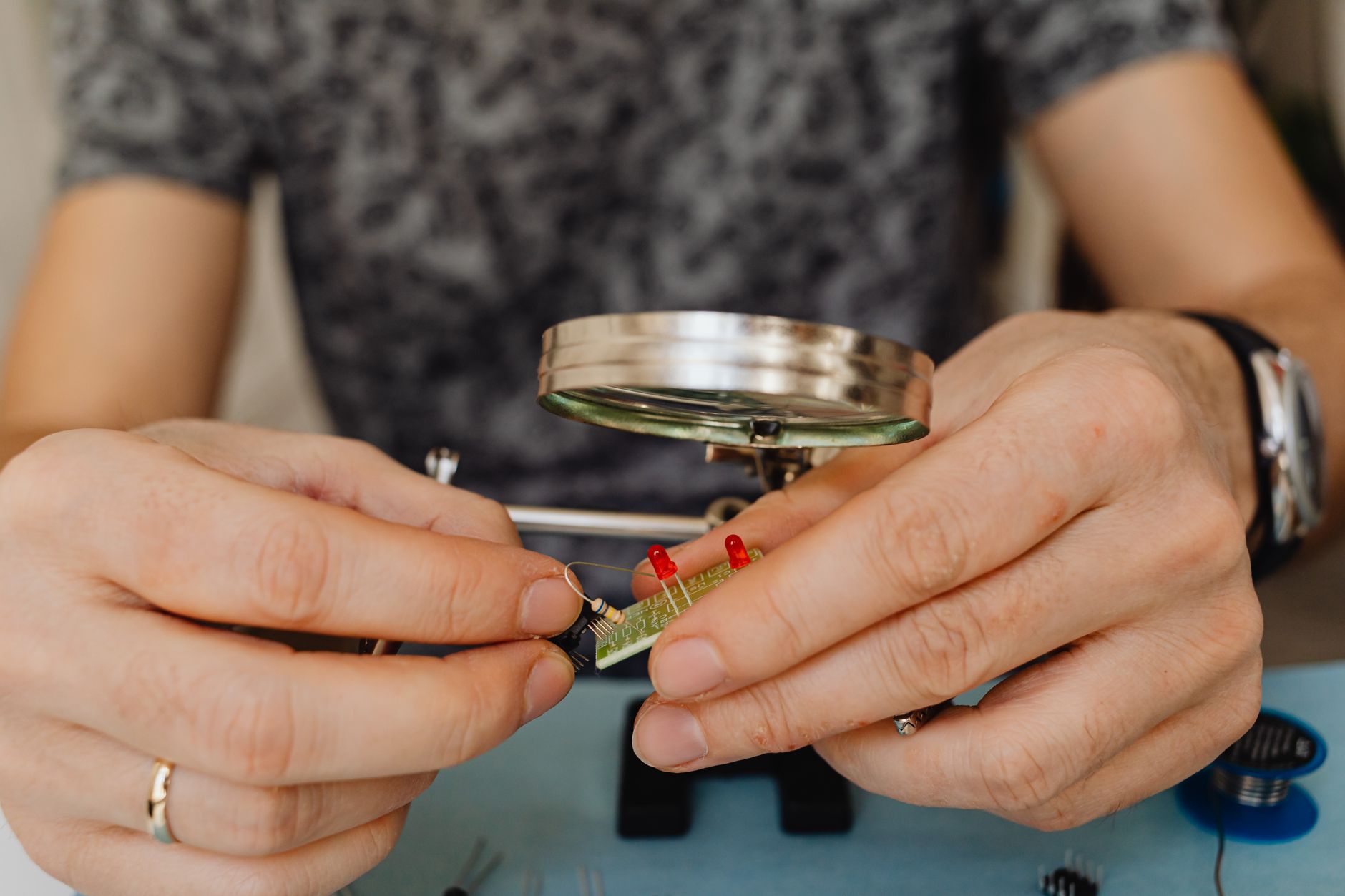
Quick answer To fix smart LED strip lights that will not turn on, verify that the power supply output voltage matches the strip, check for loose physical connections, and reset the device using a multi-tap power cycle.
Smart lighting systems add vibrant color and flexible illumination to any room, but they can be frustrating when they suddenly stop responding. Whether you are dealing with popular options like the Govee Strip Light 2 Pro or the TP-Link Tapo Smart Wi-Fi Light Strip L930-5, troubleshooting requires methodically checking each part of the hardware chain.
Because these setups combine low-voltage direct current power bricks, inline hardware controllers, delicate solderless pin connections, and wireless network configurations, a single loose wire or network mismatch can cause a total failure. This guide walks you through the exact steps to diagnose the issue, isolate the faulty component, and get your lighting operational again.
Key takeaways
- Always ensure power supply voltage ratings match your LED strip requirements.
- Inspect solderless connectors and ensure positive and negative pins align correctly.
- Use rapid power toggling to force recalcitrant strips into pairing mode.
- Verify your router is broadcasting a 2.4 GHz signal if your smart strip refuses to connect.
Before You Start
Before diving into physical repairs, gather a few basic tools and check your environment. You will need roughly 15 to 30 minutes, access to your smartphone with your companion ecosystem app installed, and potentially a multimeter if you want to test electrical output. Ensure you know whether your system relies on a direct Wi-Fi connection or an ecosystem hub like the Philips Hue Bridge.
Check the Power Supply and Wall Outlet Connection
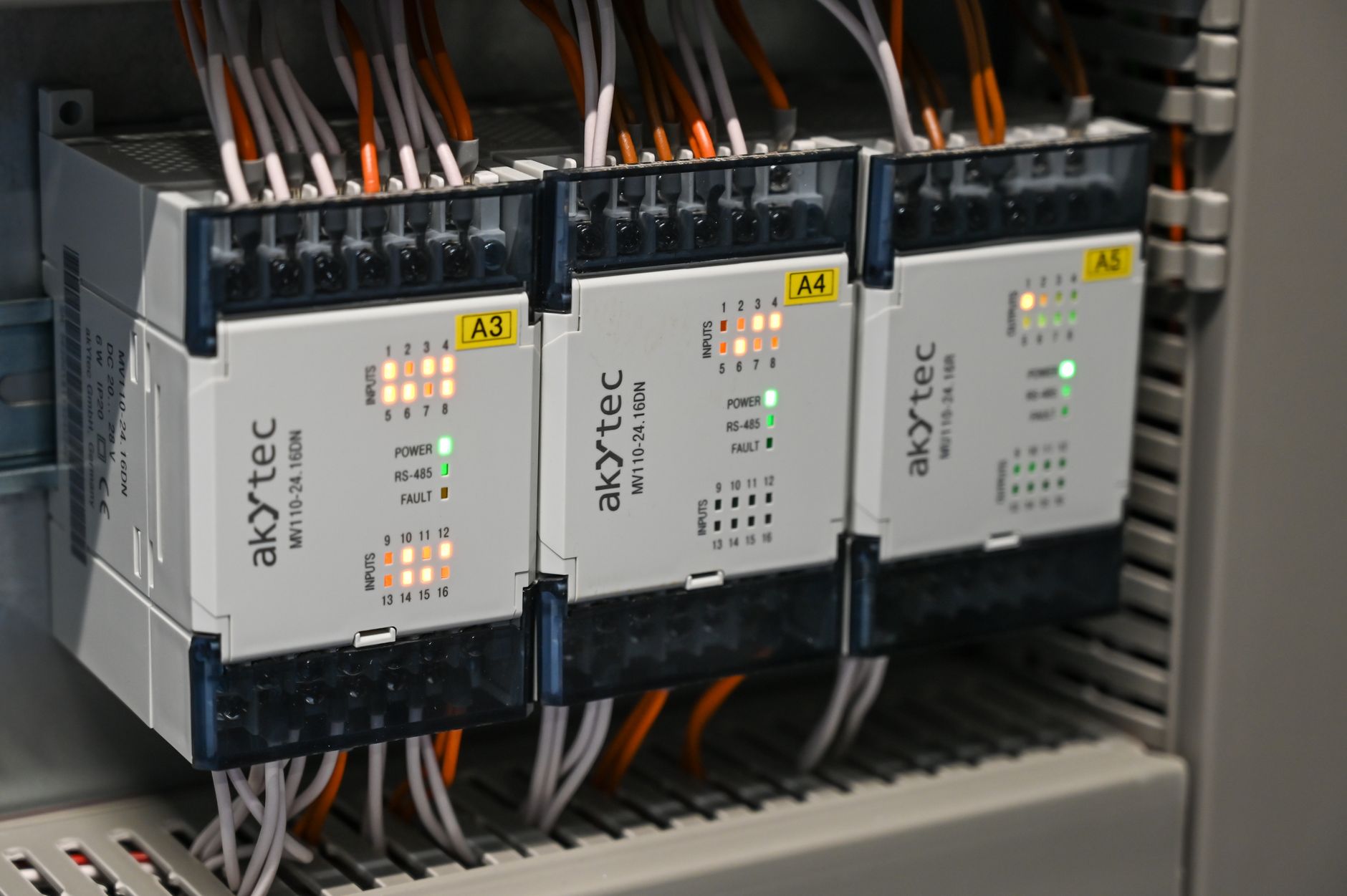
Photo by Vladimir Srajber on Pexels
Electrical issues are the most common reason why smart LED strip lights won't turn on at all. Start by examining the wall outlet. Plug a lamp or phone charger into the same socket to verify it delivers power.
Next, check the physical connection between the wall outlet and the power adapter. Ensure the brick is fully seated. Look closely at the barrel jack or terminal connections linking the power supply to the inline controller or strip. The output voltage from your power supply, such as 12V DC or 24V DC, must match the input voltage rating of the LED strip exactly. Mismatching components can lead to permanent hardware failure or complete non-responsiveness.
Warning: Never connect low-voltage direct current LED strips directly to household mains voltage, as this creates an extreme electrical hazard.
Test the Inline Controller and Physical Buttons
Most modern smart strips feature an inline physical control box containing buttons for power, cycling color scenes, and adjusting brightness. If your mobile app cannot reach the lights, test the physical hardware directly.
- Locate the physical power button on the inline controller attached to your strip.
- Press the button firmly to see if the LEDs respond manually.
- If the controller has removable leads, bypass optional dimmers temporarily to test if the accessory itself is broken.
- If manual presses produce no light while the power supply is verified working, the controller unit may be defective.
Inspect the LED Strip Connections and Pins
If you have cut your light strip to fit a specific space, or if the strip has been bumped, physical connection points are prime suspects. LED strips are polar, meaning positive and negative wires must align precisely across every cut and connector.
Solderless connectors are frequent failure points. Check for loose wires, bent pins, broken solder joints, or dust and debris blocking the copper contact points. Inverted wires will block power flow entirely, leaving your lights dark.
Tip: Clean copper contact points gently with isopropyl alcohol if you notice corrosion or oxidation before re-securing your snap-down connectors.
Reset and Re-pair the Strip in Your Smart Home App
Software loops, firmware mismatches, or dropped wireless credentials can render your smart strip unresponsive to app commands. If you are experiencing persistent offline issues, you may want to review related guidance on how smart bulbs behave when losing connectivity, similar to what you might read about when dealing with smart bulbs that keep going offline.
- Open your companion app, such as the Govee or Tapo application, to check for available firmware updates.
- If the device remains offline, perform a hard reset by quickly and repeatedly plugging and unplugging the power source three times in an on-off-on-off-on-off-on sequence.
- Wait for the LED strip to enter a flashing strobe mode, which indicates it has successfully entered pairing or reset mode.
- Follow the on-screen prompts in your app to add the device back to your account.
Check for Wi-Fi Bandwidth and Router Issues
Smart strips require a steady wireless network connection to receive commands from your phone or voice assistant. If your router recently changed passwords or restarted, your lights will drop offline.
Many smart lighting controllers only operate on a 2.4 GHz Wi-Fi frequency. If your home network combines 2.4 GHz and 5 GHz bands under a single network name, your setup process may fail. Separate your bands temporarily during setup, or use a guest network restricted to 2.4 GHz to complete the pairing process.
If It Still Doesn't Work
If you have verified the power supply voltage, corrected all pin polarities, performed a multi-tap hardware reset, and isolated your network bands without success, the core LED strip or internal chipset is likely fried. At this stage, inspect the strip along its length for dark burn spots or water damage. If structural damage is visible, replacing the strip or reaching out to the manufacturer for a warranty claim is your best path forward.
Bottom line Systematic troubleshooting will resolve most power and pairing issues with smart LED strips. This guide is ideal for homeowners and renters comfortable with basic wiring checks; if your hardware shows physical burn marks, skip repairs and replace the unit.
Related guide: How to Fix a PS5 That Keeps Overheating
FAQ
Why did my smart LED lights stop working suddenly?
Sudden failures are usually caused by a loose power adapter, a tripped wall outlet, or a dropped Wi-Fi network connection following a router reboot.
How do I reset my smart LED strip light controller?
You can typically trigger a reset mode by rapidly plugging and unplugging the power supply three consecutive times until the LEDs begin flashing in a strobe pattern.
What do I do if my LED strip lights up partially?
Partial illumination usually indicates a broken solder joint, a loose solderless connector pin, or data line damage along a specific segment of the strip.
How can I test if the power adapter is dead?
Use a multimeter to measure the output voltage at the plug end, or swap the power supply with a compatible spare adapter matching the exact voltage and amperage requirements.
Why are my LED strips offline in the app?
Offline states occur when the device loses its connection to your router, runs outdated firmware, or encounters interference from a 5 GHz network mismatch during pairing.
Sources
Facts in this article were checked against these pages on November 9, 2026:
- How to Fix LED Strip Lights? 6 Common Problems | Govee US (us.govee.com)
- How to fix LED strip lights? | Philips Hue (philips-hue.com)
- LED Light Troubleshooting Guide: Flexfire (flexfireleds.com)
- General Troubleshooting for Smart LED Strip Lights (novostella.net)
- What are the Common Problems with LED Light Strips? (led-lighthouse.co.uk)
- Troubleshooting LED Strip Problems | Waveform Lighting (waveformlighting.com)
How we researched this: this guide is based on current manufacturer information and reputable sources, listed in the Sources section above, and is updated when things change. Read our editorial policy.
Content Writter



Comments
No comments yet — be the first to share your thoughts.