
How to Choose the Right USB-C Docking Station for Your Laptop
Learn how to choose the right USB-C docking station by comparing port speeds, display technologies, and Power Delivery specs for Windows and Mac.
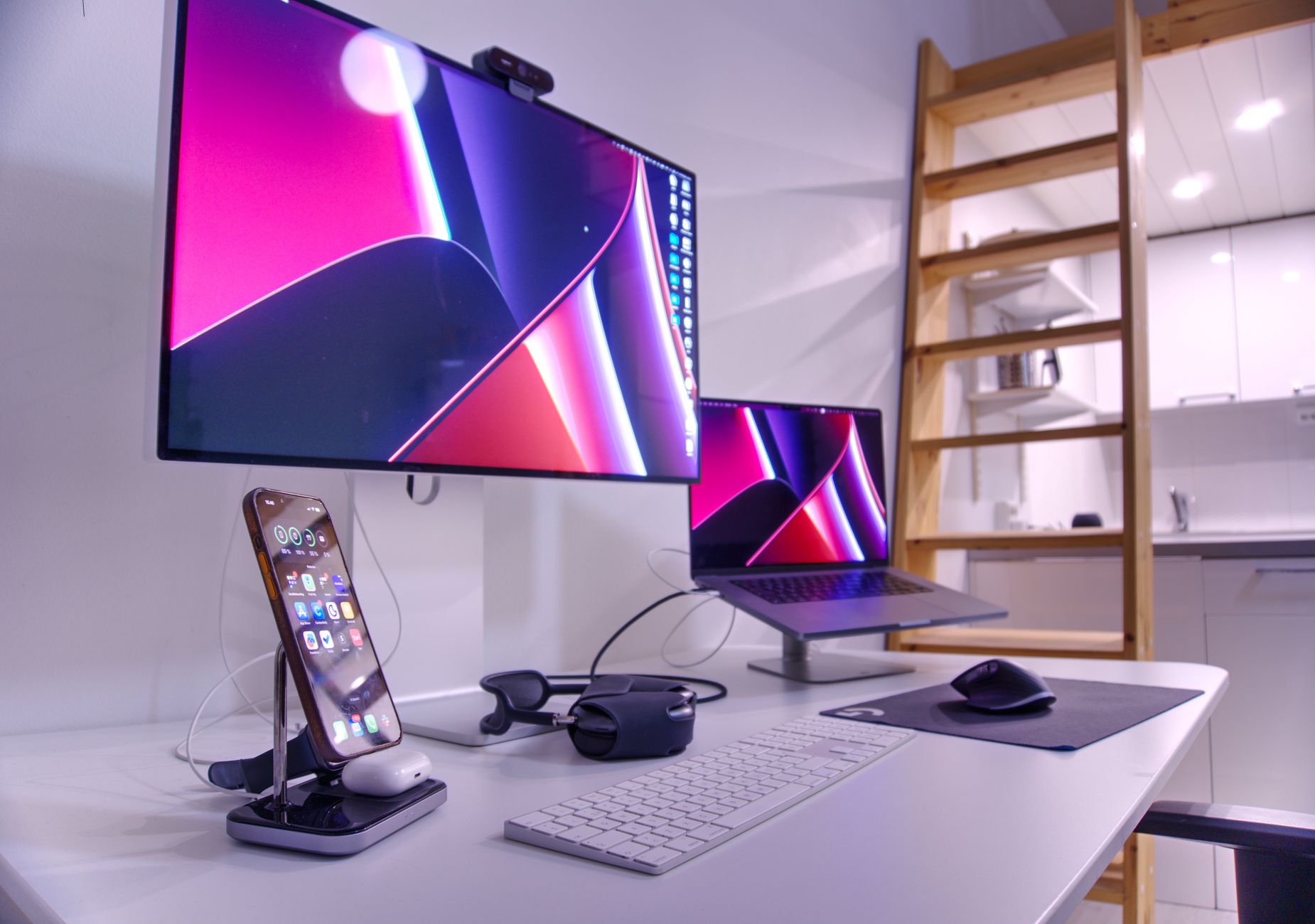
Quick answer To choose the right USB-C docking station, verify your laptop port supports DisplayPort Alt Mode or Thunderbolt, calculate your charger's Power Delivery wattage plus 15–20W for the dock, and choose between native display rendering (DP Alt Mode) or software video drivers (DisplayLink) based on your operating system's monitor limits.
Plugging a single cable into your laptop to connect dual 4K monitors, external storage, wired internet, and power sounds simple. However, picking the wrong dock can result in uncharged batteries, black screens, or mirrored displays that ruin your workflow.
Understanding how to choose a USB-C docking station requires looking closely at your host laptop's physical ports, graphic capabilities, and daily workload demands. This guide breaks down bandwidth standard tiers, power distribution math, and hardware quirks to help you buy the right dock without overspending.
Key takeaways
- Standard USB-C ports without DP Alt Mode or Thunderbolt support cannot transmit video output to an external monitor.
- macOS does not support native Multi-Stream Transport (MST) over non-Thunderbolt USB-C, mirroring secondary monitors unless you use a DisplayLink dock or Thunderbolt hub.
- Always select a dock with 15W to 20W more pass-through Power Delivery capacity than your laptop's stock charger requires.
- Thunderbolt 4 (40Gbps) and Thunderbolt 5 (up to 120Gbps) are necessary for high-speed NVMe storage and dual high-refresh-rate displays, while 5Gbps to 10Gbps USB-C hubs suit general office setups.
Determine Your Laptop's Port Capabilities and Video Standards
Before purchasing a dock, check the exact specifications of your laptop's USB-C ports. Not every USB-C port transfers video signal or accepts charging power. A plain USB-C port might only handle data transfer at standard speeds, leaving your external displays completely blank.
Look for visual indicators next to the port. A lightning bolt icon indicates a Thunderbolt 3, 4, or 5 connection, while a stylized 'D' or DisplayPort logo confirms video support via DP Alt Mode. If your laptop features blank USB-C ports, you must consult the manufacturer spec sheet.
How to Check USB-C Support on Windows
On Windows laptops, open Settings > USB4 / Thunderbolt to verify high-bandwidth display capabilities. You can also press Win + X, open Device Manager, and inspect the controllers under Universal Serial Bus controllers. Once plugged into a display, manage your external monitors via Settings > System > Display.
How to Check Capabilities on macOS
Apple hardware capabilities vary strictly by system-on-chip configuration. Base-level M-series processors (like standard M1, M2, M3, or M4 chips) natively output to fewer external screens than Pro, Max, or Ultra variants. If you are comparing Apple's portable lineup, read our breakdown of the MacBook Air M3 vs. MacBook Pro M4. You can manage connected display arrangements inside System Settings > Displays.
Calculate Your Power Delivery (PD) Wattage Requirements
Power Delivery (PD) allows a single USB-C cable to supply electricity to your laptop while receiving data and video signals. Most productivity laptops require between 60W and 140W of power under heavy workloads. If your docking station supplies less power than the laptop demands, your battery will slowly drain while connected.
Warning: Always account for the dock's internal power consumption. Pass-through USB-C docks reserve 15W to 20W of incoming power to run their internal chips, USB ports, and network interfaces. If your laptop needs 65W, plugging a 65W charger into a pass-through dock will only deliver ~45W to 50W to the host machine.
To avoid underpowering your laptop, follow these power allocation steps:
- Verify Laptop Requirements: Check your manufacturer's original power brick. If it reads 65W, your target net delivery is 65W.
- Calculate Dock Draw: Add 20W to your target net delivery. For a 65W laptop, pair your pass-through dock with an 85W or 100W USB-C wall charger.
- Consider Desktop Docks with Dedicated Power Bricks: Desktop docks like the Belkin USB-C 11-in-1 Pro GaN Dock feature integrated power supplies (up to 150W total output), supplying direct host power without requiring external pass-through adjustments.
Display Technology: DP Alt Mode vs. DisplayLink Explained
How a dock converts signals into display pixels dictates your monitor layout options. If you want to understand video signal standards in depth, see our guide on DP Alt Mode explained.
DP Alt Mode (Native GPU Output)
DisplayPort Alternate Mode routes video hardware signals directly from your laptop's integrated or discrete graphics processor through the USB-C port. It requires no custom software drivers, adds no CPU overhead, and easily supports native resolutions like 4K at 60Hz or high-refresh gaming displays.
Multi-Stream Transport (MST) vs. macOS Limits
Windows operating systems use Multi-Stream Transport (MST) to drive two or three independent extended displays over a single standard USB-C cable. However, macOS does not support MST for extended desktop mode over generic USB-C docks. If you plug a dual-HDMI USB-C dock into a MacBook using MST, both external monitors will display identical mirrored images.
DisplayLink (Software-Driven Video)
DisplayLink technology bypasses native hardware limitations by using software drivers to compress screen rendering into standard USB data packets. Hardware like the Belkin Connect Universal USB-C Triple Display Dock uses DisplayLink to drive up to three extended monitors on base-level MacBooks that otherwise limit native external screens.
Tip: DisplayLink requires installing driver software and consumes minor background CPU resources. It is ideal for office documents and web browsing on multi-monitor Mac setups, but not recommended for fast-paced gaming due to slight latency.
Essential Port Speeds: USB 3.2, Thunderbolt, and Ethernet
Choosing the correct bandwidth hierarchy prevents performance bottlenecks across connected storage drives and network adapters.
| Protocol / Standard | Max Bandwidth | Best Used For |
|---|---|---|
| USB 3.2 Gen 1 | 5 Gbps | Keyboards, mice, standard USB flash drives |
| USB 3.2 Gen 2 | 10 Gbps | SATA external SSDs, basic 4K desk hubs |
| USB 3.2 Gen 2x2 | 20 Gbps | High-speed portable storage (PC compatible) |
| Thunderbolt 4 / USB4 | 40 Gbps | Dual 4K@60Hz displays, fast NVMe drives |
| Thunderbolt 5 | 80–120 Gbps | Extreme multi-8K displays, professional video editing arrays |
General office work with mice, keyboards, and flash drives works well on standard 5Gbps or 10Gbps docks like the Anker 565 11-in-1 hub. If your daily work involves moving massive 4K video files off external NVMe drives, step up to a 40Gbps Thunderbolt 4 or 80Gbps Thunderbolt 5 dock to avoid bottlenecking your transfers.
A dedicated Gigabit Ethernet (1000Mbps) or 2.5GbE RJ45 port on your dock provides stable network connections with lower latency than Wi-Fi. This stability is critical for remote desktop sessions, large cloud backups, and corporate IT management.
Form Factor and Thermal Management: Desktop vs. Travel Docks
Docking solutions broadly split into two physical designs: static desktop docks and portable travel hubs.
Desktop Docks & Laptop Dock Stands
Desktop docks use solid aluminum housings that act as passive heat sinks, dissipating thermal load during heavy throughput. They feature high port counts, dedicated wall power supplies, and permanent cable setups. Products like Mukiya USB-C Laptop Dock Stands elevate your computer screen to ergonomic eye level while integrating ports into the base structure. Pairing an elevated dock with a secondary screen like a portable monitor for laptop work creates an efficient, dual-screen mobile workstation.
Travel Docks & Core Hubs
Travel hubs—such as the Anker 5-in-1 or QGeeM 7-in-1—are lightweight, bus-powered devices designed to fit inside a laptop bag. They sacrifice port count and high-refresh video outputs to maintain portability, often capping video signals at 4K at 30Hz or 60Hz over a single HDMI port.
What to Look For: Buying Checklist
- Laptop Compatibility: Does your host port support DP Alt Mode, USB4, or Thunderbolt?
- Monitor Output Type: Confirm matching ports (HDMI 2.0/2.1, DisplayPort 1.4) for your displays.
- Pass-Through Power: Ensure total charger wattage covers the laptop's draw plus 20W for the dock.
- Operating System Support: macOS users needing two extended displays must choose Thunderbolt or DisplayLink.
- Cable Length: Check built-in dock cable lengths so your travel hub doesn't hang in mid-air when your laptop is mounted on a stand.
Features to Skip to Save Money
You can save money by avoiding high-end features you will not use:
- Thunderbolt 4 or 5 Bandwidth: If you only run single or dual 1080p office monitors and standard USB peripherals, a cheaper 5Gbps or 10Gbps USB-C dock is sufficient.
- Excessive Port Counts: Do not pay extra for 13+ ports if you only connect a mouse, keyboard, and single screen.
- Built-In Media Card Readers: Unless you shoot photography or video, skipping internal SD/microSD card slots saves money on the overall build.
Common Mistakes to Avoid
- Buying for Port Count Over Speed: Buying a 12-in-1 dock without checking speed specs often leaves you stuck with slow USB 2.0 speeds on secondary ports.
- Plugging Video Docks into Data-Only Ports: Connecting a multi-monitor dock into a data-only USB-C port results in no video output.
- Underpowering Under Load: Connecting a 60W power supply to a 90W workstation laptop causes battery drain during intense processing tasks.
Pros of Right-Sized Docking Stations
- Single-cable setup for power, display, networks, and storage.
- Eliminates continuous cable wear on laptop ports.
- Expands base laptop limitations via DisplayLink software.
Cons of Incorrect Docking Stations
- Generic USB-C hubs duplicate (mirror) dual monitors on macOS.
- Pass-through power drain underpowers laptops if math is incorrect.
- High-bandwidth Thunderbolt docks require larger upfront budgets.
Bottom line For standard Windows laptops, an affordable USB-C DP Alt Mode dock (like the Anker 565) provides complete dual-monitor extension and high port density. MacBook users wanting dual or triple extended displays must invest in a DisplayLink dock (like the Belkin Connect Universal Triple Display) or a full Thunderbolt 4/5 dock to bypass native macOS MST limits.
FAQ
Will a USB-C dock work with two external displays on a base MacBook?
A standard USB-C dock using native MST will only mirror the same image onto both external screens on a base MacBook (M1 through M4). To extend two independent displays, you must use a Thunderbolt docking station or a dock powered by DisplayLink technology.
How many watts does my docking station need to charge my laptop while working?
Select a dock setup that matches your laptop's original power supply wattage, plus 15W to 20W reserved for the dock's internal hardware. If your laptop requires 65W, use a dock/charger combination capable of supplying at least 80W to 85W total input.
What is the difference between a cheap USB-C hub and a full docking station?
Cheap USB-C hubs are small, portable, and pass-through powered with limited 5Gbps bandwidth and single video outputs. Full docking stations feature dedicated external power supplies, higher bandwidth (10Gbps to 80Gbps), robust thermal heatsinks, and support for multi-monitor desktop configurations.
Does using a USB-C dock reduce monitor refresh rate or image quality?
Native DP Alt Mode and Thunderbolt docks do not degrade image quality or introduce lag. However, if bandwidth limits are exceeded (such as running dual 4K screens over a 5Gbps hub), the dock may drop your refresh rate from 60Hz down to 30Hz. Software-based DisplayLink docks may also show minor video compression during fast motion gaming.
Why does my second external monitor only mirror the first screen when using a dock?
This occurs when using a Windows MST USB-C dock on macOS (which lacks native MST display extending support) or when connecting a dock to a host USB-C port that lacks sufficient DisplayPort bandwidth for multiple independent display channels.
Sources
Facts in this article were checked against these pages on November 14, 2026:
- USB-C Docking Station Buying Guide: Ports, Power, and Display | Mukiya (mukiya.com)
- How to Evaluate the Best USB-C® Docking Station for Different Needs | Lenovo US (lenovo.com)
- USB-C Docking Stations ~ Plugable Technologies (plugable.com)
- USB-C Docking Stations, Docks & Hubs for Laptops | Belkin (belkin.com)
- How to Choose the Best Laptop Docking Station (pcmag.com)
- Laptop Docking Station Buying Guide: USB-C vs Thunderbolt (belkin.com)
How we researched this: this guide is based on current manufacturer information and reputable sources, listed in the Sources section above, and is updated when things change. Read our editorial policy.
Content Writter


Comments
No comments yet — be the first to share your thoughts.