
How to Choose the Right Home NAS for Media and Backups
Learn how to choose home NAS hardware tailored to your storage needs, network speeds, and 4K media streaming goals.
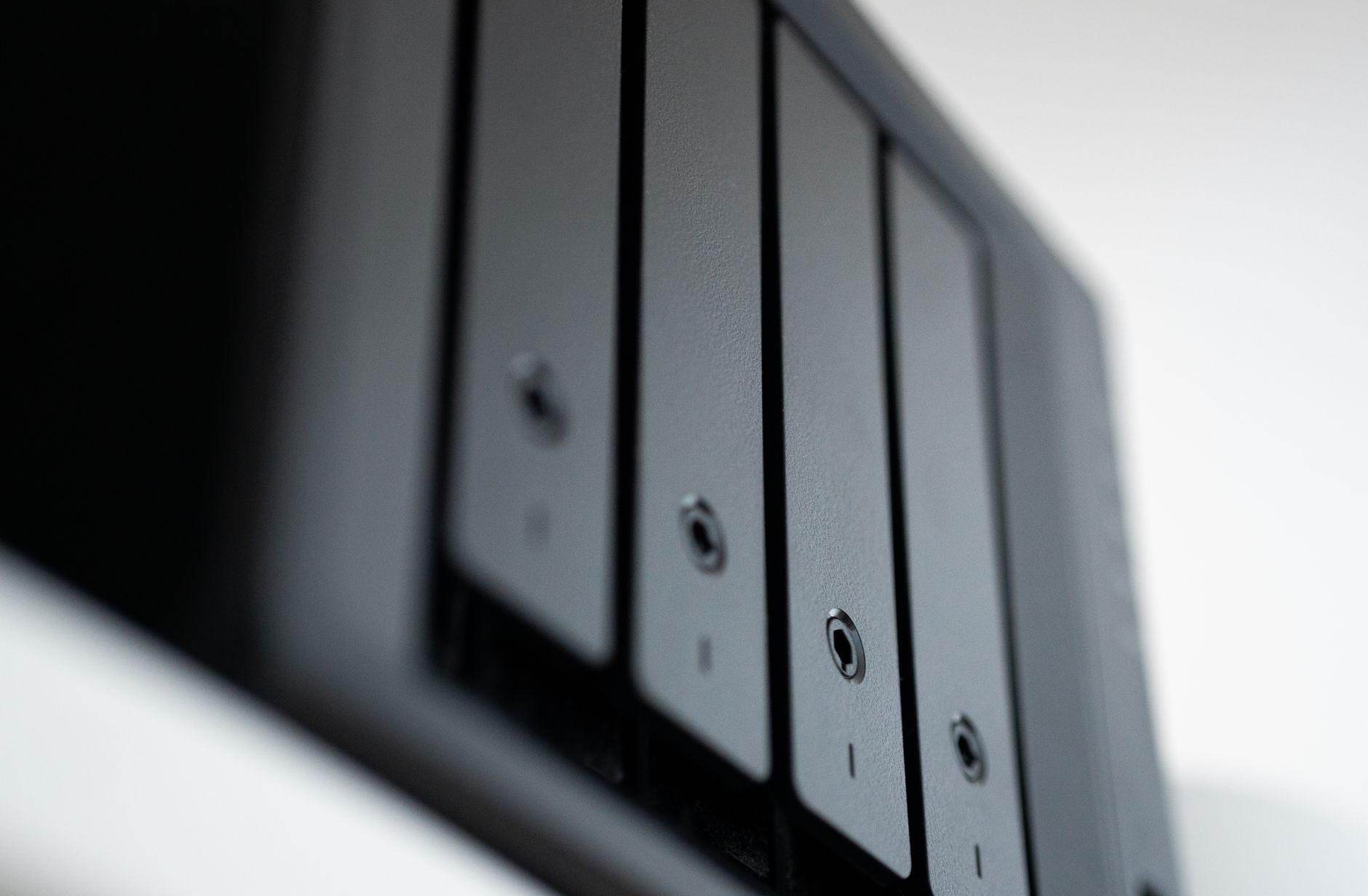
Quick answer To choose the right home NAS, most users should start with a 4-bay enclosure running an Intel or AMD processor and at least 2.5GbE networking. A 4-bay configuration provides the optimal balance of data redundancy via RAID 5 and room to expand, while multi-core x86 chips comfortably handle automated photo backups and real-time 4K media transcoding.
Relying entirely on monthly cloud subscription fees for multi-terabyte photo libraries and system backups gets expensive quickly. A dedicated Network Attached Storage (NAS) device keeps your data private under your own roof while letting you access photos, videos, and documents from any phone, laptop, or smart TV.
However, picking the wrong enclosure can leave your local network choked by slow transfer speeds or struggling to play high-bitrate video streams. Knowing how to choose home NAS hardware means balancing physical drive bays, processor architecture, network ports, and software ecosystems before buying your hard drives.
Key takeaways
- 4-bay NAS enclosures offer the best balance of storage capacity, future expansion, and data redundancy through RAID 5 or Synology Hybrid RAID (SHR).
- If you plan to run Plex or Jellyfin with 4K video transcoding, choose an Intel (such as Pentium Gold or N350) or AMD Ryzen Embedded CPU rather than an entry-level ARM processor.
- Multi-gigabit networking (2.5GbE or 10GbE) is now standard on modern enclosures, eliminating local transfer bottlenecks when moving large video files.
- Always purchase dedicated NAS-rated hard drives instead of standard desktop drives to ensure reliability during 24/7 operation.
Bay Count and Capacity: How Much Storage Space Do You Really Need?
The number of drive bays determines your storage limit and how safely your data is stored. While a 1-bay NAS might seem like a cheap way to start, it offers zero drive redundancy—if that single hard drive fails, your data is gone unless you have an external backup.
A 2-bay NAS (such as the Synology DS225+ or QNAP TS-216G) lets you configure RAID 1, which mirrors data identically across two drives. If one disk dies, your files remain safe on the second. The trade-off is usable capacity: two 8TB drives in RAID 1 yield only 8TB of usable storage.
For most households, a 4-bay NAS is the sweet spot. Enclosures like the Synology DS925+, UGREEN NASync DXP4800 Plus, or TerraMaster F4-425 Pro allow you to use RAID 5 or proprietary equivalents like Synology Hybrid RAID (SHR). RAID 5 distributes parity data across all drives, allowing you to lose one drive without losing data while giving you roughly 75% of your total installed drive capacity. If you need massive scale for home lab virtualization or raw media archive depth, 6-bay and 8-bay units (like the Synology DS1825+) provide options for RAID 6 or RAID 10.
Tip: Always account for RAID overhead when calculating your storage budget. A 4-bay NAS filled with four 4TB drives gives you roughly 12TB of usable space in RAID 5, not 16TB, because one drive's capacity is reserved for data redundancy.
CPU and RAM Specs: Simple File Storage vs. 4K Media Transcoding
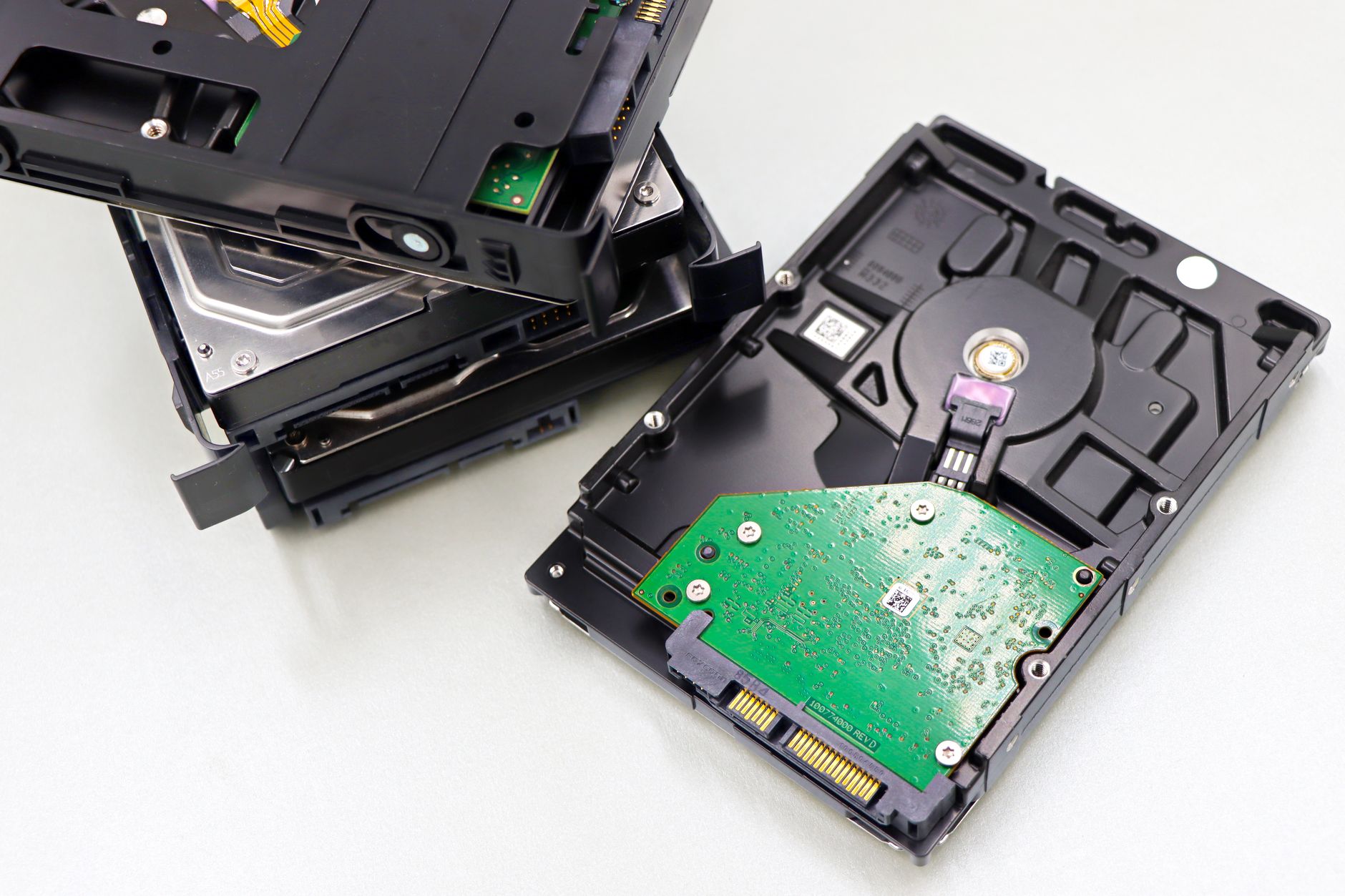
Photo by Marta Branco on Pexels
If your only goal is backing up Mac or Windows laptops and storing spreadsheets, basic ARM-based processors (found in budget entry units like the Synology DS223j) work fine. They consume very little power and handle basic file indexing cleanly.
However, if you want to stream video using Plex, Jellyfin, or Emby, hardware specifications become critical. Transcoding happens when your NAS translates a high-resolution video file on the fly into a format compatible with your smartphone, tablet, or remote TV screen. 4K transcoding requires hardware acceleration built into x86 chips like Intel Pentium Gold, Intel N350, or AMD Ryzen Embedded processors.
Memory is equally vital if you intend to run background tasks like Docker containers or home automation controllers. Look for models with at least 8GB of DDR5 or upgradable RAM. Units like the UGREEN DXP4800 Plus ship with 8GB DDR5 standard, providing the headroom required to run local services alongside media streaming without crashing the operating system.
Operating System and Ecosystem: Synology, QNAP, or Asustor?
Hardware is only half the equation; the software operating system controls how easy it is to manage your files and set up phone backups.
- Synology (DSM): DiskStation Manager (DSM) remains the gold standard for software polish. It includes free, license-free software suites like Synology Drive for cloud sync and Synology Photos for automatic iOS and Android camera backups.
- UGREEN (UGOS Pro): The newcomer in the pre-built market pairs heavy-duty hardware specs with a flexible ecosystem. Crucially, UGREEN permits users to install third-party operating systems like TrueNAS, Unraid, or OpenMediaVault on their hardware without voiding the manufacturer warranty.
- QNAP (QTS) & Asustor (ADM): Both brands offer aggressive hardware specs for the price. Asustor models (like the Nimbustor 2 Gen2 AS5402T) frequently include direct HDMI outputs for direct TV playback, while QNAP provides deep virtualization app options.
- TerraMaster (TOS): Delivers affordable multi-bay enclosures with broad Docker support and solid hardware specs like dual 5GbE ports on models like the F4-425 Pro.
Network Speeds: When You Need 2.5GbE or NVMe SSD Caching
Traditional 1GbE network ports cap transfer speeds at roughly 115 MB/s. When backing up multiple computers simultaneously or transferring 50GB video files, a 1GbE connection quickly becomes a bottleneck on modern networks.
Modern 2026 pre-built units standardise faster networking. 2.5GbE ports (found on the Synology DS225+ and DS925+) boost transfers up to ~280 MB/s over standard Cat5e/Cat6 ethernet cables. High-performance models like the UGREEN DXP4800 Plus and DXP4800 GT feature 10GbE ports, reaching speeds over 1,000 MB/s when connected to compatible multi-gigabit switches. If you regularly drop offline files onto your computer, ensure your setup isn't held back by local network hardware—much like troubleshooting when a laptop won't connect to Wi-Fi properly.
In addition to network speeds, check for M.2 NVMe SSD slots. Adding one or two NVMe drives lets you build a read/write SSD cache, which accelerates random file access, speeds up database queries for photo libraries, and keeps drive noise down during frequent small-file operations.
What to Look For in a Home NAS
Use this hardware checklist to evaluate any model before hitting buy:
- Drive Bays: 4 bays recommended for balance of RAID safety and storage expansion; 2 bays minimum. Avoid 1-bay models.
- Network Interface: At least one 2.5GbE port (or dual 2.5GbE/10GbE ports for heavy multi-user environments).
- Processor Architecture: x86-64 Intel or AMD processor if transcoding 4K video or running Docker apps.
- RAM Capacity: Minimum 4GB for basic multitasking; 8GB to 16GB DDR4/DDR5 (preferably user-upgradeable) for containerization.
- M.2 Slots: At least 2 NVMe slots for SSD read/write caching or fast storage volumes.
- USB Ports: At least two USB 3.2 ports for connecting external expansion drives or direct offline backups.
Which Home NAS Setup Fits Your Budget and Tech Skill Level?
This comparison highlights how leading configurations stack up across popular use cases:
| NAS Model / Type | Drive Bays | Network Speed | Best For | Key Spec Advantage |
|---|---|---|---|---|
| Synology DS223j | 2-Bay | 1GbE | Budget back-up & light file sharing | Low power, easy DSM setup |
| Synology DS225+ | 2-Bay | 2.5GbE | Small home offices, dual backups | Refined software, 2.5GbE speed |
| UGREEN DXP4800 Plus | 4-Bay | 10GbE + 2.5GbE | Power users, media server, custom OS | Intel CPU, 8GB DDR5, 10GbE port |
| TerraMaster F4-425 Pro | 4-Bay | Dual 5GbE | Fast local editing & Docker apps | Intel N350, 16GB RAM, 3 NVMe slots |
| Synology DS1825+ | 8-Bay | Expandable 10G/25G | Large media archives, business storage | ECC memory support, high bay count |
Pros of a 4-Bay Intel/AMD NAS
- RAID 5 protection allows recovery from a drive failure with minimal storage loss.
- Hardware-accelerated 4K video transcoding via Plex or Jellyfin.
- Multi-gigabit networking handles concurrent file transfers without slowdowns.
- Scalable memory handles containers, photo indexing, and home automation.
Cons of a 4-Bay Intel/AMD NAS
- Higher upfront hardware cost before purchasing hard drives.
- Requires purchasing dedicated NAS-rated hard drives (e.g., Toshiba NAS drives).
- Slightly higher power consumption than low-end 2-bay ARM units.
Common Mistakes to Avoid When Buying a NAS
- Buying standard desktop hard drives: Desktop drives are not engineered for the 24/7 vibration and thermal stress inside a multi-bay enclosure. Always buy dedicated NAS-rated hard drives rated for continuous operation.
- Forgetting local network bottlenecks: Buying a 2.5GbE or 10GbE NAS will not increase transfer speeds if your router or desktop computer only supports 1GbE. Upgrade your switch or network adapters accordingly.
- Ignoring physical security: If your NAS sits in a common living area, check whether the drive sleds feature physical key locks (like the QNAP TS-216G) or rely on un-lockable push-latch covers.
- Choosing low-spec ARM CPUs for media hubs: If your media library contains high-bitrate 4K files that require format translation, basic ARM CPUs will stutter and hit 100% processor load almost instantly.
Bottom line For standard family media streaming and automatic phone backups, a 4-bay enclosure with an Intel or AMD processor, 8GB RAM, and 2.5GbE networking is the definitive recommendation. It provides seamless 4K video playback, room to scale storage via RAID 5, and fast local transfers. Skip 1-bay models entirely, and leave basic ARM-powered units to those who only need simple document storage.
FAQ
How many drive bays do I need for a home NAS?
For most households, 4 drive bays provide the best balance of capacity and data redundancy. A 4-bay NAS allows you to use RAID 5, which protects your data against a single drive failure while keeping roughly 75% of total disk capacity usable. A 2-bay NAS works for basic mirroring, but offers no room to expand later without replacing both drives.
Do I need an Intel CPU in my NAS for Plex 4K streaming?
If your Plex clients require real-time video transcoding (converting high-resolution formats on the fly for phones or remote screens), an Intel CPU with integrated Quick Sync graphics or an AMD Ryzen chip is strongly recommended. Basic ARM processors can handle direct playback, but fail when transcoding 4K video streams.
Is 2.5GbE necessary for home network storage?
While 1GbE works for simple background backups, 2.5GbE transfers files at up to ~280 MB/s—more than double the speed of traditional gigabit networks. If you regularly back up entire PCs, move large video files, or access files from multiple devices simultaneously, a 2.5GbE or 10GbE network connection is well worth having.
What is the difference between RAID 1 and RAID 5 for data safety?
RAID 1 requires two drives and mirrors all data identically, sacrificing 50% of your total storage capacity for redundancy. RAID 5 requires at least three drives and spreads parity data across all disks; if any single drive fails, your data remains intact while leaving roughly 75% of total installed drive space available for storage.
Can I use regular desktop hard drives in a NAS?
Standard desktop hard drives are designed for light, intermittent workloads and lack anti-vibration features. Using them in a multi-bay NAS running 24/7 increases the risk of mechanical failure. Always choose dedicated NAS hard drives built specifically for multi-drive thermal management and continuous operation.
Sources
Facts in this article were checked against these pages on November 20, 2026:
- How to Choose the Best NAS for Your Home Network (Beginner’s Guide) – Rack 2 Reality (rack2reality.com)
- The 3 Best NAS Devices for Most Home Users in 2026 | Reviews by Wirecutter (nytimes.com)
- The Best NAS (Network Attached Storage) Devices We've Tested for 2026 | PCMag (pcmag.com)
- NAS Buying Guide: Features, Capacity & Cloud Backup | Backblaze (backblaze.com)
- What is NAS | Benefits of on-premises storage for home users | Synology Inc. (synology.com)
- Ask HN: What type of personal NAS would you recommend? | Hacker News (news.ycombinator.com)
How we researched this: this guide is based on current manufacturer information and reputable sources, listed in the Sources section above, and is updated when things change. Read our editorial policy.
Content Writter



Comments
No comments yet — be the first to share your thoughts.