
How to Choose the Right Portable Monitor for Laptop Work
Find out how to pick the best portable monitor for laptop work by comparing screen sizes, resolutions, power needs, and connections.
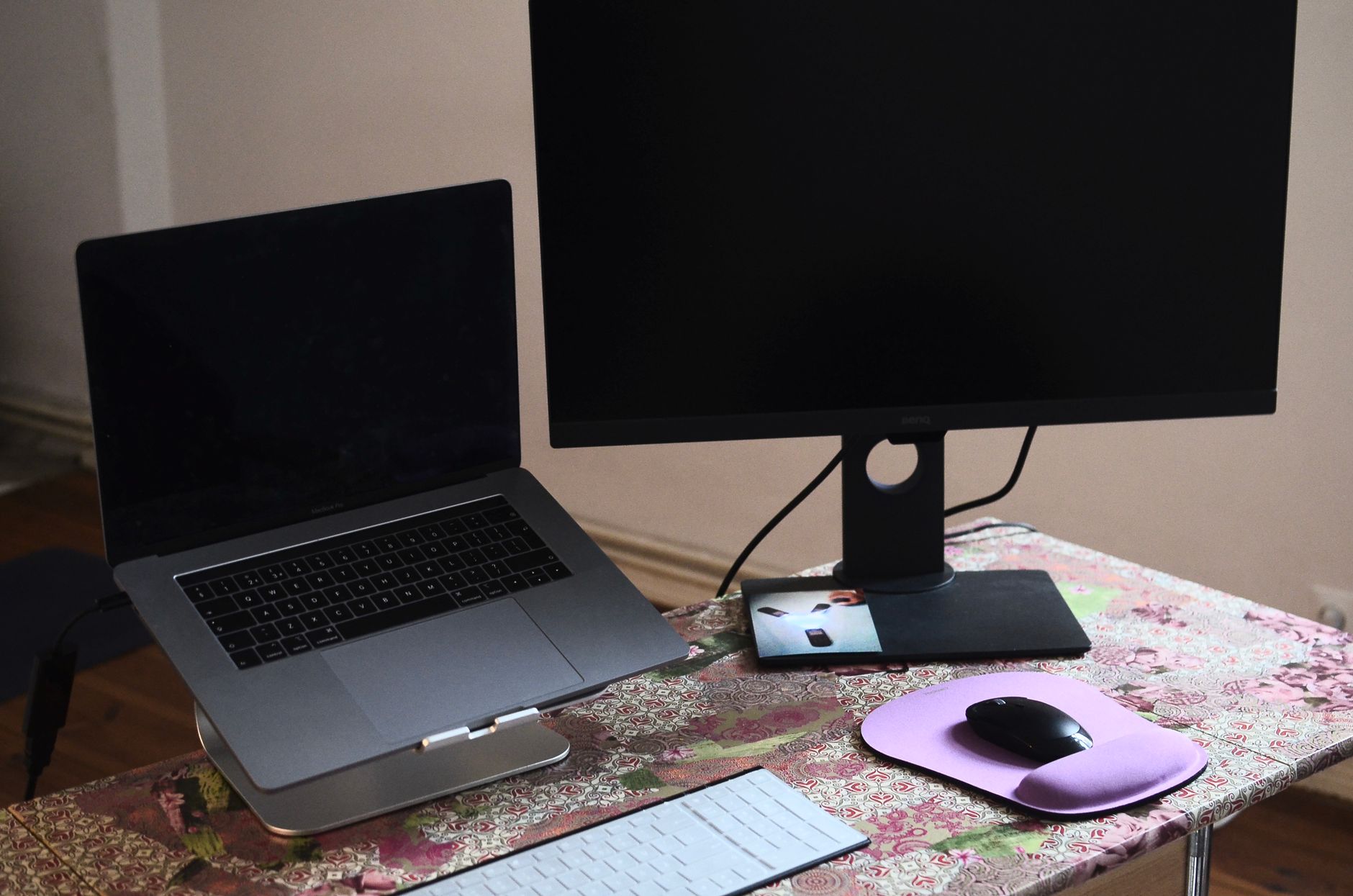
Quick answer To find the best portable monitor for laptop work, match the screen's aspect ratio and resolution to your main laptop while ensuring your USB-C port supports video output.
Working on the road or from a coffee shop often means sacrificing screen space, leaving you to constantly switch between tabs on a cramped laptop display. Adding a secondary screen lets you keep reference materials open or monitor video calls without minimizing your main workspace.
Finding the right model requires balancing display quality, physical size, and power consumption so you do not drain your laptop battery or weigh down your travel bag.
Key takeaways
- Choose a 14-inch to 15-inch screen to match the form factor of most productivity laptops.
- Verify that your laptop's USB-C port supports DisplayPort Alt Mode before buying a single-cable monitor.
- Opt for 16:10 aspect ratio panels to gain extra vertical space for documents and coding.
- Watch out for heavy battery drain on your host laptop when using bright, high-resolution portable screens.
Why Add a Portable Monitor to Your Setup
A secondary display fundamentally changes how you handle multi-tasking outside a traditional office. Instead of alt-tabbing endlessly between spreadsheets and drafting windows, you can pin communication apps or reference files to a dedicated side panel.
For programmers and writers, most portable displays support vertical portrait orientation, giving you a long column of text that matches how you read code or documents. Recent market shifts also introduce dual-screen models like the Asus ZenScreen Duo OLED, letting you stack two panels in a clamshell or side-by-side layout.
However, adding extra hardware means carrying more weight in your bag and managing additional cables. If you only travel occasionally or rarely use split windows, the extra bulk might outweigh the productivity gains.
Screen Size and Resolution: What Actually Matters
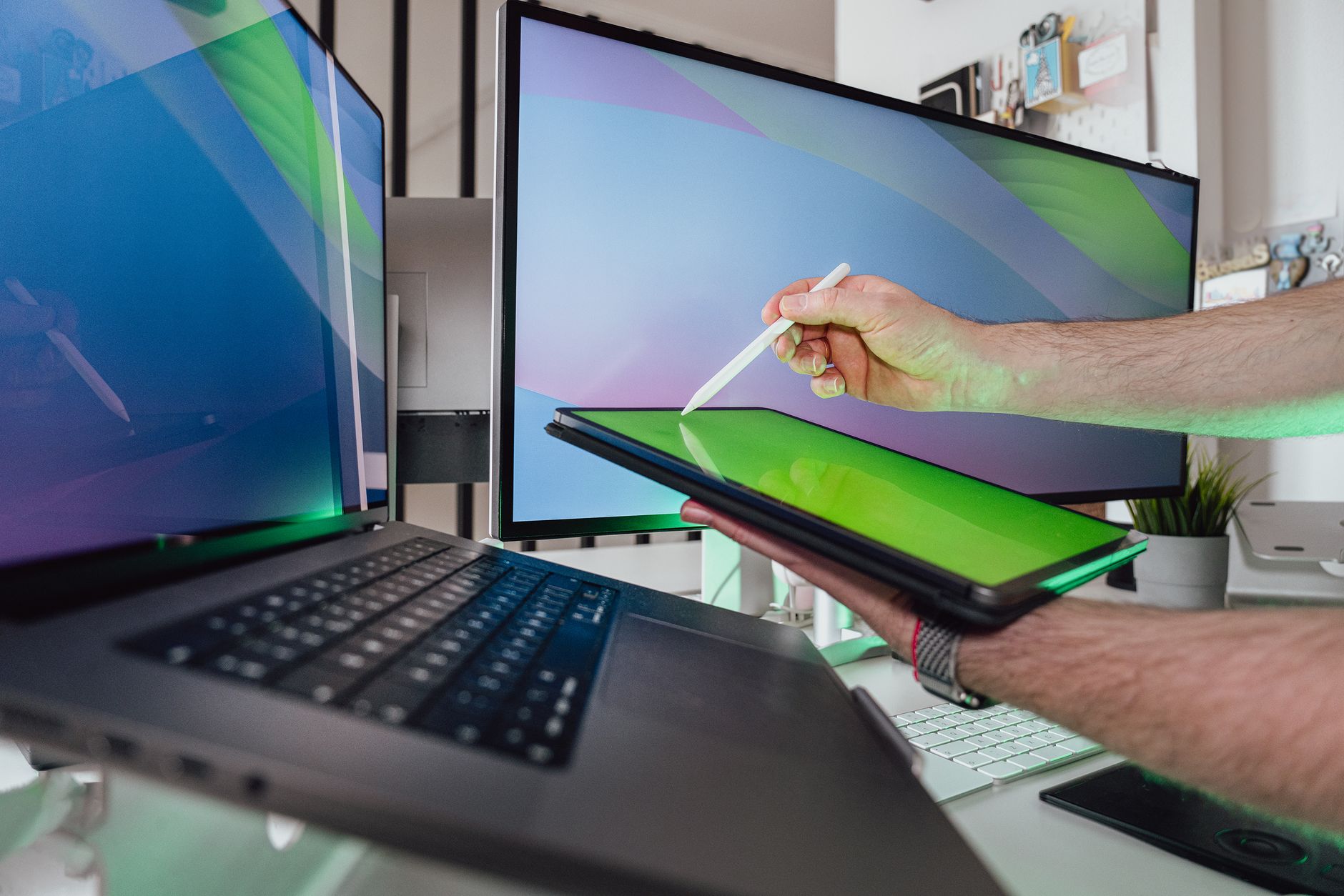
Photo by Jakub Zerdzicki on Pexels
Portable monitors generally range from 13 inches up to massive 17 or 19-inch panels like the UPERFECT GR19BU. For most users, a 14-inch or 15-inch model is the ideal sweet spot that balances viewing area with bag space.
Resolution dictates text sharpness. Full HD (1080p) panels keep prices low and power demands moderate, while 2K and 4K options offer crisper text at the cost of higher prices and faster battery drain.
| Resolution Tier | Typical Price Range | Best Suited For |
|---|---|---|
| 1080p (Full HD) | $50 to $250 | Basic office work, budget setups |
| 2K (e.g., 2560x1600) | $200 to $350 | Detailed coding, balanced clarity |
| 4K / OLED | $300 to $800 | Creative design, media consumption |
Keep an eye on aspect ratios as well. Traditional 16:9 screens leave black bars or awkward scaling when paired with modern 16:10 laptops, making matching aspect ratios a smart priority.
Connection Types: USB-C vs. Mini-HDMI
Modern portable monitors rely heavily on USB-C to handle both power and video signals through a single wire. This requires your laptop to support DP Alt Mode Explained: What USB-C Video Output Means, which allows video data to travel over the reversible connection.
If your laptop only features older USB-A ports, you will need a DisplayLink adapter and specific software drivers to transmit video data. Keep in mind that this method introduces slight input latency and requires driver installation.
Many panels also include a Mini-HDMI port, which helps if you want to connect older laptops, cameras, or gaming consoles like the Steam Deck.
Touchscreen vs. Standard Displays
Touchscreen portable monitors add ten-point touch input and stylus support, making them useful for sketching, digital signatures, or navigating touch-optimized apps on Windows and macOS.
Models like the Lenovo ThinkVision M14t Gen 2 bring active touch capabilities to a 14-inch 16:10 workspace. If your daily tasks only involve typing, reading, and moving a mouse cursor, a standard non-touch panel saves money and avoids accidental screen taps.
Power Delivery: Pass-Through Charging Explained
Portable displays draw their operating power directly from the host laptop battery unless they include an internal battery or connect to an external wall charger.
Bright 400-nit panels or high-end OLED screens consume significant power, which can cut your laptop runtime in half. Look for models featuring pass-through charging, where you plug your laptop charger directly into the monitor, powering both devices at once.
Warning: Assuming any USB-C port on a laptop transmits video will lead to a black screen if the port only supports data transfer and charging.
Stand Designs and Portability Trade-Offs
How a monitor props up on a desk matters just as much as the display panel itself. Folio cases fold into magnetic stands, though cheaper brands often feature flimsy hinges that wear out over time.
Built-in kickstands offer sturdier angles, especially for vertical portrait setups. Always measure your laptop sleeve and backpack dimensions before buying oversized 17-inch or 19-inch screens, as they rarely fit standard laptop compartments.
Tip: Check your laptop's port specifications and brightness needs before buying; budget 250-nit screens look washed out near bright windows.
What to Look For
- Panel Size: 14 to 15 inches for optimal balance with laptop bags.
- Brightness: 250 to 300 nits for indoor use, or 400 to 500 nits if you work near bright windows.
- Contrast Ratio: At least 1000:1 to keep text sharp and dark scenes distinct.
- Connectivity: USB-C with DP Alt Mode for single-cable operation.
Common Mistakes
- Ignoring Aspect Ratios: Pairing a 16:9 monitor with a 16:10 laptop creates mismatched borders and awkward window snapping.
- Overlooking Port Limits: Buying a monitor that requires DP Alt Mode when your laptop's USB-C ports only support power delivery.
- Underestimating Weight: Slipping a heavy secondary screen into a bag without checking the combined load on your shoulders.
Bottom line Get a 14-inch to 15-inch 16:10 portable monitor with USB-C if you travel weekly and need extra document space. Skip dual-screen or oversized 17-inch options if your workflow relies on a light, minimalist bag.
Pros
- Instantly doubles your digital workspace anywhere
- Single-cable USB-C setup on compatible laptops
- Supports vertical orientation for coding and reading
Cons
- Drains host laptop battery quickly
- DisplayLink USB-A adapters introduce latency
- Budget folio stands lack durability
FAQ
Do portable monitors need a separate power source?
Most models draw power directly from your laptop via USB-C. However, high-brightness panels or dual-screen units often require an external wall charger or power bank.
Can I connect a portable monitor with just one USB-C cable?
Yes, as long as your laptop's USB-C port supports DisplayPort Alt Mode to transmit both power and video data simultaneously.
Are touchscreen portable monitors worth the extra money?
They are worth it if you actively use touch navigation or a stylus for creative work. Otherwise, standard non-touch panels offer better value.
What resolution should I look for in a 15-inch portable monitor?
Full HD (1080p) works well for general office tasks and saves battery, while 2K or 4K resolutions provide sharper text for detailed editing work.
Will a portable monitor slow down my laptop?
The monitor itself does not slow down processing speed, but powering an extra display forces your graphics card to work harder and drains your laptop battery faster.
Sources
Facts in this article were checked against these pages on November 12, 2026:
- How to Pick the Right External Monitor for Your Laptop | HP® Official Site (hp.com)
- How to Choose the Best Portable Monitor for You | espresso Studio (us.espres.so)
- Portable Monitors: How to Choose the Best One for Your Needs? | Lenovo US (lenovo.com)
- The Best Portable Monitors for 2026 (uk.pcmag.com)
- The 4 Best Portable Monitors of 2026 | Reviews by Wirecutter (nytimes.com)
- Why Buy a Portable Monitor? (And 6 Portable Monitor Uses) - ViewSonic Library (viewsonic.com)
How we researched this: this guide is based on current manufacturer information and reputable sources, listed in the Sources section above, and is updated when things change. Read our editorial policy.
Content Writter

Comments
No comments yet — be the first to share your thoughts.