
Variable Refresh Rate (VRR) Explained: G-Sync, FreeSync, and HDMI 2.1
Learn how Variable Refresh Rate eliminates screen tearing and input lag, how G-Sync and FreeSync compare, and how to set up VRR on consoles and PC.
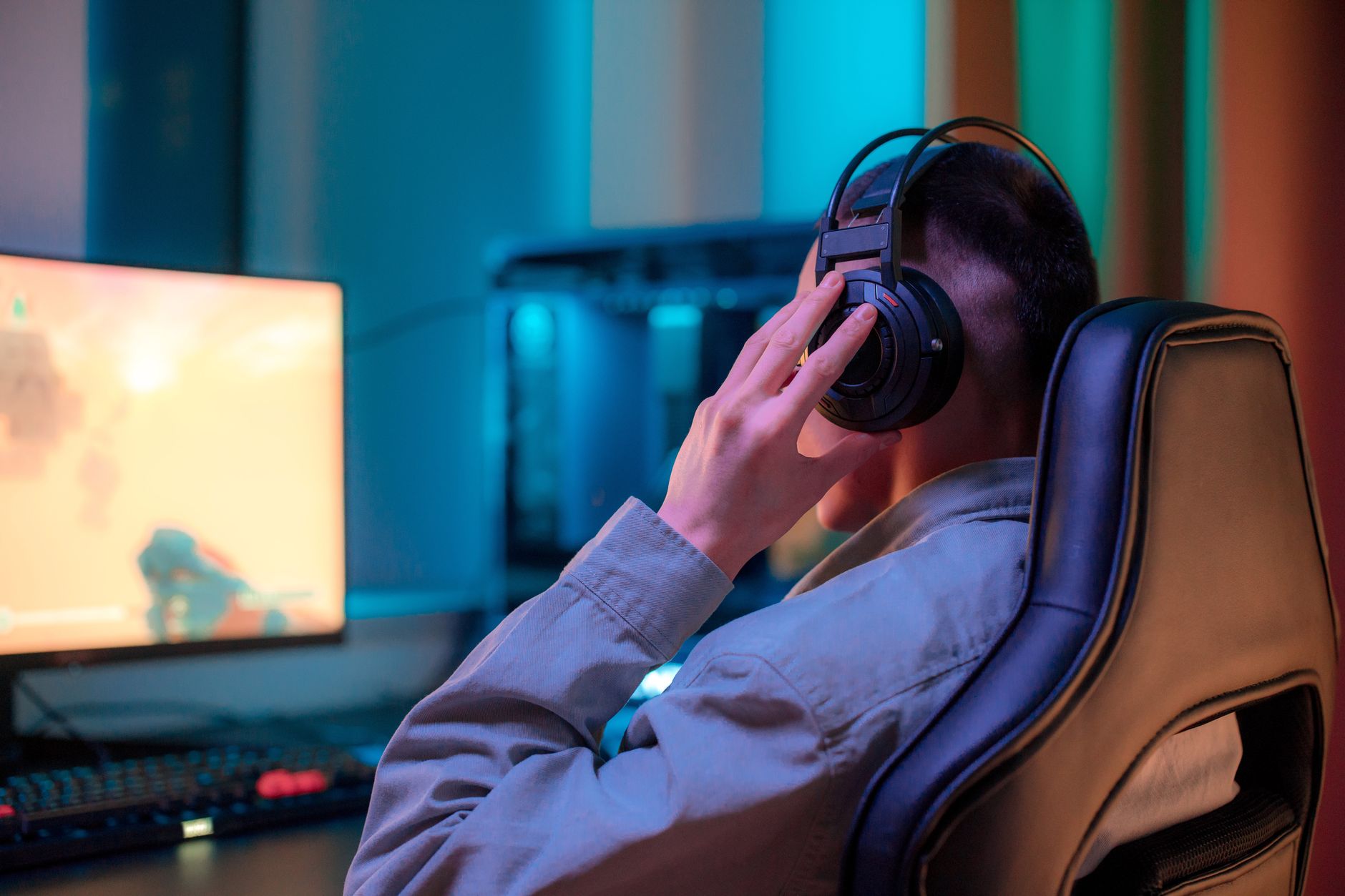
Quick answer Variable Refresh Rate (VRR) is a display technology that dynamically matches a screen's refresh rate to the frame output of a console or graphics card in real time, eliminating screen tearing and stuttering without introducing input lag.
If you have ever noticed horizontal tears slicing across your screen while turning the camera in an action game, you have experienced a sync breakdown between your graphics hardware and your display. Traditional displays refresh at a static frequency, forcing your hardware to wait or deliver partial images when frame rates fluctuate.
Understanding this technology helps you pick the right display and cable without overspending on features you do not need. This guide covers how Variable Refresh Rate works, how competing standards line up, and how to configure your system for smooth performance.
Key takeaways
- VRR dynamically synchronizes display refreshes with your GPU's frame rendering rate to stop image tearing.
- G-Sync and FreeSync hardware lock-in has largely ended; NVIDIA GPUs work across open Adaptive-Sync and FreeSync panels.
- Consoles like the PS5 and Xbox Series X use HDMI 2.1 VRR, while older Xbox One consoles support FreeSync over older HDMI ports.
- High-bandwidth cables, such as Ultra High Speed HDMI or DisplayPort DP8K, are mandatory for high-refresh rates at 4K.
- Activation requires enabling the feature in both the display's hardware OSD menu and system software settings.
What Is Variable Refresh Rate and Why Does Screen Tearing Happen?
To understand Variable Refresh Rate, imagine an animated flipbook. If a person flips the pages at a rigid rate of 60 pages per second, but the artist draws new pages at uneven speeds—sometimes 45, sometimes 58—the reader either sees half-drawn pages or holds up the rhythm waiting for the next drawing. Screen tearing happens when your monitor refreshes its display memory mid-stride, pulling the top half of one image frame and the bottom half of another frame simultaneously.
Before VRR, gamers relied on V-Sync (Vertical Synchronization). V-Sync solves tearing by forcing the GPU to hold back rendered frames until the display is ready for a new refresh. However, if your frame rate drops even slightly below your screen's fixed target (for instance, dropping to 55 FPS on a 60Hz screen), V-Sync creates heavy input lag or sudden frame stutter as it repeats rendered images.
VRR flips this relationship on its head. Instead of forcing the graphics processor to align with the screen, the display pauses until the GPU announces a new frame is ready. This handshake keeps movement fluid and responsive across changing frame rates.
Tip: Just as audio setups require the correct video pass-through cables (similar to matching high-bandwidth standards explained in our guide to HDMI eARC), high-refresh gaming displays require certified high-speed cables to transmit sync metadata without dropping connection.
HDMI 2.1 VRR vs. Nvidia G-Sync vs. AMD FreeSync: Key Differences
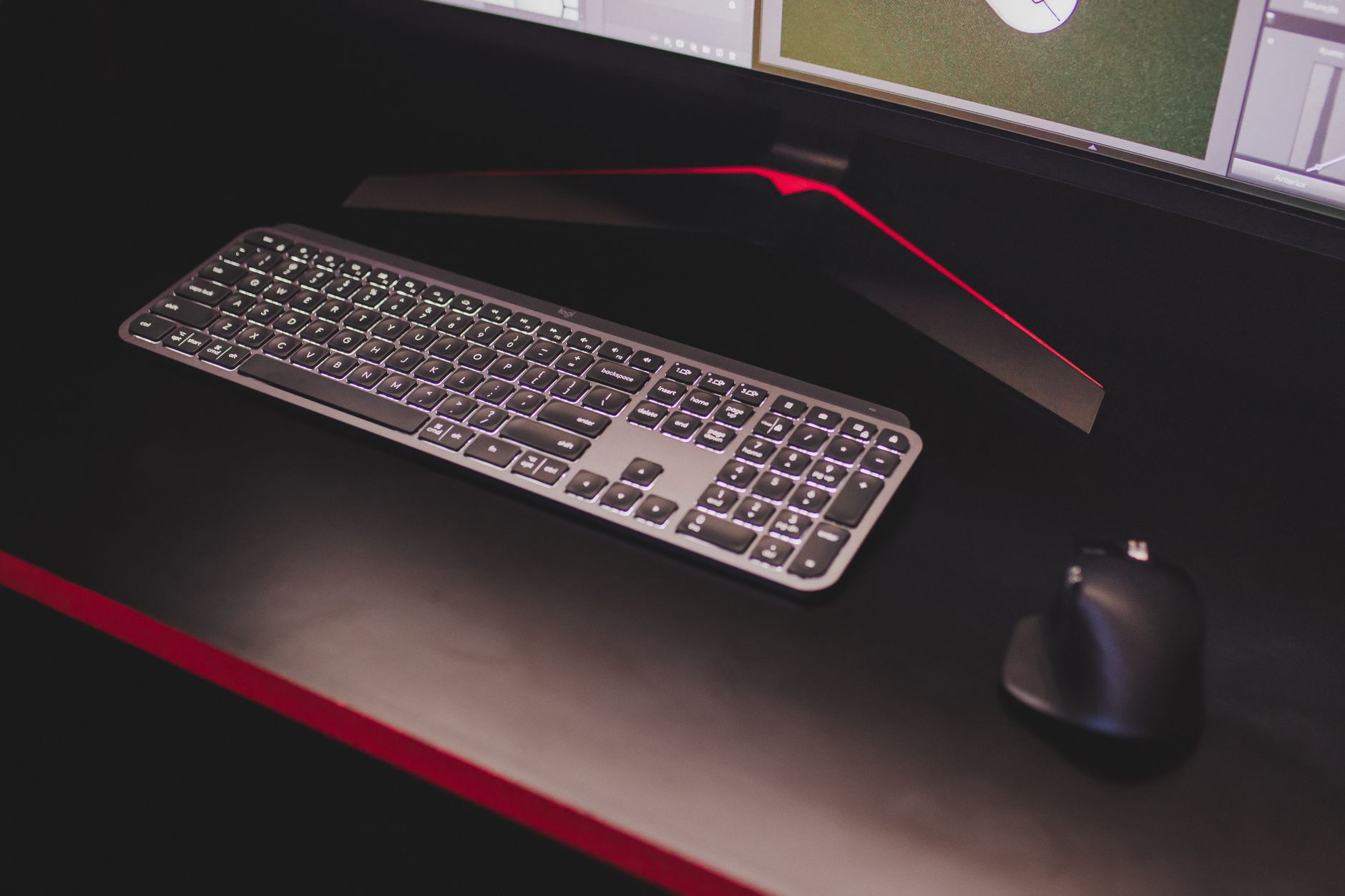
Photo by Matheus Bertelli on Pexels
Several branding standards manage dynamic display syncing. While they share the exact same underlying goal, their certification requirements, features, and hardware support vary.
| Feature / Standard | HDMI Forum VRR | AMD FreeSync (Basic / Premium / Pro) | NVIDIA G-Sync (Compatible / Base / Ultimate) |
|---|---|---|---|
| Primary Connection | HDMI 2.1 | DisplayPort & HDMI | DisplayPort & HDMI 2.1 |
| Main Platform | PS5, Xbox Series X/S, Modern Smart TVs | PC, Xbox Series X/S, Legacy Xbox One S/X | PC, G-Sync Compatible Displays |
| HDR & LFC Support | Varies by TV implementation | Standard: Basic; Premium: Adds LFC; Pro: Adds HDR & LFC | Compatible: Software-based; Base/Ultimate: Dedicated module & HDR |
| Hardware Requirement | Supported TV or Monitor Chipsets | Open VESA Adaptive-Sync Protocol | Standard Adaptive-Sync or Proprietary Processor |
Historically, choosing a sync protocol meant locking yourself into a single graphics ecosystem. NVIDIA GPUs required dedicated G-Sync monitors containing physical proprietary modules, while AMD GPUs utilized royalty-free FreeSync over DisplayPort. Today, ecosystem lock-in has largely collapsed. Modern NVIDIA cards routinely operate in G-Sync Compatible mode over standard VESA Adaptive-Sync and FreeSync monitors.
AMD categorizes its standard into distinct tiers. Basic FreeSync provides baseline dynamic matching. FreeSync Premium adds Low Framerate Compensation (LFC) alongside higher refresh rate mandates. FreeSync Premium Pro adds wide color gamut HDR processing without latency penalties. Meanwhile, HDMI Forum VRR sits inside the official HDMI 2.1 specification, making dynamic syncing a native feature on living room smart TVs like LG OLEDs.
How VRR Improves Motion Smoothness and Input Lag in Games
Games experience unpredictable frame rate fluctuations depending on on-screen action, explosions, or dense environments. Without dynamic sync, moving through an area causes constant shifts between smooth motion and jarring pauses.
Pros
- Eliminates torn frames across fluctuating frame rates.
- Reduces control latency compared to traditional V-Sync.
- Smooths out frame pace drops in dense game environments.
Cons
- Does not fix panel response defects like ghosting or motion blur.
- May introduce slight display flickering near panel lower limits.
- Requires compatible hardware end-to-end.
By matching screen updates to incoming frames immediately, control response feels snappy and instantaneous. However, dynamic synchronization is not a fix for raw panel motion flaws. If your panel suffers from poor pixel response times or overdrive trail ghosting, dynamic refresh timing will not resolve panel blur—that relies entirely on physical display hardware quality.
Requirements for VRR: Compatible TVs, Monitors, Consoles, and Cables
Getting dynamic syncing to work requires matching supported source hardware, a compatible panel, and proper cable bandwidth.
- Consoles: PlayStation 5 and Xbox Series X/S natively support HDMI 2.1 VRR up to 4K at 120Hz. For legacy systems, the Xbox One S and Xbox One X support AMD FreeSync over standard HDMI ports without needing HDMI 2.1 hardware.
- Monitors & Smart TVs: Modern high-refresh displays like the ViewSonic GAMING XG272-2K-OLED combine sub-1ms response times with open Adaptive-Sync standards. Living room smart TVs explicitly list HDMI 2.1 VRR or G-Sync compatibility across their ports.
- Cables: 4K gaming at 120Hz requires an official Ultra High Speed HDMI cable. For PC setups operating over DisplayPort, DP8K or certified DisplayPort 1.4/2.1 cables ensure enough bandwidth to prevent signal dropouts.
Warning: Using an uncertified or older HDMI cable will cause your display to drop signal, flicker off, or disable VRR toggles when attempting to run at 4K 120Hz resolutions.
How to Enable VRR on PS5, Xbox Series X, and Windows PCs
Enabling dynamic sync involves two parts: activating the setting inside the display's menu, and toggling software settings on your console or PC graphics interface.
Setting Up Consoles
On PlayStation 5, navigate to Settings > Screen and Video > Video Output > VRR and set it to Automatic. On Xbox Series X/S, navigate to Settings > General > TV & display options > Video modes and check Allow variable refresh rate.
Setting Up Windows PC
For NVIDIA GPUs, open the NVIDIA Control Panel, select Set up G-SYNC under the Display menu, check Enable G-SYNC, G-SYNC Compatible, and select your display. For AMD GPUs, open AMD Software: Adrenalin Edition, select Gaming > Display, and switch AMD FreeSync to Enabled.
Common VRR Limitations: Flicker, HDR Constraints, and Frame Rate Floors
While dynamic sync dramatically improves playback visual quality, it has physical boundaries you should understand.
Frame Rate Floors and LFC
Displays feature fixed operational windows, such as 48Hz to 144Hz. If a game's frame rate drops below the minimum threshold (for example, falling to 35 FPS on a screen with a 48Hz minimum), dynamic sync turns off and defaults back to standard refresh behavior unless Low Framerate Compensation (LFC) is present. LFC multiplies frame presentations—displaying a 30 FPS render twice at 60Hz—to stay inside the hardware window.
OLED Brightness Flicker
On certain panels, rapid swings in frame delivery rates can cause slight brightness flickering, especially in dark scenes. This happens because gamma curves are tuned for constant frequencies; when the refresh rate bounces wildly between 50Hz and 120Hz, pixel luminance shifts slightly.
Common Mistakes to Avoid
- Leaving OSD Menus Disabled: Toggling settings in Windows or console menus will not work if the feature is turned off inside the display's physical On-Screen Display (OSD) hardware menu.
- Keeping In-Game V-Sync Active Incorrectly: When using VRR, turn off traditional in-game V-Sync in your PC game menus. Leaving standard V-Sync active inside game engines can reintroduce input lag or override dynamic timing settings.
- Using Legacy Cables: Trying to run high-resolution, high-refresh rates over outdated HDMI or DisplayPort wiring disables variable options completely.
Bottom line Dynamic sync technology is essential for any modern gaming setup. Console gamers playing on modern smart TVs should ensure HDMI 2.1 VRR is enabled. PC gamers do not need to buy expensive proprietary displays—sticking with certified FreeSync Premium or G-Sync Compatible screens provides excellent performance across hardware brands.
Related guide: HDR Standards Explained: HDR10, HDR10+, and Dolby Vision
FAQ
What is Variable Refresh Rate and do I need it?
Variable Refresh Rate is a technology that matches your screen's refresh frequency to the frame output of your gaming device. You need it if you want to eliminate screen tearing and motion stutter without introducing high input lag.
Is G-Sync the same thing as HDMI 2.1 VRR?
No. G-Sync is NVIDIA's proprietary synchronization ecosystem, whereas HDMI 2.1 VRR is an open industry standard built directly into the HDMI 2.1 specification used by modern TVs and consoles. However, NVIDIA GPUs can output signals to HDMI 2.1 VRR displays using G-Sync Compatible mode.
Does VRR cause screen flicker on OLED TVs?
It can in specific scenarios. When frame rates fluctuate wildly in dark game environments, the rapid shifting of display refresh timing can cause subtle brightness flickering due to how gamma curves are tuned across pixel states.
How do I enable VRR on my PlayStation 5?
First, verify your TV's HDMI 2.1 port has dynamic sync turned on in its hardware menu. Then on your PS5, go to Settings > Screen and Video > Video Output > VRR and toggle the setting to Automatic.
Does VRR work with any HDMI cable?
No. To run high-resolution modes like 4K at 120Hz with dynamic sync, you need an Ultra High Speed HDMI cable capable of 48Gbps bandwidth. Standard older HDMI cables lack the bandwidth required for these display modes.
Does enabling VRR reduce game FPS?
No, enabling VRR does not reduce game FPS. VRR only changes how and when your display shows rendered frames; it puts zero processing load on your GPU or CPU and does not lower rendering performance.
Sources
Facts in this article were checked against these pages on November 1, 2026:
- Variable Refresh Rate Explained: G-Sync, FreeSync & VRR Technology (blackscreen.live)
- Variable Refresh Rate (VRR): FreeSync, G-Sync & Adaptive-Sync - DVI HDMI Cables (dvihdmicables.com)
- What is VRR? Variable refresh rate explained | TechRadar (techradar.com)
- VRR, FreeSync, and G-SYNC Explained: What They Are ... (allelcoelec.com)
- Variable Refresh Rate (VRR): What It Is & How to Enable It | IQON (iqondigital.com)
- VRR, FreeSync, and G-Sync Explained: Which Do You Need? (kuyconus.com)
How we researched this: this guide is based on current manufacturer information and reputable sources, listed in the Sources section above, and is updated when things change. Read our editorial policy.
Content Writter



Comments
No comments yet — be the first to share your thoughts.