
HDMI eARC Explained: What It Is and How to Use It
Learn how HDMI eARC works, how it differs from ARC, what cables and TV settings you need, and how to get uncompressed Dolby Atmos surround sound.
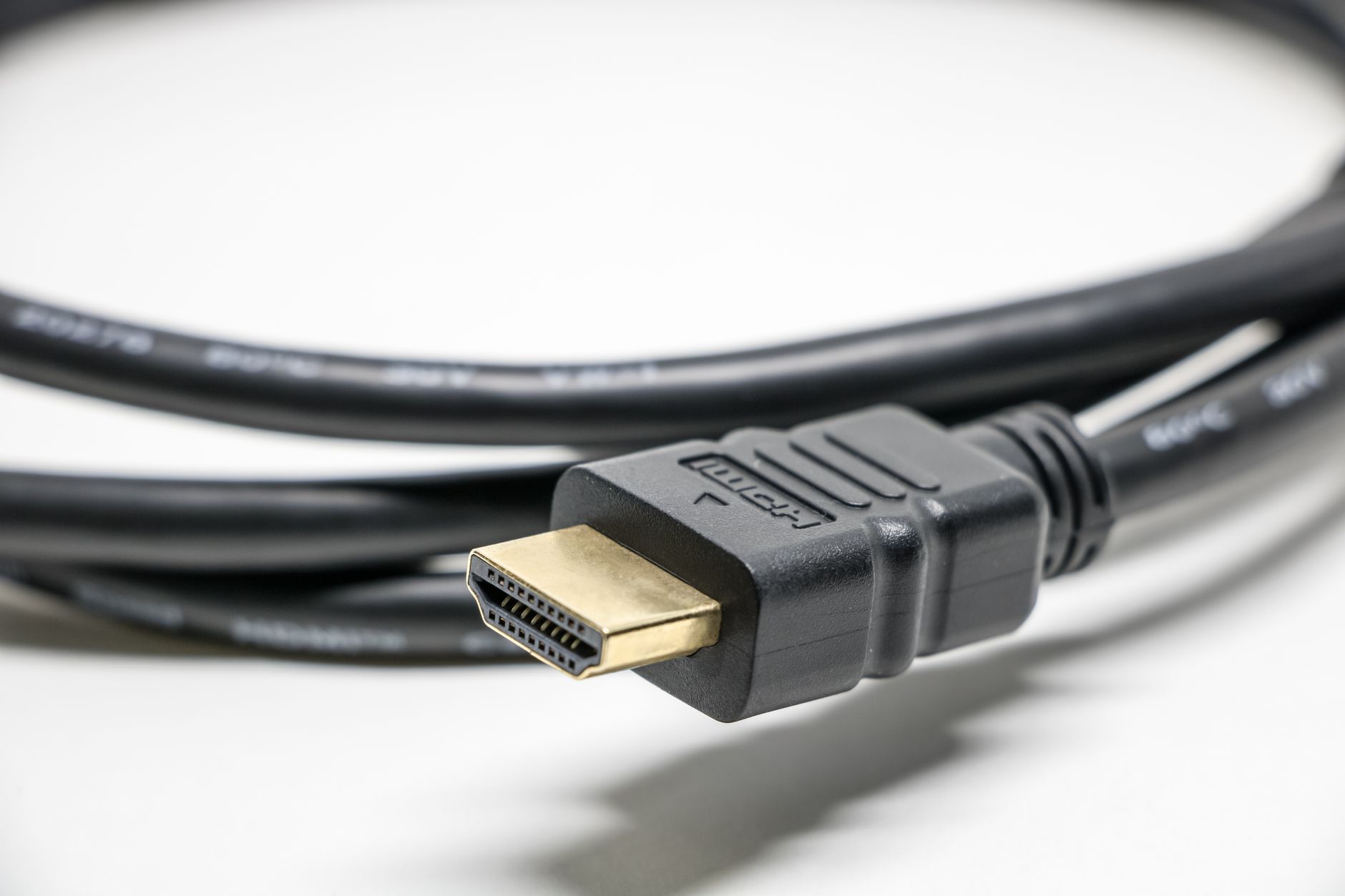
Quick answer: HDMI eARC (Enhanced Audio Return Channel) is an audio protocol that sends high-resolution, uncompressed surround sound—including full Dolby TrueHD and DTS:X—directly from your TV to a soundbar or AV receiver over a single HDMI cable.
Connecting modern home audio used to involve a tangle of cords. You needed separate cables to send video from your streaming boxes to the TV, plus an optical cable running back out to your sound system. If you wanted the latest surround sound codecs, optical connections simply lacked the capacity to carry them.
With HDMI eARC explained simply, you can think of it like replacing a single-lane mountain road with a multi-lane highway. It uses the physical HDMI connection between your TV and audio hardware to transport massive audio streams in both directions, giving you studio-grade immersion without extra wiring.
Key takeaways
- eARC transmits uncompressed 5.1, 7.1, and 32-channel audio at up to 192kHz/24-bit.
- Standard ARC supports compressed Dolby Atmos, but eARC is strictly required for lossless Dolby Atmos via Dolby TrueHD.
- Both your TV port and audio device must explicitly feature eARC labels for uncompressed playback.
- HDMI CEC must remain enabled in your TV menus, or the eARC audio return link will not function.
- Most soundbars include a compatible cable, so you rarely need to buy expensive third-party cords.
HDMI ARC vs. eARC: What Changed?
Standard HDMI ARC (Audio Return Channel) arrived alongside the HDMI 1.4 specification. Its purpose was straightforward: let the TV send sound from internal apps or attached consoles back down to a soundbar or AV receiver using the same HDMI cable connected to the display, eliminating the need for a separate optical TOSLink cable.
However, legacy ARC had strict bandwidth constraints. It was designed primarily for stereo sound and compressed 5.1 surround formats, such as basic Dolby Digital. As movie streaming services and physical media adopted modern spatial audio, standard ARC became a bottleneck.
First introduced under HDMI 2.1 and continuing as a core feature under the HDMI 2.2 standard, eARC (Enhanced Audio Return Channel) expands that audio pipeline significantly. It supports uncompressed, full-resolution audio streams and introduces built-in lip-sync correction data, ensuring your picture and sound match up automatically.
This expansion has also broadened audio hardware designs. Beyond traditional living room TV setups, desktop setups now take advantage of the protocol through dedicated compact desktop amplifiers like the O-NOORUS D4 PRO, bringing television and PC audio directly into desktop passive speakers via eARC.
| Feature | Optical (TOSLink) | HDMI ARC | HDMI eARC |
|---|---|---|---|
| Maximum Uncompressed Channels | 2.0 Stereo | 2.0 Stereo | 5.1, 7.1, and up to 32 channels |
| Dolby Digital Plus (Compressed) | No | Yes | Yes |
| Compressed Dolby Atmos | No | Yes | Yes |
| Lossless Dolby Atmos (TrueHD) | No | No | Yes |
| DTS:X / DTS-HD Master Audio | No | No | Yes |
| Volume Control via TV Remote | No | Yes (via HDMI CEC) | Yes (via HDMI CEC) |
| Mandatory Lip-Sync Correction | No | Optional | Built-in |
Audio Formats eARC Unlocks (Dolby Atmos, TrueHD, and DTS:X)

Photo by yair elgazar on Pexels
A frequent point of confusion is how Dolby Atmos works over different connections. Many streaming platforms deliver Dolby Atmos packed inside a Dolby Digital Plus container. Because Dolby Digital Plus is a lossy, compressed audio stream, standard HDMI ARC can transmit it without trouble.
Lossless Dolby Atmos, by contrast, is packaged inside a Dolby TrueHD container. This contains bit-for-bit studio master audio and requires significant bandwidth that standard ARC cannot provide. If you play 4K Ultra HD Blu-rays or use dedicated media players, eARC is mandatory to hear true uncompressed Dolby Atmos.
The same principle applies to DTS formats. Standard ARC usually downmixes DTS or compresses it to base DTS 5.1. With an eARC pipeline, your equipment can pass full DTS-HD Master Audio and immersive object-based DTS:X tracks directly through the television to your audio receiver without downsampling.
Modern gaming consoles also benefit directly. Devices like the Xbox Series X and the Nintendo Switch 2 output uncompressed multi-channel LPCM audio when plugged into your television. With eARC enabled, the TV receives that multi-channel PCM signal and delivers it untouched to your surround sound setup.
Pros
- Supports uncompressed high-bitrate surround up to 192kHz/24-bit.
- Passes lossless Dolby TrueHD Atmos and DTS:X master audio tracks.
- Automated lip-sync compensation keeps speech matched to video frames.
- Allows volume and power control using a single TV remote control.
Cons
- Requires compatible eARC hardware on both the TV and sound system.
- Requires proper configuration in multiple TV audio sub-menus.
- Relies on HDMI CEC, which can occasionally cause device power conflicts.
Do You Need Special HDMI Cables for eARC?
You do not need an overpriced boutique cable to use eARC. However, you do need a cable certified to carry adequate data bandwidth. High Speed HDMI cables with Ethernet can handle standard ARC and basic eARC tasks, but an Ultra High Speed HDMI cable (rated for HDMI 2.1 bandwidth) is strongly recommended for full compatibility.
As the HDMI Forum introduced the HDMI 2.2 specification, newer cable standards like the Ultra96 HDMI prototypes showcased at CES 2026 emerged to prepare for future bandwidth thresholds. For home theater soundbars today, standard Ultra High Speed or certified Premium High Speed cables handle high-bitrate audio return without drops.
Tip: Check the box that came with your soundbar before shopping for cables. Almost all modern eARC-capable soundbars include an adequately rated HDMI cable in the package.
How to Set Up eARC on Your TV and Soundbar
Setting up your system correctly takes three simple stages: port placement, physical control activation, and audio format selection.
- Find the correct port: Locate the HDMI port on your TV explicitly marked with "eARC" or "eARC/ARC". Connect your HDMI cable from this specific TV port to the "HDMI OUT (eARC)" port on your soundbar or AV receiver.
- Turn on HDMI CEC: Access your TV's system settings and enable Consumer Electronics Control (branded as Anynet+ on Samsung, Simplink on LG, or BRAVIA Sync on Sony). The eARC connection uses CEC to communicate and adjust volume.
- Activate eARC mode: Navigate to your TV's Sound or Audio Output menu. Switch the audio output speaker to "Audio Out (HDMI/eARC)" and set the eARC Mode toggle from Off to "Auto" or "On".
- Select audio passthrough: In your TV's advanced digital audio output settings, change the output format from "PCM" to "Pass-through" or "Bitstream". This ensures your TV does not downsample surround tracks into ordinary 2.0 stereo.
Warning: If your TV audio output is set to standard "PCM", the TV processes and flattens multi-channel audio tracks into stereo before sending the signal to your soundbar, nullifying your surround setup.
Common eARC Troubleshooting Tips and Audio Delays
If you encounter silence or strange performance while setting up your audio equipment, these common setup errors are usually the cause:
- Plugging into standard HDMI inputs: TVs generally offer three or four HDMI ports, but typically only one carries the eARC channel. Double-check that your cord is seated in the exact jack labeled "eARC".
- Disabled HDMI CEC settings: Because eARC relies on CEC to detect when connected devices turn on, disabling CEC shuts down the audio handshake completely, leaving your external speakers silent. Much like managing device interactions when you troubleshoot network gear—or sorting out settings when dealing with issues like a Bluetooth speaker that keeps disconnecting—making sure basic protocol communication remains active is essential.
- Lip-sync and timing delays: While eARC includes automated lip-sync correction, processing delays can still happen if your TV applies heavy image smoothing or frame processing. To fix speech delays, navigate to your TV audio menu, find "Audio Delay" or "AV Sync", and adjust the timing slider until dialogue aligns with mouth movements. Switching your TV picture profile to "Game" or "Cinema" mode also minimizes video processing lag.
- Source audio set incorrectly: When using an external gaming console or Blu-ray player, you must configure that device's sound settings to Bitstream or Uncompressed Multi-Channel. Leaving the source console on an uncompressed stereo setting will prevent spatial audio from reaching the soundbar.
Bottom line: HDMI eARC is essential if you want uncompressed Dolby Atmos, true 7.1 surround sound, or pristine multi-channel gaming audio through a modern soundbar or AV receiver. If you only listen to basic streaming apps through a compact stereo soundbar, standard ARC is adequate, but eARC ensures full future-proof audio fidelity.
Related guide: Active Noise Cancellation Explained: How ANC Works
Related guide: Spatial Audio Explained: How 3D Sound and Head Tracking Work
FAQ
What is the difference between HDMI ARC and eARC?
HDMI ARC provides limited bandwidth suitable for stereo sound and compressed surround sound like Dolby Digital Plus. HDMI eARC delivers significantly higher audio bandwidth, supporting uncompressed 5.1 and 7.1 surround, high-bitrate 192kHz/24-bit audio, and lossless Dolby TrueHD and DTS-HD Master Audio formats.
Do I need an Ultra High Speed HDMI cable for eARC?
An Ultra High Speed HDMI cable is recommended because it guarantees bandwidth compliance for high-bitrate uncompressed audio alongside advanced video standards. However, many quality High Speed HDMI cables with Ethernet can successfully carry eARC audio signals over short distances.
Why is audio out of sync when using eARC?
Although eARC features mandatory lip-sync correction, audio delays often occur when intense TV picture processing slows down the video feed relative to the audio. You can correct this by enabling "Pass-through" in TV audio settings, reducing picture processing filters, or adjusting the TV's AV Sync slider.
Does eARC work with older soundbars?
If your soundbar only features standard ARC, it will connect to an eARC-equipped TV, but playback will drop back to legacy ARC standards. You will receive compressed audio formats like Dolby Digital Plus instead of lossless Dolby TrueHD or DTS:X.
Do both my TV and soundbar need eARC support?
Yes. To enjoy uncompressed high-bitrate audio formats like lossless Dolby Atmos or DTS:X, both your television port and your audio receiver or soundbar must carry explicit eARC hardware support. If either side only supports standard ARC, the entire connection falls back to standard ARC capabilities.
Sources
Facts in this article were checked against these pages on October 24, 2026:
- The Beginner's Guide to HDMI, HDMI ARC, and eARC - Sonos | Sonos Blog (sonos.com)
- HDMI ARC vs eARC Explained: Soundbars, TVs, Dolby Atmos, and HDMI Swit – TESmart (tesmart.com)
- Difference between HDMI and HDMI ARC and eARC (aocfiberlink.com)
- What Is HDMI ARC and How Does It Work? – Avantree (avantree.com)
- WHAT IS HDMI ARC/eARC, AND HOW DO I TURN IT ON? : ZVOX Audio (support.zvox.com)
- HDMI ARC - What is eARC? Audio Return Channel (hdmi.org)
How we researched this: this guide is based on current manufacturer information and reputable sources, listed in the Sources section above, and is updated when things change. Read our editorial policy.
Content Writter




Comments
No comments yet — be the first to share your thoughts.