
How to Transfer eSIM to a New Phone Without Losing Service
Learn how to move your digital carrier plan to a new smartphone in minutes without calling customer support.
Quick answer You can transfer your eSIM directly between devices in under two minutes using built-in settings on iOS and Android, provided both phones are unlocked and nearby.
Upgrading your smartphone used to mean swapping out a tiny plastic card with a paperclip. Now, digital carrier plans handle this instantly through software menus. Moving your profile between devices can happen entirely on your own terms if you know the right menus to tap.
Knowing the exact steps prevents unexpected service disruptions. This guide walks you through checking carrier compatibility, executing the transfer on both major mobile operating systems, and fixing common setup errors.
Key takeaways
- Direct device-to-device transfers typically take under two minutes to complete.
- Both your old and new phones must be unlocked to accept plans from a different provider.
- iOS devices from iPhone 14 through iPhone 17 in the US rely entirely on digital SIM technology.
- Cross-platform transfers between iOS and Android require carrier apps or QR codes rather than direct proximity prompts.
Before You Start
Gather your materials and verify a few baseline settings before you begin the transfer process. Both devices need a stable Wi-Fi connection and sufficient battery life to complete the handoff without interruption. Keep your old phone nearby because the system requires confirmation from the device currently holding the active profile.
Check that your software is up to date on both handsets. Both devices must be unlocked and not bound to a specific carrier contract unless you are staying with the exact same provider and your new phone is designated for that carrier.
Tip: Keep your old phone turned on and connected to Wi-Fi until the new phone displays full cellular bars.
Check If Your Carrier Supports Direct eSIM Transfer
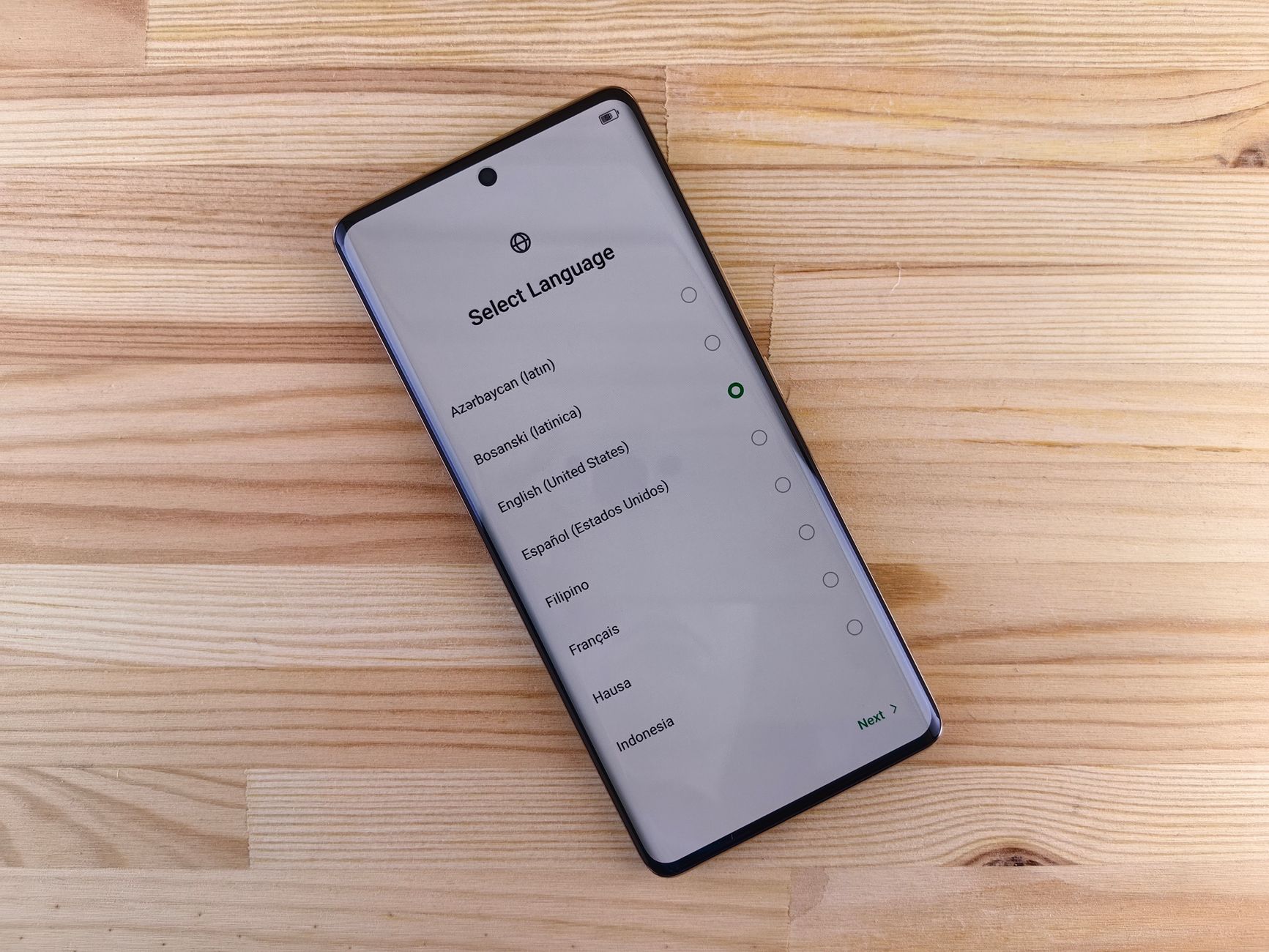
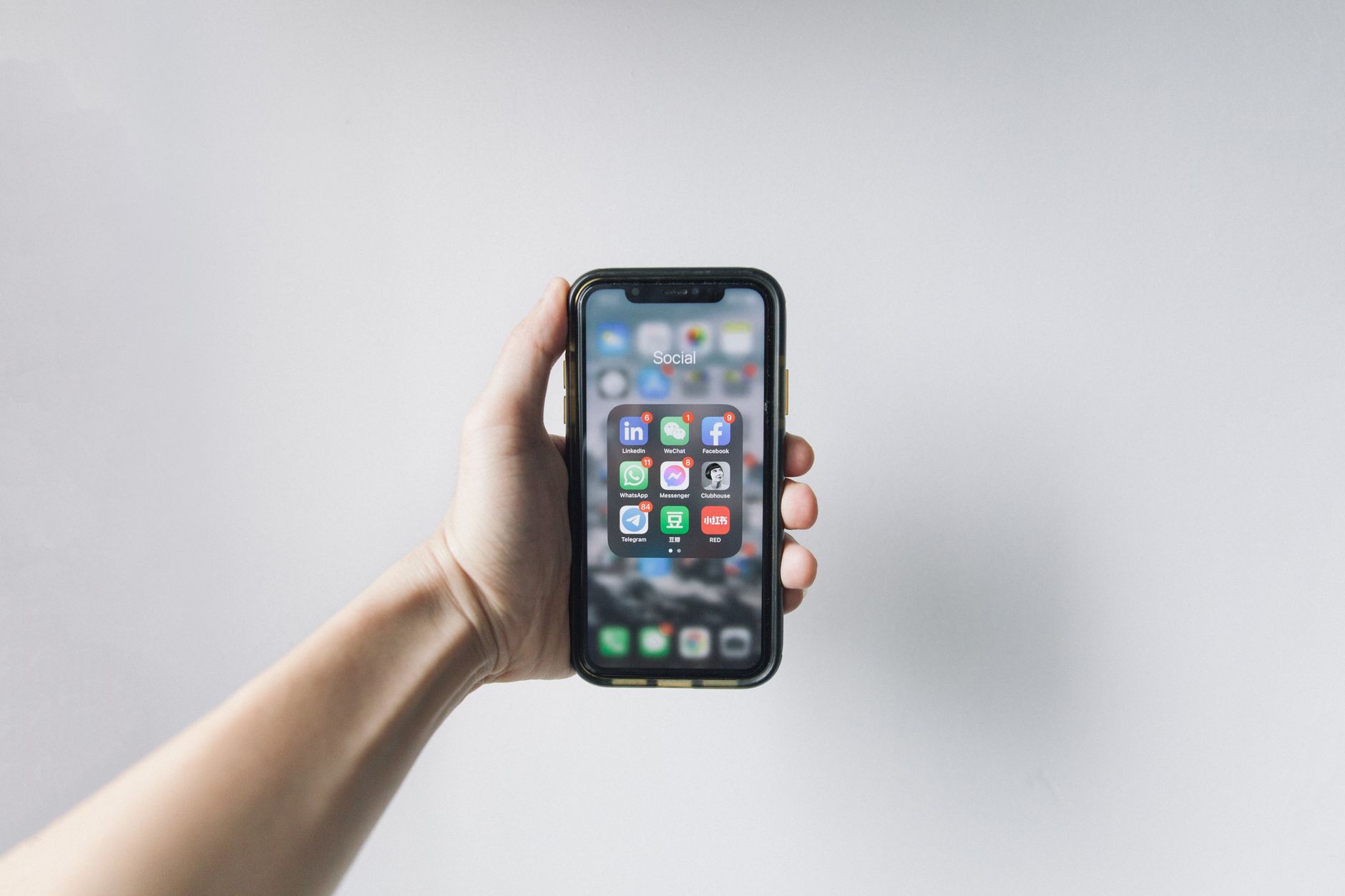
Photo by Andrey Matveev on Pexels
Not every regional provider or mobile virtual network operator supports automated device-to-device proximity transfers. Major carriers usually support direct operating system handoffs, but smaller providers might require you to scan a digital QR code sent via email or use their proprietary mobile application.
Contact your carrier's customer portal or check their online support pages to confirm if they support automated digital plan transfers. If your carrier does not support direct operating system handoffs, prepare to download the carrier app on your new phone or request a fresh QR code from your online account dashboard before starting.
How to Transfer an eSIM on iPhone
Apple allows users to move a cellular plan from a nearby, unlocked iPhone during initial device setup or via the main settings menu later on. Both devices must be signed in with the relevant Apple Account, and Bluetooth must be turned on.
- Turn on your new iPhone and place it near your current, unlocked iPhone.
- Open the Settings app on your new iPhone.
- Tap Cellular, then select Set Up Cellular or Add eSIM.
- Tap Transfer From Nearby iPhone and follow the on-screen prompts.
- Check your old iPhone when prompted and tap Transfer to confirm the handoff.
- Wait up to two minutes for the cellular activation to finish on the new device.
Warning: Do not delete the digital plan from your old iPhone until the new phone successfully displays your carrier name and cellular signal bars.
How to Transfer an eSIM on Android
Android devices running Android 12 or later support direct transfers on recent Google Pixel and Samsung Galaxy models. Both devices need Google Play Services active and screen locks enabled for security.
- Ensure both devices are connected to Wi-Fi and placed close together.
- Open the Settings app on your new Android phone.
- Tap Network & Internet, then select SIMs or Connections.
- Tap Add SIM or eSIM, then choose Transfer SIM from Another Device.
- Confirm the request on your old phone by following the verification prompts on screen.
- Wait for the profile to download and activate on the new hardware.
What to Do If Direct Transfer Fails
If the automatic proximity prompt fails to appear or gives an error message, fallback methods ensure you are not left without service. Automatic cross-platform moves between iOS and Android are not supported by proximity bluetooth prompts, so you must use alternative routes.
Open your carrier's mobile application on the new phone and log into your account to initiate a digital profile reinstall. Alternatively, log into your carrier portal on a computer to generate a fresh QR code. Scan that code using your new phone's camera under your cellular settings menu to manually download the profile.
If your old phone was lost, broken, or stolen, direct transfer is impossible because you cannot confirm the prompt on the old hardware. You must contact your carrier directly to suspend the old profile, verify your identity, and request a replacement digital profile via email.
Troubleshooting Common eSIM Activation Errors
Activation errors usually stem from dropped connections or premature deletion of old profile data. Review these common pitfalls to keep your upgrade smooth.
Pros
- Instant setup without waiting for physical mail delivery
- Easy management of multiple carrier profiles
- Eliminates tiny SIM trays and lost hardware cards
Cons
- Requires active internet connection during setup
- Cross-platform moves require manual carrier app intervention
- Lost or broken devices require direct carrier support
Common Mistakes
- Deleting the old profile too early: Removing the plan from your old phone before the new phone is fully active causes a temporary loss of service.
- Rushing the handoff: Interrupting phone restarts or dropping Wi-Fi during activation can corrupt the profile download.
- Expecting cross-brand proximity transfers: Trying to move a plan directly from an iPhone to an Android device using Bluetooth prompts rather than carrier apps or QR codes.
Related guide: How to Fix Google Photos Not Backing Up on iPhone or Android
FAQ
Can I transfer my eSIM myself without calling my carrier?
Yes, you can complete the transfer independently using device settings or carrier apps as long as your provider supports self-service activation.
Will I lose service during the eSIM transfer process?
You may experience a brief interruption lasting a couple of minutes while the profile downloads and registers with the cellular network.
How do I transfer an eSIM from iPhone to Android?
Cross-platform transfers require you to use your carrier's official mobile application or scan a manual QR code provided by your carrier's customer portal.
What happens to my old phone's eSIM after the transfer?
The profile on your old phone becomes inactive and is automatically disabled once the transfer finishes successfully.
Why is my new phone saying eSIM activation failed?
Activation failures usually happen due to an unstable Wi-Fi connection or a locked device. Verify your internet connection and ensure your phone is unlocked.
Bottom line Using built-in operating system settings is the fastest way to upgrade your phone without dealing with customer support lines. Anyone switching between devices of the same brand should use the direct proximity tool, while cross-platform switchers should rely on carrier apps or QR codes.
Sources
Facts in this article were checked against these pages on October 2, 2026:
- How do you transfer an eSIM to another phone without losing anything? (en.routedesgrandesalpes.com)
- How to Transfer eSIM: 2025 Ultimate Guide (shop.maaltalk.com)
- Set up eSIM on iPhone - Apple Support (support.apple.com)
- What Happens to an eSIM on a Lost Phone? (smartcell.app)
- Transfer a SIM to a new phone - Android - Pixel Phone Help (support.google.com)
- Can I Transfer an eSIM to Another Phone? The Complete Guide for 2026 (medium.com)
How we researched this: this guide is based on current manufacturer information and reputable sources, listed in the Sources section above, and is updated when things change. Read our editorial policy.
Content Writter

Comments
No comments yet — be the first to share your thoughts.