
How to Fix Apple Pay Not Working on iPhone
Troubleshoot Apple Pay failures at checkout, in apps, or on Safari with this step-by-step guide to fixing contactless payment errors on your iPhone.
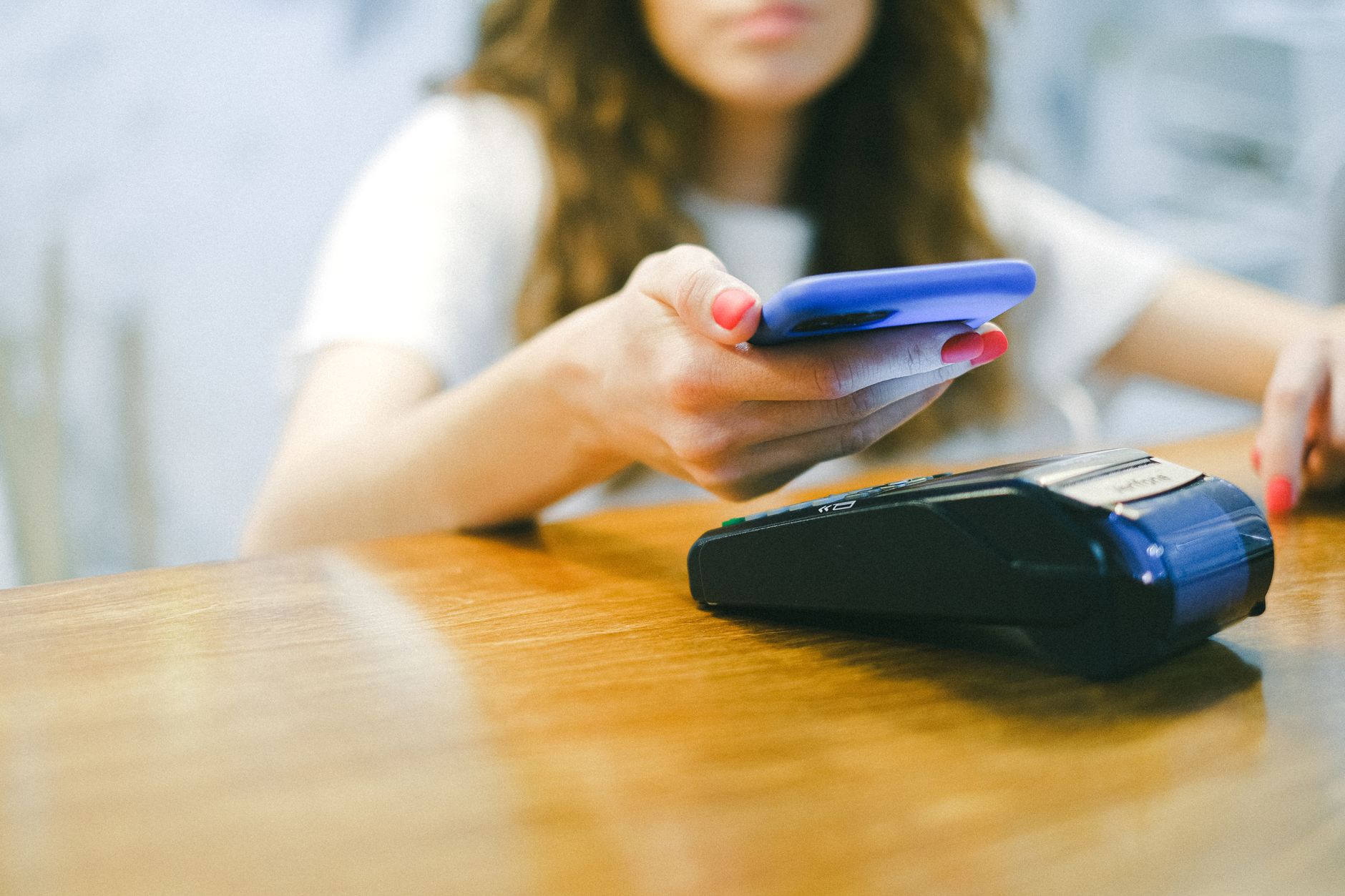
Quick answer If apple pay not working on iphone transactions occur, start by verifying Apple's System Status page and ensuring the payment terminal supports contactless payments. Next, toggle your device permissions, restart your iPhone to clear temporary memory glitches, or re-add the card inside the Wallet app.
Holding your iPhone up to a card reader only to meet a silent screen, an error message, or a declined transaction is frustrating—especially when you have left your physical wallet at home. Contactless checkout relies on a chain of hardware triggers, software permissions, network data, and bank authorizations working in harmony.
When one link in that chain fails, Apple Pay stops working altogether. This guide walks you through fixing these payment breakdowns on your iPhone, moving from zero-risk quick checks to card re-provisioning and banking diagnostics.
Key takeaways
- Check Apple System Status and the merchant terminal to rule out external outages first.
- Ensure Mobile Data, Live Activities, and region settings are correctly toggled in your iPhone settings.
- Restarting your iPhone clears system memory cache and resolves biometric scanning freezes.
- Removing and re-adding a glitched payment card forces a fresh security token from your bank.
- Safari web payments require specific app permissions located under app-specific settings.
Common Apple Pay Failures and Initial Diagnostics
Before changing complex settings, identify the exact symptom your iPhone displays. Different failure modes point to distinct underlying causes.
Common Symptoms:
- No response at checkout: Double-clicking the side button opens Wallet, but holding the phone near the terminal produces no vibration, beep, or prompt.
- Biometrics frozen: Face ID fails to authenticate, or the screen gets stuck on "Hold Near Reader."
- In-app or web failures: The Apple Pay button does not appear during checkout inside Safari or third-party apps.
- Immediate decline: The transaction registers with NFC but displays "Payment Not Completed" or a card decline message.
First, verify that Apple's servers are fully operational. Visit Apple's official System Status webpage in any web browser. Look for the entry labeled Apple Pay & Wallet. A green indicator circle confirms that Apple's infrastructure is online. If the indicator shows yellow or red, the issue is on Apple's servers, and you must wait for them to resolve it.
Second, ensure the point-of-sale terminal supports contactless payments. Look for the universal contactless symbol (four waving lines) or the Apple Pay logo. Some card readers present the symbol but have contactless software disabled by the store operator.
Check Device Battery, NFC, and Wallet Settings
Software permissions and network access frequently block Apple Pay from completing transactions.
Verify System Permissions and Region Settings
- Open Settings and tap Wallet & Apple Pay.
- Ensure Double-Click Side Button is toggled on so your card pulls up instantly from the lock screen.
- Check that Mobile Data is enabled for Wallet. While offline payments work via stored tokens, initial card setup and balance updates require data.
- Verify that Live Activities permissions are active if you use digital passes or transit cards.
- Go to Settings > General > Language & Region and confirm your current Region matches the country where your payment cards were issued. Incorrect region settings cause Wallet features to hide automatically.
Enable Apple Pay for Web Purchases
If web checkouts fail inside Safari, verify that the browser has permission to query your payment status:
- Open Settings.
- Scroll down to Apps and select Safari.
- Tap Advanced.
- Toggle on Check for Apple Pay.
Tip: Thick phone cases made of heavy metal, built-in kickstands, or magnetic card holders on the back of your iPhone can physically block the Near Field Communication (NFC) antenna, which sits near the top edge of the device. Remove heavy cases and test the transaction again.
Force Restart Your iPhone and Re-Authenticate Biometrics
If your device screen hangs on "Hold Near Reader" or Face ID fails to scan your face at checkout, system cache issues or biometric glitches are likely responsible.
Biometrics and Positional Checks
Face ID requires a clear view of your eyes, nose, and mouth. If you are wearing a heavy mask, face covering, or tinted sunglasses angled away from the front-facing camera array, Face ID will fail. Hold the phone directly in front of your face before moving it toward the card reader.
If biometrics fail across multiple attempts, turn off Face ID for Wallet and set it up again:
- Go to Settings > Face ID & Passcode (or Touch ID & Passcode).
- Toggle off Wallet & Apple Pay.
- Restart your phone.
- Return to the same menu and toggle Wallet & Apple Pay back on.
Perform a Force Restart
A force restart clears system memory without deleting personal files, which fixes temporary NFC stack freezes:
- Press and quickly release the Volume Up button.
- Press and quickly release the Volume Down button.
- Press and hold the Side button continuously until the Apple logo appears on the screen, then release it.
Remove and Re-Add the Problematic Payment Card
When a specific card fails while others work, the digital security token (DAN) issued by your bank may have become invalid or corrupted.
Before deleting a card, test manual card selection. Open the Wallet app directly, tap the specific card you wish to use, authenticate via Face ID, and then hold the phone near the reader. If manual selection succeeds, your default card settings simply needed a refresh.
If manual selection also fails, re-provisioning the card forces your bank to issue a new digital token.
- Open Settings and tap Wallet & Apple Pay.
- Tap the card that is failing under Payment Cards.
- Scroll down to the bottom and tap Remove This Card. Confirm your choice.
- Return to the main Wallet & Apple Pay screen.
- Tap Add Card, select Debit or Credit Card, and follow the on-screen prompts to re-enter your card details or scan it with your camera.
- Complete any required bank verification via SMS code, bank app authentication, or phone call.
Warning: Removing a card from Apple Wallet will delete any transaction history local to that specific card instance in the Wallet app. Your actual bank account balance and main bank statement remain entirely unaffected.
Common Mistakes to Avoid
Troubleshooting goes faster when you avoid these frequent mistakes:
- Ignoring physical card expiration: Even though Apple Wallet uses virtual tokens, if your physical debit or credit card expires or gets reissued with a new CVV, the digital token connected to it will stop functioning until updated.
- Assuming a non-responsive reader is broken: Card terminals sometimes lock up. Asking the cashier to reset the transaction prompt often resolves an unresponsive tap attempt.
- Skipping basic restarts: Deleting cards and resetting network configurations takes time. Always restart your iPhone before performing complex resets.
- Covering the camera array: Holding the iPhone flat against the reader while looking down at it can obscure the camera, causing Face ID to time out. Authenticate before lowering the device to the terminal.
Reset Network Settings and Update iOS
If Apple Pay fails across all cards and applications, system software corruption or network configuration glitches may be preventing security handshakes.
Update iOS Software
Operating system updates routinely resolve system bugs that affect NFC hardware drivers and Wallet encryption protocols. Go to Settings > General > Software Update and install any available updates.
Reset Network Settings
Pros of Network Reset
- Clears corrupt Wi-Fi, cellular, and Bluetooth cache files.
- Restores baseline network authentication protocols used by security features.
Cons of Network Reset
- Erases all saved Wi-Fi networks and passwords.
- Removes active VPN configurations and paired Bluetooth device profiles.
- Open Settings and tap General.
- Scroll to the bottom and select Transfer or Reset iPhone.
- Tap Reset.
- Select Reset Network Settings and enter your passcode to confirm.
If you encounter broader hardware connection issues across your devices, such as network drops or accessory pairing bugs, see our guides on wireless CarPlay connection fixes or resolving AirPrint printer errors on iPhone.
When to Contact Your Bank or Apple Support
If software adjustments do not resolve the issue, the limitation rests with account-level authorization or hardware damage.
Contact your card issuer or bank if:
- Card verification fails repeatedly during the re-addition process.
- The bank's automated fraud system has placed a temporary security hold on digital wallet transactions.
- Your physical card works at the terminal, but the digital token returns a consistent decline error code.
Contact Apple Support or visit an authorized service center if:
- Your iPhone fails to detect any NFC reader across multiple distinct stores and merchants.
- Other hardware features tied to sensors, such as camera biometrics, stop responding simultaneously. If you experience charging or power instability alongside hardware drops, consult our guide on troubleshooting iOS device charging issues.
- The Wallet app crashes instantly upon launch even after a full device restart and iOS update.
Bottom line Fix Apple Pay failures by starting with quick system checks: check Apple's System Status page, verify terminal compatibility, and restart your iPhone. If single cards fail, remove and re-add them to update bank tokens. Perform network resets or contact Apple Support only if all contactless payments fail across every merchant.
Related guide: How to Fix iPhone Cellular Data Not Working
Related guide: How to Fix MagSafe Battery Pack Not Charging
FAQ
Why does Apple Pay say 'Hold Near Reader' without scanning?
This message occurs when the iPhone's NFC chip fails to establish a connection with the payment terminal. It is usually caused by physical distance, a thick protective case blocking the signal, an inactive contactless terminal, or a temporary freeze in your iPhone's NFC background service. Removing bulky cases and restarting the phone fixes this error.
Why is my card declined on Apple Pay but works physically?
When a physical card works but Apple Pay declines, the digital payment token assigned to your iPhone has likely been flagged, expired, or corrupted. Banks manage digital tokens independently from physical card chips. Removing the card from Wallet & Apple Pay settings and adding it back generates a fresh token, fixing the discrepancy.
Can low battery or power mode disable Apple Pay?
Low Power Mode does not disable standard Apple Pay contactless payments. However, extremely low battery levels may prevent the device from maintaining the processor speed or screen brightness required for fast Face ID authentication. Additionally, background downloads and non-essential Wallet updates may pause until the device is charged.
Does updating iOS fix Apple Pay NFC glitches?
Yes. System software updates include security patches, bug fixes for the Wallet background framework, and firmware updates for the onboard NFC controller. If an OS bug is causing authentication errors or app-level checkout crashes, updating to the latest iOS build will resolve it.
Sources
Facts in this article were checked against these pages on November 8, 2026:
- 7 Ways to Troubleshoot If Apple Pay Is Not Working (businessinsider.com)
- 7 Ways to Troubleshoot If Apple Pay Is Not Working (businessinsider.com)
- 7 Ways to Troubleshoot If Apple Pay Is Not Working (businessinsider.com)
- Apple Pay not working on iPhone? Follow our guide (macpaw.com)
- How To Fix Apple Pay Not Working - Fastest Guide (youtube.com)
- How to fix Apple Pay that’s not working | Asurion (asurion.com)
How we researched this: this guide is based on current manufacturer information and reputable sources, listed in the Sources section above, and is updated when things change. Read our editorial policy.
Content Writter



Comments
No comments yet — be the first to share your thoughts.