
How to Fix Roku Remote Volume Buttons Not Working
Troubleshoot unresponsive volume and power buttons on your Roku remote with this complete fix guide.

Quick answer If your Roku menu works but volume buttons do not, you need to re-pair the remote to your TV, correct your HDMI-CEC settings, or clear any obstructions blocking the infrared sensor.
It can be frustrating when you grab your Roku remote to lower the volume during a loud commercial, only to find that the volume and power buttons refuse to cooperate while the navigation pad works fine. This common issue usually happens because the navigation commands go directly to your Roku streaming player, while the volume and power buttons control your television set directly through infrared signals or HDMI-CEC technology. Understanding this distinction makes it much easier to troubleshoot and fix the underlying communication breakdown.
Before you start digging into advanced configuration menus, you will need your physical Roku remote, your TV screen turned on, and about ten to fifteen minutes of uninterrupted time. If your physical buttons are completely unresponsive, you can also download the Roku mobile app on your smartphone to use as a temporary controller while you work through these steps.
Key takeaways
- Volume and power buttons control your TV directly, while navigation buttons control the Roku box.
- Re-pairing your remote through the Roku settings menu fixes most sync issues.
- Enabling HDMI-CEC allows your Roku remote to seamlessly control your TV audio.
- Powering your Roku player via a wall outlet instead of a TV USB port prevents power loss glitches.
Check Batteries and Power Cycle the Roku Remote
Start with the simplest physical checks to rule out basic hardware glitches. Remove the battery cover from your Roku remote and take out the batteries, inspecting the compartment for any corrosion or debris. Reinsert them firmly, or swap them out for a fresh set of alkaline or fully charged rechargeable batteries to ensure the internal circuitry receives steady power.
Next, power cycle your Roku streaming player by unplugging its power cable from the wall outlet and waiting about ten seconds before plugging it back in. Avoid powering your Roku player via a TV USB port because that port loses power entirely when the TV turns off, which often disrupts power synchronization and remote communication. If you use a rechargeable voice remote, make sure to disconnect any charging cables and let the device cool down safely on a non-flammable surface if the casing feels unusually warm.
Warning: Never attempt to force out hot alkaline batteries. Disconnect any charging cables immediately and let the remote cool down completely before handling.
Re-Pair the Remote to Your TV and Roku Device
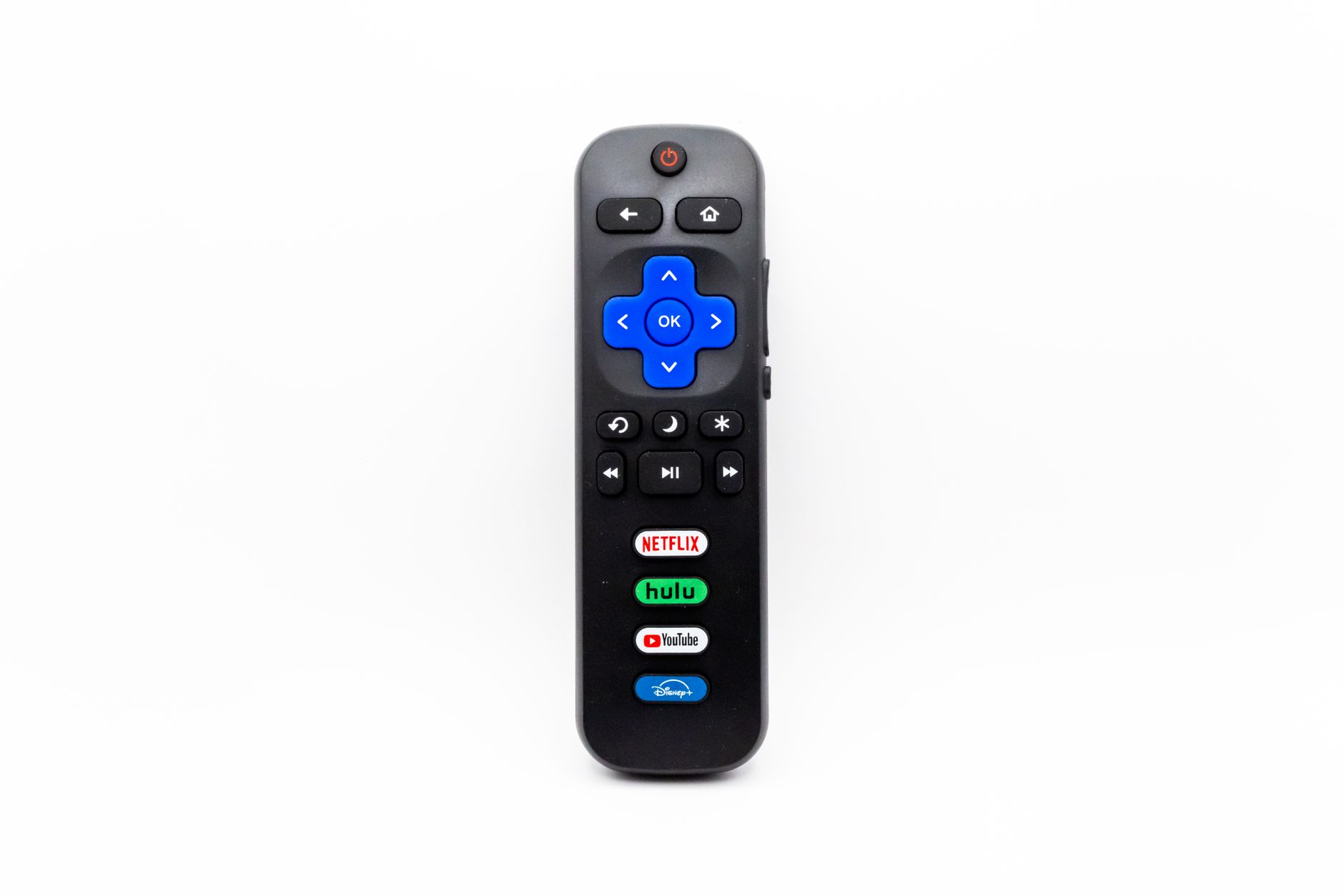
Photo by Caleb Oquendo on Pexels
If fresh batteries do not restore audio control, you need to re-establish the connection between your remote, your Roku device, and your television set. Go to your Roku settings menu to recalibrate the audio control link.
- Navigate to your Roku home screen and select Settings.
- Go to Remotes & devices, then select Remotes and choose your specific remote.
- Select Set up remote for TV control and follow the onscreen music test and prompts to re-sync the volume commands.
- To re-pair the remote hardware itself, look for a pairing button: hold it for 5 seconds until the status light flashes. If your remote does not have a pairing button, hold the Back and Home buttons simultaneously for 5 seconds.
Outdated system software can also occasionally interfere with remote communication. Check for pending updates by going to Settings > System > System update > Check now to ensure your Roku software is completely current before attempting further troubleshooting.
Fix HDMI-CEC Settings for Volume Control
HDMI-CEC (Consumer Electronics Control) allows your Roku device and remote to send power and volume commands over an HDMI cable directly to your sound system or TV. Without this setting enabled, your remote cannot send audio signals unless there is an unobstructed infrared line-of-sight between the remote's front emitter and the TV's IR sensor.
If you are using a Roku TV, go to Settings > System > Control other devices (CEC) and enable both System audio control and 1-touch play. For third-party television brands, menu names vary by manufacturer and firmware version. On LG TVs, go to Settings > All Settings > General > SIMPLINK (HDMI-CEC) and set it to On. Other manufacturers use proprietary names for this exact feature, such as Samsung's Anynet+ or Sony's Bravia Sync, which you will need to locate and enable within your TV setup menus.
Tip: Voice commands for power and volume control also rely heavily on HDMI-CEC being properly enabled across both your Roku device and your TV.
Use the Roku Mobile App as a Temporary Remote
If your physical remote remains completely unresponsive while you troubleshoot, you are not locked out of your system. Download the official Roku mobile app on your iOS or Android smartphone, connect your phone to the same Wi-Fi network as your Roku player, and select the Remote option within the application interface.
This virtual controller lets you navigate menus, adjust settings, and perform system updates without needing a working physical remote. It provides a reliable fallback option so you can access the system menus required to fix your hardware controllers.
Common Mistakes to Avoid
Many users make simple assumptions that prolong troubleshooting when remote buttons fail. Review these common pitfalls to save time:
- Assuming the entire remote is broken when only the volume and power buttons fail, failing to realize these specific buttons rely on TV-linked settings rather than Roku box navigation.
- Plugging the Roku streaming player into the television's USB port instead of a direct wall outlet, which causes power synchronization dropouts.
- Ignoring pending software updates on the Roku device before attempting to reconfigure TV remote pairing settings.
FAQ
Why did my Roku remote volume buttons stop working?
The volume and power buttons control your TV directly via infrared line-of-sight or HDMI-CEC, whereas navigation buttons communicate strictly with the Roku box. If the TV link drops or CEC is disabled, the volume stops working while navigation continues normally.
How do I re-pair my Roku voice remote?
Hold the pairing button inside the battery compartment for 5 seconds until the status light flashes. If your remote lacks a physical pairing button, press and hold the Back and Home buttons together for 5 seconds.
How do I fix Roku remote volume control on my TV?
Go to Settings > Remotes & devices > Remotes, select your remote, and choose Set up remote for TV control to run the configuration prompts. Also verify that HDMI-CEC is enabled on your television.
Why does my Roku remote change channels but not volume?
Channel navigation commands go through the Roku streaming player interface, while volume adjustments require a working IR link or active HDMI-CEC bridge to your television speakers.
How do I reset my Roku remote?
Remove the batteries, unplug your Roku streaming player from power for ten seconds, plug the player back in, and reinsert the batteries once the home screen loads to force a hardware re-handshake.
Bottom line Fix your Roku volume issues by systematically checking your power source, running the remote setup wizard in settings, and enabling HDMI-CEC on your TV. This approach resolves most audio control failures without forcing you to buy replacement hardware.
Sources
Facts in this article were checked against these pages on October 28, 2026:
- Roku Remote Volume Not Working? Fix Roku Remote Not Working (Power & Volume Buttons Issue) (youtube.com)
- Roku Remote Not Working? 9 Fast Fixes for Any Problem (wikihow.com)
- Roku Remote Volume Buttons Not Working? Fixes That Work (technobezz.com)
- Fix your Roku remote (simple or voice) | Official Roku Support (support.roku.com)
- Menu (support.roku.com)
- Roku TV Remote Volume Not Working? Fix Power & Volume Buttons Fast (youtube.com)
How we researched this: this guide is based on current manufacturer information and reputable sources, listed in the Sources section above, and is updated when things change. Read our editorial policy.
Content Writter


Comments
No comments yet — be the first to share your thoughts.