
How to Fix AirPods That Keep Disconnecting
Frustrated by dropped audio on your Apple devices? Follow this step-by-step troubleshooting guide to stop your AirPods from disconnecting.
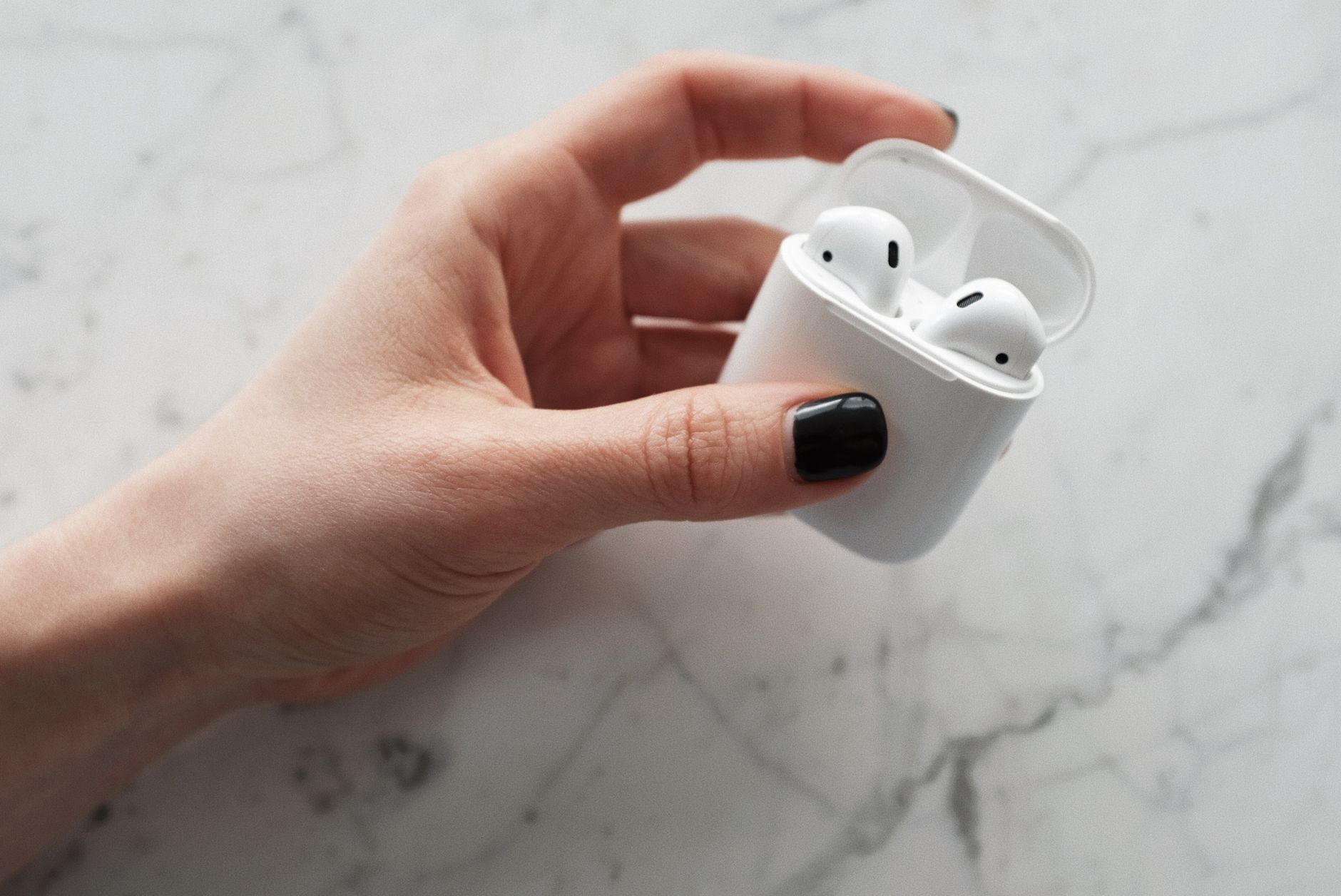
Quick answer: To fix AirPods that keep disconnecting, first clean the charging contacts and disable Automatic Ear Detection in your Bluetooth settings. If you use physical-button models (AirPods Pro, Max, or older standard models), reset them by holding the back button for 15 seconds. For AirPods 4, perform a reset using tap gestures on the front of the charging case.
Few things are as frustrating as settling into a favorite playlist, joining an important work call, or starting a workout only to have your audio abruptly cut out. When your AirPods keep disconnecting, it disrupts your flow and turns a premium audio experience into an annoying technical puzzle. This issue is surprisingly common, but it is rarely a sign that your hardware is permanently broken.
Most connection drops stem from minor software glitches, battery imbalances, dirty charging contacts, or interference from other wireless devices. Because these earbuds rely on a complex handoff of Bluetooth signals between your playback device and each individual earbud, even a small disruption in the chain can cause the audio to drop entirely.
This troubleshooting guide is designed to help you isolate the cause of the problem and fix it. We have organized these solutions in order of difficulty, starting with the quickest, most basic checks and moving toward more advanced software resets. By following these steps, you can restore a stable, reliable connection to your iPhone, iPad, Mac, or Windows PC.
Key takeaways
- Model-Specific Resets: Older models and AirPods Pro still use a physical setup button, but the latest AirPods 4 require tap gestures on the case to pair and reset.
- Battery Health Degradation: AirPods that are 2 to 3+ years old often suffer from chemical wear, reporting 100% charge but disconnecting suddenly after a few minutes.
- Physical Maintenance: Debris on the charging contacts or earbud mesh is a leading cause of charging failures and false ear-detection triggers.
- Settings Adjustments: Disabling Automatic Ear Detection and Automatic Switching can immediately resolve intermittent dropouts.
Check Your Battery Health and Degradation
Before diving into complex settings, you must rule out the most common culprit: low battery power. When your AirPods or their charging case run extremely low on power (under 20%), the Bluetooth chip inside the earbuds struggles to maintain a stable connection. Sometimes, one earbud drains faster than the other, leading to sudden, single-side dropouts.
To check your battery levels on an iPhone or iPad, bring the AirPods close to your device and open the lid of the charging case. A popup status card should appear on your screen showing the exact battery percentages. On a Mac, click the Bluetooth or Control Center icon in the menu bar at the top-right of your screen, then hover over your AirPods in the list to view their current power levels.
Watch out for aged batteries: If your AirPods are 2 to 3+ years old, they may suffer from severe battery degradation. In these cases, the devices might report a 100% charge when taken out of the case, but because the battery has lost almost all of its original capacity, they will drop to ~5% and disconnect abruptly after just a few minutes of use. If this is happening, the hardware battery has failed, and software resets will not fix it.
Toggle Bluetooth and Reconnect Your AirPods

Photo by Tara Winstead on Pexels
If your battery levels are healthy, the next step is to clear out any temporary wireless glitches by cycling your device's Bluetooth radio. Bluetooth connections can become congested or confused, especially if you regularly move between different rooms or use multiple wireless accessories simultaneously.
To toggle Bluetooth on your iPhone or iPad, swipe down from the top-right corner of the screen to open the Control Center, tap the Bluetooth icon to turn it off, wait about 10 seconds, and tap it again to turn it back on. Alternatively, you can go to Settings > Bluetooth to toggle the main switch. On a Mac, click the Control Center icon in the menu bar, select Bluetooth, toggle the switch off, wait, and toggle it back on.
If a simple toggle does not work, force a clean reconnection. Put your AirPods back in their case, close the lid, wait 15 seconds, and take them out again. This forces the earbuds to terminate their current wireless session and negotiate a fresh connection with your host device, which often resolves minor pairing miscommunications.
Clean Your AirPods and Charging Contacts
Physical debris is a frequently overlooked cause of connectivity issues. Over weeks and months of use, earwax, lint, and dust accumulate inside the charging case and on the metal contacts at the bottom of each AirPod stem. If these contacts are dirty, the AirPods may not charge properly, or they may fail to detect when they are actually inside the case.
This physical buildup can trick the internal sensors into thinking an earbud has been removed, causing it to disconnect or pause your audio. To clean them safely, you will need a few basic household items:
- A dry, lint-free microfiber cloth
- A clean, soft-bristled toothbrush or a cotton swab
- 70% isopropyl alcohol (used very sparingly)
Use the dry microfiber cloth to wipe down the exterior stems of the AirPods. Gently clean the silver contacts at the very bottom of each stem and the mesh of the earbuds. Next, light up the inside of your charging case using a flashlight and inspect the metal pins at the bottom of the wells. If you see debris, gently clean them using a dry cotton swab. If the dirt is stubborn, dampen the swab slightly with isopropyl alcohol—never drop liquid directly into the case—and gently clean the pins. Allow everything to dry completely before placing the AirPods back inside.
Disable Automatic Ear Detection and Automatic Switching
Apple designs its ecosystem to be seamless, but some of its smartest features can actually cause your AirPods to disconnect under certain conditions. Two features in particular are common culprits: Automatic Ear Detection and Automatic Device Switching.
Automatic Ear Detection uses optical sensors to determine if the AirPods are in your ears. If an earbud slips slightly out of place during a workout or a conversation, the sensor may assume you took it out and pause or disconnect the audio. Disabling this feature keeps the audio playing regardless of how loose the fit is.
Automatic Switching allows your AirPods to intelligently hop between your iPhone, iPad, and Mac depending on which device is playing audio. However, if you are working on your Mac while your iPhone receives a notification or plays a silent video ad in a browser, your AirPods might abruptly switch to the phone, making it seem like they disconnected from your computer.
The table below outlines how these two features behave and who should consider disabling them to stabilize their connection:
| Feature | How It Works | Why It Causes Disconnections | Who Should Disable It |
|---|---|---|---|
| Automatic Ear Detection | Pauses audio when sensors detect an earbud is removed. | Loose fit or dirt trick the sensor into thinking the earbud is out. | Users with smaller ears, active runners, or those experiencing single-ear dropouts. |
| Automatic Switching | Hops between Apple devices based on active audio playback. | Background notifications or ads on other devices hijack the connection. | Users who work on a Mac while keeping their iPhone nearby on their desk. |
To turn off Automatic Ear Detection on your iPhone, open your settings while your AirPods are connected, tap the name of your AirPods near the top of the menu, and toggle off Automatic Ear Detection. To disable Automatic Switching on the same screen, tap Connect to This iPhone and change the setting from "Automatically" to "When Last Connected to This iPhone." Repeat this process on your Mac under System Settings to ensure both devices behave predictably.
Reset Your AirPods to Factory Settings
If software tweaks and physical cleaning do not resolve the issue, you need to perform a factory reset. This clears the firmware memory on your AirPods, erases all saved pairing profiles, and forces them to re-establish a completely clean relationship with your Apple iCloud account.
The reset process depends entirely on which model of AirPods you own, as the latest models have changed how pairing controls work.
Physical Button Models (AirPods Pro 1st/2nd Gen, AirPods Max, AirPods 1st/2nd/3rd Gen)
- Uses a reliable physical setup button on the back of the charging case.
- Easy to trigger by holding the button for 15 seconds until the status light flashes amber, then white.
Touch/Tap-Based Models (AirPods 4)
- Does not feature a physical setup button on the back of the case.
- Requires using tap gestures on the front of the charging case to initiate pairing and resets.
How to Reset Physical Button Models
- Place your AirPods in their charging case and close the lid. Wait 30 seconds.
- On your iPhone, go to Settings > Bluetooth, tap the "More Info" (i) icon next to your AirPods, and select Forget This Device. Confirm the action.
- Open the lid of your charging case.
- Press and hold the physical setup button on the back of the charging case. Hold it down for about 15 seconds.
- Watch the status light on the front of the case. It should flash amber, and then flash white.
- Bring the open case close to your iPhone and follow the on-screen prompts to pair them again.
How to Reset AirPods 4 (Tap-Based Case)
- Place your AirPods 4 in their charging case and close the lid. Wait 30 seconds.
- On your iPhone, go to Settings > Bluetooth, tap the "More Info" (i) icon next to your AirPods, and select Forget This Device.
- Open the lid of the charging case.
- Because there is no physical button on the back, use tap gestures on the front of the charging case (near the status light) to initiate the reset sequence.
- Once the status light flashes amber and then white, bring the case close to your device to pair them again.
Update Your Software and Reset Network Settings
Sometimes, the issue is not with the AirPods themselves, but with the operating system or network configuration of the device you are connecting to. Apple regularly releases software updates for iOS, iPadOS, and macOS that include critical Bluetooth stability patches.
To check for updates on an iPhone or iPad, navigate to Settings > General > Software Update. On a Mac, go to the Apple menu, select System Settings > General > Software Update.
If you are still experiencing dropouts, you can reset your iPhone's network settings to clear out corrupted Bluetooth caches. Go to Settings > General > Transfer or Reset iPhone > Reset > Reset Network Settings. Note that this will also erase your saved Wi-Fi passwords.
How AirPods firmware updates work: There is no manual "Update Firmware" button in iOS settings. AirPods update their firmware automatically when they are placed in their charging case, connected to power, and left near an iOS device that is connected to Wi-Fi (such as overnight).
Common Troubleshooting Mistakes to Avoid
- Looking for a manual firmware update button: Many users waste time searching iOS settings for a manual update option. Just leave your AirPods charging near your connected iPhone overnight to let them update automatically.
- Pressing a non-existent button on AirPods 4: Trying to press or find a physical button on the back of the AirPods 4 case will not work, as this model relies entirely on front-case tap controls.
- Ignoring battery age: Continuing to troubleshoot software settings when your AirPods are over 2–3 years old is a common trap. If they disconnect after a few minutes despite showing 100% battery, the physical battery cells are chemically degraded and need replacement.
- Confusing Automatic Switching with a bug: Often, AirPods are not actually malfunctioning; they are simply switching to another active iCloud device nearby. Disable this feature if you want them to stay locked to one device.
Bottom line: Most AirPods disconnection issues can be resolved by cleaning the charging contacts, disabling Automatic Ear Detection, or performing a model-specific factory reset. However, if your AirPods are several years old and disconnect within minutes of a full charge, you are likely dealing with hardware battery degradation that requires replacing the earbuds.
Related guide: How to Stop Apps from Tracking You on iPhone
Related guide: How to Fix Google Photos Not Backing Up on iPhone or Android
FAQ
Why do my AirPods keep disconnecting or pausing unexpectedly during playback?
This is usually caused by dirty optical sensors or a loose fit, which tricks the Automatic Ear Detection feature into thinking you have removed the earbuds. It can also be caused by Automatic Switching hopping to another nearby Apple device that suddenly started playing audio or received a notification.
How do I reset my AirPods if there is no physical button on the case?
If you are using the AirPods 4, there is no physical setup button on the back of the case. Instead, you must open the case lid and perform tap gestures on the front of the charging case (near the status light) to initiate the pairing and reset process.
Why do my AirPods show 100% battery but turn off or disconnect after a few minutes?
This behavior is a classic symptom of chemical battery degradation, which typically affects AirPods that are 2 to 3+ years old. The battery reports a full charge based on voltage, but its actual capacity has degraded to about 5% of its original state, causing a rapid shutdown once active use begins.
How can I force a firmware update on my AirPods?
You cannot force a manual firmware update. To allow your AirPods to update automatically, place them in their charging case, connect the case to a power source, and place them next to your iPhone or iPad while it is connected to Wi-Fi.
How do I set up my AirPods as the default output on a Windows PC?
If you are using Windows, pair your AirPods via the system's Bluetooth settings. Once paired, navigate to Sound settings > Sound and select your AirPods as the default Output Device to ensure your computer routes audio to them reliably.
Sources
Facts in this article were checked against these pages on September 30, 2026:
- Fix AirPods Disconnecting: 16 Proven Ways (mobitrix.com)
- AirPods Keep Disconnecting: Why It Happens and How to Fix It | Headphonesty (headphonesty.com)
- Why Do My AirPods Keep Disconnecting? 5 Fixes for Seamless Audio – TREBLAB (treblab.com)
- Why do my AirPods keep disconnecting? - SoundGuys (soundguys.com)
- Why do my AirPods keep disconnecting or pausing? - RecordingNOW.com (recordingnow.com)
- How to fix AirPods that keep disconnecting (youtube.com)
How we researched this: this guide is based on current manufacturer information and reputable sources, listed in the Sources section above, and is updated when things change. Read our editorial policy.
Content Writter

Comments
No comments yet — be the first to share your thoughts.