
How to Fix a Second Monitor Not Detected in Windows 11
Is your second monitor showing 'No Signal' or staying black? Here is how to fix display detection issues in Windows 11 quickly.
Quick answer If your second monitor is not detected in Windows 11, first press Win + Ctrl + Shift + B to reset your display driver. If that fails, check that your monitor is set to the correct physical input source (such as HDMI 1 or DisplayPort) using its hardware buttons, then go to Settings > System > Display > Multiple displays and click Detect.
Plugging in an extra display should instantly expand your desktop workspace. However, updates, bad cables, or confused sleep states can leave your secondary screen completely black or displaying a frustrating 'No Signal' warning.
When your second monitor is not detected in Windows 11, you do not always need to reinstall complex software. Many common screen glitches come down to simple settings mismatches or silent hardware handshakes that fail. This guide walks you through the fixes from quick 5-second shortcuts to deeper system cleanup.
Key takeaways
- Press Win + Ctrl + Shift + B to restart your graphics driver without rebooting your computer.
- Manually select the matching video input source on your monitor's internal menu.
- Use the Detect button in Windows 11 Display settings to force a hardware scan.
- Align screen refresh rates under Advanced Display settings to prevent signal drops.
- Clean out hidden phantom monitor profiles in Device Manager after major Windows updates.
Recognizing the Symptoms and Quick Hardware Checks
Before changing complex operating system settings, confirm how your display is failing. Pinpointing the exact behavior saves you time and prevents unnecessary troubleshooting.
Common symptoms include:
- No Signal message: The monitor turns on and powers up, but it goes straight to sleep after failing to detect a video feed.
- Black screen with active backlight: The display receives power and stays awake, but shows no desktop icons or mouse cursor.
- Monitor not listed: The screen stays blank, and Windows 11 only lists one screen inside the Display settings menu.
- Mirrored but not extended: Both screens show the exact same image, but Windows 11 refuses to extend your desktop space.
If your external storage drive is also having trouble communicating with your computer, you can read our guide on how to fix an external hard drive that won't mount for similar hardware troubleshooting tips.
Quick Driver Refresh Shortcut
If your secondary display suddenly went dark while you were using your computer, try a instant driver reset key combination. Press Win + Ctrl + Shift + B together on your keyboard. Your primary screen will flicker briefly and your PC will make a short beep. This key combination reloads your graphics driver immediately without closing open applications or restarting Windows.
The Power Drain Reset Routine
Graphics cards can get stuck in confused power states after sleeping. A complete cold reset forces Windows 11 to re-detect connected hardware topology from scratch.
- Turn off your PC completely and shut down the external monitor.
- Unplug the display cable (HDMI, DisplayPort, or USB-C) from both the computer and the screen.
- Unplug the monitor power cable from the wall outlet and wait 30 seconds.
- Firmly reattach the display cable directly to your PC and plug the power cord back in.
- Power on the monitor first, then turn on your Windows 11 computer.
Force Windows 11 to Detect the Display
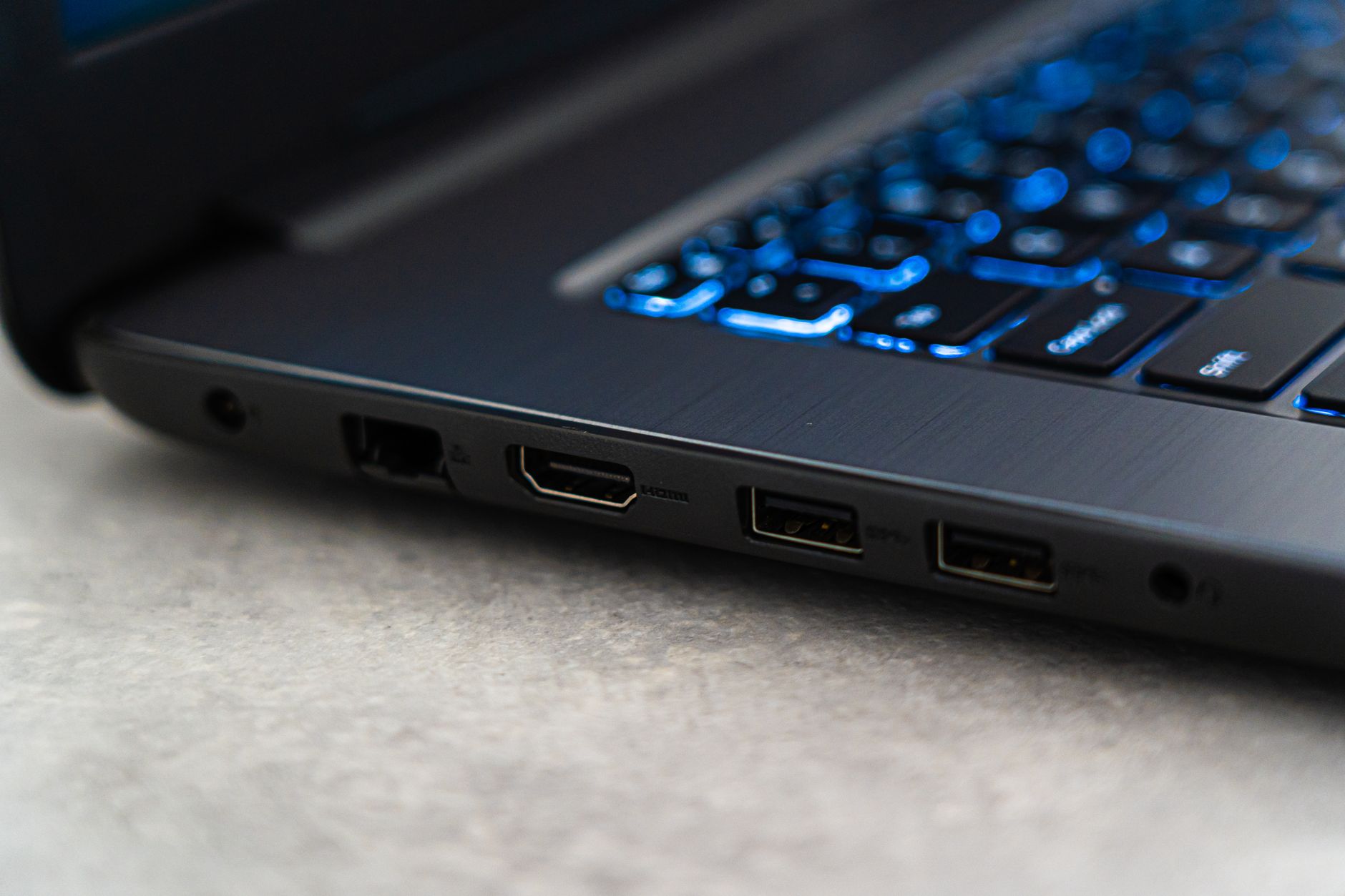
Photo by Castorly Stock on Pexels
Sometimes Windows 11 simply stops scanning for new video ports after a background update or display power state change. You can manually force the operating system to check for connected hardware.
- Right-click an empty space on your desktop and select Display settings.
- Scroll down to the Multiple displays section and click to expand it.
- Click the Detect button.
- Press Win + P on your keyboard to open the Projection menu. Ensure it is set to Extend rather than PC screen only.
Tip: If you are using a laptop with a dedicated graphics chip, make sure your laptop power cable is plugged into the wall. Some portable computers disable secondary video outputs when running purely on battery power.
Check Cable Connections, Adapters, and Display Ports
Physical connections cause a massive portion of display detection failures. Modern displays feature multiple input ports, but they rarely auto-detect active feeds reliably when waking up from power-saving modes.
| Port Type | Common Signal Issue | Recommended Solution |
|---|---|---|
| HDMI | Loose port connection or outdated cable version | Push cable firmly into port; test high-speed HDMI cable |
| DisplayPort (DP) | Latch pin not seated or sleep state lockup | Press pin latch fully before pulling; unseat and re-seat |
| USB-C / Thunderbolt | Port lacks Alt-Mode video output support | Plug cable directly into dedicated DisplayPort/Video USB-C port |
| VGA / DVI Adapters | Passive adapters fail signal conversion | Replace with an active powered adapter cable |
Always use the physical buttons on your monitor frame to open its internal menu (OSD). Move to the Input Source option and explicitly select your exact port, such as HDMI 1, HDMI 2, or DisplayPort. Do not rely on Auto-Select, as it frequently bypasses secondary signals.
Warning: Avoid chaining multiple video adapters together (for example, plugging a DisplayPort-to-HDMI adapter into an HDMI-to-VGA cable). Multi-adapter chains degrade display signals, block hardware handshake protocols, and cause detection failures.
Adjust Resolution and Refresh Rate Settings
If your graphics card cannot output two different screen refresh rates at the same time, your secondary display may remain pitch black or drop its signal repeatedly. Matching your screen refresh rates inside Windows settings resolves this issue.
- Open Settings by pressing Win + I.
- Navigate to System > Display > Advanced display.
- Select your primary screen from the top dropdown menu and note its refresh rate (such as 60 Hz or 120 Hz).
- Select your secondary monitor from the top dropdown menu.
- Click the Choose a refresh rate setting and select a rate that matches your primary screen (typically 60 Hz).
- Lower your desktop screen resolution temporarily to test if high bandwidth was blocking the video signal.
Restart or Reinstall Your Graphics Drivers
Recent operating system updates can disrupt graphics drivers. For example, cumulative updates like KB5074109 (OS Builds 26200.7623 and 26100.7623) and upgrades to Windows 11 version 25H2 can reset graphics configurations or conflict with display adapters.
Clear Out Hidden Device Profiles
When you plug a monitor into different ports, Windows 11 saves invisible duplicate profiles. These phantom entries cause device manager conflicts that block new screens.
- Right-click the Start button and select Device Manager.
- Click View at the top menu bar and check Show hidden devices.
- Expand the Monitors category.
- Right-click any grayed-out or faded monitor entries and select Uninstall device.
- Expand Display adapters, right-click stale adapter entries, and uninstall them.
- Restart your computer to allow Windows 11 to discover your physical monitor fresh.
Check HDCP and Daisy-Chain Configurations
If you connect screens using DisplayPort MST (Multi-Stream Transport) daisy-chaining or use a USB-C multi-port dock, specific hardware settings can block your video stream.
Pros of Docking Stations & MST
- Connects multiple monitors using a single cable to your laptop.
- Keeps your desk clean and organized.
- Provides extra USB ports and network connections simultaneously.
Cons of Docking Stations & MST
- Requires specialized USB-C ports with DisplayPort Alt-Mode support.
- Power bug issues can drop video feeds after waking from sleep.
- Higher bandwidth demands can lower maximum refresh rates.
If your laptop dock charges your battery but fails to output video, your USB-C port may lack video pass-through support. Look for a small DisplayPort logo or lightning bolt icon next to the port. Furthermore, in Windows 11 25H2, wireless display adapters and virtual network adapters (like Microsoft Wi-Fi Direct Virtual Adapter) can trigger power state errors (NDIS Event ID 10317) that disrupt external screen topologies after sleep.
Common Mistakes
Avoiding standard setup errors saves unnecessary troubleshooting time. Here are the most frequent mistakes users make when setting up multiple screens:
- Plugging into the motherboard instead of the GPU: On desktop PCs with a dedicated graphics card, plugging a display into the top motherboard panel disables the port. Always connect all monitors directly to the lower horizontal graphics card ports.
- Relying on system sleep mode: Putting a PC to sleep with multiple screens attached can confuse GPU topology when resuming. Set your power options to Turn off display instead of system sleep.
- Constantly switching physical ports: Swapping monitor cables across different ports repeatedly builds up ghost device entries in Windows 11. Pick a dedicated port and keep it connected.
Bottom line Most second monitor detection problems in Windows 11 stem from simple hardware handshake failures or bad display input sources. Start with Win + Ctrl + Shift + B and manually select your monitor's input port. If issues started right after a Windows update, cleaning out hidden entries in Device Manager offers the most reliable long-term fix.
When to Contact Support or Replace Hardware
If you have tested your setup with a different, high-speed cable and verified the monitor works on another computer, your video port or screen hardware may be physically damaged. Contact your monitor manufacturer or PC builder if:
- The monitor menu (OSD) does not appear even when disconnected from the PC.
- The display port shows bent metal pins or loose internal fittings.
- The graphics driver crashes constantly across every port even after a fresh reinstall.
FAQ
Why is my second monitor showing 'No Signal' in Windows 11?
A 'No Signal' message means your screen has power, but it cannot find an active video feed from your PC. This happens when the monitor is set to the wrong input source (like HDMI 2 instead of DisplayPort), the cable is loose, or your graphics card driver crashed.
How do I force Windows 11 to detect my display?
Open Settings, go to System > Display, expand Multiple displays, and click Detect. You can also press Win + Ctrl + Shift + B to reset your graphics card drivers on the spot.
Could a bad cable or adapter cause monitor detection failures?
Yes. Low-quality cables, long wire runs, or passive adapters often fail to carry enough signal bandwidth for high resolutions. Always test your monitor with a direct, high-speed HDMI or DisplayPort cable without adapter dongles.
Does updating graphics drivers fix dual monitor issues?
Yes. Graphics driver updates resolve display topology bugs, especially after major Windows 11 updates. Downloading fresh drivers directly from NVIDIA, AMD, or Intel replaces broken display profiles.
Why does my dock work for charging but not for video output?
Not all USB-C ports on laptops support video output. Your USB-C port must support DisplayPort Alt-Mode or Thunderbolt protocols to transmit video signals, even if it can deliver electrical power.
Sources
Facts in this article were checked against these pages on October 17, 2026:
- Second Monitor Not Detected Windows 11? Here's the Fix (vividrepairs.co.uk)
- Second Monitor Not Detected in Windows 11? (Working Fix!) (youtube.com)
- Windows 11 Not Detecting Your Second Monitor? Let's Fix it. (driversupport.com)
- Fix Second Monitor Not Detected on Windows 11/10 [Solved] - Driver Easy (drivereasy.com)
- Windows 11 cannot detect second monitor after update - Microsoft Q&A (learn.microsoft.com)
- How To Fix Second Monitor Not Detected in Windows 11 (PC & Laptop) (youtube.com)
How we researched this: this guide is based on current manufacturer information and reputable sources, listed in the Sources section above, and is updated when things change. Read our editorial policy.
Content Writter
Comments
No comments yet — be the first to share your thoughts.