
6 Password Manager Mistakes That Put Your Security at Risk
Are you making critical password manager mistakes? Learn how to avoid master password reuse, browser conflicts, and recovery key risks to keep your vault safe.

Quick answer: Setting up a password manager is the best way to protect your online accounts. However, common setup errors can leave your vault vulnerable. To keep your data safe, avoid master password reuse, turn off browser autosave prompts, enable 2FA using an authenticator app, and store recovery keys offline.
Using a password manager is one of the smartest security steps you can take. Dedicated tools like Bitwarden, 1Password, and Apple Passwords keep your logins safe behind strong AES-256 encryption. They encrypt your sensitive credentials locally on your device before syncing them to the cloud. This zero-knowledge design ensures that only you hold the keys to your personal data.
Yet simply downloading a password manager is not enough. Many people still make simple setup mistakes that compromise their security. In fact, a 2026 survey of 1,500 U.S. adults showed that 83% to 84% of people still reuse passwords across accounts. Furthermore, 65% continue to rely on predictable patterns, birth dates, or names. If you make similar errors with your main vault setup, hackers can still gain access.
Key takeaways
- Never reuse your master passphrase on any other website or service.
- Disable built-in browser password saving to prevent software conflicts and security leaks.
- Protect your vault with an authenticator app or hardware key instead of SMS codes.
- Store emergency recovery keys in a safe offline location, not as plain text on your device.
- Act quickly on vault security audit alerts to fix weak or leaked logins.
1. Reusing Your Master Password Across Other Accounts
Your master password protects every credential you own. If a hacker guesses or steals this single passphrase, your entire digital life becomes exposed. Reusing your master password on a shopping site, social media platform, or discussion forum is a major risk. If that external website suffers a data breach, attackers can use your leaked credentials to unlock your primary password vault.
Your master passphrase requires maximum protection. Aim for a length of at least 16 characters. Alternatively, use a random phrase of at least 12 characters that combines uppercase letters, lowercase letters, numbers, and symbols. Focus on sheer length and true randomness rather than simple pattern tweaks like replacing letters with numbers.
Warning: Do not use public AI chatbots to create your passwords. A 2026 security analysis by Irregular revealed that public AI models rely on predictable structural patterns when outputting text. Hackers can predict these AI patterns easily, making AI-generated passwords much weaker than true random strings.
How to create a safe master passphrase
Instead of choosing a memorable word with substituted numbers, combine four or five completely unrelated random words. For example, a phrase like correct-horse-battery-staple or blue-folder-piano-sunset-92 is easy for you to remember. Yet it remains nearly impossible for automated guessing tools to crack.
2. Leaving Browser Autofill Enabled Alongside Your Vault
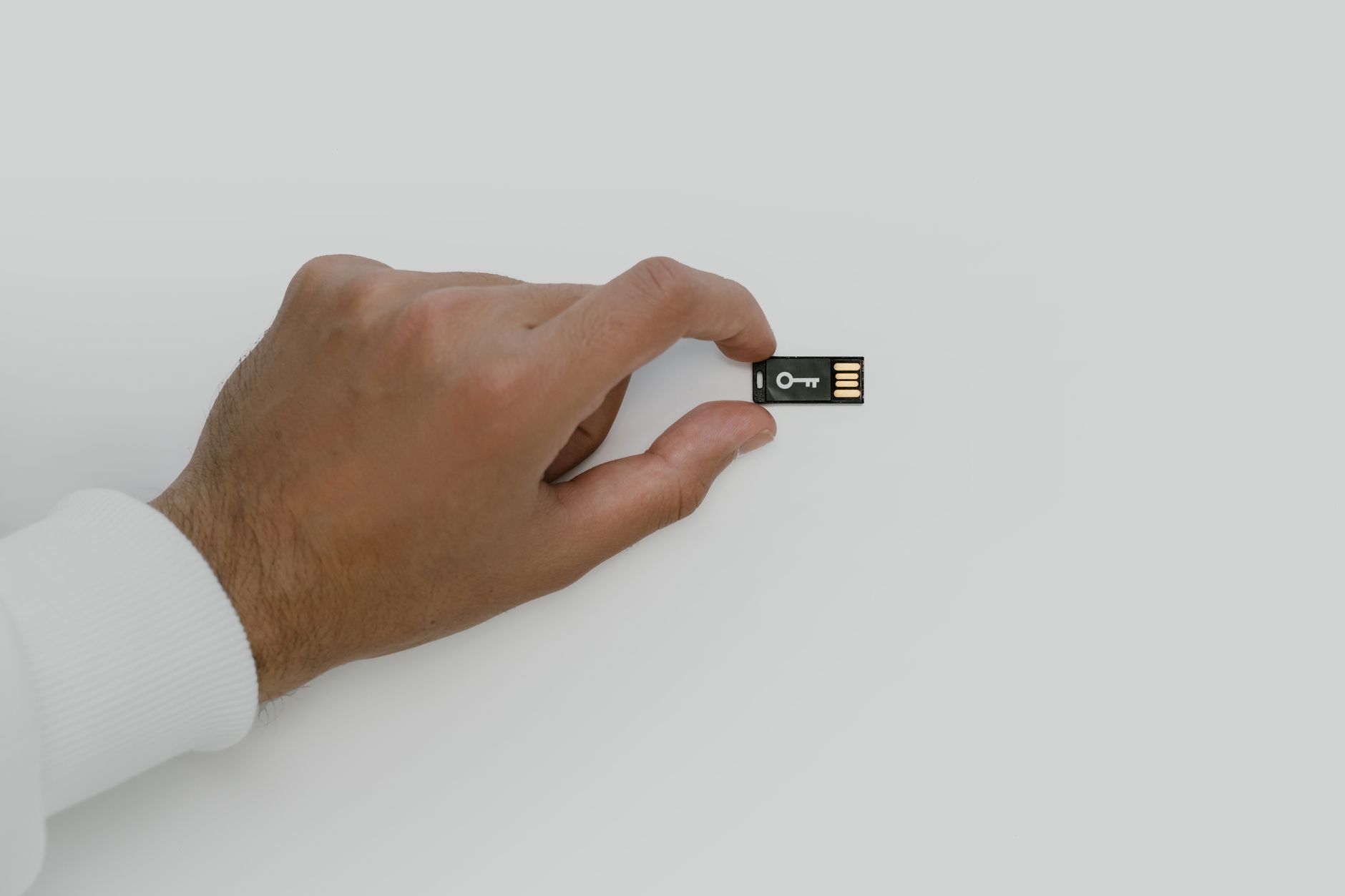
Photo by cottonbro studio on Pexels
Most modern web browsers ask to save your credentials every time you log into a site. Storing passwords inside native browser storage poses clear security risks. If someone gains access to your unencrypted computer profile or browser session, they can view your saved accounts in plain text. Browser storage lacks the strict master password protections found in dedicated software.
Running your browser's autosave feature alongside a standalone password manager also creates severe usability issues. Both systems will compete to fill in your login details at the exact same time. This leads to annoying pop-up overlap and UX conflicts. Worse, you might accidentally save a new password into your unencrypted browser profile instead of your secure zero-knowledge vault.
How to turn off browser password saving
- Google Chrome: Open Settings, click Autofill and passwords, select Google Password Manager, go to Settings, and turn off Offer to save passwords.
- Microsoft Edge: Navigate to Settings, select Profiles, click Passwords, and toggle off Offer to save passwords.
- Apple Safari: Open Preferences, click AutoFill, and uncheck the boxes for username and password saving.
3. Skipping Two-Factor Authentication on Your Primary Vault
Your master password is your first line of defense, but it should never be your only one. Skipping two-factor authentication (2FA) on your password manager leaves your vault vulnerable if your master passphrase is ever compromised through a keylogger or phishing attack.
Not all 2FA methods offer equal security. Relying on SMS text messages or email security codes leaves you open to SIM swapping attacks and email account takeovers. Hackers can intercept text messages by tricking cellular carriers into transferring your phone number to a new device.
Tip: Always secure your password manager using an app-based authenticator (such as Google Authenticator) or a physical hardware security key. You can also upgrade your accounts to support modern passkeys. To learn more about how this technology works, read our guide on passkeys explained.
Pros of App & Hardware 2FA
- Protects your vault even if your master password leaks.
- Immune to cellular SIM swapping attacks.
- Works offline without needing cell service.
Cons of App & Hardware 2FA
- Requires access to your authenticator device to log in.
- Losing your 2FA device without a backup can lock you out.
4. Setting Unreasonably Long Auto-Lock Timeout Intervals
Password managers allow you to set an auto-lock timer. Once this timer expires, the app locks your vault and requires your master password or biometric login to reopen it. Many users find entering their password inconvenient, so they set the auto-lock timer to several hours or disable it entirely.
Leaving your vault unlocked indefinitely is extremely risky. If you step away from your computer at work or leave your phone unattended in public, anyone with access to your unlocked screen can view or copy your stored credentials. They can export your entire password database in seconds.
Recommended auto-lock timer settings
Choose an auto-lock interval that balances daily convenience with strict security based on your physical location and device type:
| Device & Environment | Recommended Setting | Lock Trigger |
|---|---|---|
| Work Laptop (Shared Office) | 1 to 5 minutes | System sleep or display lock |
| Home Desktop (Private Space) | 15 to 30 minutes | App inactivity or display sleep |
| Mobile Phone (iOS / Android) | Immediate | Screen lock or app switch |
5. Storing Unencrypted Emergency Recovery Keys on Your Device
Zero-knowledge password managers cannot reset your password if you lose your master key. To prevent permanent lockouts, services like 1Password and Bitwarden give you a unique emergency recovery key or secret code during setup. If you forget your master password, this recovery code is the only way to regain access to your vault data.
A dangerous mistake is saving this code in a plain text file on your desktop, inside a mobile note app, or as an unencrypted document in cloud storage. If a hacker gains remote access to your device, finding your unencrypted recovery code lets them take control of your vault in a single chain attack.
How to store recovery keys safely
Never keep unencrypted recovery codes on your primary computer or phone. Print out your recovery sheet on paper and store it inside a fireproof home safe or a locked drawer. If you prefer a digital backup, save the emergency code inside an encrypted USB drive that stays unplugged from your network when not in use.
6. Ignoring Security Dashboard Breach Alerts and Duplicate Warnings
Modern password managers include automated security dashboards. Bitwarden, 1Password, and Apple Passwords continuously scan your vault for weak passwords, duplicate credentials, and exposed logins. They compare your saved data against external notification services like Have I Been Pwned to alert you when a website you use suffers a security leak.
Unfortunately, adoption of these security tools remains passive. Research shows that 63% of users rate their existing weak password habits as low risk, even amidst frequent database leaks. Ignoring these red warning flags leaves compromised accounts open to exploitation for months or years.
How to audit your vault in 3 simple steps
- Open your password manager's security dashboard or audit section.
- Filter your vault to show all reused passwords and update each duplicate account with a newly generated random string.
- Review breach alerts and immediately change the passwords for any web services marked as compromised.
Bottom line A password manager is an essential security tool, but it requires correct configuration to keep your data safe. Set a unique master passphrase of at least 16 characters, disable browser password prompts, turn on authenticator-based 2FA, and store your emergency recovery key offline. Everyone managing digital accounts should follow these rules, while users unwilling to maintain an offline backup key should carefully consider managed recovery options.
Related guide: 6 Common Portable Power Station Mistakes to Avoid
FAQ
Is it safe to store master password recovery keys online?
No. Storing recovery keys in plain text on cloud storage, email accounts, or online note apps creates severe security risks. If an attacker gains access to your cloud account, they can use the key to breach your entire vault. Always store emergency keys on physical paper or encrypted offline drives.
Should I disable built-in browser password saving when using a password manager?
Yes. You should always disable built-in browser password prompts. Browser autosave lacks zero-knowledge encryption and creates UX conflicts with your main vault extension. Turning it off ensures all new passwords save directly into your secure app.
How quickly should a password manager vault automatically lock?
On mobile devices, your vault should lock immediately when you leave the app or lock your screen. On desktop computers, set your auto-lock timer between 1 and 15 minutes depending on whether your work environment is shared or private.
What happens if I forget my password manager master password?
Because zero-knowledge managers do not store your master key on their servers, support teams cannot reset your password. If you lose your master passphrase, you must use your emergency recovery key. If you lost both your password and your key, your vault data is lost forever.
Is 2FA required for password manager accounts?
While some services allow you to skip it, enabling 2FA is critical for absolute vault safety. Use an app-based authenticator, hardware key, or passkey rather than SMS text codes to protect against SIM swapping attacks.
Sources
Facts in this article were checked against these pages on October 26, 2026:
- 6 Common Password Mistakes Putting Your Security at Risk (idropnews.com)
- The 6 Biggest Problems with Password Managers (hypr.com)
- Password Managers: Security, Risks, and Forensic Implications | ElcomSoft blog (blog.elcomsoft.com)
- Top 6 Password Security Mistakes to Avoid (cmitsolutions.com)
- 8 Password Mistakes That Put Your Data at Risk—and How to Avoid Them - TOBIN SOLUTIONS | Managed Service Provider Milwaukee, WI (tobinsolutions.com)
- Password managers: Security tips (ITSAP.30.025) - Canadian Centre for Cyber Security (cyber.gc.ca)
How we researched this: this guide is based on current manufacturer information and reputable sources, listed in the Sources section above, and is updated when things change. Read our editorial policy.
Content Writter




Comments
No comments yet — be the first to share your thoughts.