
Passkeys Explained: How They Work and How to Use Them
Learn how passkeys replace passwords and SMS security codes, how they sync across Apple, Google, and Microsoft platforms, and how to set them up on your devices.

Quick answer A passkey is a digital credential that replaces passwords and SMS two-factor authentication by using your device's biometrics or PIN to sign you in securely. Built on open standards, passkeys cannot be phished and allow instant logins across your synchronized devices.
Every login form poses the same problem: passwords are easy to forget, reuse, or lose to phishing scams. Adding two-step verification through text messages helps, but SMS codes are vulnerable to interception and extra hassle. Passkeys offer a permanent replacement for both passwords and classic two-factor authentication.
Major tech ecosystems like Apple, Google, and Microsoft have made passkeys the central pillar of account security. Having a clear passkeys explained guide helps show why this security update matters, how it works behind the scenes, and how to set it up across all your hardware.
Key takeaways
- Passkeys replace passwords and two-factor authentication with a single biometric check on your phone, tablet, or computer.
- Your biometric data never leaves your personal device; servers only receive a public cryptographic key.
- Passkeys sync securely across devices through your iCloud Keychain, Google Account, or password manager vault.
- Because passkeys are tied to specific web domains, they are immune to traditional online phishing scams.
What Is a Passkey and How Does It Replace Passwords?
To understand passkeys, think of a traditional lock and physical key. A password is like a combination code written on a sticky note—anyone who intercepts it can open your door. A passkey is like a custom physical key that stays in your pocket, combined with a lock that only turns when your device recognizes your face, fingerprint, or local device PIN.
Instead of typing a string of characters into a website, your device creates a cryptographic key pair when you register for an account. When you return to log in, the site sends a challenge to your phone or computer. Unlocking your device completes that challenge and signs you in automatically.
Passkeys replace both your traditional password and any secondary SMS or voice verification codes. Major platforms have adopted this model rapidly; for example, Microsoft Entra set passkeys as the default sign-in method on September 1, 2026, phasing out legacy text and phone call verification.
| Feature | Traditional Password | Password + SMS 2FA | Passkey |
|---|---|---|---|
| Phishing Resistance | Low | Medium | High (Domain-bound) |
| Credential Storage | Website Database | Website Database | Your Encrypted Vault |
| User Effort | Manual Typing | Typing Code from SMS | Biometric Scan / PIN |
| Data Stored on Server | Hashed Password | Hashed Password | Public Key Only |
How Passkeys Work Behind the Scenes (Without the Jargon)
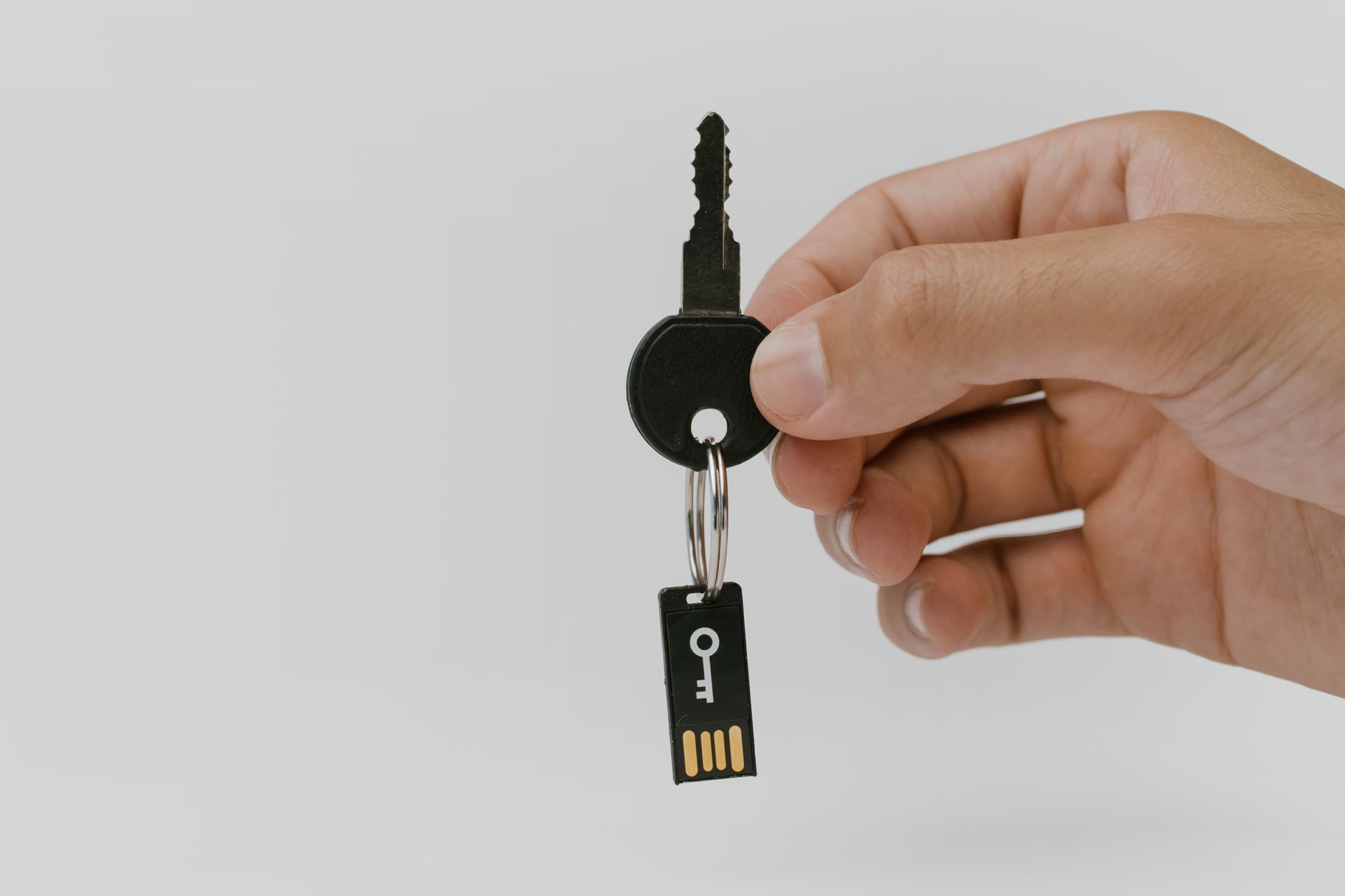
Photo by cottonbro studio on Pexels
Passkeys operate on open FIDO2 and WebAuthn standards using asymmetric cryptography. When you create a passkey for a service like Amazon or GitHub, your device generates two separate digital keys:
- The Public Key: Uploaded to the website's server. It is not secret, and it is useless to hackers on its own.
- The Private Key: Saved inside your device's secure hardware enclave, cloud keychain, or password manager. It never leaves your control.
When you sign in, the website's server generates a random cryptographic challenge. Your device presents a prompt for Face ID, Touch ID, fingerprint, or device PIN. This local authentication happens strictly on your hardware—your biometric measurements are never sent across the internet to the website.
Once you verify your identity locally, your device uses the private key to sign the cryptographic challenge and sends the signed answer back to the server. The server verifies this signature using the public key it stored during registration. If the math matches, you are signed in.
Tip: Because private keys are bound to specific web domains, a fake phishing website cannot trick your device into signing a login request for a real domain. If the domain doesn't match, your device simply won't offer the passkey.
How Passkeys Sync Across Your Apple, Google, and Microsoft Devices
In the early days of security keys, keys were locked to a single physical device. Modern passkeys solve this through end-to-end encrypted cloud sync, keeping your passkeys available whenever you upgrade or switch hardware.
Platform Ecosystem Syncing
Apple syncs passkeys across iPhone, iPad, and Mac hardware using iCloud Keychain. Google backs up passkeys to your Google Account across Android and Chrome devices. Microsoft uses Windows Hello and Microsoft Authenticator to sync credentials across Windows PCs and mobile devices. If you use an iPhone and want to keep your photo library synced alongside your credentials, you can follow our guide on how to free up iCloud storage without losing photos to ensure cloud backups run smoothly.
Cross-Platform Logins
If you need to log into a website on a Windows PC using a passkey stored on your iPhone, cross-device authentication uses a proximity check via Bluetooth and a QR code:
- Click the passkey sign-in option on the browser screen.
- Scan the displayed QR code using your phone's camera.
- Your phone and computer verify they are physically close to each other over Bluetooth.
- Approve the Face ID or fingerprint prompt on your phone to log into the desktop browser.
Third-Party Vaults
Cross-platform password managers like Dashlane allow you to store and sync passkeys independently of Apple or Google ecosystems. This makes switching between operating systems straightforward without relying on QR codes every time.
What Happens If You Lose Your Phone or Laptop?
Losing a device containing your digital keys is a common concern. Because passkeys are synchronized via encrypted cloud vaults, losing a single phone or laptop does not lock you out of your accounts forever.
When you log into a new phone using your Apple ID or Google Account, your passkeys restore automatically along with your settings. For instance, Microsoft Authenticator on iOS includes a guided passkey restore flow during device backup and restoration. If you are upgrading hardware, you can also review how to transfer eSIM to a new phone without losing service during your setup process.
Warning: Always set up backup recovery methods (such as account recovery contacts or emergency access keys) on your primary cloud accounts. If you lose access to your core Google or Apple account, recovering synced passkeys becomes significantly harder.
How to Start Using Passkeys on Your Favorite Apps and Sites
Most major platforms allow you to convert your account from a password to a passkey in a few steps:
- Log into the target website or application (such as Amazon, Google, or GitHub).
- Navigate to Account Settings or Security & Privacy.
- Look for the option labeled Passkeys, Passwordless Sign-in, or Passkey Management.
- Select Create a Passkey or Add a Passkey.
- Confirm your identity using Face ID, Touch ID, fingerprint, or system PIN when prompted by your browser or operating system.
Once confirmed, the website removes the need to enter your old password during future visits.
Limitations of Passkeys and When You Still Need Passwords
Pros
- Eliminates complex password memorization and reset flows.
- Complete protection against website server data breaches.
- Phishing-resistant design bound to exact web domains.
- Faster sign-ins via native biometrics.
Cons
- Legacy websites and smaller services may not support WebAuthn yet.
- Sharing logins with family members requires platform-specific sharing support.
- Requires a modern smartphone, tablet, computer, or hardware security key.
While industry adoption is widespread, passkeys are not universally supported by every web domain yet. You will still need a password for legacy sites, older desktop software, and corporate networks that have not upgraded their authentication protocols.
Common Mistakes When Using Passkeys
Avoid these frequent misunderstandings when transitioning away from passwords:
- Mistaking passkeys for two-factor authentication: Passkeys are a full replacement for passwords, not an extra step on top of them.
- Assuming biometric data is sent to websites: Your fingerprint or face scan never leaves your device's local secure processor.
- Believing passkeys are trapped on one device: Modern passkeys sync securely across all devices signed into your cloud account or password vault.
Bottom line Passkeys offer a faster, phishing-proof alternative to traditional passwords and SMS codes. Everyone using modern Apple, Google, or Microsoft hardware should enable passkeys on supported accounts like Google, Amazon, and GitHub to immediately boost account security.
FAQ
Are passkeys safer than password managers?
Yes. While password managers generate strong passwords, those passwords can still be typed into convincing phishing websites. Passkeys are cryptographically bound to specific domains, preventing fake sites from requesting your login credentials.
What happens to my passkeys if I lose my phone?
Your passkeys are backed up to your encrypted cloud storage account (such as iCloud Keychain or Google Account). Signing into your cloud account on a replacement device restores your passkeys automatically.
Can I use passkeys if I switch from iPhone to Android?
Yes. You can use cross-device authentication by scanning desktop QR codes with your new device, or move your passkeys smoothly using a cross-platform third-party password manager that supports passkey vaults on both platforms.
Do passkeys work on websites that don't support biometric login?
Biometrics are handled locally by your device, not the website. As long as your browser and phone support passkeys, you can use local biometrics or your device PIN to sign into any website that supports WebAuthn standards.
Sources
Facts in this article were checked against these pages on October 8, 2026:
- What Is a Passkey and How Do Passkeys Work? (dashlane.com)
- What are passkeys and how do they work? (clerk.com)
- What Are Passkeys? What Is a Passkey? Passkey Authentication Explained (passkeys.com)
- How Passkeys Work (A No-Tech Version) (youtube.com)
- How Passkeys Work | Passkey Central (passkeycentral.org)
- What is a Passkey? | Yubico (yubico.com)
How we researched this: this guide is based on current manufacturer information and reputable sources, listed in the Sources section above, and is updated when things change. Read our editorial policy.
Content Writter
Comments
No comments yet — be the first to share your thoughts.