
How to Fix a PS5 That Keeps Overheating
If your PlayStation 5 shuts down unexpectedly or sounds like a jet engine, try these step-by-step fixes to restore proper airflow and system stability.
Quick answer To stop your PS5 from overheating, clear at least 4 to 6 inches of open space around all vents, pop off the white side covers to vacuum out the designated dust catchers, and ensure the power supply vent isn't blocked. If random shutdowns persist during heavy gameplay, position the console horizontally and rebuild the database via Safe Mode.
When a PlayStation 5 overheats, it can interrupt intense gaming sessions with loud fan noise, an on-screen warning message, or an abrupt power-off without any warning at all. These issues affect all hardware generations, including the standard PS5, PS5 Digital Edition, and PS5 Pro.
Understanding how the console cools itself makes troubleshooting straightforward. Sony designed the PS5 to intake cool air through the top and front vents, push it past internal components using a large cooling fan and liquid metal thermal compound on the APU, and exhaust hot air through the rear vents. Dust buildup, poor placement, or software glitches can disrupt this airflow path. Follow this sequential guide to get a simple ps5 keeps overheating fix working without risking your hardware.
Key takeaways
- Maintain 4 to 6 inches of clearance around all exterior vents and avoid enclosed cabinets.
- Vacuum the internal dust catchers under the side panels at least once a month.
- Clear dust around the internal power supply vent, which is a major hotspot for thermal shutdowns.
- Lay the console horizontally if you suspect liquid metal thermal compound displacement or thermal pad degradation.
- Rebuild the system database in Safe Mode after applying software update 14.00 or later to clear corrupted cache files.
Common PS5 Overheating Symptoms
Before jumping into hardware maintenance, verify whether thermal throttling is the root cause. A console suffering from excessive heat typically exhibits one or more of these symptoms:
- On-screen heat notification: A message stating "Your PS5 is too hot. Turn off your PS5 and wait until the temperature goes down."
- Abrupt black-screen shutdowns: The console instantly turns off during demanding games without displaying an error code.
- Unusually loud fan noise: The internal cooling fan spins at maximum RPM continuously, sounding like a hair dryer.
- Visual artifacts or performance drops: Stuttering frame rates or screen tearing caused by thermal throttling of the APU.
If your console turns off without an error message, it is usually a built-in safety measure triggered when the power supply unit (PSU) or main processor hits critical temperature limits.
Step-by-Step Fixes for PS5 Overheating
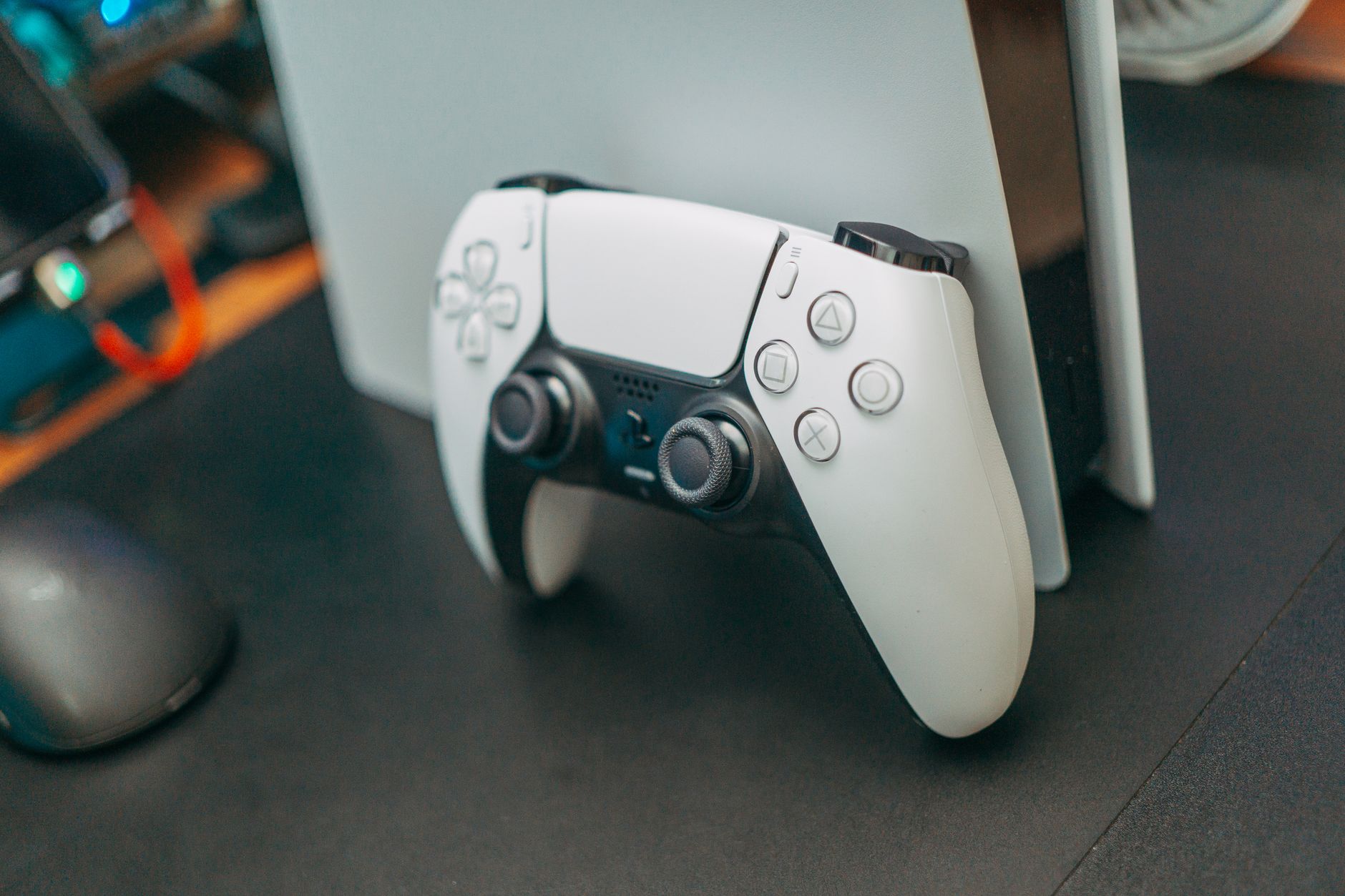
Photo by FOX ^.ᆽ.^= ∫ on Pexels
Work through these fixes in order, starting with basic environment adjustments before moving on to panel removal and software maintenance.
Check for Warning Messages and Ventilation Clearance
Ensure your console has room to breathe. Sony recommends keeping at least 4 to 6 inches of unobstructed open space around every vent. Never place your console inside an enclosed media cabinet, directly on a soft carpet, or near pet beds where loose hair quickly clogs intake grilles.
Relocate the Console for Better Airflow
Move the system to an open surface, such as the top shelf of an entertainment rack or a dedicated desk space. Verify that the rear vents pull hot exhaust away from walls rather than bouncing heated air back into the front intake grilles.
Clean Dust from the Console Vents and Power Supply
Dust accumulates quickly along the rear exhaust mesh and front intake vents. Power off the console, unplug all cables, and use a soft microfiber cloth or vacuum cleaner on a low setting to pull dust off exterior surfaces. Pay extra attention to the lower portion of the system where air reaches the internal power supply vent. A clogged power supply vent is the single most common cause of sudden shutoffs during long gaming sessions.
Vacuum the Internal Dust Catchers
Sony included dedicated dust catchers beneath the outer covers so users can safely remove debris without voiding their hardware warranty. Detach the top and bottom white side panels by lifting the corner edge up slightly and sliding the panel toward the base. Locate the two triangular holes built into the inner black frame. Place a low-powered vacuum nozzle directly over these holes to extract packed lint and pet hair accumulated deep around the heatsink fins.
Tip: Vacuuming the internal dust catchers once a month prevents deep thermal accumulation, keeping your fan running quietly even during intensive games.
Check the Vertical vs. Horizontal Stand Placement
While Sony designed the PS5 to stand vertically or rest horizontally using the included base, console repair technicians often recommend horizontal placement for high-mileage units. Over years of heat cycles, the liquid metal thermal interface material sitting between the APU and heatsink can occasionally pool or shift toward the lower edge when kept vertical. Resting the console horizontally uses gravity to maintain an even, uniform layer of liquid metal across the entire processor die.
Rebuild the Database in Safe Mode
Software corruption or misconfigured game settings can force the APU to run harder than necessary. Rebuilding your database fixes underlying file errors that cause system instability.
- Turn off the console completely by holding the power button until it beeps twice.
- Hold the power button again for approximately 7 seconds until you hear a second beep to boot into Safe Mode.
- Connect your DualSense controller directly to the console using a USB cable (wireless input does not work in Safe Mode).
- Select Clear Cache and Rebuild Database, then select Rebuild Database.
- Once restarted, navigate to Settings > System > Power Saving > Features Available in Rest Mode and confirm system software is updated (System Update 14.00 released on September 16, 2026, brought significant stability updates).
- Adjust global game presets under Settings > Saved Data and Game/App Settings > Game Presets and set your default preference to Performance Mode to reduce rendering stress.
Warning: Never use standard cotton swabs if attempting manual liquid metal re-application. Standard cotton sheds tiny fibers that contaminate the alloy. Only use lint-free or specialized liquid-metal-safe swabs, and take extreme care not to over-apply liquid metal, which can leak onto surrounding circuit board components.
Common Mistakes to Avoid
Avoiding these frequent errors will protect your console hardware from accidental damage during cleaning or setup:
- Tucking the console into tightly enclosed tv stands: Recirculating hot air causes rapid thermal buildup even if the fans are clean.
- Blowing compressed air straight into vents: Using high-pressure canned air without removing side panels can blast surface dust deeper into the heatsink matrix or over-spin fan bearings.
- Using improper tools for liquid metal maintenance: Cotton swabs or harsh chemical cleaners destroy thermal pads and oxidize internal surfaces.
- Forgetting the USB cable in Safe Mode: Attempting to navigate the Safe Mode recovery menu requires an anchored USB cable connection to the controller.
When to Contact PlayStation Support for Repairs
If your PS5 continues to shut down abruptly after thorough vent cleaning, dust catcher vacuuming, and horizontal placement, the issue likely stems from internal hardware degradation. Over time, liquid metal can oxidize or form dry spots on the APU, and secondary thermal pads covering voltage regulators can dry out and break down.
Contact PlayStation Support or an authorized repair technician if:
- The console shuts off within 5–10 minutes of starting any native PS5 game despite clear airflow.
- The cooling fan produces a loud grinding or squealing noise, indicating bearing failure rather than high airflow speed.
- You observe visual artifacting (colored lines or blocky patterns) right before the system powers down.
If you manage a broader home tech setup alongside your gaming desk, check out our guides on How to Fix a Windows 11 PC That Won't Wake from Sleep or How to Fix Bluetooth Headphones Audio Delay on PC for additional workstation optimizations.
Bottom line Most PS5 thermal issues are solved by providing 4 to 6 inches of clearance, vacuuming the internal dust catchers, and placing the console horizontally. Hardware disassembly for liquid metal re-application should only be attempted by experienced technicians or if out-of-warranty support options are unavailable.
Related guide: How to Fix Steam Deck Buttons or Triggers Sticking
Related guide: How to Fix PS5 DualSense Controller Stick Drift
FAQ
Why does my PS5 keep turning off while playing games?
Your PS5 automatically shuts off during heavy gaming when internal components—specifically the APU or power supply unit—reach maximum safety thermal limits. Dust accumulation in the power supply vents or blocked exhaust grilles are the most frequent causes.
How do I clean dust out of my PS5?
Power down the console, remove the white side panels by lifting the corners, and use a low-powered vacuum directly over the built-in triangular dust catcher holes. Clean the outer intake and exhaust grilles with a microfiber cloth.
Does putting the PS5 vertically cause overheating?
Vertical placement does not directly cause overheating on a healthy console. However, if the internal liquid metal thermal compound shifts or oxidizes over extended use, placing the console horizontally can distribute thermal contact more evenly across the processor.
What does the PS5 overheating warning look like?
The console displays a white pop-up box reading: "Your PS5 is too hot. Turn off your PS5 and wait until the temperature goes down." In severe cases, the system skips this prompt and powers off immediately to protect internal hardware.
When should I contact PlayStation support for repairs?
Contact support if your console continues to shut down within minutes of launching a game after you have cleaned all vents, vacuumed the dust catchers, and verified clear ambient airflow around the unit.
Sources
Facts in this article were checked against these pages on November 10, 2026:
- PlayStation 5 Overheating - iFixit Troubleshooting (ifixit.com)
- PS5 overheating: How to fix and stop it from happening | Asurion (asurion.com)
- Your PS5 Will Overheat Because Of This (youtube.com)
- PS5 : How to Fix Overheating Problems - Many Solutions! (youtube.com)
- PS5 Overheating Fix (2022 CFI-1200) | Full Disassembly, Deep Clean & Liquid Metal Replacement (youtube.com)
- How to Fix Overheating PS5 Console Repair Guide (facebook.com)
How we researched this: this guide is based on current manufacturer information and reputable sources, listed in the Sources section above, and is updated when things change. Read our editorial policy.
Content Writter



Comments
No comments yet — be the first to share your thoughts.