
Dynamic Island Explained: How It Works and How to Use It
Learn how the Dynamic Island works on modern iPhones and Macs. Master quick gesture controls, manage background tasks, and fix common interaction mistakes.
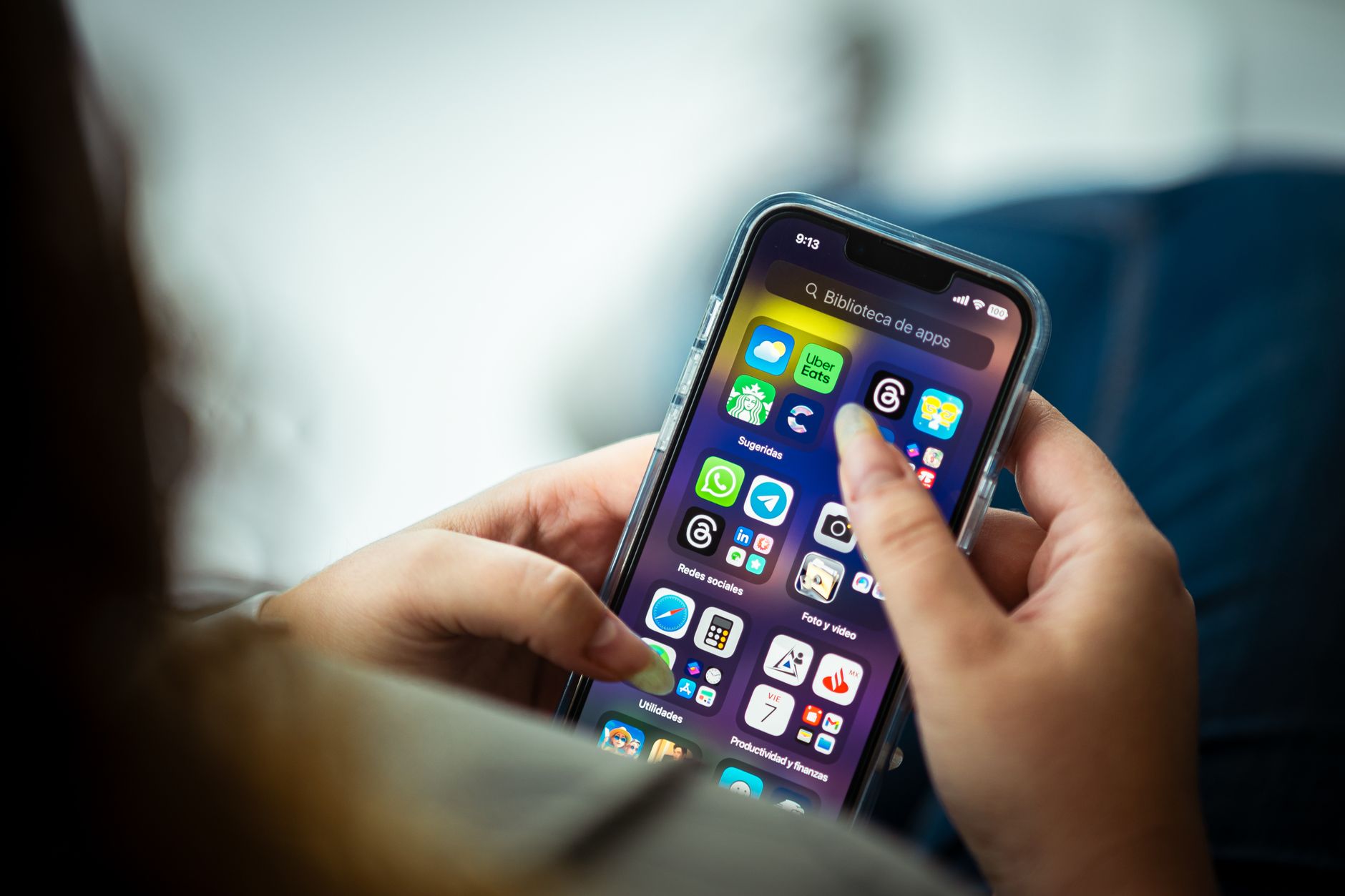
Quick answer The Dynamic Island is an interactive display feature on Apple devices that turns the camera cutout into an animated hub for alerts, background tasks, and live app updates.
When Apple introduced the Dynamic Island on the iPhone 14 Pro, it replaced the old black camera notch at the top of the display. Instead of leaving dead space around the camera lens, software animations expand and contract around the sensors in real time.
Think of it like an interactive digital marquee on your screen. It keeps active apps like timers, music, and navigation visible while you do other tasks on your phone. Getting the most out of it comes down to knowing a few simple touch gestures.
Key takeaways
- Tapping the island opens the full app immediately, while pressing and holding opens quick widget controls.
- Swiping across an active animation dismisses it from the top of your screen without closing the app.
- Standard iPhone models display up to two background tasks at once by splitting the island into two bubbles.
- The iPhone 18 Pro lineup supports up to three simultaneous Live Activities, while Apple has also brought the feature to macOS 27 on touchscreen OLED MacBook Pro models.
What Is the Dynamic Island and Which Devices Have It?
The Dynamic Island is a blend of hardware cutouts and software design. It covers the dark front camera and TrueDepth sensors with black pixels. Software shapes then expand from those pixels to show system alerts, incoming calls, and background activities without taking over your whole display.
Think of it like a smart highway sign. The hardware pole stays fixed in place, but the digital message board changes continuously based on what you are doing.
Apple first launched the feature on the iPhone 14 Pro and iPhone 14 Pro Max in September 2022. It is now standard across modern iPhone models, including the iPhone 17 lineup, iPhone Air, and iPhone 18 Pro series. In 2026, Apple expanded the feature beyond smartphones to macOS 27 on 14-inch and 16-inch touchscreen OLED MacBook Pro laptops powered by M6 Pro and M6 Max chips.
| Device Family | Hardware Cutout Size | Max Simultaneous Activities | Primary System Role |
|---|---|---|---|
| iPhone 14 Pro / 15 / 16 / 17 | Standard Pill | 2 Activities | Live Activities, Calls, Media Controls |
| iPhone 18 Pro / 18 Pro Max | Narrow Pill | 3 Activities | Multi-tasking, Siri Orb, Live Updates |
| MacBook Pro (M6 Pro/Max) | Standard Pill | 2 Activities | Spotlight, Siri AI, macOS 27 Tasks |
How the Dynamic Island Works: Live Activities and Background Tasks
The island constantly updates based on active processes. When you play a podcast, set a timer, or start turn-by-turn navigation, the black area expands to display essential details right at the top of your screen.
It relies heavily on Live Activities. These are real-time updates from apps that stream data directly to your screen. For example, sports scores, ride-share status, and food delivery tracking update live without sending repeated pop-up notifications.
On standard iPhone models, the system can show a maximum of two active tasks at once. If you start a music track and then start a countdown timer, the island splits into two separate visual elements: a main pill and a smaller secondary bubble on the right side.
Warning: If you start a third background task (like a workout or flight tracker) while two items are already visible, the third item stays hidden. It will not appear in the island until you close or clear one of the first two tasks.
Everyday Gestures: Tapping, Pressing, and Swiping the Island
Many users miss out on quick controls because they do not know the basic touch gestures built into the interface.
- Single Tap: Opens the full application instantly. If you tap a playing podcast, your screen jumps right into the main music app.
- Press and Hold (Long Press): Expands the island into a expanded widget panel. This gives you direct control buttons—like scrubbing a track, pausing a timer, or answering a call—without switching away from your current app.
- Swipe Left or Right: Dismisses an active task animation. Swiping across the island hides the visual alert while keeping your app running safely in the background.
On iOS 27, Siri also integrates directly with these gestures. Rather than lighting up the edges of the display, Siri expands from the island as a swirling, pill-shaped orb ready for voice commands.
Best Third-Party Apps That Feature Dynamic Island Support
Beyond built-in tools like Apple Maps, Voice Memos, and screen recording, many popular third-party apps use the feature to streamline tasks:
- Uber and Lyft: Shows driver arrival times, vehicle details, and pick-up status in real time.
- DoorDash: Displays order progress from food prep to delivery at your doorstep.
- Flighty: Tracks flight delays, gate changes, and baggage claim updates directly at the top of your screen.
- Citymapper: Gives quick turn-by-turn transit directions and stop alerts while you browse other apps.
If you rely on smart home devices alongside daily productivity apps, hardware integration makes a big difference. For example, setting up automation shortcuts works much like tracking background tasks; check our guide on smart plug mistakes that ruin home automation to streamline your connected gear.
Common Mistakes When Using the Dynamic Island
Knowing what not to do saves time and keeps your screen clear of clutter.
Tapping Instead of Holding
The most common mistake is tapping the screen when you want quick controls. A fast tap immediately leaves your current screen to launch the full application. If you only want to pause audio or check remaining timer seconds, always press and hold down on the island to open the mini widget.
Assuming Missing Tasks Are Software Bugs
If your workout or delivery app stops showing up at the top of your screen, check how many background tasks are already active. Standard iPhone models cap visible activities at two. The third app is still running, but the system hides its visual indicator until space clears up.
Leaving Unwanted Animations Active
You do not need to let an active timer or player icon clutter your display when you are finished monitoring it. Simply swipe horizontally across the animation to clear the visual pill from view.
Pros
- Keeps critical background info visible without interrupting your workflow.
- Long-press actions offer fast playback and timer controls.
- Works across both iOS 27 and macOS 27 devices.
Cons
- Limited to 2 simultaneous tasks on most standard hardware models.
- Accidental single taps can pull you out of your current app.
- Physical camera lens sitting inside the touch area gets dirty easily.
How to Customize or Disable Dynamic Island Animations
While you cannot disable the physical cutout itself, you can easily manage or turn off individual Live Activities if alerts become distracting.
- Open the Settings app on your iPhone or Mac.
- Tap or click on Face ID & Passcode (or Touch ID & Passcode).
- Scroll down to the Allow Access When Locked section.
- Toggle off Live Activities to prevent real-time updates from appearing on your lock screen and top bar.
To turn off alerts for a single app, go to Settings > [App Name] > Live Activities and turn the feature off specifically for that app.
Bottom line The Dynamic Island is an excellent multitasker that turns unused screen space into a helpful alert center. It is ideal for active users who frequently track rides, media, and navigation, but users who prefer a clean display can easily swipe active items away or turn off Live Activities in Settings.
FAQ
Which iPhone models have the Dynamic Island?
The Dynamic Island is available on the iPhone 14 Pro, iPhone 14 Pro Max, all iPhone 15 models, iPhone 16 models, iPhone 17 models, iPhone Air, and iPhone 18 Pro series.
Can you turn off the Dynamic Island on iPhone?
You cannot turn off the physical space or system animations entirely, but you can turn off Live Activities in Settings or swipe across the island to hide active animations instantly.
How do you interact with two active apps in the Dynamic Island?
When two apps are active, the island splits into a larger primary pill and a smaller secondary circle. Tapping or holding either shape controls that specific app independently.
Does the Dynamic Island drain extra battery?
No noticeable battery drain occurs. The feature turns on black OLED pixels around the camera cutout, which consume almost no extra power during routine background tasks.
Why isn't my app showing up in the Dynamic Island?
Your app may not support Live Activities, or you already have two active tasks running on a standard iPhone model. Make sure Live Activities are turned on under Settings for that specific app.
Sources
Facts in this article were checked against these pages on November 5, 2026:
- How To Use Dynamic Island Features - Dynamic Island Explained (youtube.com)
- Dynamic Island iPhone Guide: What It Is & How It Works – Smartish (smartish.com)
- iPhone Dynamic Island: How It Works & Benefits | Reteno (reteno.com)
- How to Use the iPhone Dynamic Island (youtube.com)
- How To Use Dynamic Island on iPhone 17, Pro, Pro Max & iPhone Air (Complete Guide) (youtube.com)
- How To Use Dynamic Island on iPhone 18 Pro & Pro Max (Complete Guide) (youtube.com)
How we researched this: this guide is based on current manufacturer information and reputable sources, listed in the Sources section above, and is updated when things change. Read our editorial policy.
Content Writter



Comments
No comments yet — be the first to share your thoughts.