
How to Fix an External Hard Drive That Won't Mount
Troubleshoot your external hard drive safely. Learn step-by-step methods to fix mounting errors, bypass OS bugs, and recover your lost files.

Quick answer To fix an external hard drive that won't mount, start by changing the cable and port. If that fails, restart your computer, use Disk Utility or Disk Management to force mount the drive, and check for software conflicts before attempting any data recovery or formatting.
Seeing your external drive spin or light up while remaining completely invisible on your computer screen causes immediate panic. You might worry that years of photos, documents, or backups are gone forever.
Most of the time, the drive is not permanently broken. Instead, a minor power glitch, a corrupted file system table, or a software conflict prevents the operating system from reading the partition. Current systems like macOS Tahoe 26.3 and Windows 11 present unique mounting challenges, but systematic troubleshooting usually brings your files back into view.
Key takeaways
- Never format your unmounted drive immediately, as formatting erases all remaining data.
- Simple hardware changes, like swapping a faulty USB cable or using a direct power port, fix many mounting issues instantly.
- Operating system updates, such as macOS Tahoe 26.3, can introduce temporary bugs that disrupt external storage devices.
- Built-in tools like Disk Utility on Mac and Disk Management on Windows can force a stubborn drive to mount safely.
Common Reasons Your Drive Won't Mount
Drives fail to appear in Finder or File Explorer for several distinct reasons. Recognizing the underlying symptom helps you pick the right fix without wasting time on steps that do not apply to your situation.
Here are the common symptoms you might encounter:
- The drive spins or lights up, but nothing appears on your desktop or file manager.
- Your computer makes the USB connection chime, but the drive volume stays hidden.
- You receive specific system pop-ups, such as third-party NTFS driver errors or code disenter warnings on Mac.
- The drive disconnects randomly during large file transfers, often due to thermal limits or weak power delivery.
Common root causes range from faulty cables and insufficient power supply to file system corruption and outdated software drivers. For instance, recent updates like macOS Tahoe 26.3 introduced specific mounting bugs for external SSDs and third-party NTFS file system drivers. On Windows 11, heavy data transfers can cause mechanical drives to overheat and drop connection.
Before you dive into fixes, check out related hardware considerations like USB-C Cables Explained: Charging Speeds and Data Rates to ensure your physical connection is not holding you back.
- Try a Different Cable and Port: Disconnect other power-draining accessories, plug your computer directly into a wall outlet, swap your USB cable, or test the drive on a different machine.
- Restart Your Computer in Safe Mode: Clear temporary system glitches by performing a standard restart or entering Safe Mode.
- Use Disk Utility or Disk Management to Force Mount: Manually trigger the mount command using built-in operating system tools.
- Check for Driver or Software Conflicts: Remove or update conflicting third-party file system utilities that block drive communication.
- Run First Aid or CHKDSK for File System Errors: Scan and repair damaged directory structures safely.
Step 1: Try a Different Cable and Port
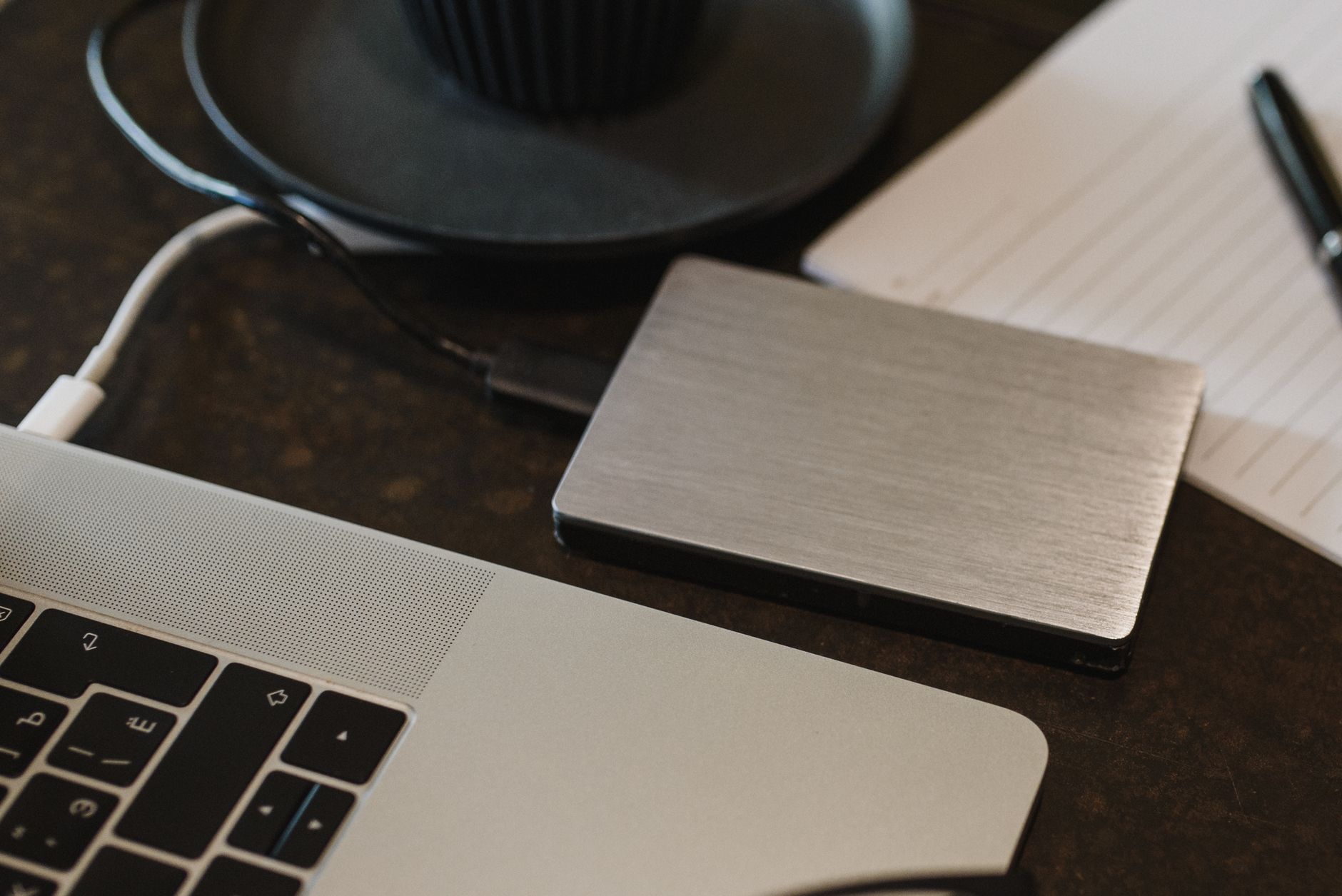
Photo by Arina Krasnikova on Pexels
External drives need stable power and clean data paths to mount properly. Many apparent drive failures are actually cable or port failures.
Unplug your external drive from its current port. If you use an unpowered USB hub, disconnect it entirely and plug the drive directly into a port on your computer. Hubs often fail to supply enough current for mechanical drives or high-performance portable SSDs.
Next, swap out the USB cable. A damaged internal wire can transmit just enough power to make an LED light turn on, but fail to transfer the data signals required for the computer to recognize the drive. If possible, test the drive on a completely different computer to rule out your current machine as the source of the problem.
Step 2: Restart Your Computer in Safe Mode
Temporary software glitches in your operating system often prevent external storage from mounting. A clean system restart clears out temporary caches and background processes that might be locking your USB ports.
If a standard reboot does not work, start your computer in Safe Mode. Safe Mode loads only essential kernel extensions and disables third-party login items, which helps isolate whether a background app is interfering with your storage hardware.
Tip: If you use an older Intel-based Mac, you can also reset the NVRAM and SMC by holding Left Control, Left Option, and Right Shift for seven seconds, then adding the power button for another seven seconds before booting back up.
Step 3: Use Disk Utility or Disk Management to Force Mount
Sometimes the operating system detects the physical drive hardware, but simply forgets to attach the file system volume to your desktop. You can force the system to mount the drive manually.
On a Mac, open Disk Utility through Spotlight or your Applications folder. Click the View button in the upper left corner and select Show All Devices. Find your external drive in the sidebar, select the main volume, and look for the Mount button in the toolbar. If the button is clickable, click it to force the volume open.
On Windows, right-click the Start button and select Disk Management. Locate your drive in the lower pane, right-click the partition block, and choose Change Drive Letter and Paths to assign a fresh letter if none is present.
Step 4: Check for Driver or Software Conflicts
Software conflicts frequently block drives after major operating system updates. For example, macOS Tahoe 26.3 triggered widespread mounting failures and slow transfer speeds for external drives relying on legacy third-party NTFS drivers.
If you use third-party software to read Windows-formatted drives on a Mac, check for updates to that software immediately. Outdated drivers often throw mounting errors or cause system extensions to crash. Uninstalling conflicting file system tools temporarily can allow the drive to mount in read-only mode, letting you rescue your important files.
Step 5: Run First Aid or CHKDSK for File System Errors
If your drive mounts successfully but you cannot open any files, or if the system prompts you that the disk is unreadable, your file system directory may be damaged.
Mac users can run built-in diagnostic tools safely. Open Disk Utility, select your unmounted volume, and click the First Aid button. The system will inspect the partition map and repair minor directory corruption.
Warning: Running repair tools on a failing drive can sometimes cause further data loss if the hardware itself is physically damaged. If your files are irreplaceable, skip repair utilities and use data recovery software first.
Windows users can open Command Prompt as an administrator and run the check disk utility to scan for bad sectors and logical errors.
When to Consider Professional Data Recovery
If none of the software steps work and your drive exhibits alarming physical symptoms, stop troubleshooting immediately.
Listen closely to the drive enclosure. If you hear rhythmic clicking, repeated beeping, or scraping noises, the internal read/write heads have suffered catastrophic mechanical failure. Software tools cannot fix physical hardware damage, and keeping the drive plugged in can permanently scratch the magnetic platters.
Disconnect the drive and consult a cleanroom professional data recovery service. If the drive spins quietly with no strange noises but remains invisible in Disk Utility or BIOS, specialized software like Disk Drill or Donemax Data Recovery can sometimes scan the raw hardware sectors locally to pull your files out before you send the drive away for recycling.
Pros
- Most mounting issues are fixed with simple cable swaps or manual mounting.
- Built-in tools like Disk Utility resolve minor software corruptions safely.
- Data recovery software can retrieve files before formatting.
Cons
- Operating system updates can introduce stubborn bugs that require waiting for a patch.
- Physical mechanical failures cannot be fixed at home.
- Formatting wipes all data permanently if you skip recovery steps.
Common Mistakes
Panicking often leads to costly errors when handling storage hardware. Avoid these common pitfalls:
- Formatting immediately: Wiping the drive before trying data recovery software destroys any remaining chance of getting your files back.
- Ignoring power limits: Plugging high-draw mechanical drives into unpowered USB hubs starves the motor of necessary electricity.
- Misdiagnosing hardware failure: Assuming a drive is totally dead when it is actually just suffering from a temporary file system or OS mounting glitch.
Bottom line Try the non-destructive steps in order, starting with cables and manual mounting in Disk Utility. If software tools see your files, back them up immediately before attempting repairs or formatting. Skip DIY methods entirely if the drive makes mechanical clicking noises.
FAQ
Why is my external hard drive not showing up on my Mac?
Your Mac may fail to show a drive due to a loose cable, insufficient power, disabled Finder view settings for external disks, or recent operating system bugs like those found in macOS Tahoe 26.3.
How do I force my PC to recognize an external hard drive?
Open Windows Disk Management, locate the unassigned storage block, and manually assign a drive letter so File Explorer can display the volume.
Will I lose my files if I use Disk Utility First Aid?
First Aid is designed to repair directory structures without deleting user data, but running repair tools on a failing drive carries inherent risks if the hardware is degrading rapidly.
How can I access data from a corrupted external drive?
If the operating system can still read the raw sectors, third-party recovery applications like Disk Drill or Donemax can scan the drive and extract your files to a healthy location.
Why does my hard drive spin but not mount?
A spinning drive has enough electrical power to run the motor, but a corrupted file system, bad driver, or damaged partition table prevents the computer from reading the data directory.
Sources
Facts in this article were checked against these pages on October 1, 2026:
- How to Fix Your External Hard Drive Not Mounting on a Mac (cleverfiles.com)
- 2026 Solutions: Fix External Hard Drive Not Mounting on Mac (donemax.com)
- Fix External Drive Not Mounting on Mac ✅ (youtube.com)
- External Hard Drive Suddenly Won't Mount (SOLVED) (forums.linuxmint.com)
- Fixed: External Hard Drive Not Mounting on Mac [2025 Updated] (donemax.com)
- External Hard Drive Is Not Mounting on Mac: Quick Fixes (help.7datarecovery.com)
How we researched this: this guide is based on current manufacturer information and reputable sources, listed in the Sources section above, and is updated when things change. Read our editorial policy.
Content Writter


Comments
No comments yet — be the first to share your thoughts.