
5 Common Smart Dash Cam Mistakes to Avoid (and How to Fix Them)
Avoid corrupted footage, dead car batteries, and blurry night video by fixing these five common smart dash cam mistakes.
Quick answer To avoid smart dash cam mistakes, use a high-endurance memory card designed for constant video writing. Mount your camera in the windshield wiper path, set up low-voltage protection for parking mode, and check your camera sensor for true 4K support.
Installing a smart dash cam gives you peace of mind on the road. You expect clear video of every drive and safe parking monitoring while away. However, simple setup errors can leave you with missing video or a dead car battery when you need help most.
Modern dash cams use mobile apps, advanced image sensors, and multi-channel cameras. Managing these features requires proper installation and correct app settings. Here is how to fix five common smart dash cam mistakes.
Key takeaways
- Generic MicroSD cards fail quickly under continuous video loop writing.
- Mounting outside the wiper path or over windshield dots creates blurry footage.
- Parking mode can drain your main car battery without low-voltage protection or dedicated power packs.
- Upscaled 4K resolution produces poor night video compared to true 4K sensors like the Sony Starvis 2 IMX678.
- App connectivity drops if you ignore mobile companion firmware updates.
Using the Wrong MicroSD Card Class for Continuous Video
Smart dash cams write data to storage constantly. They save continuous video loops and overwrite old files when memory fills up. Cheap or generic MicroSD cards cannot handle this heavy workload. Standard cards quickly corrupt data and trigger system alerts.
Warning: A standard phone memory card will often fail within weeks when used inside a dash cam. This leaves you without recording during an accident.
Purchase high-endurance MicroSD cards labeled for continuous video recording. High-endurance cards use durable memory chips made for constant writing. Check your dash cam manual for supported storage size limits. Format your card directly inside the camera menu once a month to clear file errors.
Placing the Camera Where It Blocks Your View or Sensors

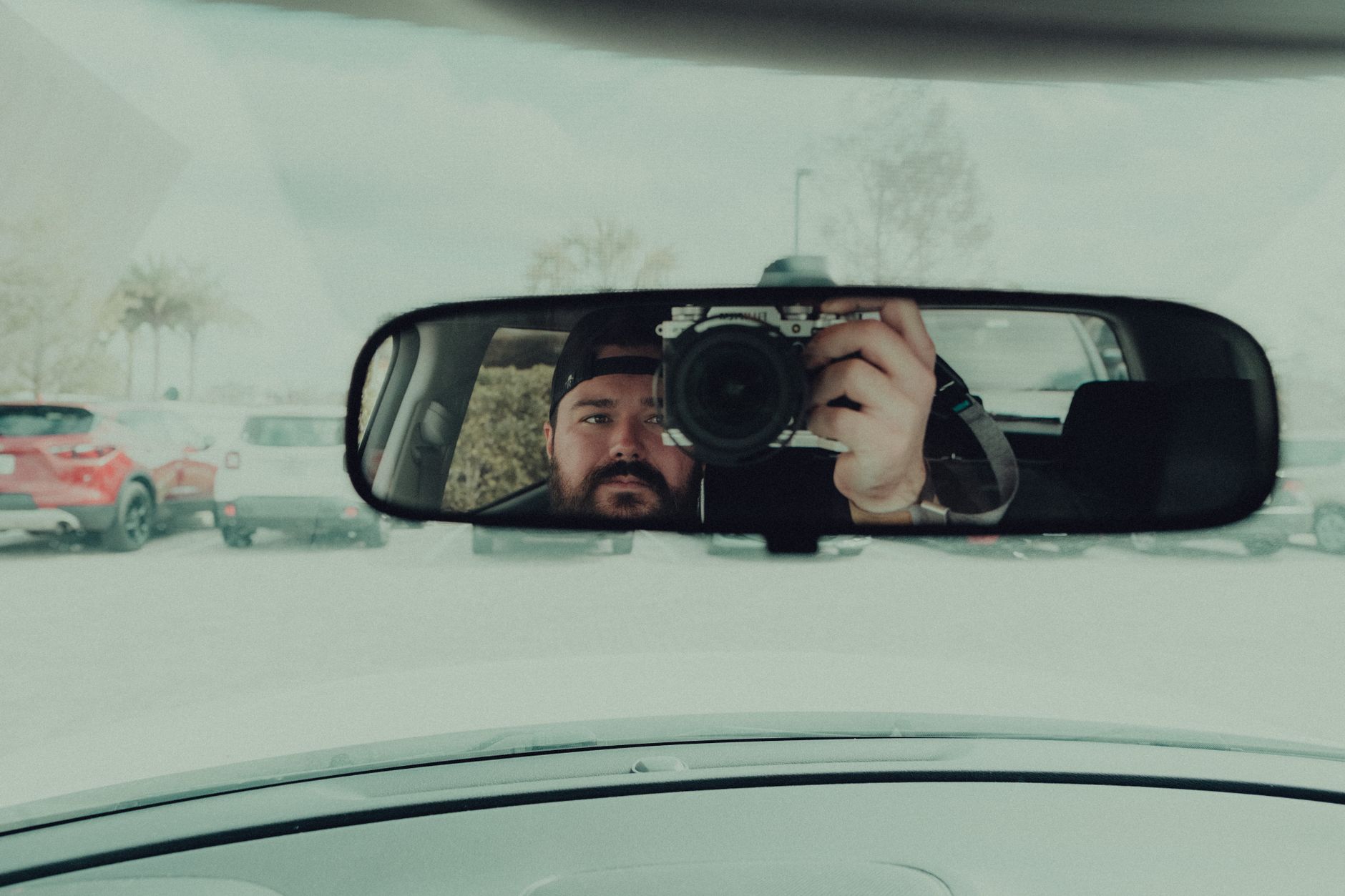
Photo by Мария Сусоева on Pexels
Mounting position affects image quality and safe driving. Drivers often attach the camera too high on the windshield. If you place the camera over the black dotted frit area, the dots obscure the lens. Placing the camera outside the windshield wiper sweep zone means rain and dirt ruin your video.
How to Position Your Camera Correctly
- Stay in the wiper zone: Place the lens inside the area swept by wiper blades. Clean glass ensures clear video during heavy rain.
- Avoid the black dots: Mount the suction cup or adhesive pad on clear glass just below the dark windshield pattern.
- Center behind the mirror: Mount the unit directly behind or below your rearview mirror to keep your forward view clear.
If you use dual-lens systems like the Akeeyo EYES, place the unit high enough to let the telephoto and wide-angle lenses see over your dashboard.
Relying on Wi-Fi Sync Instead of Direct Power Controls
Smart dash cams offer Wi-Fi connections to sync footage directly to your smartphone. Drivers sometimes assume Wi-Fi sync replaces proper direct wiring. However, relying on wireless links for heavy data transfers can fail during emergencies or hot summer days.
Extreme interior car heat damages battery-powered electronics. Supercapacitors have largely replaced lithium-ion batteries in top dash cams like the Viofo A229 Pro. Supercapacitors handle heat ranges from sub-zero conditions up to 149°F safely. Always rely on hardwired power cables or solid supercapacitor power rather than wireless app links alone.
Ignoring Parking Mode Battery Drain Settings
Parking mode keeps your cameras active while your car stays parked. Time-lapse settings save space by recording at lower frame rates. However, running parking monitoring directly from your vehicle starter battery can drain it completely overnight.
Tip: Set your cut-off threshold to at least 12.0V or 12.2V in your camera app settings to protect your vehicle battery.
Enable low-voltage cut-off protection in your camera settings or fuse kit. This setting cuts power to the camera before your starter battery gets too low. Newer setups use dedicated wireless power solutions. For example, the Redtiger 4G LTE Battery Pack charges while you drive and powers your camera when parked without touching vehicle starter lines.
Leaving Night Vision and Motion Sensitivity at Default
Many shoppers buy cameras based on bright marketing claims about 4K quality. However, cheap models enlarge 2K footage through upscaling. Fake 4K video looks grainy and blurry at night. True 4K requires large hardware sensors like the Sony Starvis 2 IMX678, found in modern units like the 70mai A810 or Redtiger F77.
App settings also need manual adjustments. Default motion sensitivity often triggers hundreds of false alerts from moving trees or distant headlights. Lower your parking motion sensitivity by one step in the app to save power and storage space.
If you record inside your cabin or need extra views, multi-channel models like the 4-channel Redtiger F17 Plus offer complete coverage. Check out our guide on how to choose the right action camera for your needs to learn more about dynamic video capture.
Common Smart Dash Cam Setup Errors
| Setting or Hardware Choice | Common Mistake | Correct Setup Solution |
|---|---|---|
| Memory Card | Using standard phone card | Buy a High-Endurance Class 10 card |
| Windshield Placement | Mounting on black frit dots | Mount on clear glass inside wiper path |
| Power Connection | Ignoring low-voltage cut-off | Set cut-off to 12.0V–12.2V in app |
| Video Resolution | Assuming all 4K is equal | Choose Sony Starvis 2 sensors |
| Firmware | Never updating camera app | Check app for manual updates monthly |
Bottom line Avoid corrupted files and dead car batteries by pairing a true 4K Sony Starvis 2 dash cam with a high-endurance memory card. Mount the lens inside your wiper sweep zone and enable low-voltage cut-off protection. If you want hassle-free parking mode, choose a model with a dedicated external battery pack.
FAQ
Why does my dash cam keep saying memory card error?
Your camera triggers memory errors when the card cannot keep up with continuous writing. Replacing standard MicroSD cards with high-endurance cards built for video surveillance fixes this issue.
Will a dash cam drain my car battery in parking mode?
Yes, parking mode can drain your battery if low-voltage cut-off is disabled. Ensure your hardwire kit or app is configured to cut power when battery voltage drops below 12.0 volts.
Where is the best place to mount a dash cam?
Mount your camera directly behind or slightly below your rearview mirror. Make sure the lens stays inside the area cleaned by your windshield wipers.
Why is my smart dash cam video blurry at night?
Blurry night video usually comes from digital upscaling on cheap camera sensors. Look for models with native Sony Starvis 2 image sensors for clean low-light recording.
Sources
Facts in this article were checked against these pages on October 18, 2026:
- Top 5 Mistakes to Avoid When Using a Dashcam (iroad.kr)
- 5 Mistakes To Avoid When Using A Dash Cam In Your Car (bgr.com)
- What are 5 Common Mistakes to Avoid When Using a ... (cartrack.co.za)
- Common Mistakes to Avoid When Using a Dash Camera ... (autoskyus.com)
- Common Dashcam Installation Mistakes to Avoid for Clear ... (facebook.com)
- 7 Dash Cam Buying Mistakes New Buyers Make (getnexar.com)
How we researched this: this guide is based on current manufacturer information and reputable sources, listed in the Sources section above, and is updated when things change. Read our editorial policy.
Content Writter




Comments
No comments yet — be the first to share your thoughts.