
How to Fix a Printer That Says Offline
Learn step-by-step how to fix your printer when it says offline on Windows 11. Clear queues, reset connections, and get printing again fast.

Quick answer To fix a printer that says offline, clear your stuck print queue, uncheck the "Use Printer Offline" toggle in your printer settings, restart the Windows Print Spooler service, and ensure your physical Wi-Fi or USB connections are secure.
There is hardly anything more frustrating than needing to print an urgent document only to find your machine unresponsive and stubbornly labeled as offline. This common software and network communication glitch happens when your operating system loses touch with a powered-on printer due to hung print queues, frozen spooler services, IP address shifts, or checked offline toggles.
With Windows 10 support having officially ended on October 14, 2025, modern troubleshooting paths focus entirely on Windows 11 environments. By following a structured approach from the easiest physical checks to more advanced driver reinstalls, you can restore your printing functionality quickly without calling tech support.
Key takeaways
- Always start with basic power cycling and physical cable checks before altering software settings.
- The "Use Printer Offline" toggle is often hidden inside the print queue window.
- Restarting the Windows Print Spooler service clears hung background print tasks.
- Assigning a static IP address prevents future dynamic DHCP dropouts.
Check Physical Connections and Power
Before diving into complex operating system menus, verify your hardware setup. Ensure all power cables are secure and plug the printer directly into a wall outlet rather than a faulty power strip or surge protector that might be delivering inconsistent voltage. If your device relies on a direct USB connection, unplug the cable and plug it into a different port on your computer to rule out a broken port.
For wireless setups, check the printer's display panel to confirm it shows a solid Wi-Fi connection indicator. If the signal icon is blinking or missing, the printer has dropped off your local wireless network. Match the network name displayed on the printer directly with the Wi-Fi network your computer is currently connected to.
Tip: If you are looking for ways to stabilize other smart home devices experiencing random connection drops, check out our guide on how to fix a smart TV that keeps losing Wi-Fi for related network troubleshooting tricks.
Set the Printer as Default and Clear the Print Queue
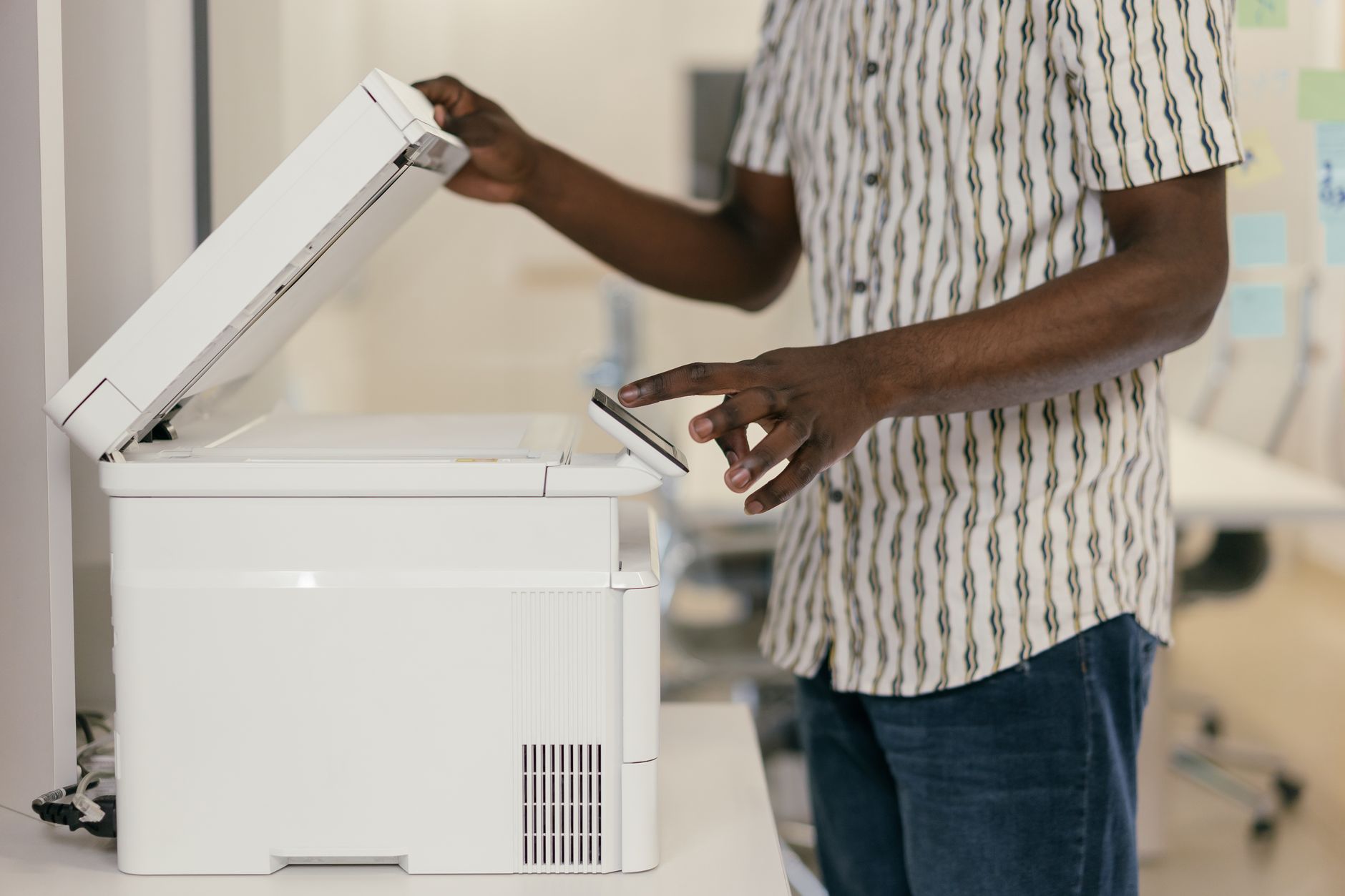
Photo by Mikhail Nilov on Pexels
When Windows loses track of your hardware, it often creates a hidden communication block inside the active print queue. You must open this specific menu to clear out hung tasks and reveal hidden status toggles that tell the operating system to stop talking to your printer.
- Navigate to Settings > Bluetooth & devices > Printers & scanners (or open the classic Control Panel and select Devices and Printers).
- Select your problematic printer from the list and click Open queue (or See what's printing).
- Click the Printer menu at the top of the queue window and ensure that both Use Printer Offline and Pause Printing are completely unchecked.
- Clear any stuck documents by choosing Cancel All Documents from that same menu.
- Right-click the printer in your main device list and select Set as default printer. If a prompt appears warning you that Windows will stop managing your default printer, click OK.
Restart the Print Spooler Service
The Print Spooler is a core background software service running on your computer that manages all print jobs sent to your local or network printer. If this service freezes, crashes, or gets stuck in a loop, your printer will immediately show an offline status regardless of its physical state.
To restart this service, press the Windows key, type Services, and open the desktop app. Scroll down the alphabetical list to locate Print Spooler. Right-click the service and select Restart. If the option is greyed out or stuck in a stopping state, you may need to open Task Manager, end any active spooler tasks, and return to the Services window to start it fresh.
Disconnect and Reconnect to Your Wi-Fi Network
Dynamic IP address shifts are a primary culprit behind sudden offline errors. When your home router reassigns a new IP address to your printer via DHCP, your computer may still be looking for the device at its old address. Power cycling your entire home printing ecosystem forces a fresh handshake across the local network.
Turn off both your computer and your printer. Unplug the printer's power cord from the back of the device and wait for 30 to 60 seconds. Plug it back in, turn it on, and allow it to fully reboot and re-establish a stable connection to your router. Once both machines are running again, check if communication is restored. If this issue happens repeatedly, log into your router or printer web interface to assign a static IP address to the printer so its address never changes.
Remove and Reinstall the Printer Driver
If software glitches persist after trying simpler fixes, your printer driver may have become corrupted. Completely removing the driver forces Windows to build a clean communication bridge.
- Go back to Settings > Bluetooth & devices > Printers & scanners.
- Select the problematic printer and click Remove or Delete to purge it from your system.
- Restart your computer completely to clear any residual driver files from memory.
- Return to the same settings menu, click Add device, and let Windows discover the printer. Alternatively, download the latest official driver and firmware package directly from the manufacturer support site for brands like HP, Brother, Canon, or Epson.
Warning: Avoid downloading printer drivers from unofficial third-party driver aggregation websites, as these often bundle unwanted adware or outdated software packages.
Common Mistakes to Avoid
When troubleshooting an offline printer, users frequently make a few avoidable errors that prolong the headache. Review this list to ensure you are not wasting time on ineffective steps.
Failing to uncheck both status boxes: Users often uncheck "Use Printer Offline" but forget that "Pause Printing" is also checked in the exact same print queue dropdown menu.
Ignoring stuck queue items: Attempting to reconnect the network while corrupted print jobs remain trapped in the queue will continue to block all incoming communication.
Reinstalling drivers too early: Jumping straight to a full driver uninstall before trying a simple print spooler restart or power cycle wastes valuable time.
Leaving automatic management on: Allowing Windows to manage your default printer can cause the system to override your manual choice and revert to an offline virtual driver like Microsoft Print to PDF.
Bottom line For home users dealing with a sudden printer disconnect, systematically working through a power cycle, clearing the print queue, and restarting the print spooler resolves the vast majority of offline errors within minutes without requiring advanced technical help.
FAQ
Why does my printer keep saying it is offline?
Your printer usually shows offline because of a temporary network drop, a frozen print spooler service on your computer, or an active software toggle in your print queue that tells Windows to pause communication.
How do I reset my printer connection?
Turn off both your printer and computer, unplug the printer for 60 seconds, plug it back in, and check that your printer display panel shows a solid connection to your home Wi-Fi network.
How do I restart the print spooler on Windows?
Press the Windows key, search for and open the "Services" app, locate "Print Spooler" in the list, right-click it, and select "Restart" to refresh your computer's print management backend.
Why is my wireless printer not responding?
Wireless printers often stop responding when your router assigns a new dynamic IP address via DHCP, causing your computer to lose track of the printer's location on the local network.
How do I clear a stuck print queue?
Go to Settings > Bluetooth & devices > Printers & scanners, select your printer, click "Open queue," click the "Printer" menu at the top, and select "Cancel All Documents."
Sources
Facts in this article were checked against these pages on October 4, 2026:
- How to Fix Printer Offline Problem in Windows PC/Laptop (youtube.com)
- Why Is My Printer Offline? 7 Ways to Troubleshoot (businessinsider.com)
- Why is My Printer Offline? Solved! - Pollock Company (pollockcompany.com)
- Troubleshooting offline printer problems in Windows | Microsoft Support (support.microsoft.com)
- Why does my printer always say its offline and how do I ... (h30434.www3.hp.com)
- My printer keeps going offline. How do I fix this issue? - Microsoft Q&A (learn.microsoft.com)
How we researched this: this guide is based on current manufacturer information and reputable sources, listed in the Sources section above, and is updated when things change. Read our editorial policy.
Content Writter


Comments
No comments yet — be the first to share your thoughts.